When setting up your system or expanding your project scope, you can batch import cost codes by either generating a list directly on your screen and saving it, or by filling out a standard Excel template and uploading the file. Both bulk upload methods save time and ensure your financial documents are ready for highly accurate tracking from day one.
- Ideal for large updates: Bulk creation is especially useful for uploading your entire standardized list during initial setup, importing highly specific codes to track distinct deliverables, or quickly adding batches of new codes for Time & Materials (T&M) and recurring costs.
Select the method below to jump to the exact instructions you need:
- Method 1 - Generate on-screen: This option allows you to manually create a cost code list directly within the system interface. It is best for quickly entering a small batch of codes without leaving the application.
- Method 2 - Upload a spreadsheet: This option is best for large volumes. It requires creating a list as an Excel file using the standard template. The instructions below will walk you through preparing your cost code spreadsheet and uploading the file to your master list.
Manually Create the Cost Code List
- Ensure that you are on the 'Active Cost Codes' screen, if not:
- Log in to your company management console
- Click 'Cost Code' on the top and 'Active Codes' on the left
- Click the 'Import' button at the top right
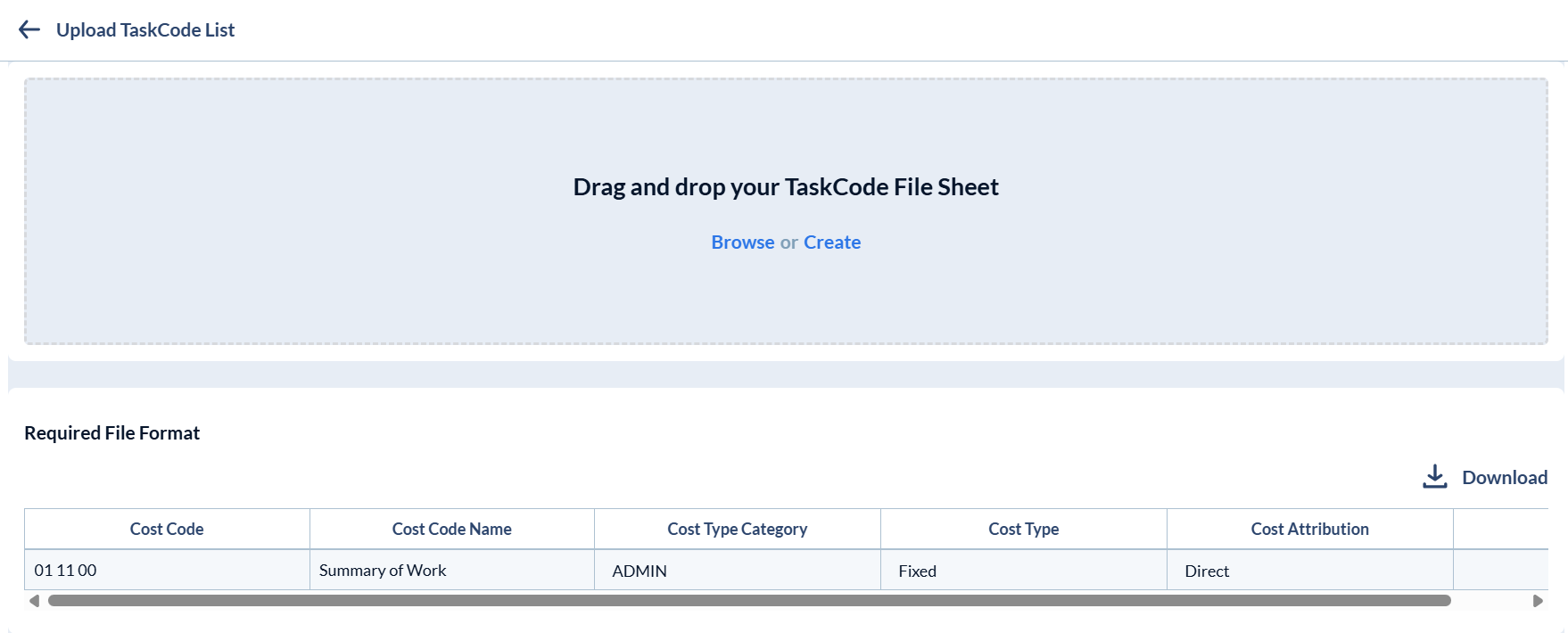
- Click 'Create' inside the box to open the sheet to manually the cost items one-by-one
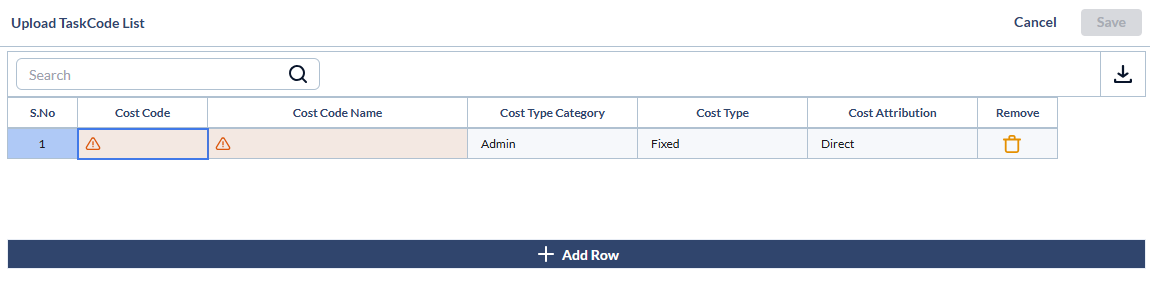
Enter the values for the first item under the following column headers:
- Cost Code: The unique identifier or standard CSI code for the new cost item you are defining.
- Cost Code Name: A short, descriptive label for the cost item.
- Cost Type Category: Select the category of the work (e.g., ADMIN, OFFICE, FIELD, T&M, or Recurring Cost).
- Cost Type: Select the classification of the expense. Choose Fixed (a predefined allocation) or Variable (changes based on usage or conditions).
- Cost Attribution: How the cost is allocated. Can be Direct (project-specific, like materials, labor, and equipment) or Indirect (overhead, miscellaneous, and external subcontractors).
- Click 'Add Row' and repeat the process to add more cost codes to the list
- Use the
 button in the last column to remove any inadvertently added entries
 - Once the list is complete, click the 'Save' button to upload the list
Once saved, the items are added to your cost code list and are auto-added with color codes. You can change these color codes as required. See Change Color of a Cost Code for more details.
Import Cost Codes from a Spreadsheet File
The process involves two steps:
Step 1 - Create a List of Cost Codes
- Ensure that you are on the 'Cost Codes' screen
- Click the 'Import' button on the top right.
- Click 'Download' to obtain a blank Excel file containing the required field headers.
- Create your cost code list in the Excel file by entering the values for each line item.
To ensure a successful batch upload, your spreadsheet must meet the following conditions:
File structure
- Header Row: Keep the first row intact with the exact column headers as they appear in the downloaded template
- One Row Per Cost Code: Every line below the header should contain the details for a single Cost item. Ensure all fields align correctly under their respective headers.
- File Name: Save the document with a clear, recognizable file name before uploading.
Required Field Details
- Cost Code: The unique identifier or CSI code.
- Task Name: A short, descriptive label for the cost item.
- Task Type: The category of the work (Permitted values: ADMIN, OFFICE, FIELD, T&M, or Recurring Cost).
- Cost Type: The classification of the expense. Can be 'Fixed' (predefined allocation) or 'Variable' (changes based on usage or conditions).
- Cost Attribution: How the cost is allocated. Can be 'Direct' (project-specific, like materials, labor, and equipment) or 'Indirect' (overhead, miscellaneous, and subcontractors).
- Save the Excel file with an appropriate name.
Step 2 - Upload the Cost Code List
- Return to the 'Upload Cost Code List' screen
- Click inside 'Browse' and navigate to the file you want to upload.
- Alternatively, drag and drop the file into the box
Your entries are validated and added to the draft list if there are no errors in them. Correct the errors where necessary. Click inside the cell and edit the details as required
- Enter the task type for each item manually. The permitted values are 'ADMIN,' 'OFFICE,' 'FIELD,' and T&M.
- Enter the cost type as fixed or variable and cost attribution as direct or indirect.
- Click the 'Save' button.
Once saved, the items are added to your cost code list and are auto-added with color codes. You can change these color codes as required. See Change Color of a Cost Code for more details.
Search, filter, and sorting options:
- Use the 'Search' box located at the top left to find a cost code using any value from the table as search criteria
- Right-click the column header and customize the display and order of the columns as you wish
- The options at the top right allow you to filter the entries, create nested groups of entries, and manage personalized and customized views of the table. Use the links below to learn more about these:
- Hover over a column header and click the
 icon to sort the rows in ascending or descending order of entries in that column
Download the File list
- Click the 'Download' button at the top-right to save a copy of the list in Excel format on your device or in the project repository for record-keeping and sharing. See Download List Views and Logs in Excel Format to learn more
Was this article helpful?
That’s Great!
Thank you for your feedback
Sorry! We couldn't be helpful
Thank you for your feedback
Feedback sent
We appreciate your effort and will try to fix the article