As your projects evolve, you can easily expand your company's master cost code list by manually adding standard (e.g., CSI) or custom codes. This is especially useful to Create custom codes to precisely capture specialized project costs, including Time & Materials (T&M) work, recurring expenses, and standard tasks.
This article walks you through the steps to manually add cost codes one by one to your master list. If you need to upload a sizable number of codes at once, please refer to our guide on Import Cost Codes from a Spreadsheet File.
To add new cost codes
- Open the 'Cost Code' screen in the admin console
- Click 'Cost Code' on the top menu, if you are on a different screen. The 'Active Codes' screen opens by default.
- Click '+Add Row' at the bottom.
A new blank row gets added at the bottom of the list.
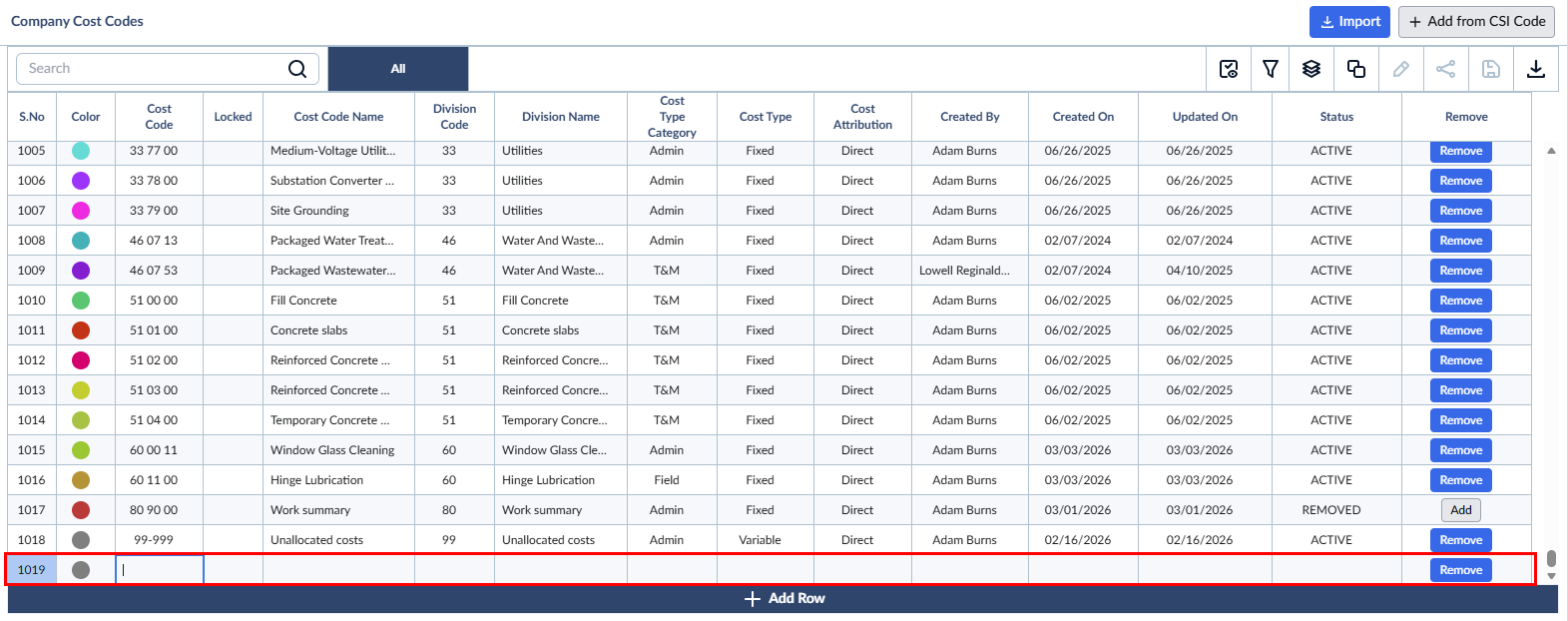
Enter the values for the tasks under the following column headers:
- Cost Code: The unique identifier or CSI code for the cost item you are defining.
- Cost Code Name: A short, descriptive label for the cost item.
- Cost Type Category: Select the category of the work (e.g., ADMIN, OFFICE, FIELD, T&M, or Recurring Cost).
- Cost Type: Select the classification of the expense. Can be Fixed (predefined allocation) or Variable (changes based on usage or conditions).
- Cost Attribution: How the cost is allocated. Can be 'Direct' (project-specific, like materials, labor, and equipment) or 'Indirect' (overhead, miscellaneous, and subcontractors).
The following read-only fields will automatically populate as soon as you the new code is auto-saved:
Division Code & Division Name: Applicable exclusively to standard CSI codes, these fields display the code and descriptive name of the work discipline per the CSI MasterFormat.
Created By & Created On: Automatically captures your active user profile name and the exact date the code was generated.
Updated By & Updated On: These will initially mirror the creation details and will automatically update whenever future modifications are made to the cost code.
Status: Defaults to indicate the new cost code is active.
All entries are saved automatically and ready to use immediately. If you add a cost code by mistake, simply click the 'Remove' button in the last column to hide or suspend it.
- Click '+Add Row' and repeat the process to add more line items.
The items are included in your company cost code list and are auto-added with color codes. You can change these color codes as required. See 'Change the Color Code of a Cost Item' in the previous page for guidance on this.
Was this article helpful?
That’s Great!
Thank you for your feedback
Sorry! We couldn't be helpful
Thank you for your feedback
Feedback sent
We appreciate your effort and will try to fix the article