Prerequisite: QuickBooks Online (QBO) setup and data mapping must be configured at the company level before any project data can be accessed or synchronized here.
The Staging Platform gives Project Managers and authorized users complete control over the data flowing between Linarc and QuickBooks Online. While some data syncs automatically in the background, critical project and financial records—such as budget updates, recurring transactions, invoices, and payroll—require manual review.
The staging area provides a safe, controlled environment to import, verify, and manually push this data to its destination.
To access the staging platform
- Open the portfolio console
- Click 'Integrations' on the top
- Select 'ERP Integration' on the left
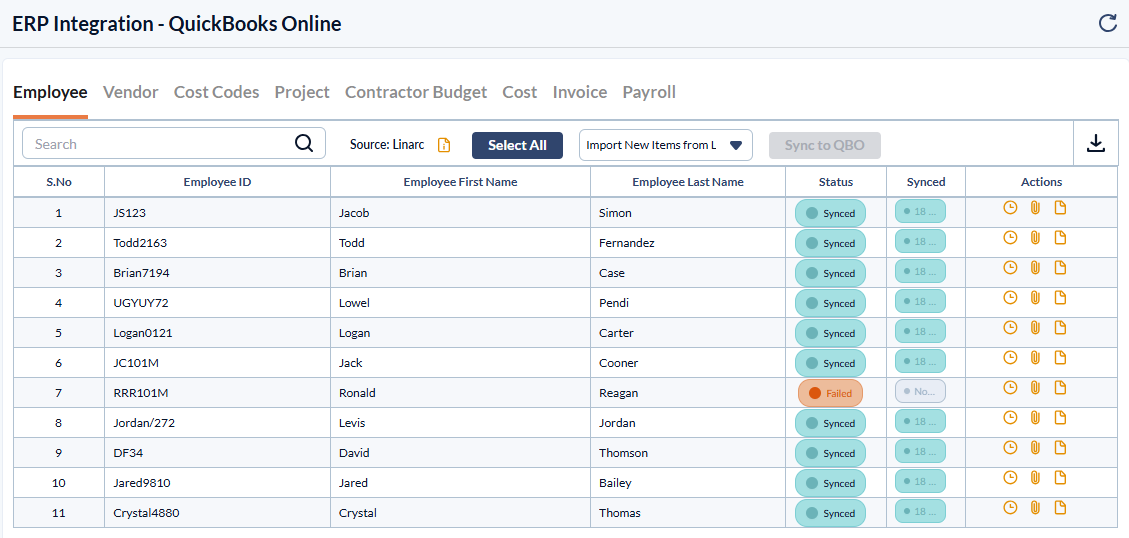
- Tabbed Organization: Your data is organized into distinct tabs for each object type (e.g., Employees, Invoices, Budgets). Note: You will only see tabs for the specific record types chosen for synchronization in your company-level QBO configuration.
- Real-Time Status: Under each tab, you can view individual records, their current synchronization status, and the exact timestamp of their last successful sync.
The Manual Sync Workflow at a Glance
When you are ready to synchronize data, the Staging Platform follows a simple three-step workflow:
1. Import to Staging - Pull data from the source system into the staging platform. You have the flexibility to import all existing records, only newly added records, or manually select specific items to stage.
2. Verify and Push - Review the staged data to ensure financial accuracy. Once verified, simply click a button to push the approved data securely to the destination system.
3. Troubleshoot and Resolve - The platform equips you with built-in tools to handle data discrepancies before they reach your accounting system:
- Identify Errors: If a record fails to sync, hover your mouse over its status indicator to reveal the exact reason for the failure.
- Fix Mismatches: If the system detects mismatching data components between platforms (like slight spelling differences in an employee's name), you can manually map the entries between Linarc and QBO with just a few clicks.
Note: Ensure your budgets, bills, and invoices are fully finalized and approved in Linarc before importing them. This step is critical, as it establishes your official financial estimates, accounts payable, and accounts receivable in QBO.
See the following pages for more details:
Was this article helpful?
That’s Great!
Thank you for your feedback
Sorry! We couldn't be helpful
Thank you for your feedback
Feedback sent
We appreciate your effort and will try to fix the article