Approved Linarc invoices sync seamlessly to your ERP system, ensuring billing stays aligned with project progress.
Prerequisites:
- Administrative Setup: Synchronization rules between the source and destination must be configured in the administration settings. If you need assistance, please contact your Company Administrator.
- Manual Imports: The auto-update is disabled for invoices, you must manually import the records into the staging platform before executing the sync.
- Project Details: The corresponding project details for the budget must also be mapped and synced.
- The invoice must be generated before synchronization can proceed. See Generate and Submit Invoice for Payment for more details.
The behavior of an invoice record depends on the status of the payment and where the payment is recorded.
Invoice Synced and Awaiting Payment
- When an invoice is created in Linarc, it is imported into the staging platform.
- Staged invoices sync to ERP automatically.
- Once the sync is successful, the record is created in ERP with a status of Payment Pending.
Payment Recorded in ERP After Sync
- Initially, the invoice will show a 'Payment Pending' status.
- When you record a payment directly in ERP, the status of the invoice will get updated in the staging platform within 24 hours.
- The status changes to Synced, indicating the invoice is paid in ERP.
Invoice Marked as Paid in Linarc
- If an invoice is marked as paid in Linarc, it keeps that status throughout the process.
- After the sync within 24 hours of the update, the staging platform reflects the status as 'Synced.'
- This ensures the systems match even if the payment was first handled within Linarc.
:
- Update Frequency: Status updates are not real-time; they are driven once every 24 hours.
- Data Consistency: The payment status is derived from both systems to ensure your project and accounting records are always aligned.
- The Project Manager must manually mark the invoice as paid in Linarc if the payment is processed through ERP.
- The Project Manager can manually mark an invoice as paid in Linarc if the payment is processed outside ERP, and then sync the update to ERP.
To sync invoices to ERP
- Ensure that you are in the staging platform. If not,
- Click the main menu at the top left
- Select 'Portfolio' menu from the drop down and select 'Integrations' at the top
- Click the 'Invoice' tab
Note: Invoice synchronization is available only for QuickBooks Online (QBO) and QuickBooks Desktop (QBD).
The screen displays the list of generated invoices grouped by projects from Linarc to the staging platform.
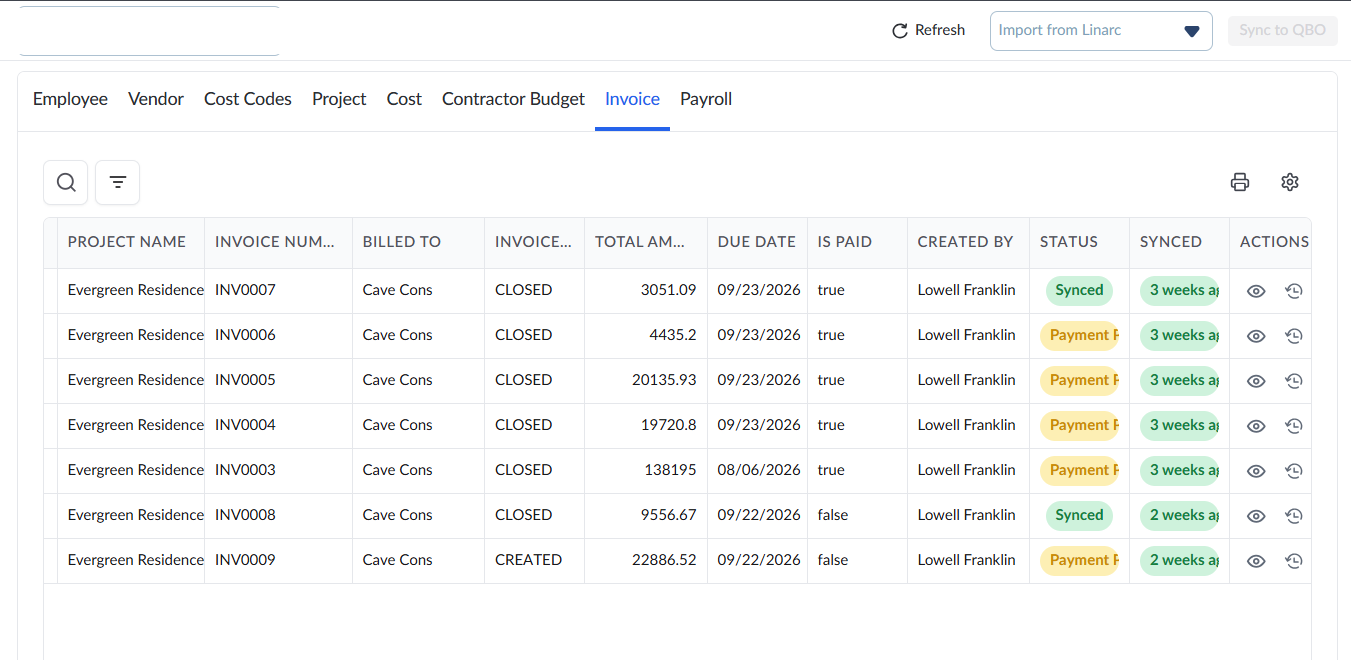
Column Descriptions:
Project Name - The label of the project associated with the invoice.
Invoice Number - A unique identifier assigned to each invoice for tracking and reference purposes.
Billed To - The name of the client or customer being charged in the invoice.
Invoice Status - The current state of the invoice
Total Amount - The full amount payable, including all charges, taxes, and applicable fees.
Due Date - The date by which the payment is expected to be completed.
Is Paid - Indicates whether the invoice has been paid.
Created by - The name or identifier of the person or system that generated the invoice.
Status - Shows the current state of the payment process
- Payment Pending - The invoice is waiting for payment confirmation in QuickBooks. The record automatically updates to 'Synced' if the payment is processed in the ERP.
- Synced – The record has been successfully synchronized
- Failed – The synchronization attempt was unsuccessful due to an error.
- Needs Action –Requires user intervention to resolve issues (such as missing mappings or incomplete data) before synchronization can proceed.
Synced - The date and time when the entry was last successfully synchronized. If synchronization has not occurred, it displays 'Not Synced'.
Actions- Contains options for viewing log of changes and manual mapping:
- Change History– View a detailed log of changes and the synchronization activity for the selected record.
- JSON Script- View the raw JSON data payload for the selected record. This is primarily used for advanced troubleshooting to verify the exact data being transferred between systems.
Import and Sync Data from Linarc
During your initial bulk synchronization or when a new invoice has been generated in Linarc, you must first import the data into the staging screen before syncing it to ERP, ensuring accurate and consistent records.
- Select 'Import New Items from Linarc' from the 'Import' drop-down.
- Review the list of staged records to check whether their status shows 'Needs Sync' or 'Failed' before proceeding.
- Select the records with a 'Needs Sync' status by clicking their serial numbers. (Tip: To select multiple entries at once, hold down the Ctrl, Shift, or Cmd key on your keyboard). Alternatively, click 'Select All' to select all entries at once.
- Click the 'Sync to ERP' button
Handle Failed Records:
- Hover your mouse over any 'Failed' status indicator to view the specific reason for the failure.
Resolve and Retry: If the synchronization fails, you will need to reconcile the entry directly in Linarc. Once the data is corrected at the source, click the 'Failed' status button in the staging platform to retry the sync.
View the Change History
- Click the
 icon in the 'Actions' column to view the log of changes in the project details
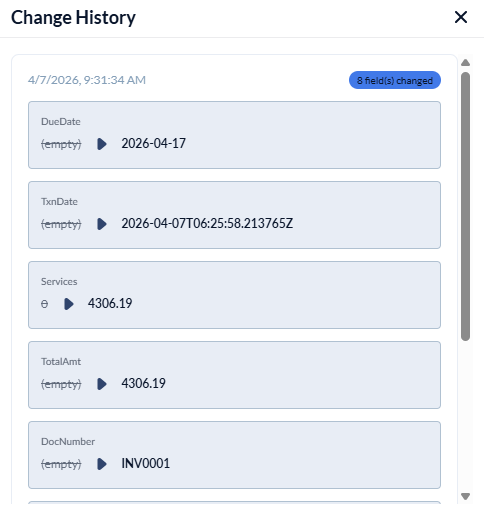
The pop-up shows the chronological list of changes made to various fields of the project details.
Was this article helpful?
That’s Great!
Thank you for your feedback
Sorry! We couldn't be helpful
Thank you for your feedback
Feedback sent
We appreciate your effort and will try to fix the article