The 'Employees' tab in Linarc's Staging Platform allows you to check the synchronization status of your company's workforce directory between Linarc and QuickBooks Online (QBO). You can manually initiate a sync at any time, ensuring that employee profiles remain perfectly consistent across your operational and accounting systems without requiring duplicate manual data entry.
Prerequisites and Notes:
- Administrative Setup: Synchronization rules between the source and destination must be configured in the administration settings. If you need assistance, please contact your Company Administrator.
Manual Imports: If auto-create/auto-update is disabled for your company, you must manually import the employee records into the staging platform before executing the sync.
Draft State for QBO Source records: If QBO is designated as the Source of Truth, employees imported from QBO will initially arrive in Linarc in a "Draft" state. An administrator must send account invitations from the company directory before these employees can log in to Linarc.
To sync employee records
Ensure that you are in the QBO staging platform. If not,
- Click the App Launcher button
 in the top-right corner and select "Portfolio" from the dropdown.
- Click 'Integrations' on top and select 'ERP Integration' on the left.
The employees tab opens by default:
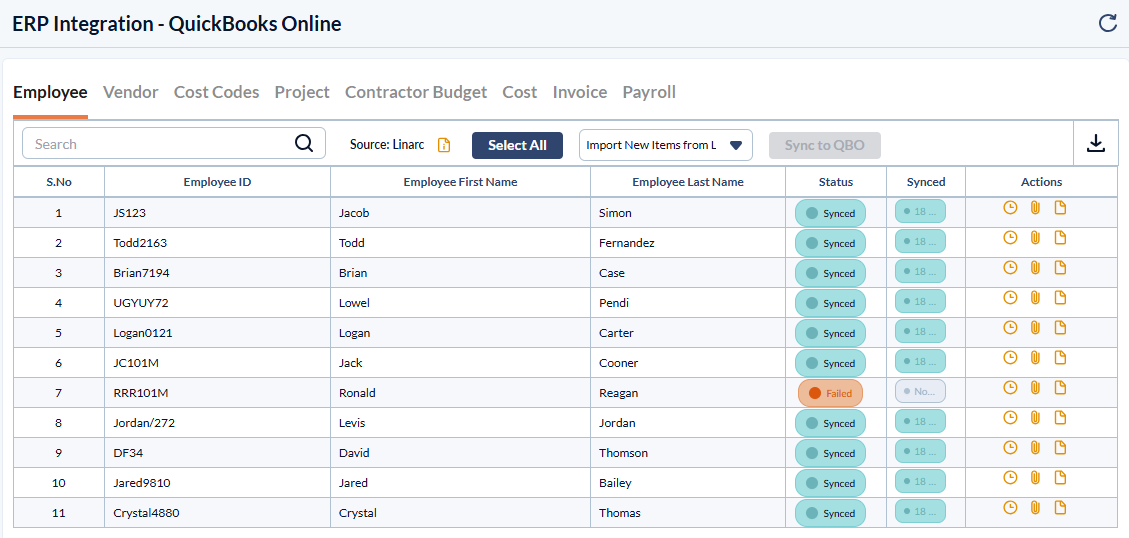
The screen displays the list of employees automatically fetched from the source system to the staging platform. This list mirrors updates from the source system based on your company's mapping configuration (e.g., pulling new entries if 'Auto-Create' is enabled, or pulling edits if 'Auto-Update' is enabled).
Search and sorting options
- Search: Use the search box at the top left to quickly find specific codes using any value from the table.
- Sort: Hover over any column header and click the sort icon
 to organize rows in ascending or descending order.
Column Descriptions:
Employee Id - The unique identification number assigned to the employee by the company
Employee First and Last Name - The full name of the employee
Status - Shows the current state of synchronization from source to destination. The possible values are
- Synced – The record has been successfully synchronized.
- Failed – The synchronization attempt was unsuccessful due to an error.
- Needs Action – Requires user intervention resolve issues (like fixing missing mappings or incomplete data) before synchronization can proceed.
Synced - The date and time when the entry was last successfully synchronized. If synchronization has not occurred, it displays 'Not Synced'.
Actions - Contains options for viewing log of changes and manual mapping:
- Change History
 – View a detailed log of changes and the synchronization activity history for the specific record.
 - Manual Mapping
 – Manually map or update the relationship between the source and destination records if automatic mapping fails due to a data mismatch.
 - Json Script
 - View the raw JSON data payload for the selected employee record. This is primarily used for advanced troubleshooting to verify the exact data transferring between the two systems.
The 'Import' drop-down menu at the top of the screen provides import options based on your company's configured source (Linarc or QBO).
Use the links below to jump to the specific instructions you need:
- Sync New Employees from Source
- Sync All Employees from Source At Once
- Sync Selected Employees from Source
- Manually Map Employee Records
- View the Change History
Sync New Employees from Source
Use this option to import only newly created employee records from your source system that are not yet present in the Staging Platform. This is the ideal choice when you have added new personnel at your source and need to quickly push them to your destination.
- Select 'Import New Items from Source ('Linarc' or 'QBO') from the 'Import' drop-down at the top.
- Review the list of staged records to check whether their status shows 'Needs Sync' or 'Failed' before proceeding.
- Select the records with a 'Needs Sync' status by clicking their serial numbers. (Tip: Hold down the Ctrl, Shift, or Cmd key on your keyboard to select multiple items at once). Alternatively, click 'Select All' to select all entries at once.
- Click the 'Sync to Destination' (QBO or Linarc) button
Failed records
- Hover your mouse on the 'Failed' sync status indicator to view the reason for failure.
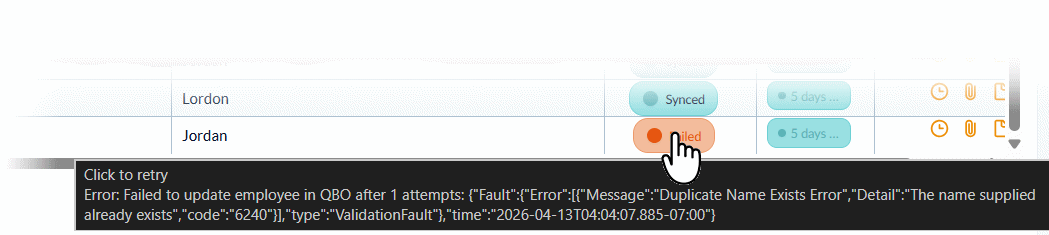
Click the Failed status button to retry the synchronization for a single entry separately.
Resolve Mismatches: If the synchronization fails due to a data mismatch, you will need to manually map the source record to the corresponding record in the destination. See Manually Map Employee Records for guidance.
Sync All Employees from Source at Once
Use this option to pull your entire employee directory from your source system into the Staging Platform. This is the ideal choice for your initial bulk synchronization or when you need to push widespread updates that affect multiple existing employee profiles at once.
- Select Import All Items from Source (Linarc or QBO) from the 'Import' drop-down.
- Review the list of staged records to check whether their status shows 'Needs Sync' or 'Failed' before proceeding.
- Select the records with a 'Needs Sync' status by clicking their serial numbers. (Tip: To select multiple entries at once, hold down the Ctrl, Shift, or Cmd key on your keyboard). Alternatively, click 'Select All' to select all entries at once.
- Click the 'Sync to Destination (QBO or Linarc)' button
Failed Records:
- Hover your mouse over any Failed status indicator to view the specific reason for the failure.
- Click the Failed status button to retry the synchronization for a single entry separately.
Resolve Mismatches: If the synchronization fails due to a data mismatch, you will need to manually map the source record to the corresponding record in the destination. See Manually Map Employee Records for guidance.
Sync Selected Employees from Source
Use this option to pull specific, individual employee records from your source system into the Staging Platform. This is the ideal choice when you need to update or sync only a handful of profiles without importing your entire workforce directory. The Import drop-down menu at the top of the screen provides import options based on your company's configured source (Linarc or QBO).
- Select 'Import Selected' from the Import drop-down.
- Select the specific employee records you wish to fetch from your source system into the staging area.
- Review the list of staged records to check whether their status shows 'Needs Sync' or 'Failed' before proceeding.
- Select the specific records you want to push by clicking their serial numbers. (Tip: Hold down the Ctrl, Shift, or Cmd key on your keyboard to select multiple specific items at once).
- Click the 'Sync to Destination (QBO or Linarc)' button
Failed Records:
- Hover your mouse over any Failed status indicator to view the specific reason for the failure.
- Click the Failed status button to retry the synchronization for a single entry separately.
Resolve Mismatches: If the synchronization fails due to a data mismatch, you will need to manually map the source record to the corresponding record in the destination. See Manually Map Employee Records for guidance.
Manually Map Employee Records
Manually Map Employee Records
Synchronization can fail for several reasons. You can view the exact cause of the error by hovering your mouse over the Failed status indicator. Once identified, you can manually reconcile and sync these entries.
Why Manual Mapping is Needed:
Automatic synchronization often fails if the system cannot find a matching destination record for a new or altered source record. For example, if an employee's name was recently changed in the source system, the two systems may no longer recognize each other. Manual mapping allows you to explicitly select which record in the destination system should be linked to the source record.
To manually map a sync-failed record, click theicon from the 'Actions' column
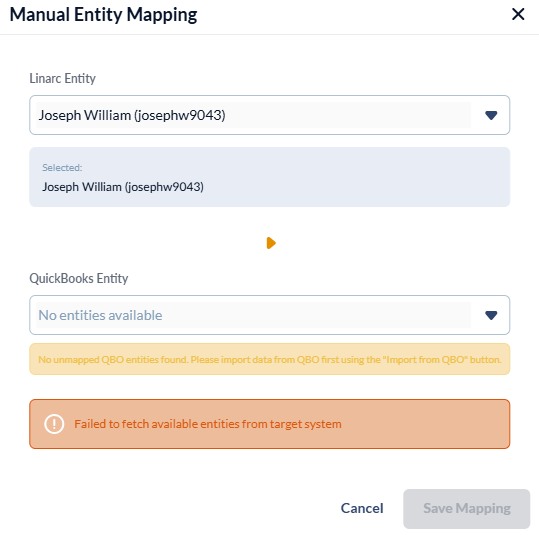
The 'Manual Entity Mapping' pop-up shows the record at the source for which a matching record was not found in the destination.
- Select the destination entry to which the source record should be mapped.
- Click 'Save' to confirm the link.
View the Change History
- Click the
 icon in the Actions column to view the log of changes in the record
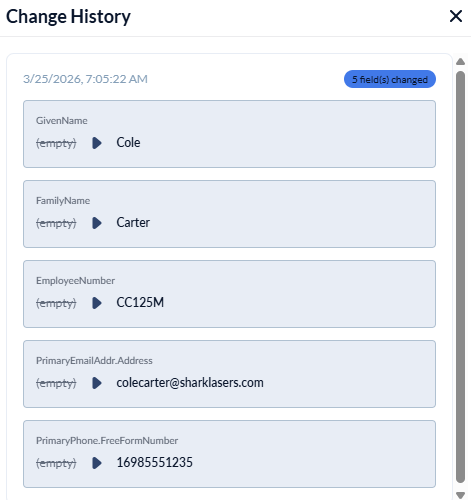 The pop-up shows the chronological list of changes made to various fields of the record
Was this article helpful?
That’s Great!
Thank you for your feedback
Sorry! We couldn't be helpful
Thank you for your feedback
Feedback sent
We appreciate your effort and will try to fix the article