QuickBooks Web Connector (QBWC) runs automated polling on a set schedule (by default, every 60 minutes) to transfer data between Linarc and QuickBooks Desktop. However, if you have just manually staged financial records, updated project details, or added critical personnel in Linarc, you do not need to wait for the next automated poll to run.
On-Demand Manual Polling allows you to trigger an immediate, real-time data sync between Linarc and QuickBooks Desktop whenever you need it.
When to Use On-Demand Polling:
- Post-Configuration Verification: Directly after completing setup or account mapping to confirm the connection functions properly.
- Immediate Data Sync: Right after approving or staging invoices, budgets, or payroll records in the Linarc Staging Platform.
- Urgent Master Data Updates: When new employees, vendors, or cost codes added in Linarc need to appear instantly inside QuickBooks Desktop.
To perform on-demand polling
- Ensure QuickBooks Desktop is open with your company file loaded.
- Open QuickBooks Web Connector on your computer.
- Locate the Linarc row in your list of connected applications.
- Select the checkbox on the far-left side of the row.
- Click the 'Update Selected' button on the top toolbar of the Web Connector window.
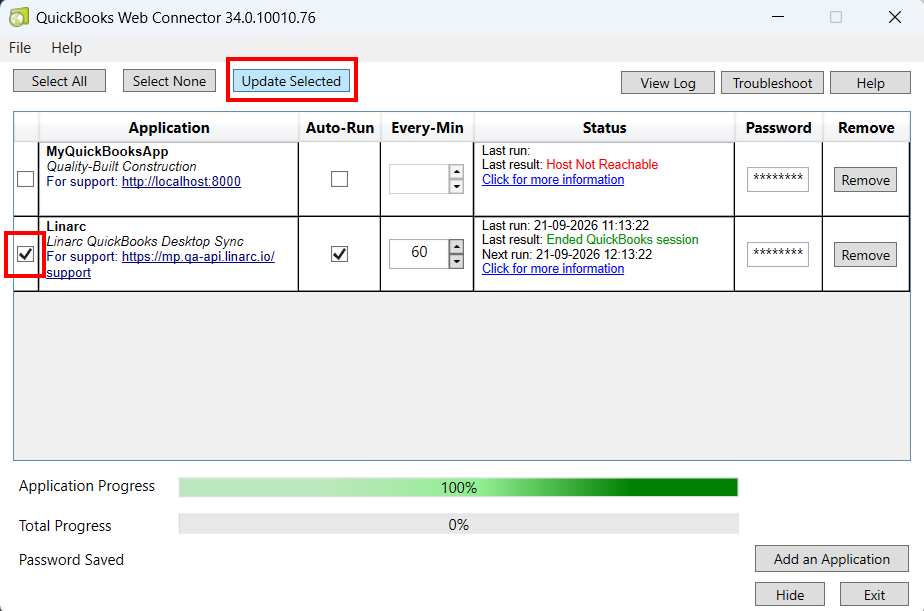
QBWC will initiate communication with the Linarc server. The 'Status' column will display live updates such as "Received request from application" while the progress bar advances. 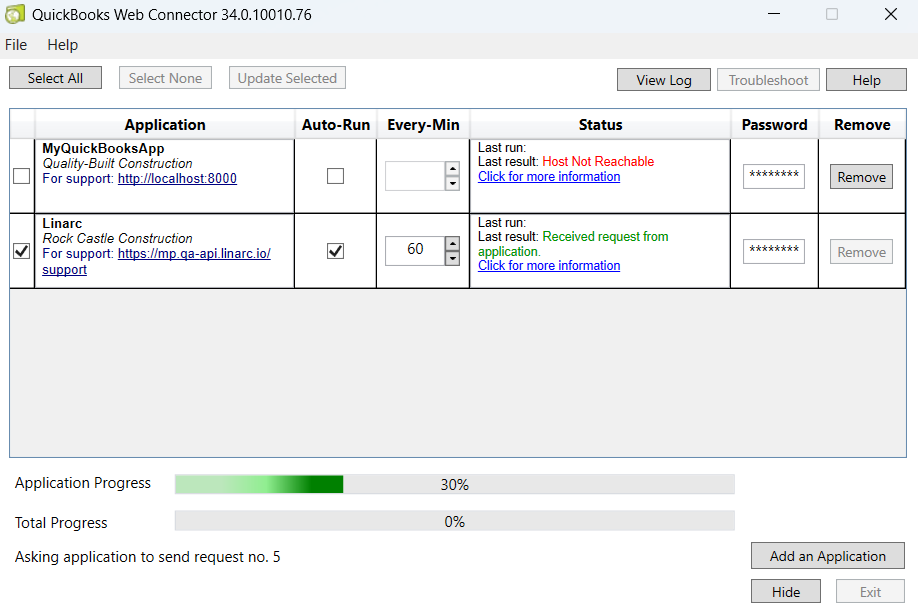
Once the process completes, confirm the final status:
- The 'Status' column displays Last result: OK.
- The 'Application Progress' and 'Total Progress' bars reach 100%.
- The status bar at the bottom displays 'Update session has ended.'
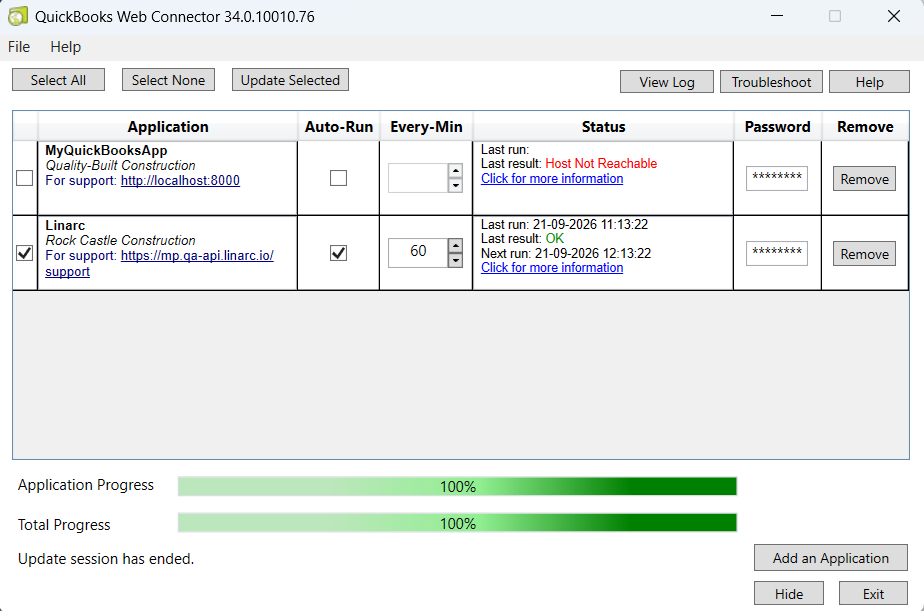
Your pending updates and staged records are now fully synchronized with QuickBooks Desktop!
Was this article helpful?
That’s Great!
Thank you for your feedback
Sorry! We couldn't be helpful
Thank you for your feedback
Feedback sent
We appreciate your effort and will try to fix the article