Linarc allows you to synchronize your approved Linarc project budgets directly to QBO. In QuickBooks, these budgets are generated as Estimates under the corresponding Customer profile, establishing the official financial baseline for the work items. Pushing your approved budget to an Estimate in QBO is a critical step before generating billing:
Progress Invoicing Foundation: QBO relies on the initial Estimate to calculate percentages for progress invoicing. Syncing your Linarc budget ensures accounts receivable is pulling from the correct operational numbers.<to check>
Financial Forecasting: It allows your accounting team to track expected revenue versus actual costs (Budget vs. Actuals) without manually re-entering line items.
Prerequisite
- Synchronization on this dashboard is controlled by your Company Administrator’s mapping settings. For more information or assistance, please contact your Company Administrator.
- Company cost codes must be properly mapped and synced, as the project budget relies on these cost codes. See Sync Company Cost Codes for more details.
- The corresponding project details for the budget must also be mapped and synced. See Sync Linarc Projects to QBO Customers for more details.
The "Auto Update" option is not available for contractor budgets. Therefore, it is mandatory to manually import and sync the data from this dashboard every time a new budget is locked or a new project is synced to a QBO customer.
To open the integration screen
- Ensure that you are in the portfolio console.
- To return to the portfolio console from any other part of the platform:
- Click the App Launcher button
 in the top-right corner and select "Portfolio" from the dropdown.
- Click the App Launcher button
- Click 'Integration' on top and 'QBO Integration Dashboard' on the left.
- Click the 'Contractor Budget' tab
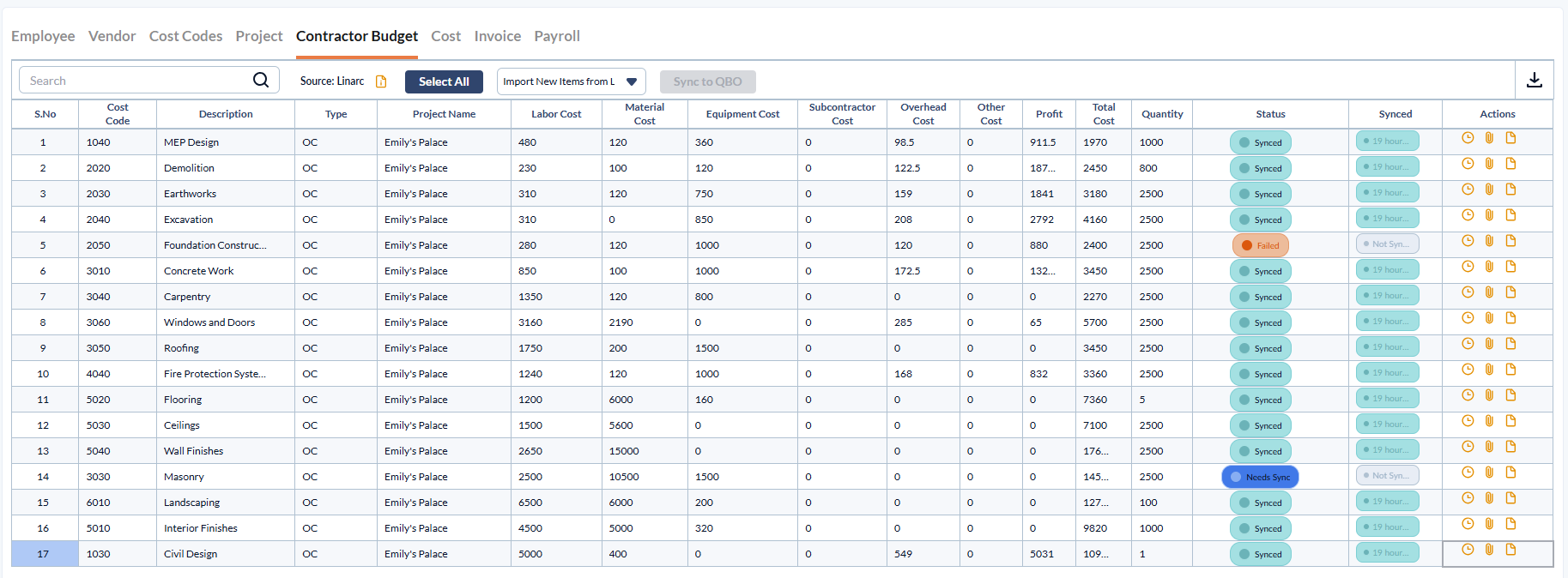
Code - The code representing the division/category of work as per the cost code list at your company level
Description - The label of the work/task
Type - The category of the budget line item. The possible values are,
- OC- Original Budget
- RC - Revised Budget
- CC - Approved Change orders
Project Name - The descriptive name of the project as entered in Linarc.
Labor cost - The monetary value of the cost allotted for the wages
Material Cost - The monetary value of the cost allotted for the materials used for the work
Subcontractor Cost - Expenses related to external subcontracts or vendors.
Overhead cost - Operation costs that the company bears for the work item
Other Cost - Miscellaneous expenses like transportation, material handling, fees paid to various vendors, agencies, and more.
Profit - The profit gained by your company from the work item
Total Cost - The total budget amount allocated for the work item
Quantity - The numeric value of the amount of work required to be done.
Status - Shows the current state of synchronization from source to destination. The possible values are
- Synced – Indicates that the record has been successfully synchro9nized between the source and destination systems.
- Failed – Indicates that the synchronization attempt was unsuccessful due to an error.
- Needs Action – Indicates that user intervention is required to resolve issues (such as missing mappings or incomplete data) before synchronization can proceed.
Synced - Displays the date and time when the entry was last successfully synchronized. If synchronization has not occurred, it displays Not Synced.
Actions- Click the following icons to perform the respective actions.
- Change History
 – View a log of changes and synchronization activity for the selected record.
 - Manual Mapping
 – Manually map or update the relationship between source and destination records when automatic mapping requires correction.
 - Json Script
 - View the raw JSON data payload for the selected record. This is primarily used for advanced troubleshooting to verify the exact data being transferred between systems.
Import and Sync Data from Linarc
When there is a new entry created or an update made in Linarc, you have to import that data into the dashboard before syncing it to QBO to maintain a consistent record.
- Click the 'Import' dropdown at the top-right to pull data from Linarc
- Click 'Import New Items from Linarc'. This pulls only newly created records or records of newly synced projects from Linarc system that do not currently exist in the staging platform
Review the imported records in the list view. If any entries are not synced,
- Click the S.No of the record you want to push to QBO. Use the 'Ctrl' 'Shift; or 'Cmd' keys on your keyboard to select multiple records at once. Or click the
 button to select all the entries.
 - Click the 'Sync to QBO' button.
- Click the S.No of the record you want to push to QBO. Use the 'Ctrl' 'Shift; or 'Cmd' keys on your keyboard to select multiple records at once. Or click the
Alternatively,
- Click the 'Failed' status button to perform sync for a single entry separately
Was this article helpful?
That’s Great!
Thank you for your feedback
Sorry! We couldn't be helpful
Thank you for your feedback
Feedback sent
We appreciate your effort and will try to fix the article