You can easily modify and redistribute funds allocated from a budget item to scheduled tasks at any time, provided the work has not yet begun in the field. If project requirements change, you can fully revert previously allotted funds back to the original budget.
When you revert an allocation, the system instantly adds the amount back to the budget line's available balance. This dynamically updates your total available funds, associated quantities, and the breakdown across cost types (such as materials, labor, and equipment) as applicable.
These restored funds can then be reassigned to the exact same task with adjusted values, or distributed to entirely different tasks to adapt to your evolving project.
Role-Specific Reallocation Capabilities
The scope of how you can redistribute reverted funds depends on your role:
- General Contractors (GC): You can revert and reallocate funds from the master budget between self-performed tasks, or shift funds between tasks assigned to your subcontractors. (Note: Funds must remain aligned with the specific contractor designated in the master budget).
- Subcontractors (SC): You can revert and redistribute funds from your locked commitment budget freely among your own assigned schedule tasks.
- Stand-alone Contractors: You can revert and reassign your project budget dynamically across any of your scheduled work items.
Important Reminder: You cannot revise or revert the allocated amount for a task (or any of its subtasks) once it has started execution and progress has been recorded in the schedule.
To reallocate funds
Ensure you are on the budget allocation screen. If not,
- Click the main menu icon at the top-left of your screen.
- Click 'Owner Contract' (GC) or 'Contract' (if you're and SC or a stand-alone contractor) under the 'Finance & Controls' section in the drop-down menu.
Tip: Press and hold the 'Cmd' (Mac) or 'Ctrl' (Windows) key on your keyboard while clicking to open the module in a new browser tab.
- Select 'Allocate' on the left.
- Select the budget line item you wish to adjust from the upper pane
The Lower Pane will update to show the tasks currently funded by the selected budget item, as well as any other tasks eligible to receive those funds.
- Locate the schedule item whose allocation you want to change in the lower pane.
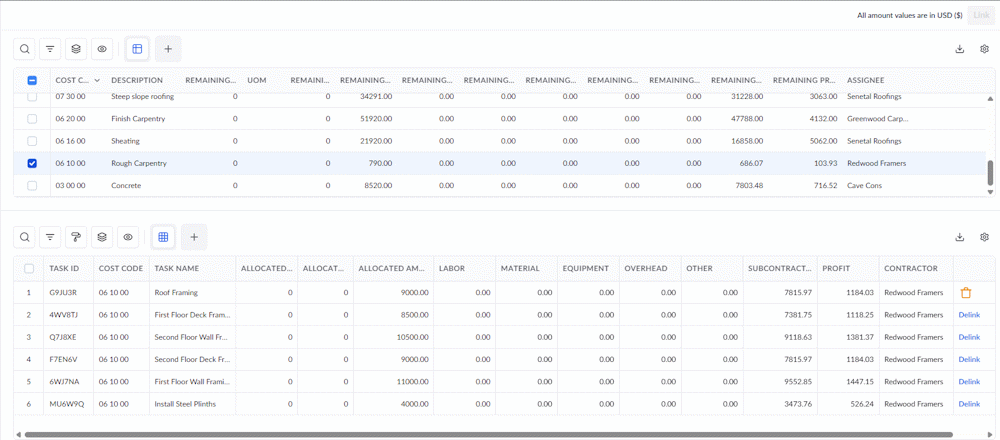
- Click 'Delink' in the row of that schedule item to fully revert the funds back to the budget.
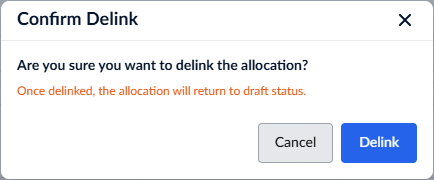
- Click 'Delink' to confirm your action.
- Repeat this process to revert funds from multiple schedule items if necessary.
Reminder: The 'Delink' option is only available for tasks (and their subtasks) that have not yet started execution. Once progress is recorded in the schedule, this option will be disabled and the allocation is locked.
You can now reallocate these restored funds to the same tasks or distribute them to new ones. The process follows the exact same steps as your initial allocation. (See Allocate Funds to Work Items for guidance).
Search, Filter, and Sorting Options
- Search: Click the magnifier icon and use the Search box located at the top left to find an entry using any value from the table as search criteria.
- Sort: Click any column header to sort the rows in ascending or descending order based on that column's data.
- Customize Columns: Click the cogwheel icon at the top right to adjust the display density and customize the display and order of the columns.
- Filter & Group: The options at the top left allow you to filter entries, create nested groups, highlight cells, and manage personalized views of the table.
- Download: Click the Download button at the top right to save a local copy of the list in Excel format for sharing and record-keeping. (See Download List Views and Logs in Excel Format for more details).
Was this article helpful?
That’s Great!
Thank you for your feedback
Sorry! We couldn't be helpful
Thank you for your feedback
Feedback sent
We appreciate your effort and will try to fix the article