Acumatica can push employee changes to Linarc through a push notification. Set this up once, and an edit made in Acumatica reaches Linarc in seconds instead of waiting for the next hourly sync. Linarc provides both files that Acumatica needs, so you do not type anything.
Prerequisites:
• Linarc is connected to Acumatica. See Connect Linarc to Acumatica.
• The source for Employees is set to Acumatica. See Configure Accounts and Map Data.
• Access in Acumatica to import generic inquiries and push notifications.
The setup uses two files, which you import into Acumatica:
- Employee inquiry (linarc-employee-contact.xml): Defines which employee fields Linarc receives.
- Notification (linarc-employee-notification.xml): Tells Acumatica where to send those changes.
Important: Import the inquiry before the notification. The notification refers to the inquiry by name, so importing the notification on its own fails.
Setting up the employee sync involves the following steps:
- Step 1 - Download the Webhook Files from Linarc
- Step 2 - Import the Employee Inquiry into Acumatica
- Step 3 - Import the Notification into Acumatica
Note: Employees synced from Acumatica appear in Employees > Drafts for review before you send invitations.
Step 1 - Download the Webhook Files from Linarc
- In the Linarc Admin Portal, click 'Integrations' at the top and select 'ERP' on the left.
- Click 'Manage' under Acumatica
- In the first Step 'Before you start', scroll down to the 'Employee Webhook Setup' guide at the bottom of the screen. The guide contains the two files.
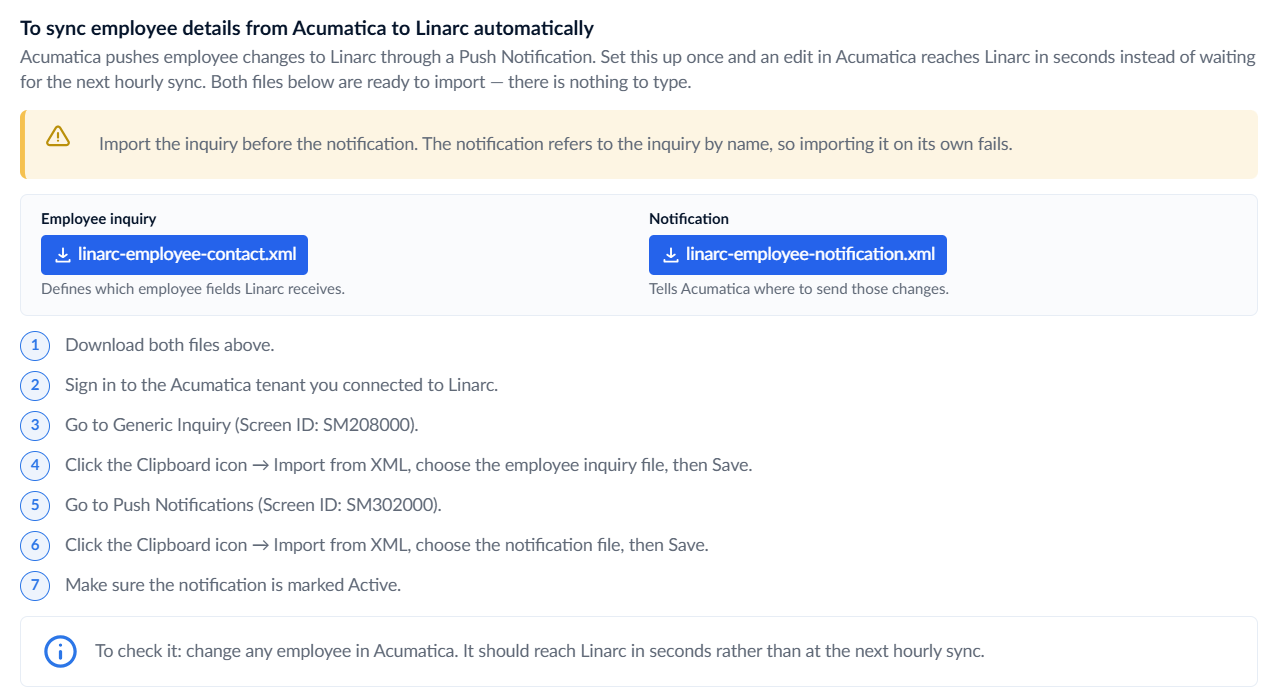
- Click 'linarc-employee-contact.xml' under 'Employee inquiry' to download the inquiry file.
- Click 'linarc-employee-notification.xml' under 'Notification' to download the notification file.
Step 2 - Import the Employee Inquiry into Acumatica
- Sign in to the Acumatica tenant that you connected to Linarc.
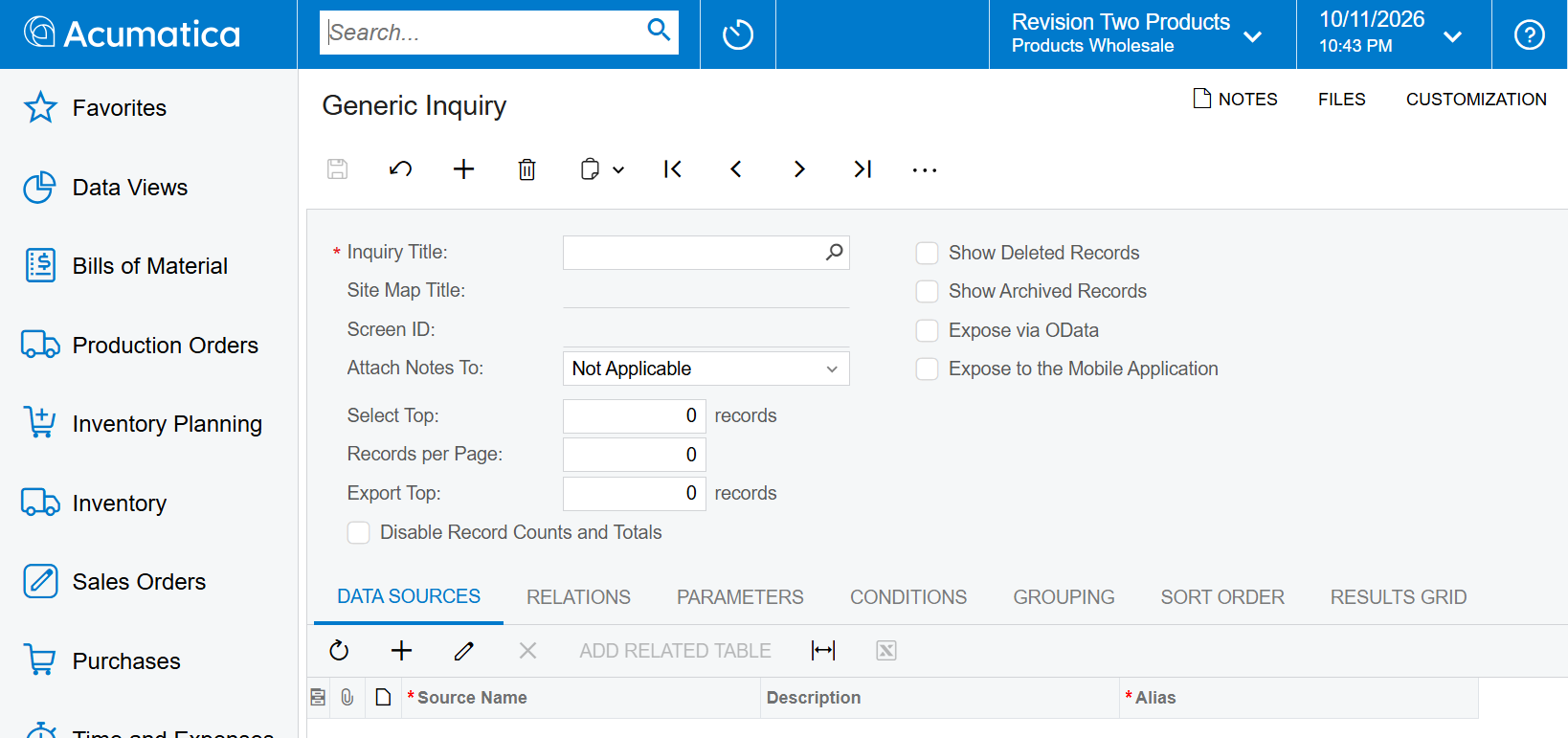
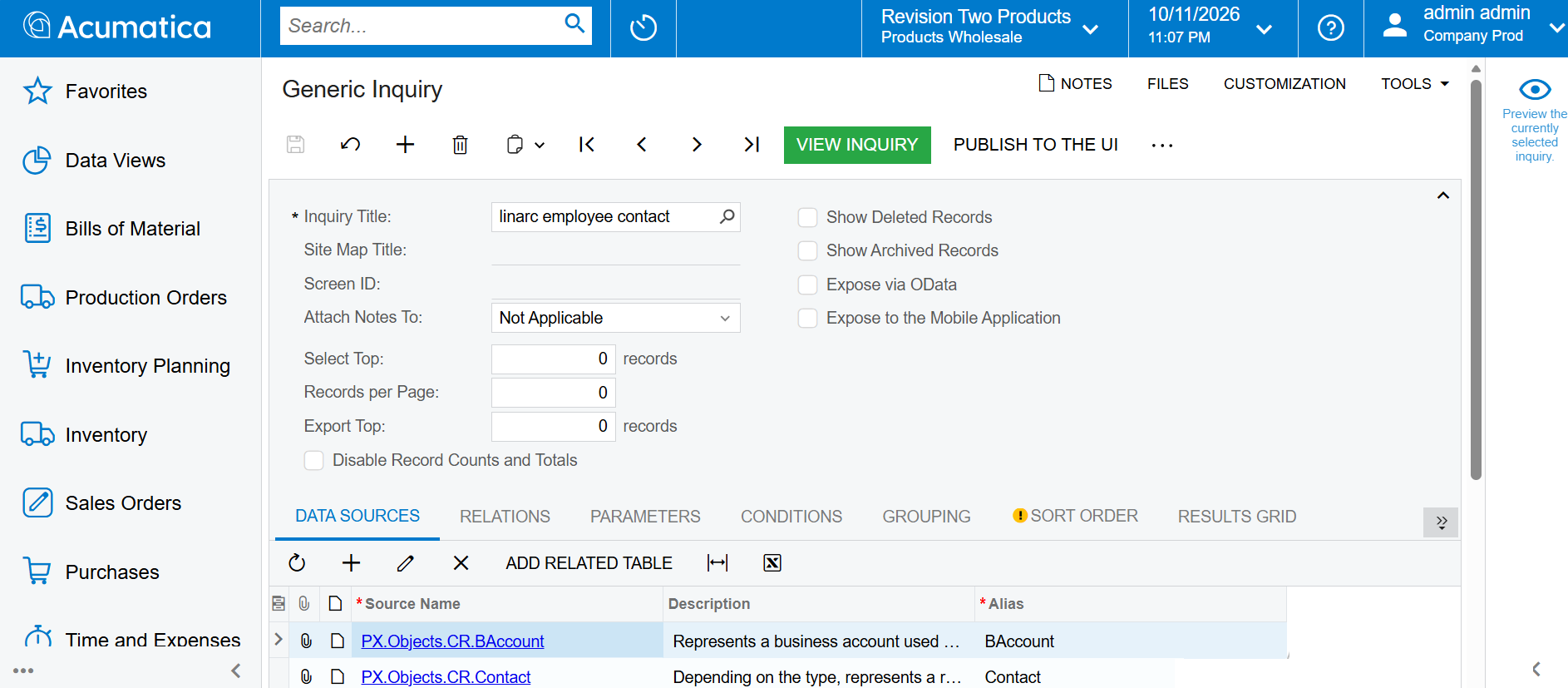
- Search for 'Generic Inquiry' (screen ID SM208000) and open it.
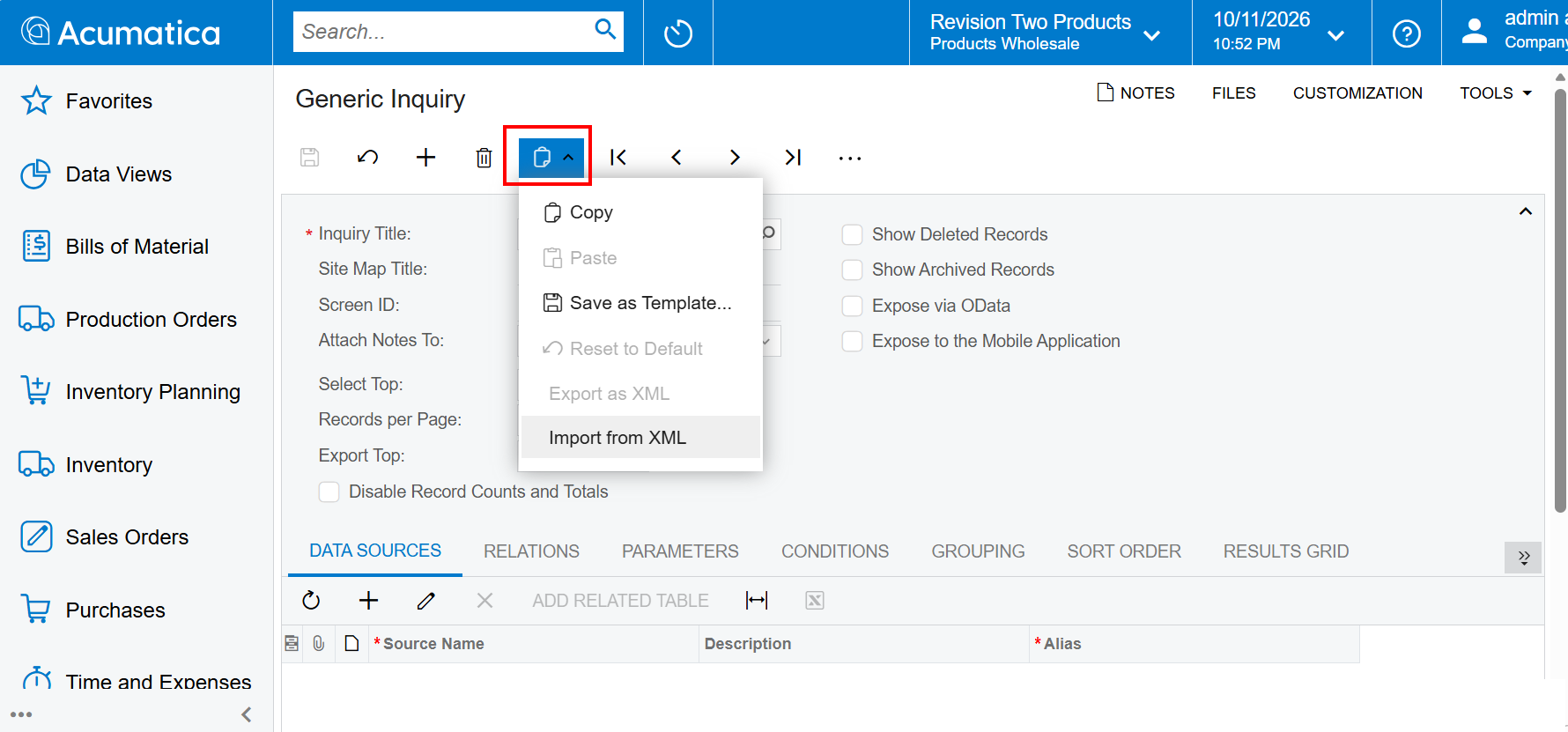
- Click the clipboard icon and select 'Import from XML'.
- Choose the employee inquiry file, linarc-employee-contact.xml.
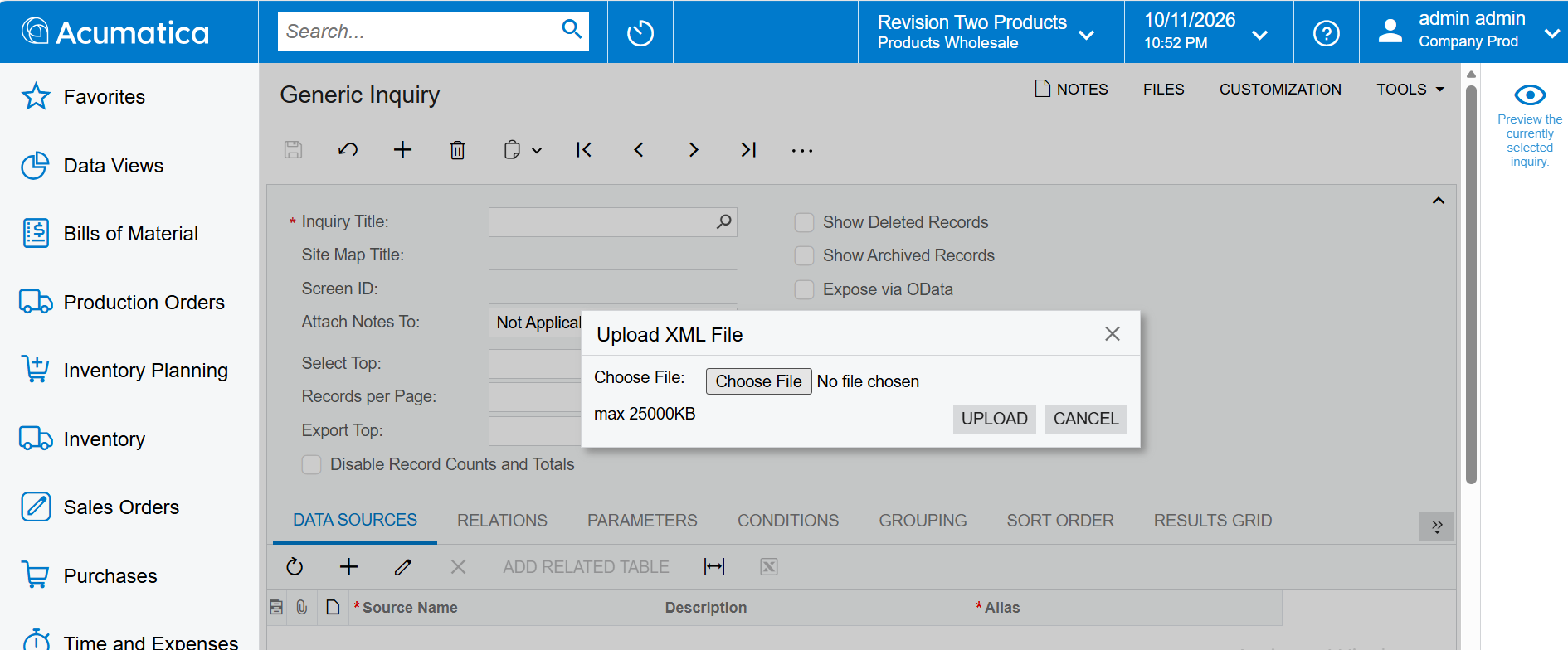
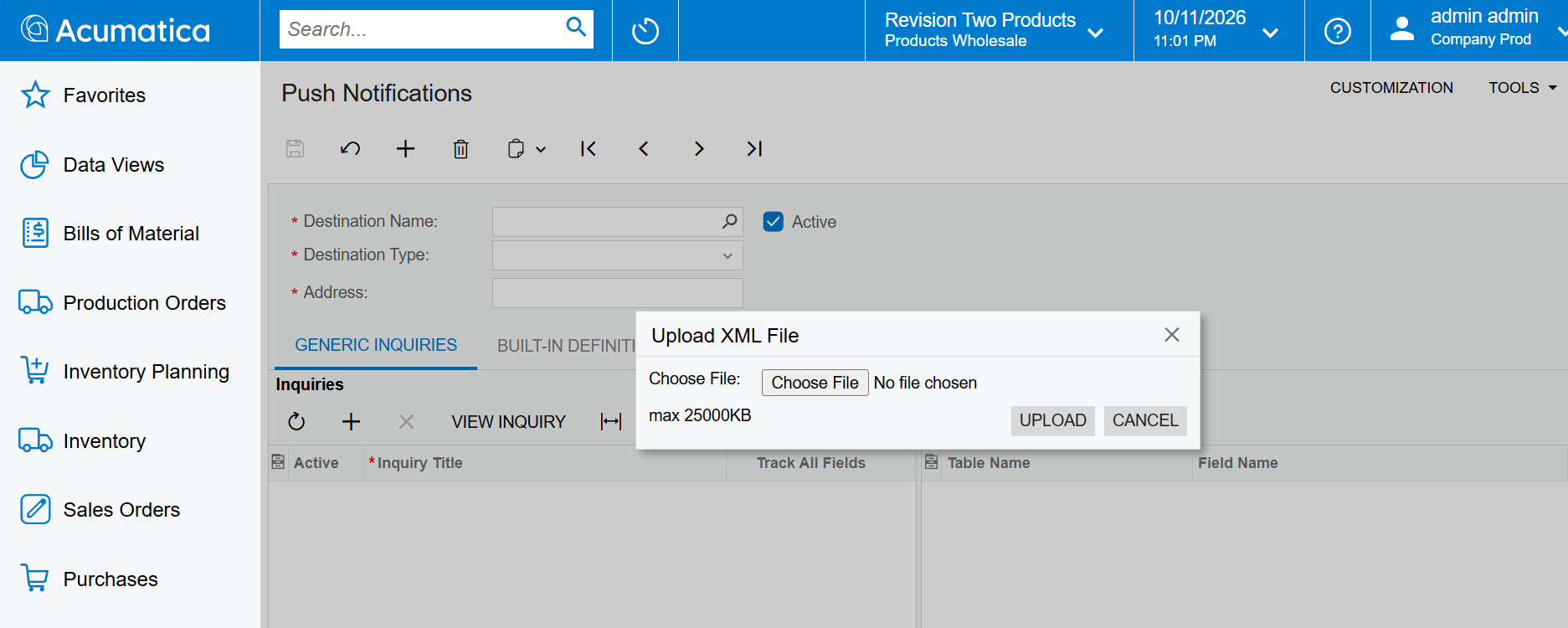
- Click 'Upload' . Acumatica reads the file and adds the necessary details in the inquiry.
Step 3 - Import the Notification into Acumatica
- Search for 'Push Notifications' (screen ID SM302000) and open it.
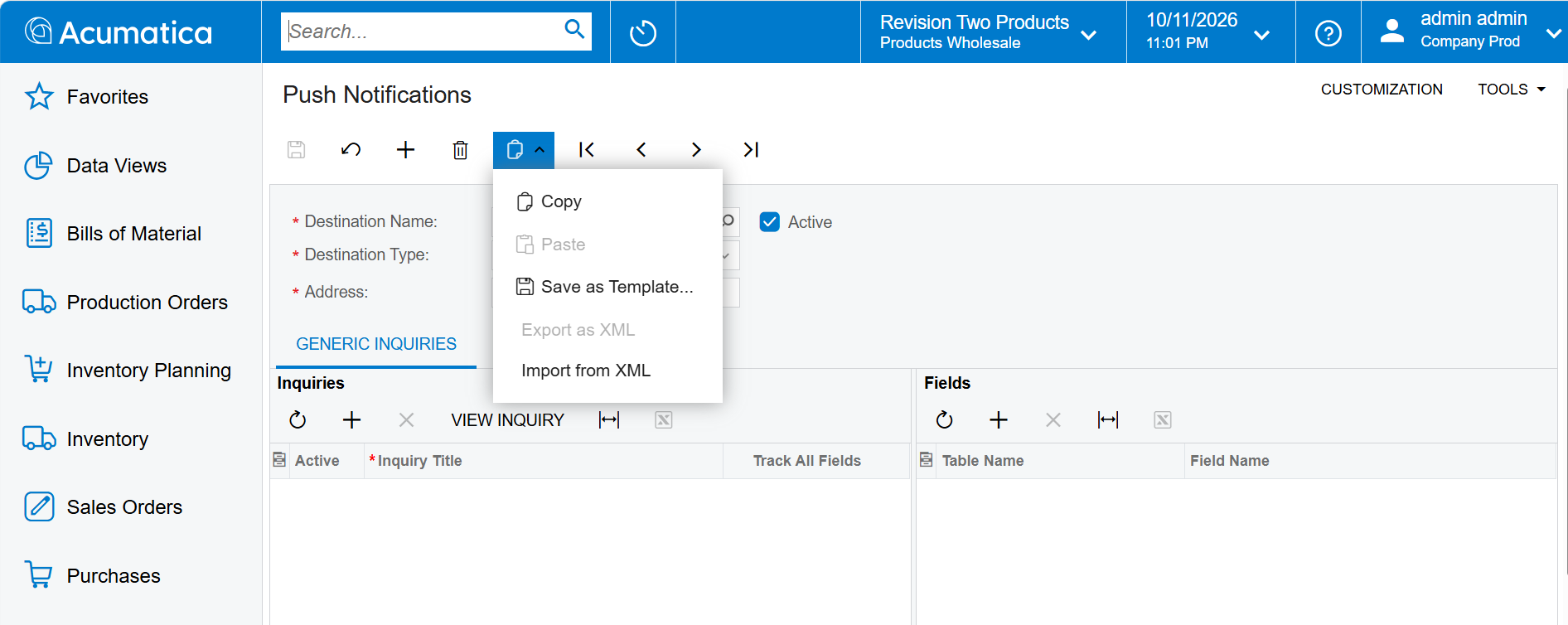
- Click the clipboard icon and select 'Import from XML'.
- Choose the notification file, linarc-employee-notification.xml.
- Make sure the 'Active' check box is selected for the notification.
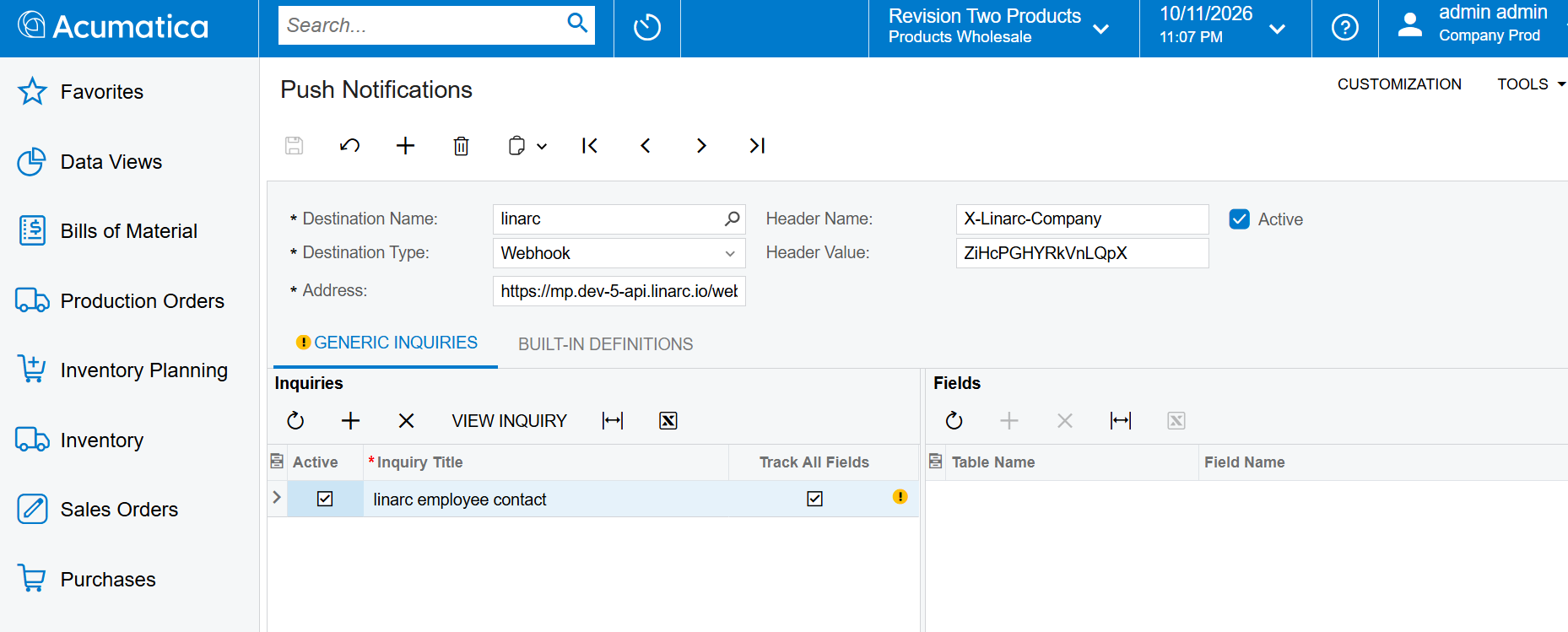
Your changes are saved automatically. All new and updated employee records will now sync directly with the Linarc employee list.
Was this article helpful?
That’s Great!
Thank you for your feedback
Sorry! We couldn't be helpful
Thank you for your feedback
Feedback sent
We appreciate your effort and will try to fix the article