Your QuickBooks Desktop (QBD) integration requires two main configurations to ensure your financial data flows correctly:
- Account Mapping: Link Linarc to specific income, payroll expense, and payroll liability accounts in your QBD Chart of Accounts so financial entries and journal logs are recorded correctly. Linarc can also automatically create dedicated cost accounts in QBD for labor, materials, and equipment.
- Data Mapping: Choose which data types (such as Employee Directory, Projects, Budgets, Vendors, and Invoices) to synchronize between Linarc and QBD. Set a 'Source of Truth' for each object to control which platform pushes updates to the other.
Synchronization Modes
Linarc provides flexible sync options so you can control exactly how and when data transfers between the platforms.
- Automated Scheduled Polling (QBWC): QuickBooks Web Connector automatically contacts Linarc on a set recurring schedule to check if any data sync or information has been requested. By default, Linarc is configured to poll every 60 minutes, but you can adjust this time interval inside QBWC to whatever suits your operational needs.
- On-Demand Manual Polling (QBWC): You can trigger an instant sync at any time inside QuickBooks Web Connector by ticking the Linarc checkbox and clicking Update Selected. See Perform On-demand Polling from QuickBooks Web Connector for more details.
- Manual Synchronization (Staging Platform): Select objects require manual review through the Linarc Staging Platform in the 'Project Portal' before transferring to QBD. Once staged, the data will sync automatically during the next scheduled automated poll; if you wish to see the updated data in QBD immediately without waiting for automated poll, you can trigger an on-demand manual poll in QBWC .
To configure account mapping and data mapping:
- Ensure QuickBooks Desktop is open in single-user mode and linked to Linarc via QuickBooks Web Connector.
- In the Linarc Admin Portal, navigate to Integrations → ERP → QuickBooks Desktop.
- Click 'Manage' (or 'Configure Income & Cost Accounts') to access the setup workspace.
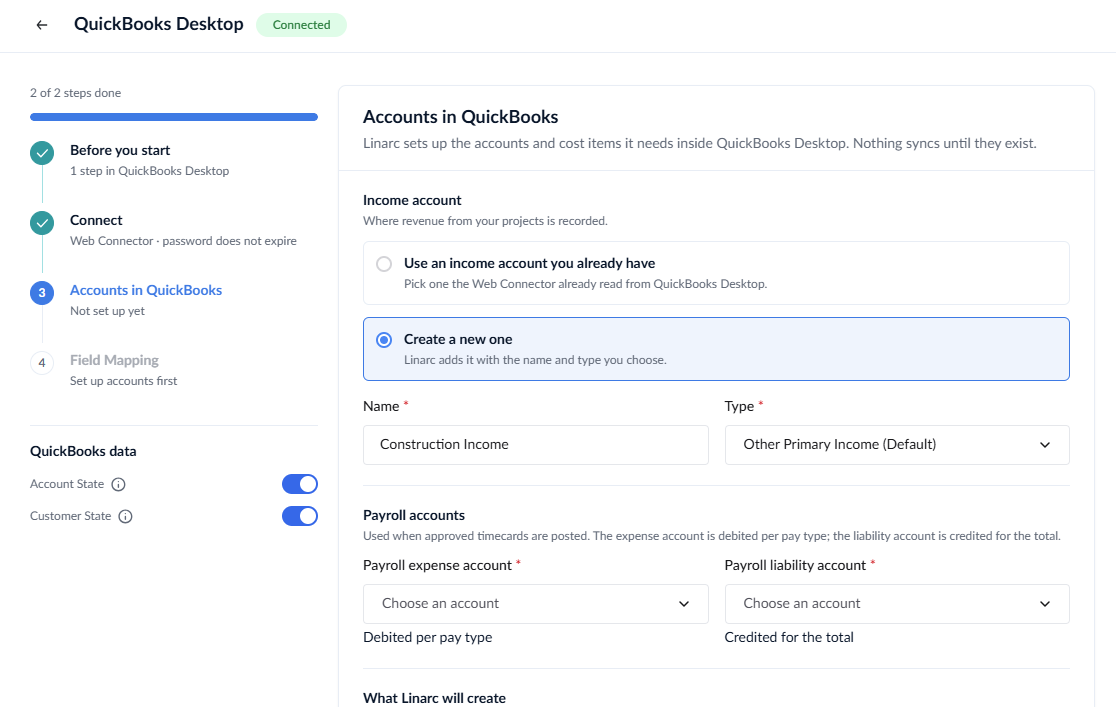
Step 1 – Configure Income and Payroll Accounts
Prerequisite - Prepare the Chart of Accounts:
Ensure your QBD Chart of Accounts contains an Income account, a Payroll Expense account, and a Payroll Liability account before proceeding.
- Select the QBD accounts where project revenue and payroll entries will be tracked:
Note:
- Account mapping is a one-time process. Verify your account selections with your accounting team before saving.
- If the desired account is present in QBD but not shown in the drop down, Switch the Account State toggle to Off and perform an 'On-demand Polling'. See Data Synchronization Indicators - Account State for more details.
- Income Account Configuration: Define where project revenue is recorded in QBD.
- Use Existing Income Account: Link Linarc revenue to an existing income account from your QBD Chart of Accounts dropdown.
- Create Custom Income Account: Create a dedicated income account in QBD by specifying an Income Account Name (e.g., "Construction Income") and an Income Subtype.
- Payroll Accounts Configuration:
- Payroll Expense Account: Select the QBD expense account where Linarc will record labor and payroll expenses.
- Payroll Liability Account: Select the QBD liability account where Linarc will record payroll liabilities (e.g., payroll taxes).
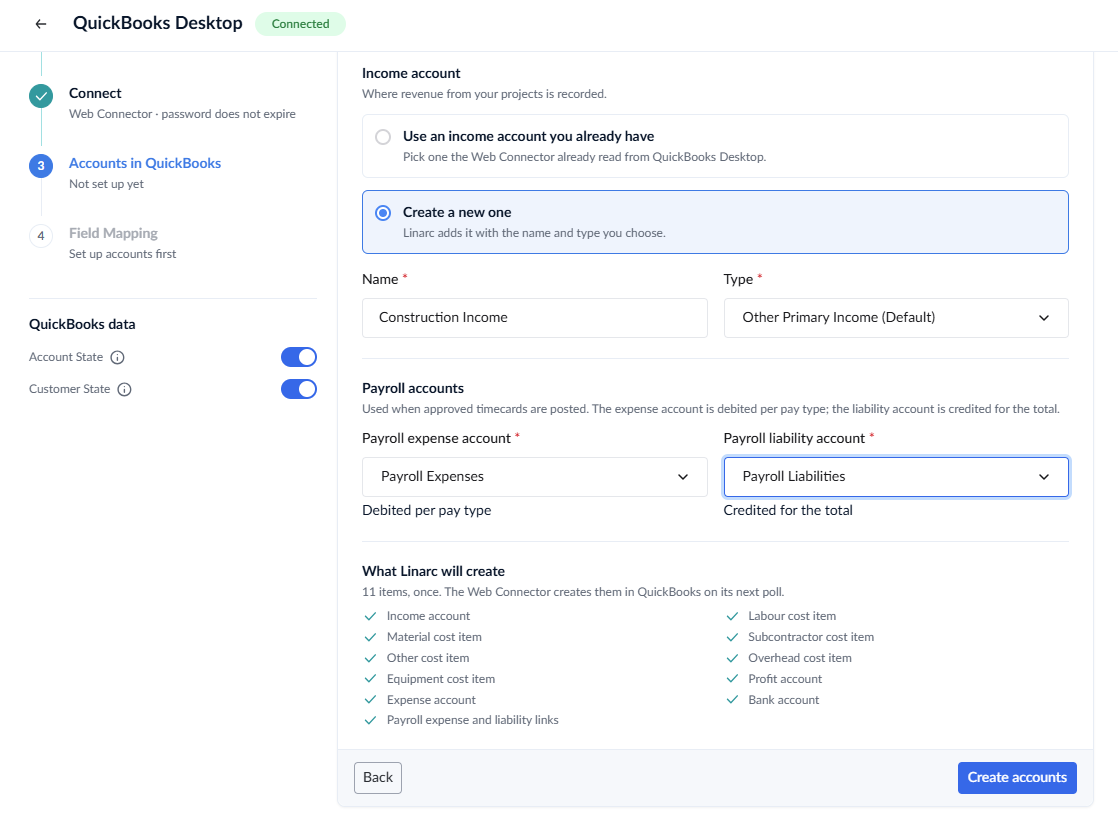
- Click 'Create Accounts' (or 'Save Account Configuration') to finalize. Linarc will generate any required cost accounts, and the QBD Account Names / ListIDs and will take you to the next step
Step 2 – Select and Setup Source Data Mapping
In the Field Mapping section, select the exact entities you wish to synchronize between Linarc and QBO.
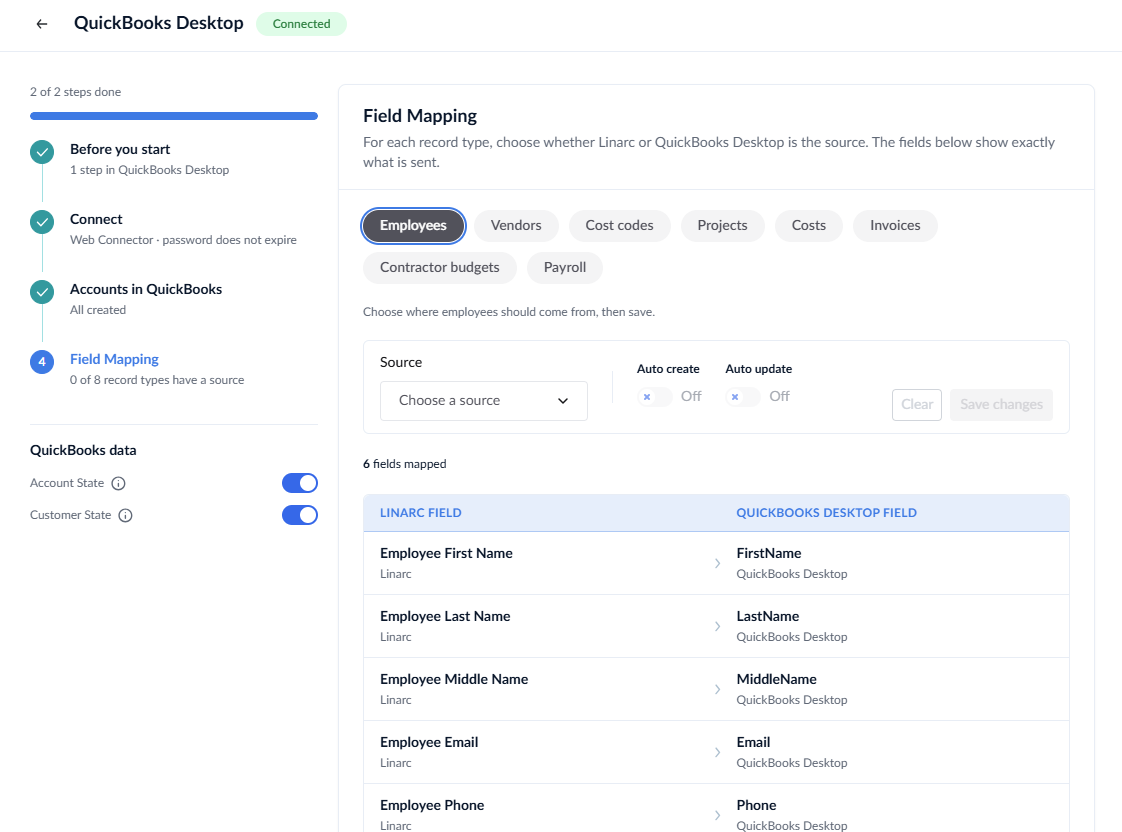
For each record type, set the primary Source of Truth, configure automatic syncing, or set the status to Skip.
Available Sync Objects:
- Employees: Select either Linarc or QuickBooks Desktop as the source. We recommend choosing the system where your HR team natively maintains personnel data. All employees enrolled in the source system will progressively sync to the destination.
Note on QBD as Employee Source: Personnel imported from QBD initially appear in Linarc in a "draft" state. An administrator must invite these users to activate their Linarc accounts.
- Vendors, Projects, and Financial Records: For Company Cost Codes, Projects, Vendors, Budgets, Invoices, and Payroll, select Linarc as the source to push operational data to QBD. If you manage these items directly in QBD without syncing, set the source to Skip.
To map objects:
- Select an object tab from the top menu.
- Review how Linarc fields map to their corresponding attributes in QuickBooks Desktop in the lower pane.
- Click the Source dropdown at the top-right and select your desired Source of Truth.
- Toggle 'Auto Create' to On to automatically generate missing records in the destination system.
- Toggle 'Auto Update' to On so edits made in the source system automatically push during the next Web Connector poll.
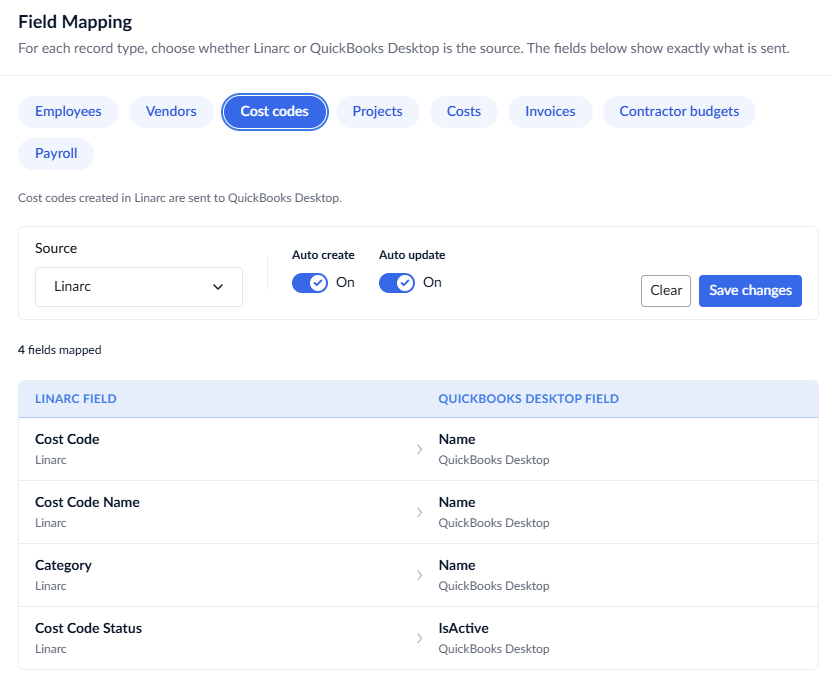
- Click 'Save Changes' at the top-right to finalize mapping for that specific object.
- Repeat these steps for every object listed in the top menu.
Once mapping is complete, background entities (like employees, vendors, and cost codes) will sync automatically according to your configuration. Project financial records (such as invoices and budgets) can be pushed manually through the staging platform as needed.
Data Synchronization Indicators
The QuickBooks data section displays two status toggles that indicate whether your accounting and customer master data are currently synchronized between QuickBooks Desktop (QBD) and Linarc.
When both toggles are switched On, it confirms that Linarc and QuickBooks Desktop share identical, fully aligned data.
Account State
The Account State indicator reflects the synchronization status of your Chart of Accounts and account mappings.
- Normal Status (On): Your mapped income, payroll, and cost accounts are synchronized between both platforms.
- Resynchronizing Missing Accounts : If a new account is added directly inside QuickBooks Desktop and does not appear in Linarc,
- Switch the Account State toggle to Off.
- Turning the toggle Off signals to Linarc that customer data is desynchronized.
- During the next automated Web Connector poll (or an on-demand manual poll), Linarc will query QBD, fetch the missing chart of accounts records, and automatically turn the toggle back On once the sync completes.
- To fetch the missing account data immediately, open QBWC, and perform an on-demand manual poll.
- Changing Account Mappings: If you need to reassign or change an existing mapped account to a different account in your Chart of Accounts, switch the Account State toggle to Off and contact your Linarc Administrator for further assistance
Customer State
The Customer State indicator reflects the synchronization status of your customer directory between QBD and Linarc.
- Normal Status (On): All customer records created in QBD are up to date and matched inside Linarc.
- Resynchronizing Missing Customers: If a new customer is added directly inside QuickBooks Desktop and does not appear in Linarc,
- Switch the Customer State toggle to Off.
- Turning the toggle Off signals to Linarc that customer data is desynchronized.
- During the next automated Web Connector poll (or an on-demand manual poll), Linarc will query QBD, fetch the missing customer records, and automatically turn the toggle back On once the sync completes.
- To fetch the missing customer data immediately, open QBWC, and perform an on-demand manual poll.
Was this article helpful?
That’s Great!
Thank you for your feedback
Sorry! We couldn't be helpful
Thank you for your feedback
Feedback sent
We appreciate your effort and will try to fix the article