When you are ready to resume data synchronization after disconnecting, you can reconnect Linarc to QuickBooks Online from the company admin console. You need to reconnect whether the integration was disconnected from Linarc or from the QuickBooks App Store.
- Authorize again - Reconnecting takes you to Intuit to sign in and give Linarc permission to access your QuickBooks company again.
- Settings restored - Your account mapping, field mapping and synchronization settings are restored automatically, so you do not need to set them up again.
- Records catch up - Records created or changed in Linarc while disconnected are synced automatically if 'Auto Create' and 'Auto Update' are turned on. Otherwise, you can sync them manually through the staging platform.
Important: Sign in with the same QuickBooks account and credentials you used before. Your previous settings are restored only when you reconnect to the same QuickBooks account. If you connect a different QuickBooks account, you will need to set up the account mapping and field mapping again.
Reconnect in 3 Steps
Step 1: Open the QuickBooks Online integration
- In the company admin console, click 'Integrations' at the top, then click 'ERP' on the left.
- Click 'Connect' on the 'QuickBooks Online' card.
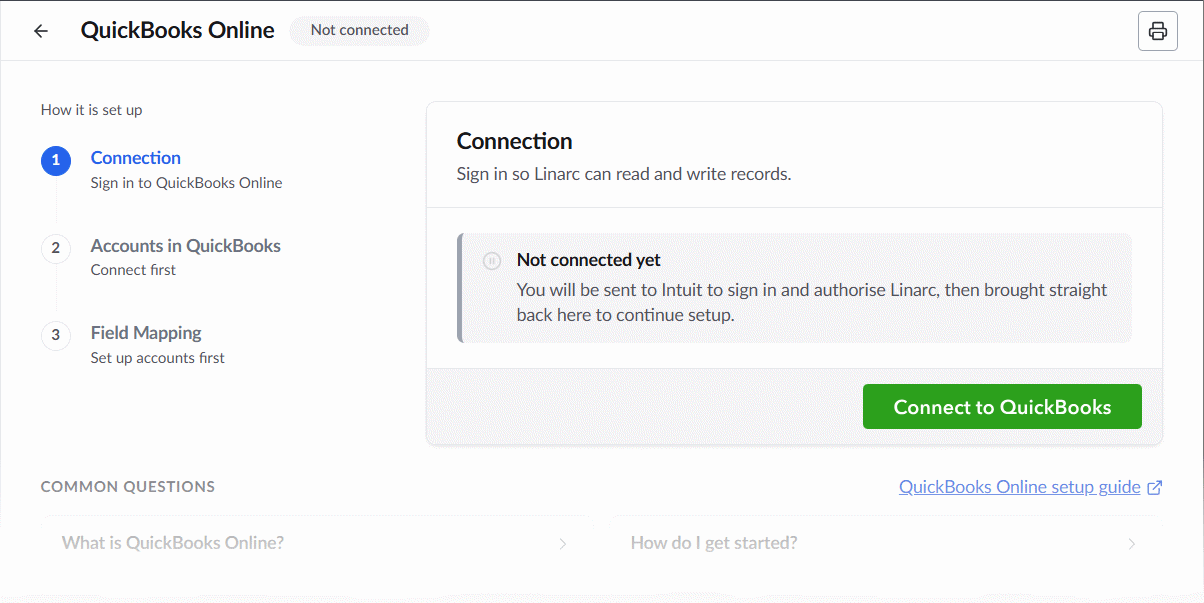
Step 2: Click Connect to QuickBooks
- On the 'Connection' step, click Connect to QuickBooks. You are taken to the Intuit sign-in page.
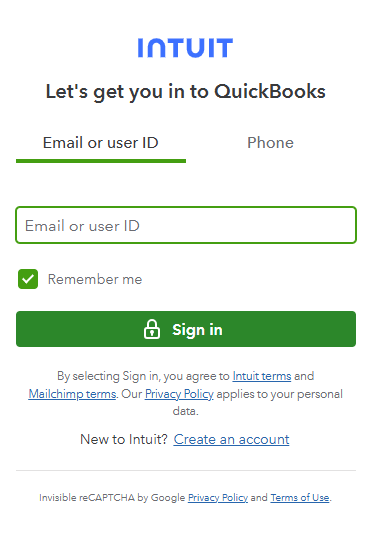
Step 3: Sign in and authorize Linarc
- Sign in with the same QuickBooks account and credentials you used before.
- Authorize Linarc to access your QuickBooks company account.
You are returned to Linarc, and the integration status changes to 'Connected'. Your previous settings are restored, and synchronization resumes.
After Reconnecting
- Review your account mapping and field mapping, and update them if your QuickBooks setup has changed while you were disconnected. See Configure Accounts and Map Data for QuickBooks Online.
- Sync any records that were created while disconnected and are not set to sync automatically, through the staging platform. See Sync Project Data - Overview.
See the following sections to learn more:
Was this article helpful?
That’s Great!
Thank you for your feedback
Sorry! We couldn't be helpful
Thank you for your feedback
Feedback sent
We appreciate your effort and will try to fix the article