Company administrators can disconnect Linarc from QuickBooks Online at any time, for example to carry out accounting maintenance or to pause data synchronization. Your integration settings are kept, so you can reconnect whenever you are ready.
What Happens When You Disconnect
- Synchronization stops - Automatic synchronization is paused, and you can no longer sync records manually through the staging platform.
- Records are no longer sent to QuickBooks - Invoices, budgets, recurring expenses, payroll and project records created or changed in Linarc are not sent to QuickBooks.
- Directory updates stop - Changes to employees, vendors and cost codes are no longer synchronized in either direction.
- Your data is kept - Records already sent to QuickBooks stay in QuickBooks, and everything you create in Linarc while disconnected stays in Linarc.
- Your settings are kept - Your account mapping, field mapping and synchronization settings are saved, and are restored when you reconnect with the same QuickBooks account.
- A reminder is shown - A banner on the integration screen reminds you that QuickBooks is disconnected until you reconnect.
Disconnect from Linarc
To disconnect Linarc from QuickBooks
- Ensure you are in the company admin console.
- Click 'Integrations' at the top, then click 'ERP' on the left.
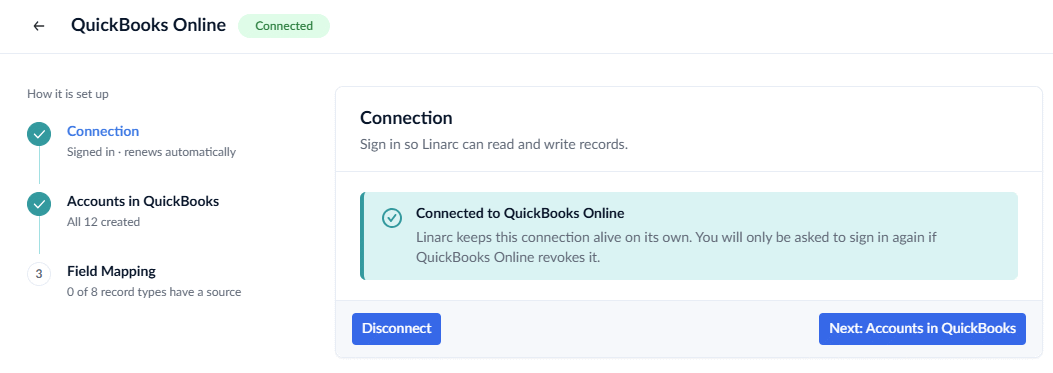
- Click 'Manage' on the 'QuickBooks Online' card.
- On the 'Connection' step, click 'Disconnect'.
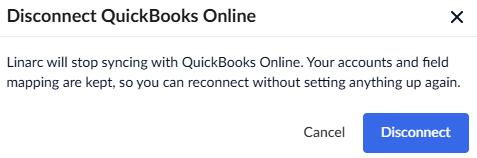
- Click 'Disconnect' in the confirmation message to confirm.
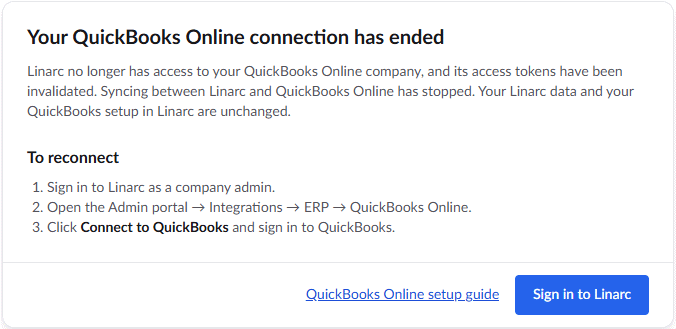
Linarc is disconnected from QuickBooks, and the integration status changes to 'Not connected'.
Disconnect from QuickBooks
You can also disconnect Linarc from within QuickBooks Online. The result is the same as disconnecting from Linarc.
- Sign in to QuickBooks Online, go to 'Apps', then 'My Apps'.
- Find Linarc in the list and select 'Disconnect'.
Note: Whether you disconnect from Linarc or from the QuickBooks App Store, the connection is reset. To resume synchronization, you must click Connect to QuickBooks in Linarc and authorize Linarc again. See Reconnect QuickBooks Online with Linarc.
See the following sections to learn more:
Was this article helpful?
That’s Great!
Thank you for your feedback
Sorry! We couldn't be helpful
Thank you for your feedback
Feedback sent
We appreciate your effort and will try to fix the article