Your QuickBooks Online (QBO) integration requires two main configurations to ensure your financial data flows correctly:
- Account Mapping: Link Linarc to the specific income, payroll expense, and payroll liability accounts in your QBO Chart of Accounts so journal entries are logged correctly. Note: In addition to the accounts you map manually, Linarc will also automatically create new, dedicated accounts in QBO for example, specific cost type accounts like labor, materials, and equipment.
- Data Mapping: Choose which data types (like your Employee Directory, Projects, Budgets, and Invoices) to synchronize between Linarc and QBO. For each data type, you will set a Source of Truth to determine which platform pushes updates to the other.
- Auto-Synchronization: For most data types, changes made in the source platform will automatically push to the destination.
- Manual Synchronization (Staging): Some data types require manual synchronization through a dedicated staging platform, allowing you to review and verify the data before it transfers.
To configure account mapping and data mapping
- Ensure you are on the QuickBooks Online is successfully linked with Linarc.
- Click 'Integrations' on the top of your admin console and select 'ERP' from the left menu
- Click 'Manage' button on the 'QuickBooks Online' card. This will directly take you to Step 2 of the integration step
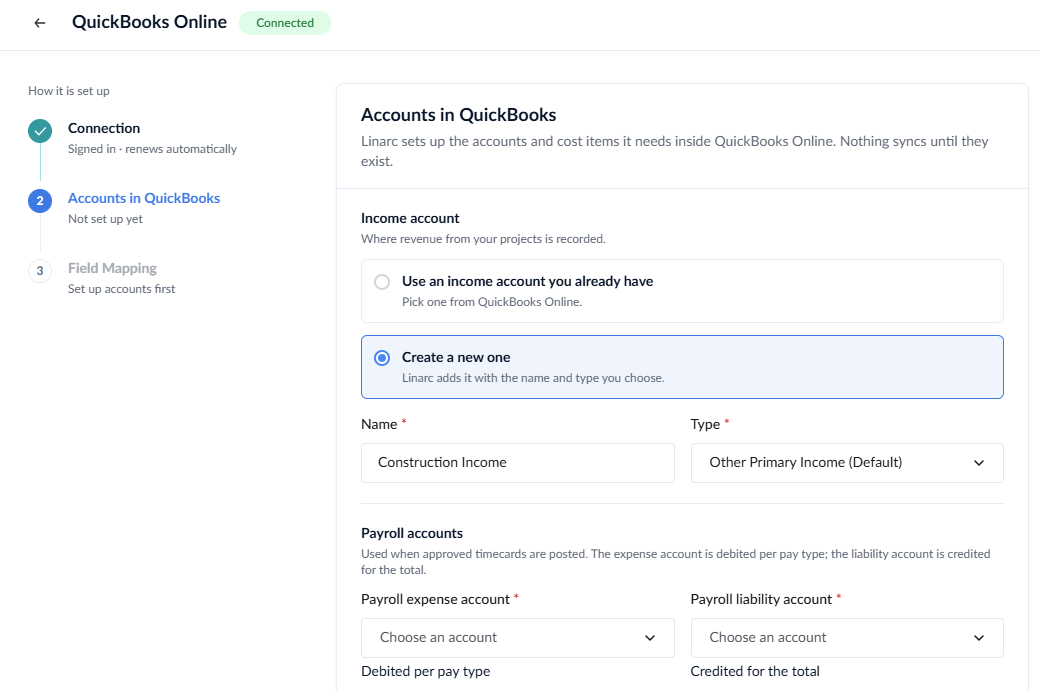
Step 1 - Configure Income and Payroll Accounts
Prerequisite - Prepare the Chart of Accounts: Ensure your QBO Chart of Accounts includes an Income account, a Payroll Expense account, and a Payroll Liability account to support data syncing from Linarc.
Note: Setting up and mapping these accounts is a one-time process and cannot be changed later. Please verify your selections with your accounting team before proceeding.
- Choose the appropriate QBO accounts where your project revenue and payroll entries will be tracked:
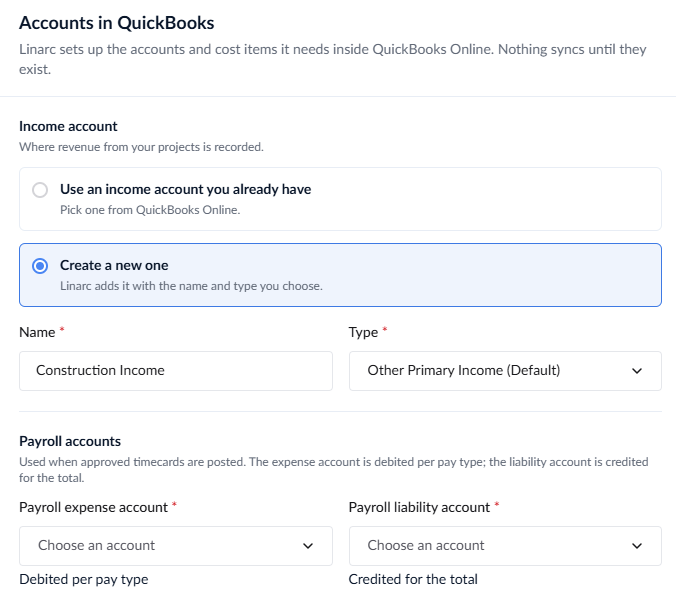
Income Account Configuration - Define where your generated project revenue is tracked in QBO. You have two options for your 'Income Account Type':
Use Existing Income Account: Link your Linarc project revenues to an existing income account in your QBO Chart of Accounts. Select the account from the drop-down menu.
Create Custom Income Account: Add a new, dedicated income account to your QBO Chart of Accounts to track Linarc project revenues.
- Income Account Name: If you choose to create a custom account, enter a specific name for it here (e.g., "Construction Income")
- Income Subtype: Select the subcategory under which the new income account falls.
Payroll Accounts Configuration - Designate the QBO accounts for your payroll journal entries:
Payroll Expense Account: Select the expense account in your QBO Chart of Accounts where Linarc should record your payroll expenses.
Payroll Liability Account: Select the liability account in your QBO Chart of Accounts where Linarc should record your payroll liabilities (e.g., payroll taxes).
In addition to the accounts you map above, Linarc will automatically create various new, dedicated accounts in your QBO Chart of Accounts. The lower pane displays the full list of these newly created and mapped accounts
Click 'Create Accounts' to proceed.
Your accounts are now set up, and their ID numbers are displayed on the screen for your reference.
Step 2 - Select and Setup Source Data Mapping
In the Field Mapping section, select the exact entities you wish to synchronize between Linarc and QBO.
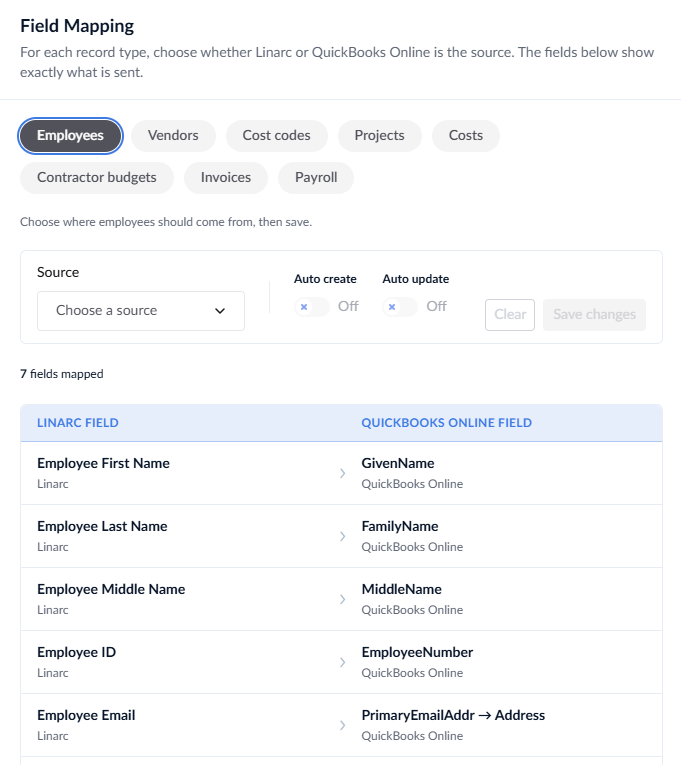
For each record type, you can set the primary Source of Truth, enable automatic synchronization, or choose to skip the sync entirely. You can update the source at any time.
For example, if you choose Linarc as the source for a specific data type, any changes made in Linarc will automatically push to QuickBooks.
Please note that for certain objects, Linarc must remain the primary source, and auto-sync options may be restricted. However, you can still manually push these records and updates through the staging platform.
Available Sync Objects:
- Employees - You can choose either Linarc or QuickBooks Online as the source. We recommend choosing the system where your HR team natively maintains personnel data. All employees enrolled in the source system will progressively sync to the destination.
Note on QBO as Employee Source: If you select QBO as the source, the imported personnel list will initially appear in Linarc in a "draft" state. An administrator must manually invite these users to fully activate their Linarc accounts.
- Vendors, Project and Financial Records - For items like Company Cost Codes, Projects, Vendors, Contractor Budgets, Recurring Expenses, Invoices, and Payroll, you must select Linarc as the source to push operations data to QBO. If you prefer to manage these items manually within QBO without syncing, simply set the source to 'Skip'.
To map objects
Select an object from the top
The bottom pane illustrates how the fields in these records map to their respective attributes in QuickBooks.
- Click the 'Source' dropdown at the top-right and select your desired Source of Truth based on the rules outlined above.
Toggle the 'Auto Create' switch to 'On' if you want the integration to automatically generate missing records in the destination system.
Toggle the 'Auto Update' switch to 'On' if you want edits in the source system to automatically reflect in the destination system.
- Click the 'Save Changes' button at the top-right to finalize the mapping for that specific object.
Repeat these steps for every object from the top
Once object mapping is complete, your employee, vendor, and cost code data will automatically sync between Linarc and QBO. Other data, including projects and their financial records, should be synced manually through the staging platform as required by the project manager.
For detailed guidance, see Sync Project Data - Overview.
Was this article helpful?
That’s Great!
Thank you for your feedback
Sorry! We couldn't be helpful
Thank you for your feedback
Feedback sent
We appreciate your effort and will try to fix the article