Simply link your QuickBook Online account to your Linarc company account in one step. Just login to QuickBooks from Linarc with your credentials once. Once logged-in, Linarc securely saves your authorization, allowing for a seamless, ongoing data sync.
Pre-requisite: Ensure you have the administrator login credentials for your QuickBooks Online account.
To link QuickBooks Online with your Linarc account
- Login to your company management console
- Click 'Integrations' at the top and select 'ERP' from the left menu
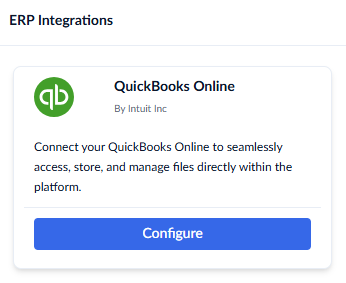
- Click the 'Configure' button in the 'QuickBooks Online' card
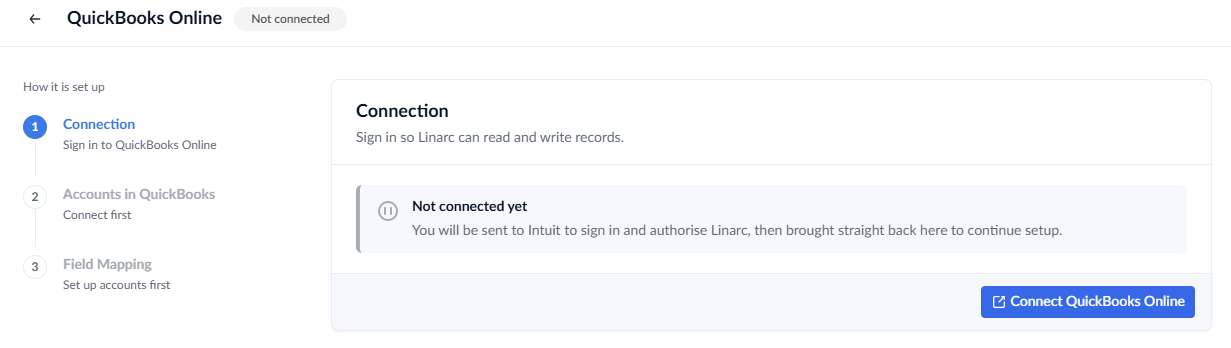
- Click 'Connect QuickBooks Online' button. You will be redirected to the 'Intuit' login page .
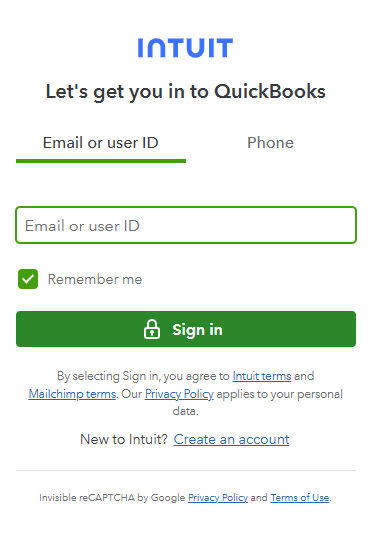
- Sign in using your QuickBooks account credentials.
Upon successful authentication, Intuit will grant Linarc a secure token to seamlessly exchange data with your QBO instance.
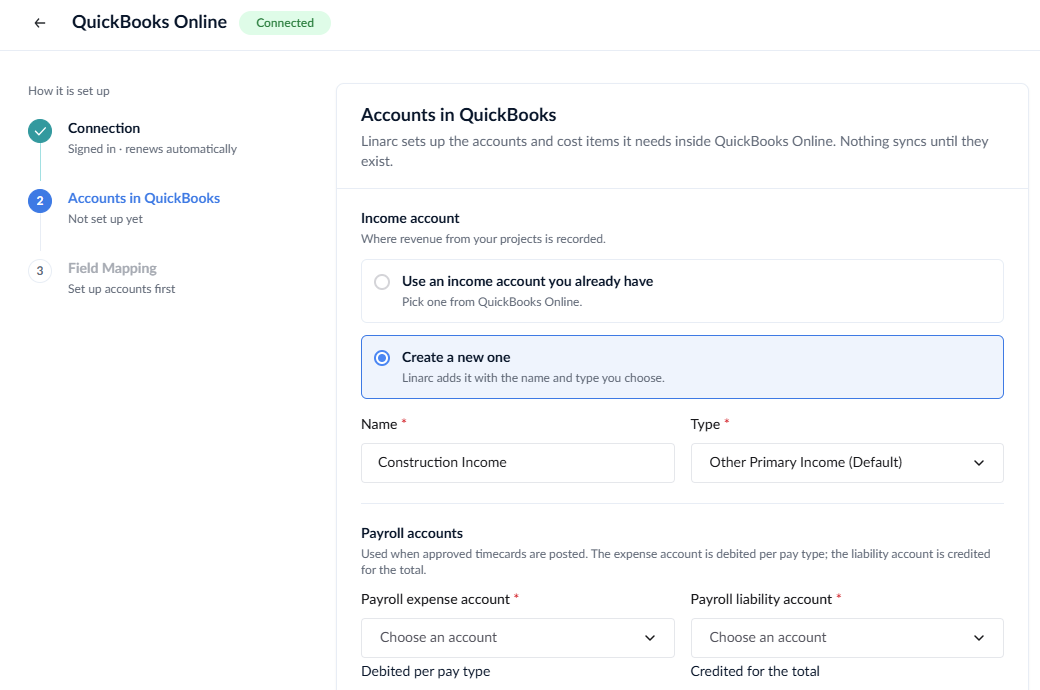
Your QuickBooks Online account is now connected to Linarc.
Next Steps:
- Chart of Accounts: Specify the income, expense, and liability accounts in your QuickBooks Chart of Accounts that Linarc should use for journal entries.
- Data Mapping: Specify the objects and entities you want to synchronize between Linarc and QuickBooks.
- For detailed guidance, see Account Configuration and Object Mapping for QBO.
Was this article helpful?
That’s Great!
Thank you for your feedback
Sorry! We couldn't be helpful
Thank you for your feedback
Feedback sent
We appreciate your effort and will try to fix the article