Linarc allows you to define company-level default settings for key parameters, such as Time & Materials (T&M) and periodic billing configurations. These global settings automatically apply to all newly created projects, establishing a consistent operational baseline. Project managers and finance administrators retain the flexibility to customize these settings for individual projects whenever needed.
By establishing a one-time global configuration, you eliminate repetitive setup tasks and save valuable time across project teams. These default configurations apply across all contractor types.
To set up the global finance configuration
Ensure you are in the Portfolio screen of your workspace. (If not, click the Main Menu at the top-left and select Project under Portfolio).
- Click 'Configure' at the top of the Portfolio module screen.
- Select 'Finance Config' from the left navigation panel.
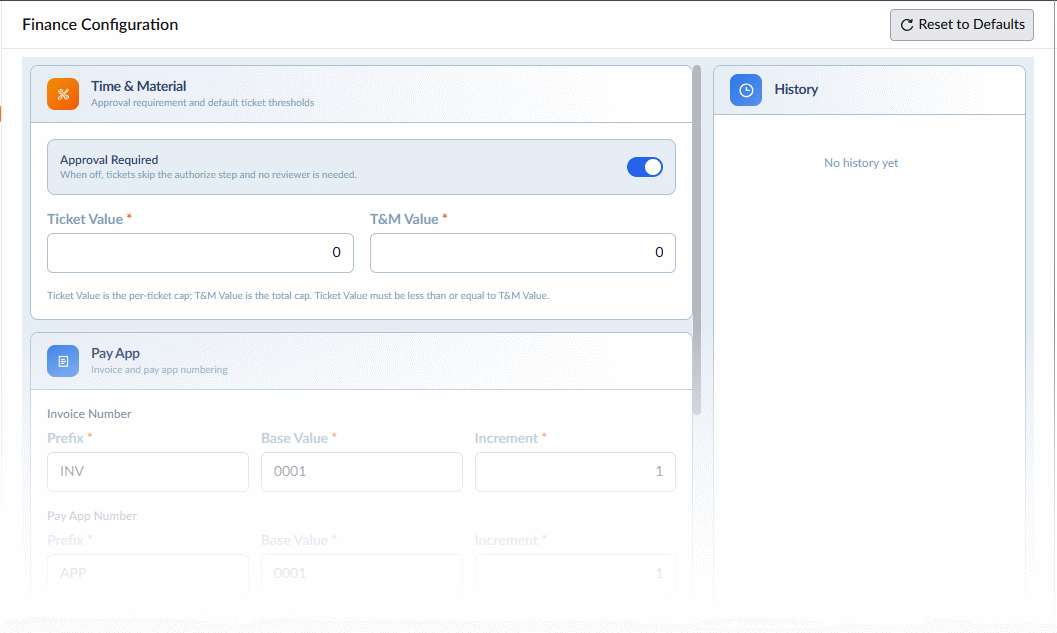
- Fill-in the values across the following sections:
Time & Material - Define threshold limits for individual tickets and cumulative project-level T&M expenses, beyond which tickets require formal review and approval:
- Approval Required: Enable this option to require General Contractor (GC) approval for T&M tickets generated at the project level. If disabled, threshold limits will not be enforced, and all T&M tickets will pass through without requiring GC review or approval.
- Ticket Value: The maximum dollar amount allowed for a single T&M ticket.
- T&M Value: The total cumulative dollar amount allowed for all T&M tickets across the entire project.
Note for Subcontractors: These global T&M settings apply only to projects you create and manage in Linarc as a standalone contractor. For projects where you operate as a subcontractor under a General Contractor, the GC's settings automatically govern the project, and you can only view them.
Pay App Details - Define the sequential numbering structure for your Pay Applications and Invoices, as well as general payment conditions.
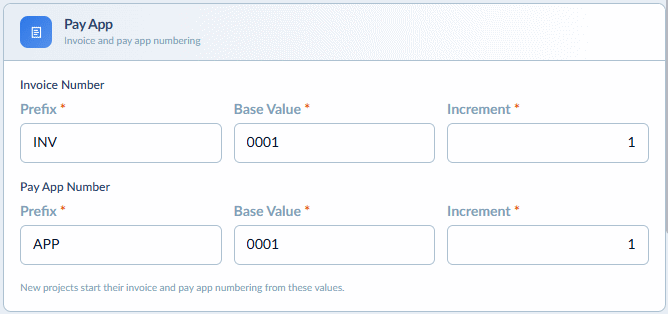
- Prefix, Base Value & Increment: Set an alphanumeric identifier (Prefix, e.g., your company initials), the starting serial number (Base Value), and the step value (Increment) for each successive document.
Bank & Tax - Specify the beneficiary bank account details where project payments will be received.
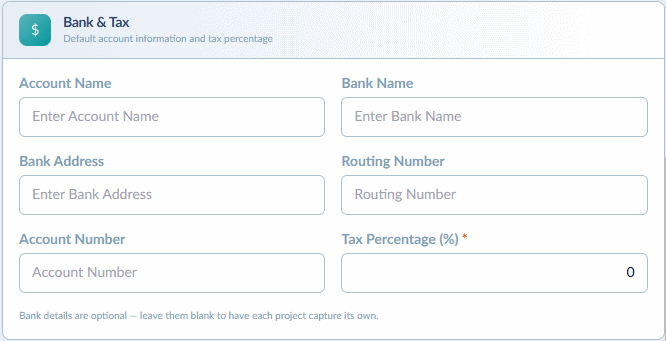
- Account Name & Bank Name: The account nickname and the holding bank.
- Bank Address & Routing Number: The physical address of the bank branch and its 9-digit routing code.
- Account Number: The receiving beneficiary account number.
- Tax Percentage: Enter the percentage of payment to be applied or withheld for tax obligations.
Billing Method
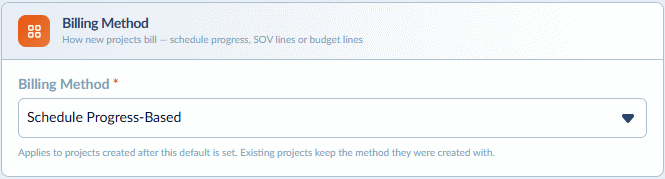
- Billing method - Select your primary progress billing mode to govern how pay applications are generated:
- Schedule - Progress Based: Linarc tracks task completion percentages and automatically calculates the monetary values earned for the current billing period.
- SOV-Based: Allows you to claim progress billings by percentage or direct monetary amount against individual Schedule of Values (SOV) line items for work completed during the month.
- Budget-Based: Allows you to claim progress billings by percentage or direct monetary amount against individual budget line items for work completed during the month.
Material Billing Method - Configure how procured and stocked materials are claimed on monthly pay applications based on your contract terms:
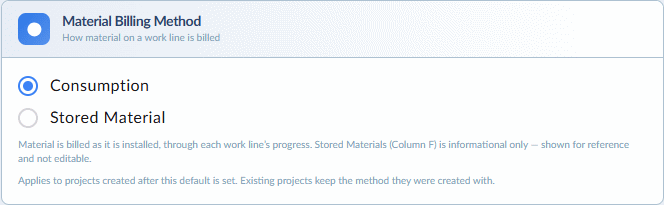
- Consumption - Material costs can only be claimed for the quantity actually consumed, in proportion to task progress during the billing period. The system automatically calculates this amount based on the budget allocated to the task and reflects it in your progress billing. Under this method, you cannot claim materials procured and stored on-site or in a warehouse for future use.
- Stored Material - Allows you to claim the value of materials procured and stocked on-site or in a warehouse prior to installation. Enter the dollar value of the stored inventory in the Stored Materials column on the Pay App generation screen to include it in that month’s billing application.
Currency Setup - Define the financial currency standard used for calculating project costs and receiving payments.
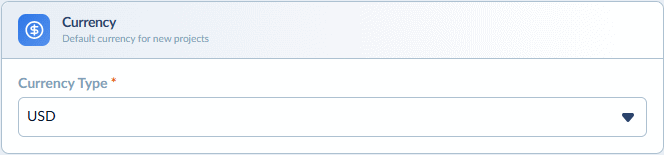
- Currency Type: Select the appropriate currency from the drop-down menu.
Saving & History
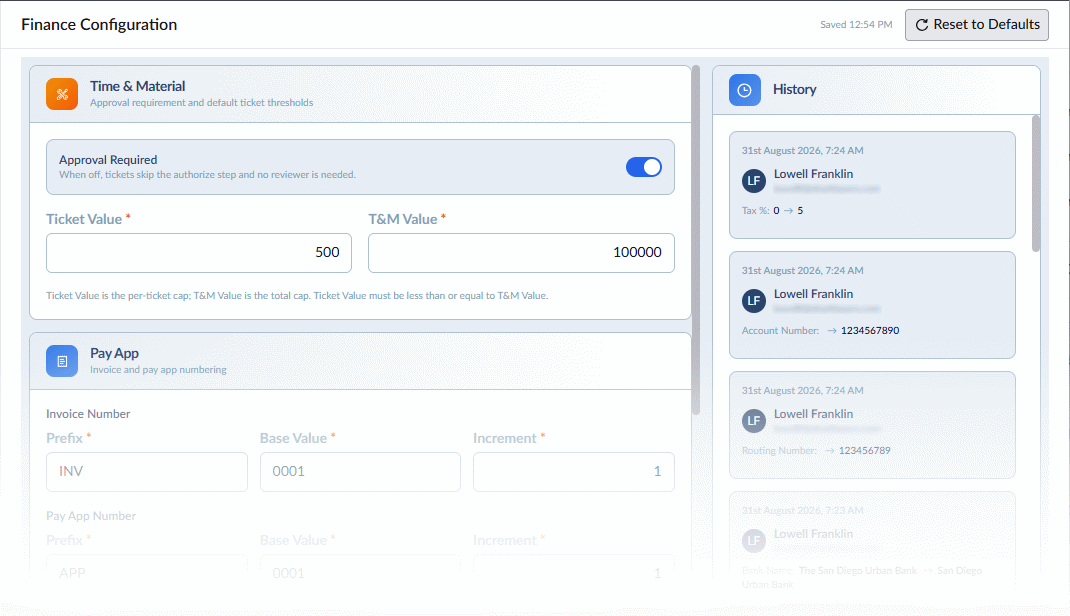
- Auto-Save: Your configurations are automatically saved as you enter or change values. You can modify these global defaults at any time.
- View Change Log: The History panel on the right displays a chronological record of all edits made to your global finance configuration over time.
Project-Level Overrides
These global configurations serve as default values for all newly created projects. If an individual project requires custom financial terms, the Project Manager or Finance Lead can modify these settings within that specific project's workspace by navigating to: 'Main Menu' > (Select any item under) 'Finance & Controls' > 'Configure.' See Set Up Billing Configuration to learn more.
Was this article helpful?
That’s Great!
Thank you for your feedback
Sorry! We couldn't be helpful
Thank you for your feedback
Feedback sent
We appreciate your effort and will try to fix the article