When your project reaches key milestones and it is time to release withheld funds, Linarc makes it easy to bill for your retainage. Instead of manually calculating release amounts, you simply update your project's billing settings and let the system handle the math. You can choose to generate a dedicated Payment Application (Pay App) specifically for the retainage, or include the claimed funds in your next regular Pay App.
Here is a quick overview of how the process works:
- Adjust the Retainage Percentage: Update your project's Billing Setup by lowering the overall retainage rate to reflect the newly agreed-upon percentage.
- Automated Calculations: Linarc automatically calculates the financial difference based on your new percentage and prepares the exact release amount.
- Flexible Submission: Choose your preferred billing method. You can generate and submit a standalone Pay App dedicated solely to the retainage, or hold the Pay App to submit with the month end batch.
Claiming a portion of Retainage involves the following steps. Use the links below to jump to the section you need help with:
- Step 1 - View the Total Withheld Retainage
- Step 2 - Calculate Your New Retainage Percentage to Claim Desired Amount
- Step 3 - Adjust the Retainage Configuration
- Step 4 - Generate the Retainage Pay App
- Illustration for calculating the new retainage percentage
Step 1 - View the Total Withheld Retainage
Open the latest pay app. To do so:
- Click the app launcher icon
 in the top-right, then select 'Finance'
 - Click 'Progress Billing' on the top and select 'Pay App' on the left
- Scroll down to the latest pay app and click its period
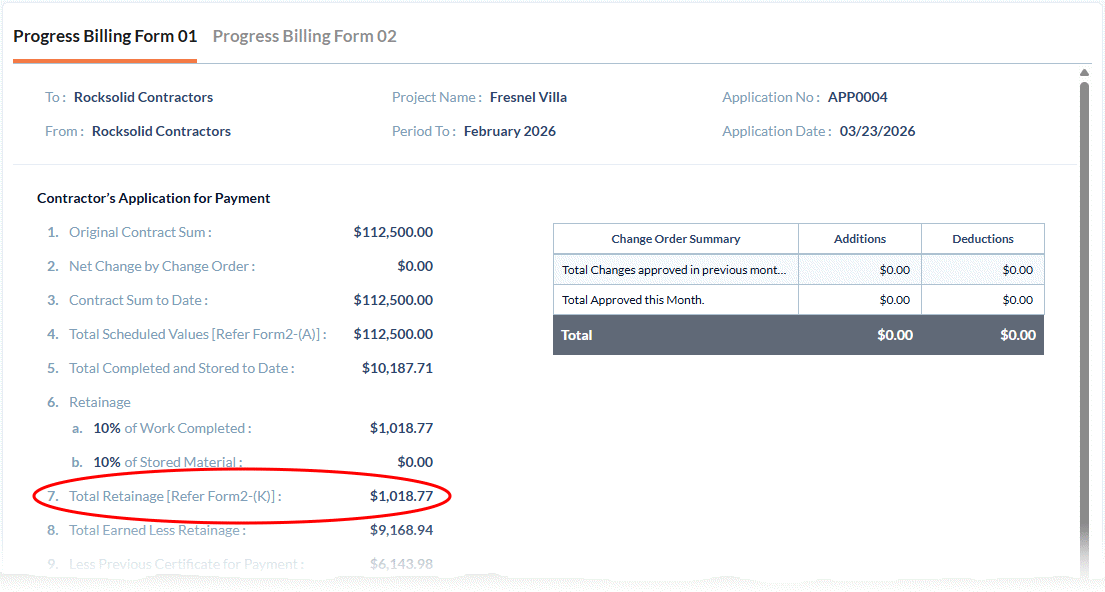
In the 'Progress Billing Form 1', locate the following two numbers:
- Item 6: Your current retainage percentage.
- Item 7: The total amount withheld by the paying party to date.
Step 2 - Calculate Your New Retainage Percentage to Claim Desired Amount
To release a specific dollar amount, you must reduce your overall retainage percentage. Use the following formula to determine the exact percentage you need to configure:
New Retainage Percentage (Pnew) = ((W-C)/W) x Pcurrent
Where:
- Pnew = New Retainage Percentage
- W = Total amount withheld to date (from Item 7)
- C= The specific dollar amount you want to claim right now
- Pcurrent = Current Retainage Percentage (from Item 6)
Review the illustration below to see exactly how this calculation works in practice.
Step 3 - Adjust the Retainage Configuration
- Open the 'Finance Config' screen in the Finance module. To do so:
- Click the app launcher iconin the top-right, then select 'Finance'
- Click 'Configure' on the top and select 'Finance Config' on the left
- Scroll down to the 'Terms & Percentages' section
- Click the app launcher icon
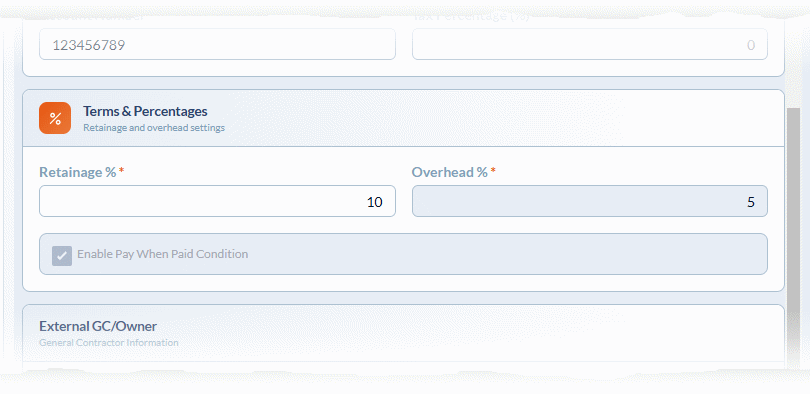
- Adjust the retainage percentage as per your calculation
- Click 'Save Changes' for your settings to take effect
Going forward, all subsequent pay apps will calculate and withhold funds based on this new percentage. The amount released by this reduction can now be claimed using a dedicated 'Retainage' pay app.
Step 4 - Generate the Retainage Pay App
To generate a retainage pay app
- Click 'Progress Billing' > 'Open' to open the 'Open' screen
- Move the toggle swith at the top to 'Retainage Pay App'
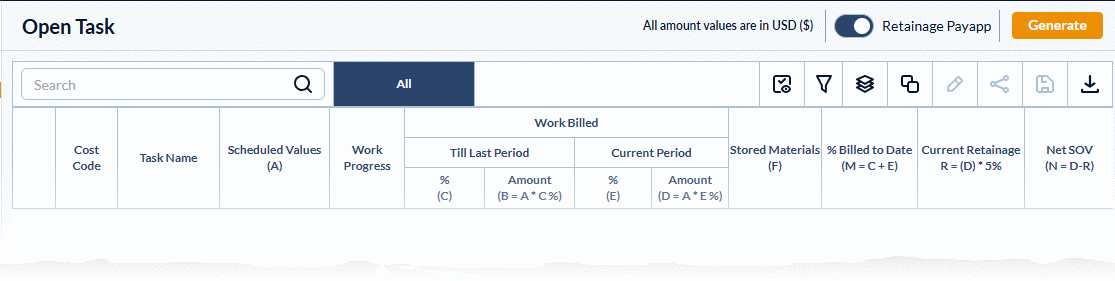
- Click 'Generate'
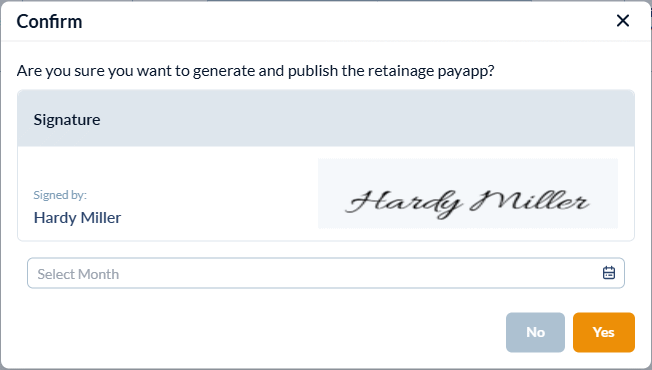
- Confirm your signature. The signature is fetched from your profile settings. If you haven't added your signature to your profile, you will be prompted to do so.
- Enter the month for which the retainage claim payment application is generated.
- Click 'Yes' to continue
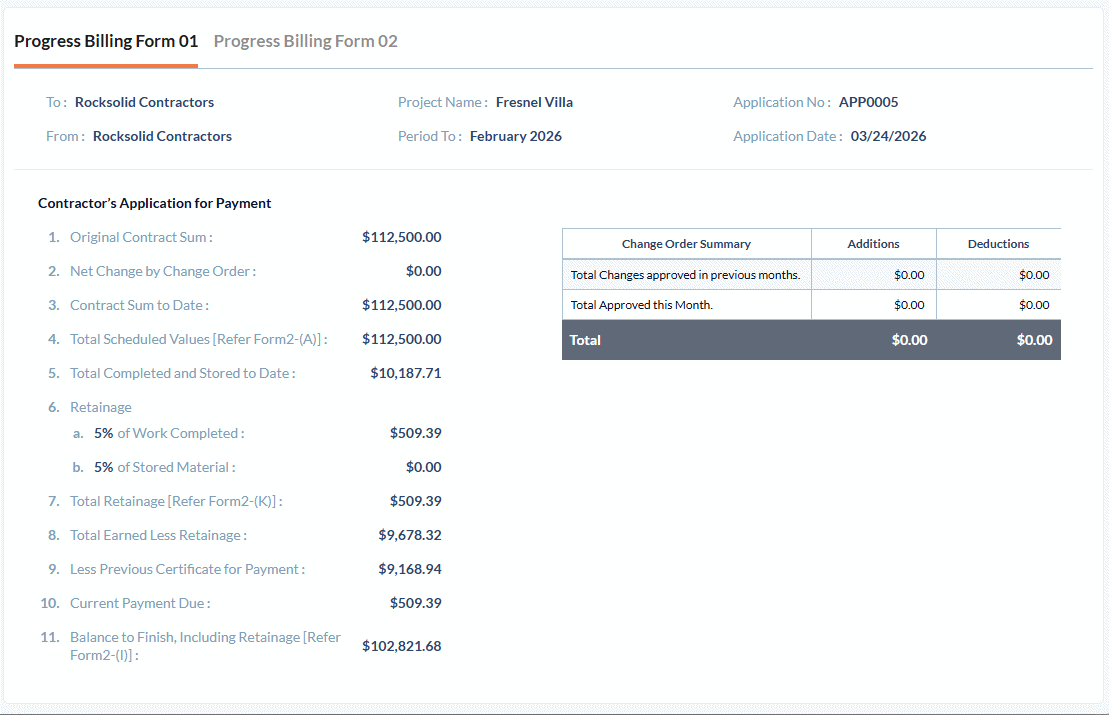
A dedicated pay app for the retainage amount is generated:
- Form 1 Tab shows the Summary of the payapp with the layout as per industry standards
- Form 2 tab shows the details of retainage amount claimed against each SOV line item
- Click the
 button on the top right to download the PDF version of the pay app
You can view the list of pay apps generated in the 'Progress Billing' > 'Pay Apps' screen.
Next Steps:
- If generated on or after the payment submission date, click 'Submit' and proceed with sending the PDF version of the Pay App through email
- If generated before the payment submission date, the Pay App adds to the list. You can accumulate pay apps then submit them as a batch after the submission date.
Illustration:
Let’s say you have a current retainage of 10%, and the total amount withheld so far is $50,000. You want to claim a partial release of $20,000.
- Subtract your claim from the total withheld: $50,000 - $20,000 = $30,000
- Divide that result by the total withheld: $30,000 ÷ $50,000 = 0.6
- Multiply by your current percentage: 0.6 × 10 = 6
- In this scenario, you would update your configuration to a 6% retainage rate. The system will then automatically calculate the difference and allow you to claim your $20,000.
Was this article helpful?
That’s Great!
Thank you for your feedback
Sorry! We couldn't be helpful
Thank you for your feedback
Feedback sent
We appreciate your effort and will try to fix the article