Linarc's plans module allows you to manage the external cloud storage folders and accounts connected to your project. You can update the linked folders to fetch the latest file revisions or switch to a completely different Google account to import documents from a new source. You can:
Manage Folders: Add, swap, or remove specific folder URLs to control which files are pulled into the system.
Manage Accounts: Disconnect your currently linked cloud storage account and authorize a new one.
Note: You can maintain a maximum of two connected external drive folders at a time.
Add, Swap, or Remove a Folder
- Ensure you are in the 'Plan Sets' screen of the 'Plans' module. If not:
- Click the main menu at the top left
- Click 'Plan Sheet' under the 'Documentation' menu and select 'Plan Sets' on the left
- Click Manage Drive at the top.
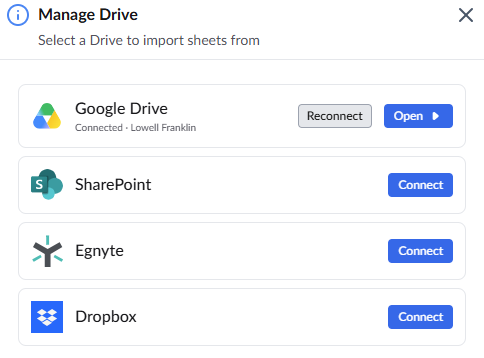
- Click 'Open' to view your currently connected folders.
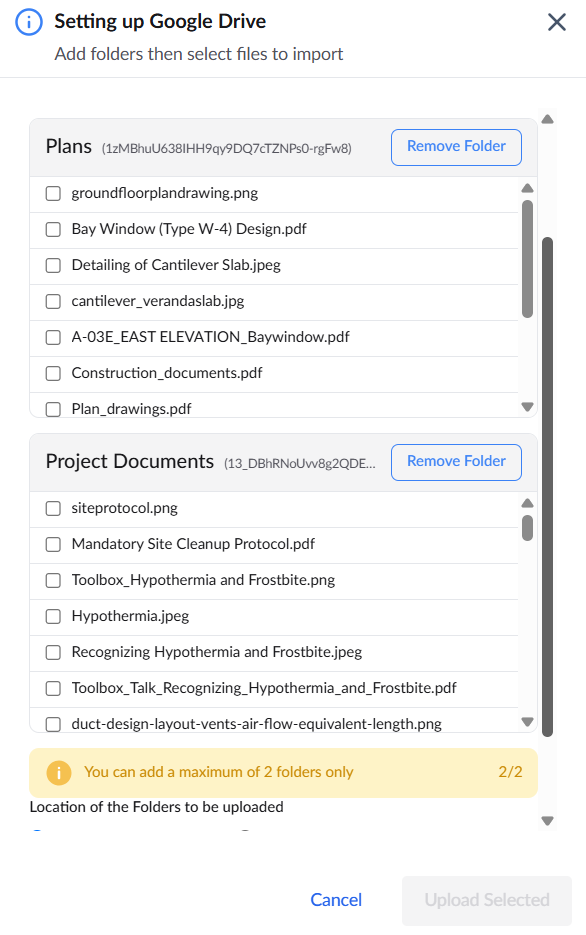
- Paste a new folder URL into the input field to add or swap a source folder.
- Click Add Folder to instantly view and access the contents of the new folder.
Clear an old folder if you need to free up one of your two available folder slots.
- Click 'Remove' button to clear the folder and repeat the process as mentioned above to add a new folder.
Reconnect to a Different Account
To change the connected external drive account:
- Click 'Manage Drive' from the Plan Sets screen.
- Click Reconnect.
- Follow the prompts to authorize a different account.
Was this article helpful?
That’s Great!
Thank you for your feedback
Sorry! We couldn't be helpful
Thank you for your feedback
Feedback sent
We appreciate your effort and will try to fix the article