Project managers and other team members with the required permissions can upload plan sets from their device to the project. Linarc extracts the individual sheets and saves them as a draft, so you can review and edit the details before you publish. Published sheets are private until you share them, and you can upload revised plans at any time.
Plan Sheet Details
Linarc’s AI reads each sheet’s number, name, date, discipline and drawing scale, and calibrates the measurement tools automatically. Anything missing or unclear is flagged with a red triangle for you to fix.
To import plans from Google Drive, SharePoint, Egnyte or Dropbox instead, see Upload Plans: Overview.
Adding plan sheets to a project involves two steps:
Upload a New Plan Set
- Click the Main Menu icon at the top-left of your screen.
- Select 'Plan Sheets' under the 'Documentation' section of the drop-down menu
- Choose 'Plan Sets' on the left.
- Click 'Upload Set' on the top right
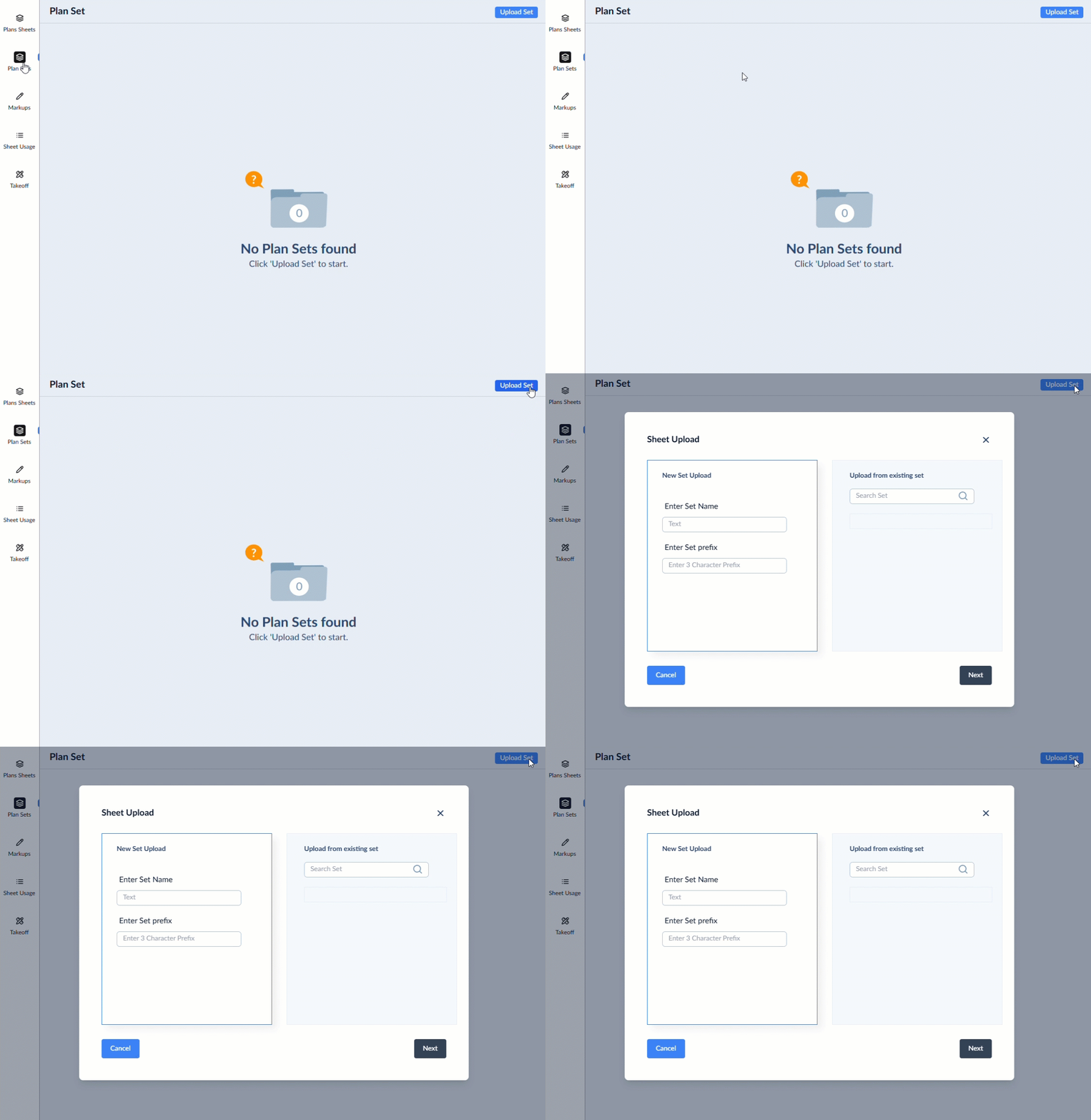
The 'Sheet Upload' has two options:
- New Set Upload - Create a set of plan sheets by uploading files containing single or multiple plan sheets.
- Upload from existing set - Create a new subset of plan sheets by uploading new plan sheets, revised plan sheets, sheet sets, etc., to existing plan sets.
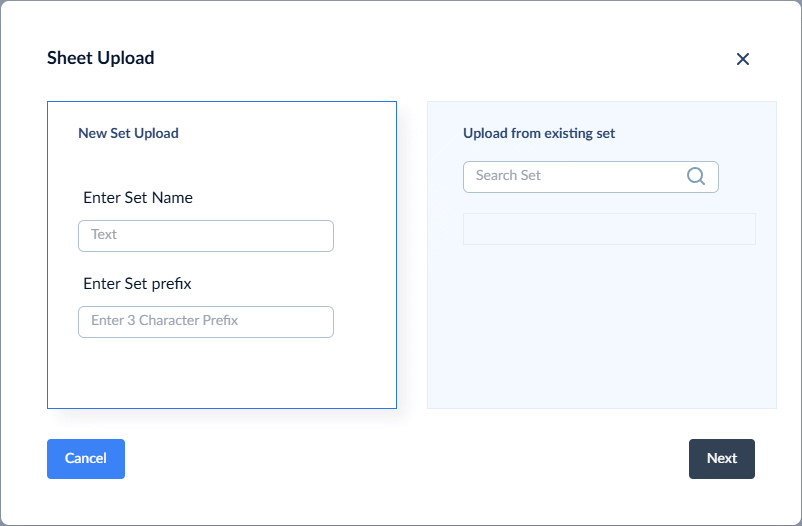
- Enter a name for the new set to upload, for example, Architectural, Floor Plans, Electrical, HVAC, etc.
- Enter a three-letter prefix to identify the set.
- Click 'Next.'
A new plan set is created.
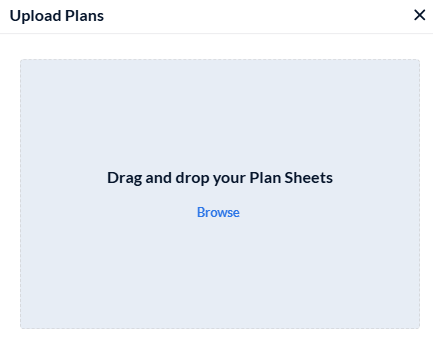
- Click 'Browse' and navigate to the plan file set(s) or individual sheet files to be uploaded. Supported file formats include images (.png, .jpg, .jpeg) and documents (.pdf).
- Alternatively, drag and drop the plan file set(s) or individual sheets to the 'Upload Plans' box.
The system starts uploading the files:
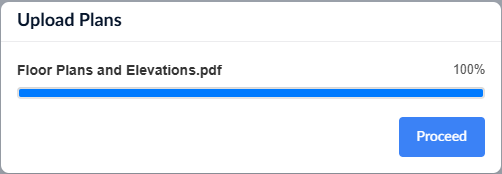
- Once complete, click the 'Proceed' button for the AI to start processing the file and scanning the individual sheets.
Review and Publish Plan Sheets
Linarc uses intelligent algorithms to parse the files into individual sheets, identify the values like the sheet number, sheet name, date, discipline, etc, and shows them as a list.
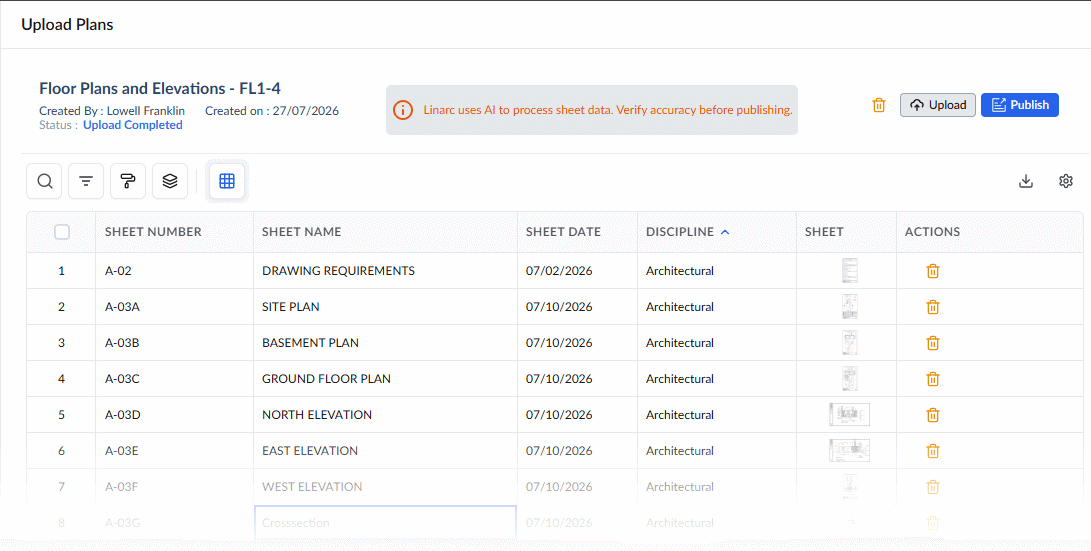
- Sheet Number: The unique alphanumeric identifier extracted from the drawing.
- Sheet Name: The descriptive title of the plan (e.g., "First Floor Layout").
- Sheet Date: The creation or publication date printed on the drawing.
- Discipline: The specific trade or construction category the sheet belongs to (e.g., Architectural, Electrical, Structural).
- Sheet: A thumbnail preview of the uploaded file. Click the image to open the full-size drawing.
- Actions: Controls to manage the item, such as deleting the sheet from your drafts before publishing.
If any information is missing (indicated by a red triangle in the table) or incorrect—such as when text on the sheet is unclear or located in an unusual position—you can simply click into the cell to manually update the details.
- Open the plan sheet by clicking its thumbnail.
- Double-click any cell to edit its contents.
- For 'Discipline,' select the appropriate option from the drop-down list.
- For 'Date,' choose the date from the calendar that appears when you click the cell.
You can also duplicate values using standard copy-paste actions.
- Use the keyboard shortcuts Ctrl+C and Ctrl+V to copy and paste cell contents.
- To paste a value into multiple cells simultaneously, hold Ctrl or Shift to select multiple cells, then paste. This is especially useful when filling similar values across consecutive entries and adjusting them as needed.
- Click 'Upload' and repeat the process to add more sheets to the set.
Tip: The uploaded sheets are saved as a draft plan set. You can pause the process if you want to add more sheets or edit the details at a later time before publishing.
- Once you are done, click
 at the top to save the sheets to the project
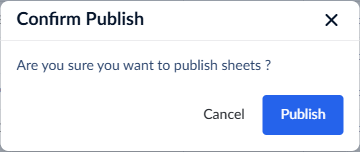
- Click 'Publish' in the confirmation dialog
The plan sheets screen shows the added plans.
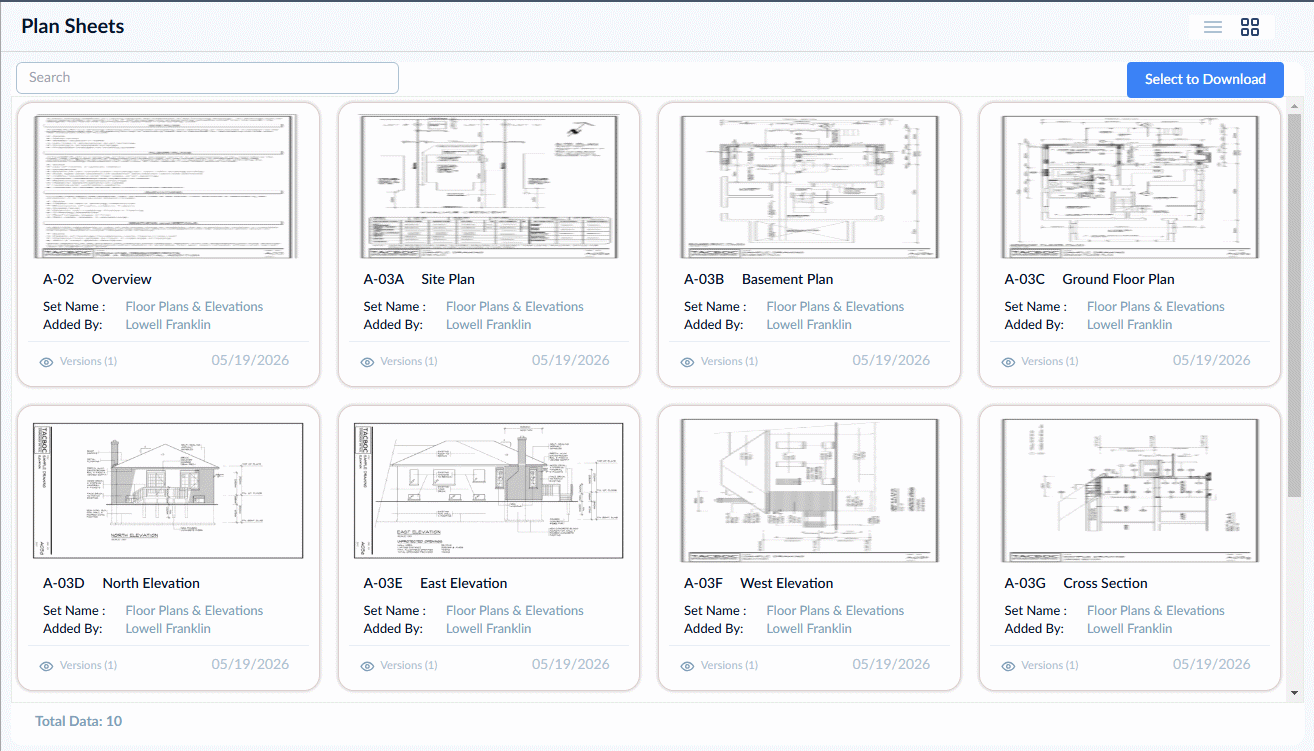
By default, all sheets in the uploaded set are visible only to you, as the access level is set to Private.
To share these plan sheets with stakeholders or construction team members, you can update the access settings for the individual sheets or an entire set.
For step-by-step guidance, refer to Share Plan Sheets and Share plan sets.
- Use the 'Search' box at the top-left to search for a specific plan sheet using the sheet name or the sheet number as your search criteria
- Use the options at the top right to change the view, search, and filter the plan drawings. See View plans for more details
- Click a thumbnail to view the full plan
- Repeat the process to add more plan sets for various divisions of work.
Was this article helpful?
That’s Great!
Thank you for your feedback
Sorry! We couldn't be helpful
Thank you for your feedback
Feedback sent
We appreciate your effort and will try to fix the article