After building and refining your short-term schedule, the next step is gaining commitment from your project team. Sending the Look Ahead schedule for review allows subcontractors to evaluate their assigned work and either commit to the planned dates or propose necessary adjustments. This ensures that external contractors are aligned, equipment and materials are verified, and potential conflicts are addressed before the schedule goes live for field execution. Before sending a look ahead schedule for review, ensure:
Tasks are Assigned: Every task within the Look Ahead window is explicitly assigned to the correct subcontractor or internal project team.
Dates and Dependencies are Accurate: The planned start dates, end dates, durations, and task relationships accurately reflect current project requirements.
Planned Quantities are Established: Target work quantities are defined for relevant tasks to enable accurate daily production tracking.
Known Constraints are Flagged: Any existing roadblocks are clearly identified and attached to the respective tasks.
Note:
- Once the Look Ahead schedule is in In Review status, it is temporarily locked. You cannot make structural changes (such as editing tasks, dates, or quantities) until the review is complete or cancelled.
- All self-performed tasks will automatically transition to a 'Committed' state the moment the schedule is sent for review, as internal alignment is assumed.
Send Look Ahead for Review
- Ensure that you are on the 'Schedule' module of the project. If not:
- Click the main menu at the top left
- Click 'Schedule' under the 'Scheduler' menu and click 'Look ahead' on the left
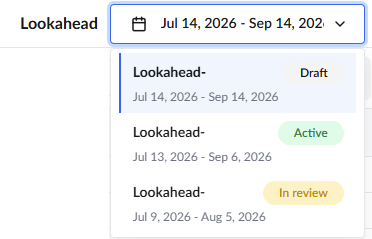
The current Active Look Ahead schedule (if any) opens by default. To view Look Aheads that are in Draft status, open the date range drop-down at the top left and select the desired period.
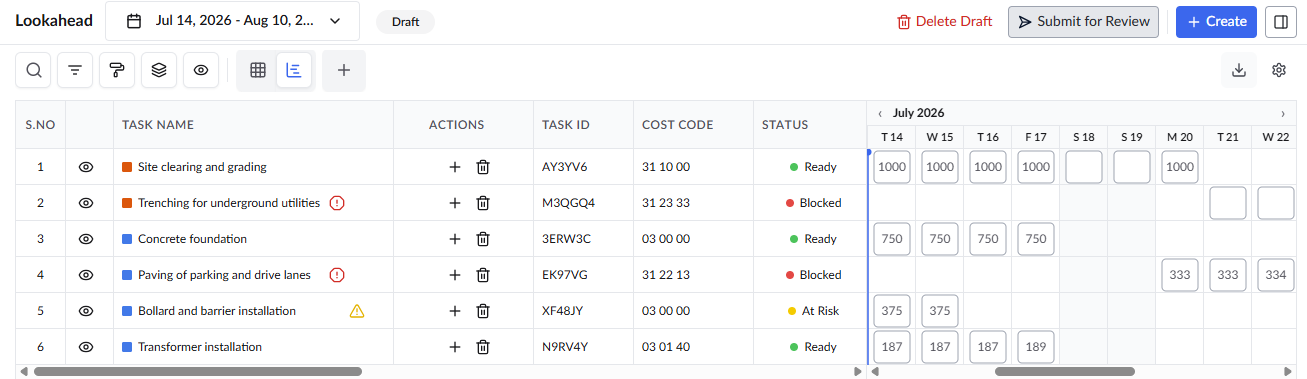
- Click the 'Submit for Review' button on the top right
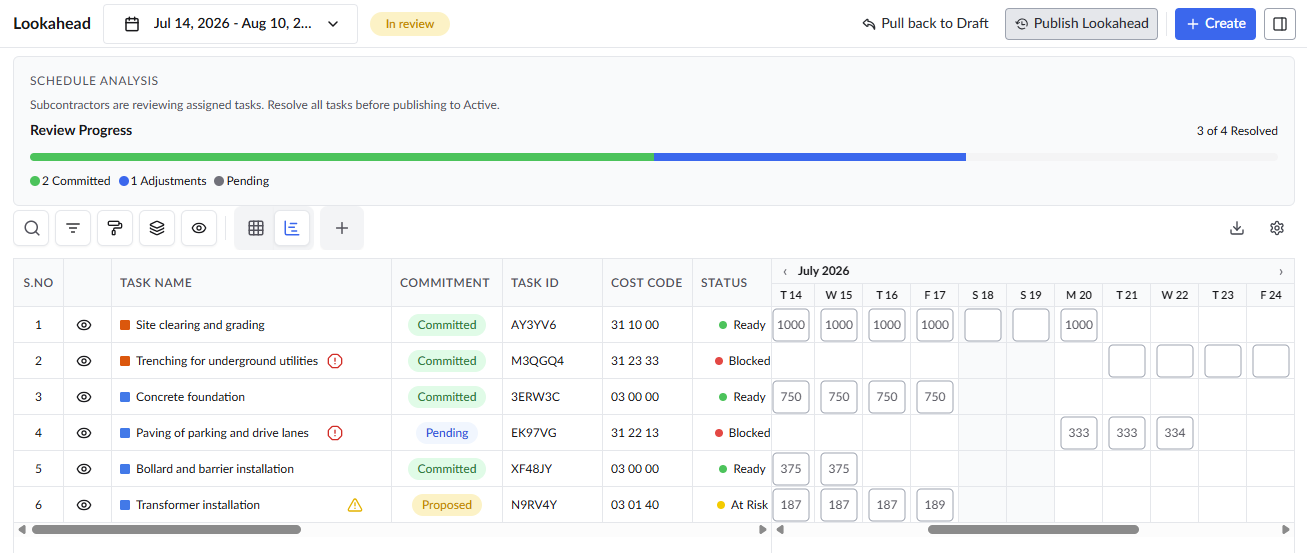
Pull the Schedule Back to Draft
If circumstances change while the schedule is 'In Review', the GC has the option to halt the review process. You can pull the look ahead schedule back to draft in the following conditions:
- Major design changes or scope shifts occur unexpectedly.
- Critical missing tasks are identified that require immediate inclusion.
- Significant errors are found in the current draft that require a realignment of the scheduled dates or contractor scopes before they commit.
Once pulled back to a Draft state, the lookahead is unlocked for the GC to make necessary adjustments and start the review process over.
To pull schedule back to draft
- Ensure you are in the schedule 'Look Ahead' screen.
To view Look Aheads that are in review status, open the date range drop-down at the top left and select the desired period.
 Click 'Pull Back to Draft' at the top
Was this article helpful?
That’s Great!
Thank you for your feedback
Sorry! We couldn't be helpful
Thank you for your feedback
Feedback sent
We appreciate your effort and will try to fix the article