Deactivating a cost code hides it from active selection menus without deleting historical data, keeping your active list clean and preventing data entry errors. Reactivating a code restores it to your active list for immediate use.
Active Cost Codes: Available for immediate use and assignment in project workflows.
Inactive Cost Codes: Removed from active selection lists to prevent new assignments.
The system enforces specific constraints to edit a code based on its current status.
In Use and Locked: If an active cost code is currently in use in any of the financial documents in your projects and locked by the system, no changes can be made to its details, and it cannot be deactivated.
Active and Not In Use: If a cost code is active but not currently in use, you can edit all the details such as the cost code, type, attribution, category, and name.
Inactive: When a cost code is in an inactive state, you have full access to make all changes to its details.
To deactivate/reactivate a cost code
- Log in to the company management console
- Click ‘Cost Codes’ on the top
The 'Active' screen opens by default showing all available cost codes and items.
- Click 'Active' on the left to return to this screen if you are in a different screen in the 'Cost Codes' menu
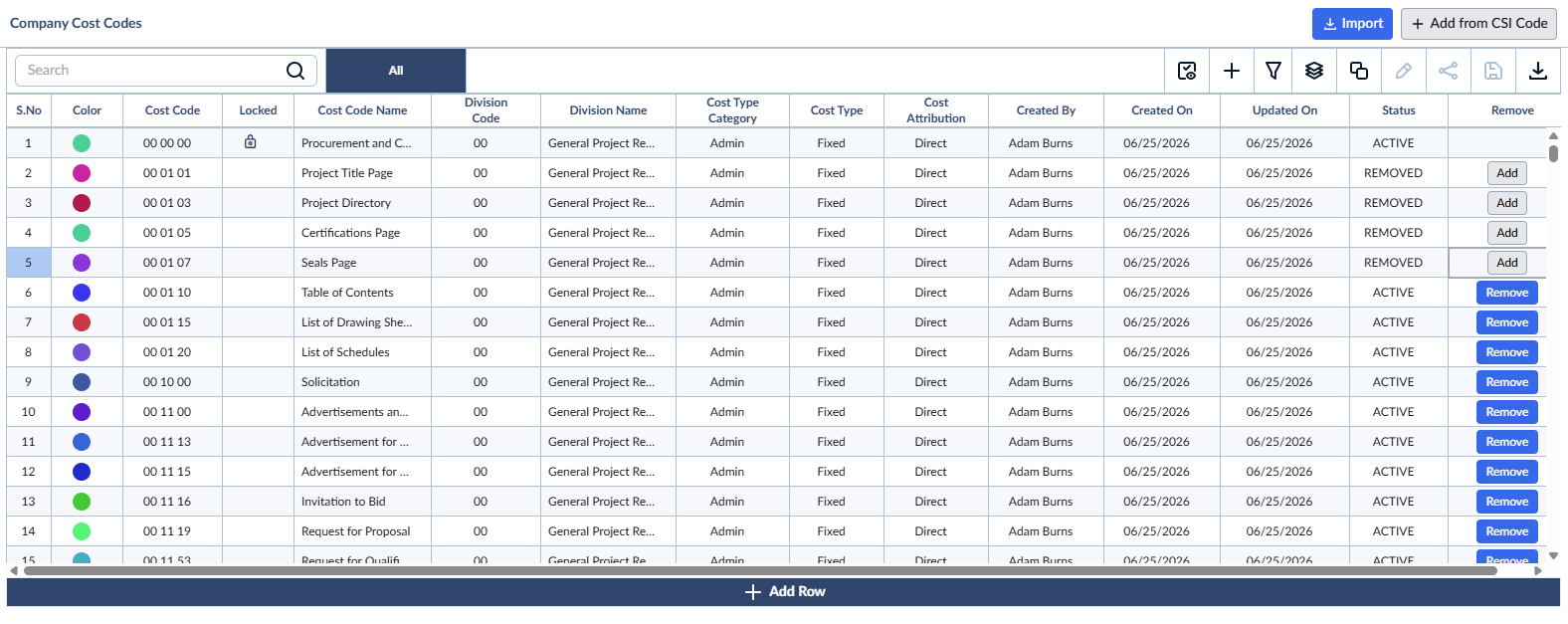
- Find the required task by typing the task name or Cost code in the search bar on the top.
- Deactivate - Click the
 button to remove the cost code from the active selection menu throughout the application.
 - Reactivate - Click the
 button to enable the cost code for selection.
To edit a cost code
- Open the cost codes screen as mentioned above.
- Find the required task by typing the task name or Cost code in the search bar on the top.
- Double click inside the cell which you want to change. You can make the following changes to a cost code if it is not locked.
- Cost Code: The unique identifier of the cost item or the CSI code.
- Cost Code Name: A short, descriptive label for the cost item.
- Cost Type Category: The category of the work (e.g., ADMIN, OFFICE, FIELD, T&M, or Recurring Cost).
- Cost Type: The classification of the expense. Can be Fixed (predefined allocation) or Variable (changes based on usage or conditions).
- Cost Attribution: How the cost is allocated. Can be Direct (project-specific, like materials, labor, and equipment) or Indirect (overhead, miscellaneous, and subcontractors).
- Your changes are autosaved and will reflect in all the active cost code selection menu throughout the application.
Was this article helpful?
That’s Great!
Thank you for your feedback
Sorry! We couldn't be helpful
Thank you for your feedback
Feedback sent
We appreciate your effort and will try to fix the article