Build a master library of standard, non-production field activities—such as travel time, lunch breaks, and safety meetings at the company level in the 'System Field Tasks' module. Once globally configured, these items are available across all projects, enabling foremen and field crews to accurately log time spent on these activities on their daily timesheets.
- Start quickly with Linarc's built-in list of common field activities, or easily add custom activities tailored exactly to your company's unique workflows.
- Organize every item by a specific activity type to keep data clean (e.g., Drive, Break, Meeting, Temporary task, Toolbox talk, or Safety huddle).
- Each item is tied to an alphanumeric cost code, ensuring your timesheet data syncs perfectly with your existing accounting and payroll systems.
Use the links below to quickly navigate to the section you need help with.
- System Field Tasks Screen
- Add New Field Task
- Edit Field Task
- Activate/Deactivate a Field Task
- Remove a Field Task
System Field Tasks Screen
- Ensure you are in the 'System Field Task' screen. Ifnot,
- Log in to your company management console
- Click 'Cost code' at the top and 'System Filed Tasks' on the left
The screen displays a list of pre-defined standard field activities:
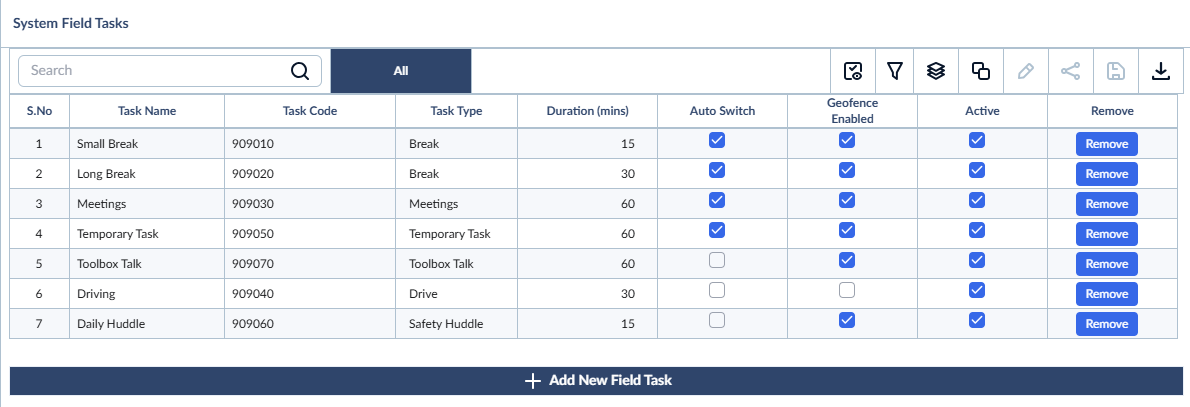
- Task Name: The descriptive label for the activity.
- Cost Code: The unique alphanumeric identifier for the activity .
- Task Type: The specific category of the activity (e.g., Drive, Break, Meeting, Toolbox Talk, or Safety Huddle).
- Duration (min): The default time limit allocated for the task.
- Auto Switch: When enabled, the timecard app automatically resumes the timer for the crew member's previous task once this activity's duration ends. If disabled, they must switch tasks manually.
- Geofence Enabled: Requires the user to be physically within the project's designated geographic boundary to log time for this activity.
- Active: Indicates whether the item is currently visible and available for field crews to select on their mobile devices.
- Remove: Deletes the task from your master list.
Add New Field Task
Administrators can expand the standard list by adding custom tasks specific to their company's operations.
- Click the 'Add New Field Task' button. A blank row is added at the bottom.
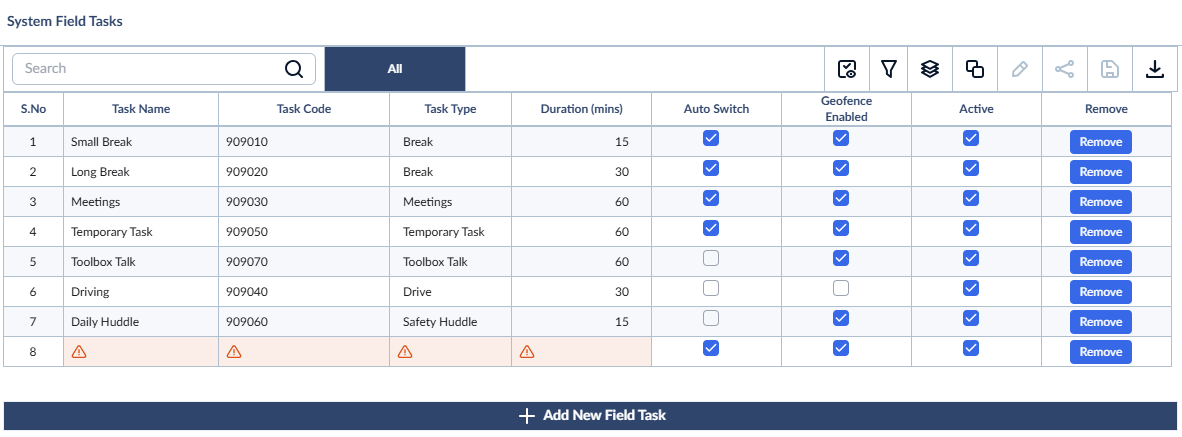
- Click inside the cells to enter the Task Name, Cost Code, Task Type and a Default Duration for the item.
- Configure the rules - Use the checkboxes to enable/disable Auto Switch and Geofence rules
- Use the 'Active' checkbox to enable or disable the activity. Only active activities will be available as system tasks in the mobile.
Edit Field Task
- Open the 'System Field Tasks' screen as mentioned above
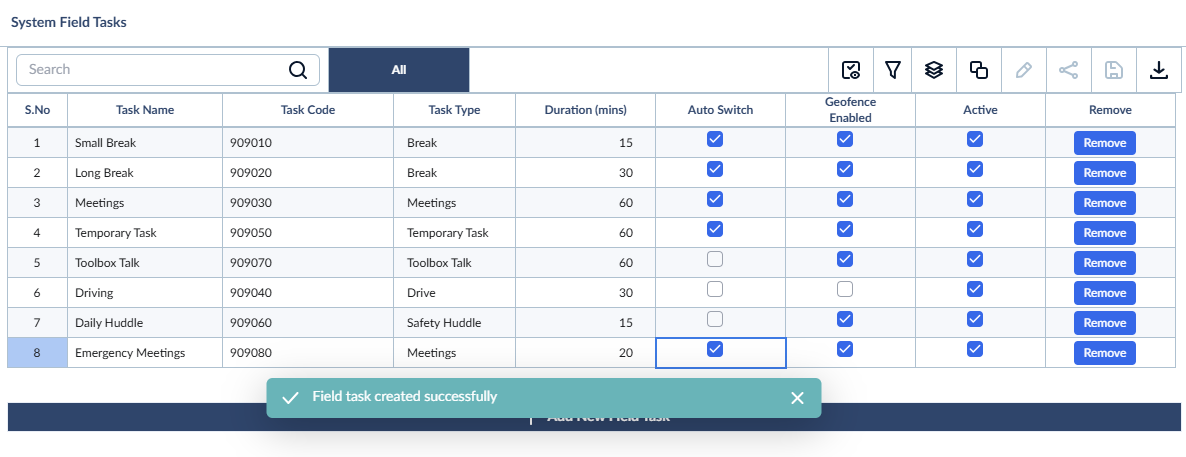
- Click inside the cell and start editing the details
- Press the 'Enter' or 'Tab' key on your keyboard to save the value and move to the next cell
- Use the left arrow/right arrow and Tab keys on your keyboard to move between cells in the table
Activate/Deactivate a Field Task
If an activity item is not currently needed but you wish to keep it for future use, you can toggle its visibility.
- Open the 'System Field Tasks' screen as mentioned above
- Locate the field task you want to activate/deactivate. You can also use the 'Search' box located at the top left of the table to find the desired task
- To Deactivate: Uncheck the box in the Active column. The task will no longer appear as an option for crew members on their mobile app.
- To Activate: Check the box in the Active column. The task will immediately become available for field staff to use.
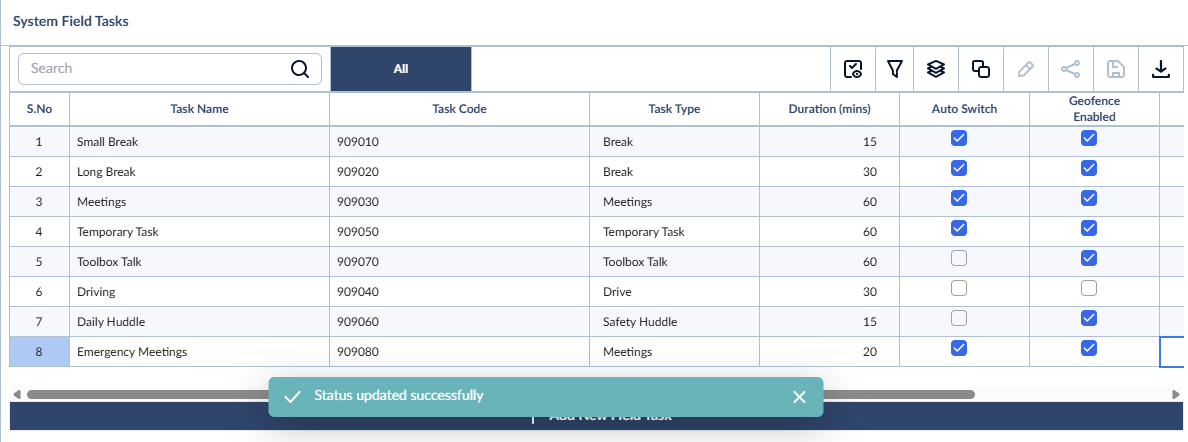
- The status of the task gets updated automatically
Note:
- Deactivating a task hides it from the mobile app so crew members can no longer select it.
- The task remains in your list and can be reactivated at any time, and all historical time logs are preserved
Remove a Field Task
If a task is no longer needed you can remove it from the master list.
- Open the 'System Field Tasks' screen as mentioned above
- Locate the field task you want to remove. You can also use the 'Search' box located at the top left of the table to find the desired task.
- Click the 'Remove' button
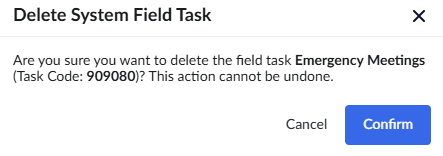
- Click 'Confirm' to proceed with your action
Was this article helpful?
That’s Great!
Thank you for your feedback
Sorry! We couldn't be helpful
Thank you for your feedback
Feedback sent
We appreciate your effort and will try to fix the article