The 'Vendor' tab in the Staging Platform syncs the vendors, contractors, and other companies in your company directory to your ERP. Each company is listed with its type, such as Subcontractor, General Contractor, Architect, or Owner, so that your accounting records match the companies you work with in Linarc.
Linarc is the source of truth for vendors, so sync runs one way, from Linarc to your ERP.
Prerequisites:
• The sync rules are configured in the administration settings. Contact your Company Administrator if you need help.
• If 'Auto Create' and 'Auto Update' are off for vendors, import the vendors into the Staging Platform before you sync them.
| Your ERP | Linarc Vendors Become | What to Know |
|---|---|---|
| QuickBooks Online | Vendors | No extra setup is described for this ERP. |
| QuickBooks Desktop | Vendors | Linarc sends the details of your active contractors and vendors. The records transfer at the next QuickBooks Web Connector poll, or when you run an on-demand poll. |
| Sage Intacct | Vendors, with the vendor ID, name, phone number, address, and email | No extra setup is described for this ERP. |
| Acumatica | Vendors | Acumatica cannot create a vendor without a Vendor Class. After a sync, check the 'Vendor Class' column on the 'Vendors' screen in Acumatica. |
To sync vendors
- Ensure that you are in the staging platform. If not,
- Click the main menu at the top left
- Select 'Portfolio' menu from the drop down and select 'Integrations' at the top
The tab lists the vendors that Linarc fetched from your company directory. The list updates based on your company's mapping configuration, such as 'Auto Create' and 'Auto Update'.
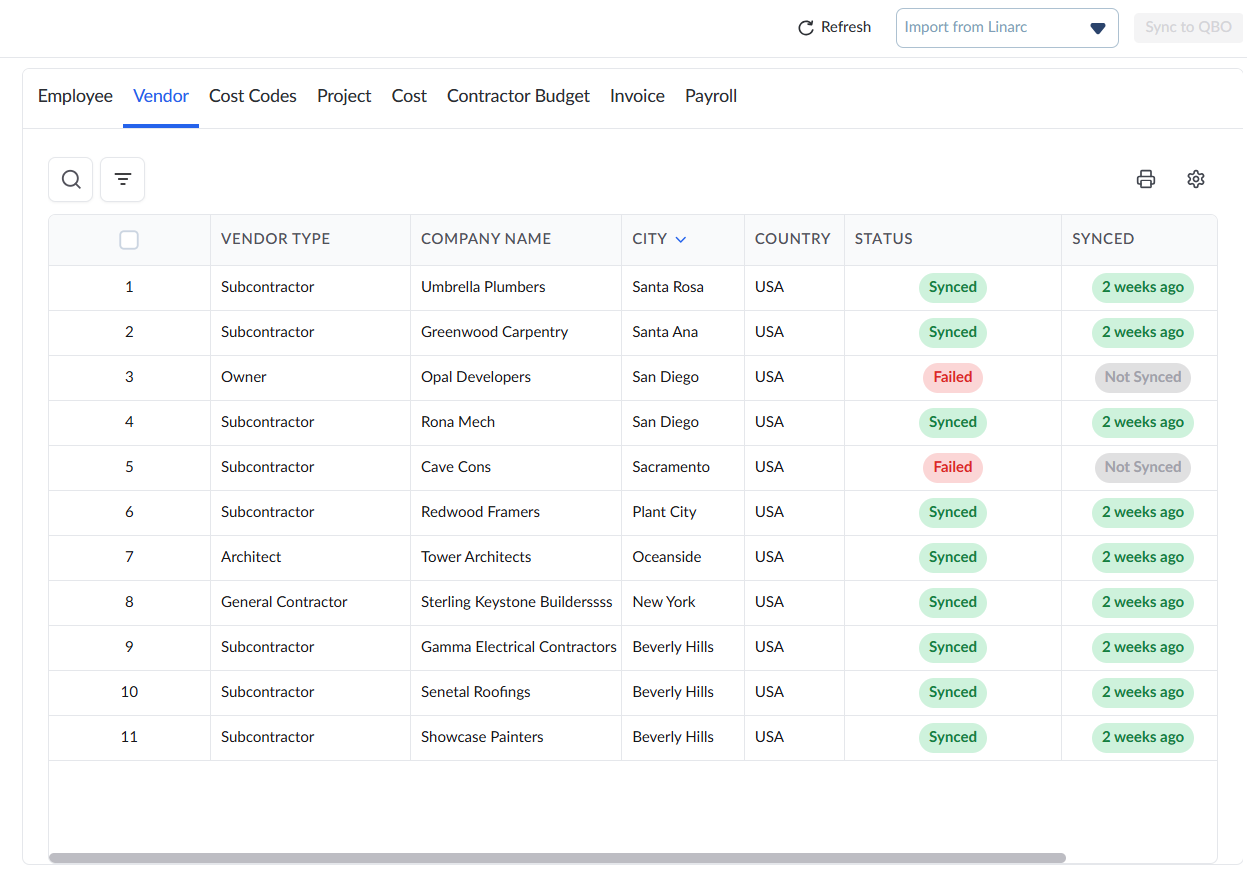
Column Descriptions:
- Vendor Type: The type of company, such as Subcontractor, General Contractor, Architect, or Owner.
- Company Name: The name of the company.
- City and Country: The location of the company.
- Email and Phone: The contact details of the company.
- Status: The sync state of the record:
- Needs Sync: The record is in staging and has not been sent to your ERP.
- Synced: The record synced successfully.
- Failed: The sync failed because of an error. Hover over the status to see the reason.
- Synced: The date and time of the last successful sync, or 'Not Synced'.
- Actions: The eye icon opens the 'Raw JSON Data & Mapping' panel. The history icon opens the change history.
Use the search icon to find a record by any value in the table, and the filter icon to filter the list. Click 'Refresh' to reload the list.
Sync Vendors from Linarc
The 'Import from Linarc' drop-down at the top right offers three options:
- Import New Items from Linarc: Imports only the vendors that are not yet in the Staging Platform. Use it for newly added companies.
- Import All from Linarc: Imports every vendor in your company directory. Use it for the first bulk sync or after widespread updates.
- Import Selected: Imports only the vendors that you choose.
To sync vendors
- Open the 'Import from Linarc' drop-down and select an import option.
- If you selected 'Import Selected', choose the vendors to import.
- Review the imported records. Records with the 'Needs Sync' or 'Failed' status are ready to sync.
- Select the records that you want to send. To select every record, select the check box in the column header.
- Click the 'Sync to' button. The button shows your ERP's name, for example 'Sync to QBO'.
Linarc sends the selected vendors to your ERP. The status changes to 'Synced', and the 'Synced' column shows the time.
Handle Failed Records:
Hover your mouse over any Failed status indicator to view the specific reason for the failure.
Resolve and Retry: If the synchronization fails, you will need to reconcile the entry directly in Linarc. Once the data is corrected at the source, click the 'Failed' status button in the staging platform to retry the sync.
Note:
- If your ERP is QuickBooks Desktop, the records transfer at the next QuickBooks Web Connector poll, or when you run an on-demand poll. See Perform On-demand Polling from QuickBooks Web Connector.
- If your ERP is Acumatica, a vendor cannot be created without a Vendor Class. After a sync, check the 'Vendor Class' column on the 'Vendors' screen in Acumatica.
View the Change History
- Click the history icon in the 'Actions' column of the record.
A pop-up lists the changes to the record's fields in chronological order.
Was this article helpful?
That’s Great!
Thank you for your feedback
Sorry! We couldn't be helpful
Thank you for your feedback
Feedback sent
We appreciate your effort and will try to fix the article