The Bulletin Board module is designed to streamline project communications, allowing stakeholders to broadcast announcements and updates to internal teams, contractors, and external collaborators. To ensure information reaches the right audience without creating clutter, bulletins can be shared using two distinct access levels:
- Public Access: Instantly broadcasts the message to every member involved in the project. This setting is ideal for general site-wide announcements, safety protocols, or major schedule updates that impact all trades.
- Restricted Access: Limits visibility to specific contractors or teams. This ensures data security and relevance by allowing you to share sensitive information, specialized design changes, or cost-related updates only with the parties directly involved.
The Bulletin Interface
Ensure you are on the 'Bulletin' screen within the 'Project Information' module of the project. If not:
- Click the main menu at the top-left
- Click 'Information' under 'Project' in the menu drop-down.
- The 'Project Information' screen opens by default.
- Click 'Bulletin' on the left
The interface provides a clear view of all your created and received bulletins in one organized list.
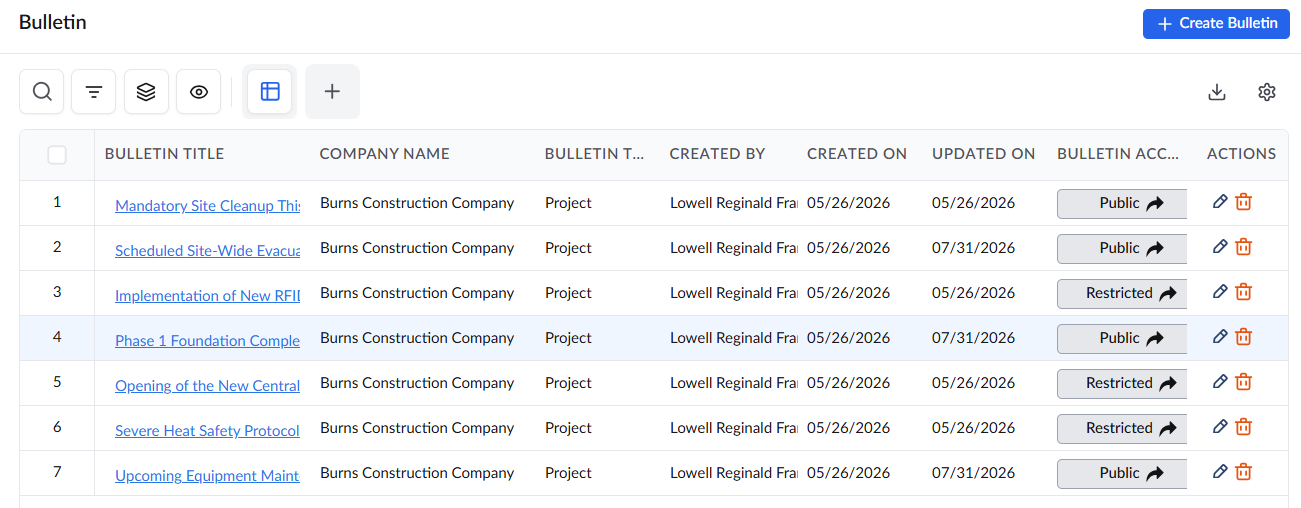
- Bulletin Title – The name or subject of the bulletin used to identify the announcement or update.
- Click the title to open and view the bulletin message
- Company Name - The stakeholder company or organization that issued the bulletin.
- Bulletin Type – The category of the bulletin, indicating the nature or purpose of the information being shared.
- Created By – The name of the user who created and published the bulletin.
- Created On – The date and time when the bulletin was originally created.
- Updated On – The date and time when the bulletin was last modified.
- Bulletin Access – Displays the current access level of the bulletin and provides an option to modify who can view or interact with it.
- Actions – Provides options to edit or remove the bulletin.
- Comments & Attachments: Click the serial number of the bulletin to view the respective comments and attachment on the right pane:
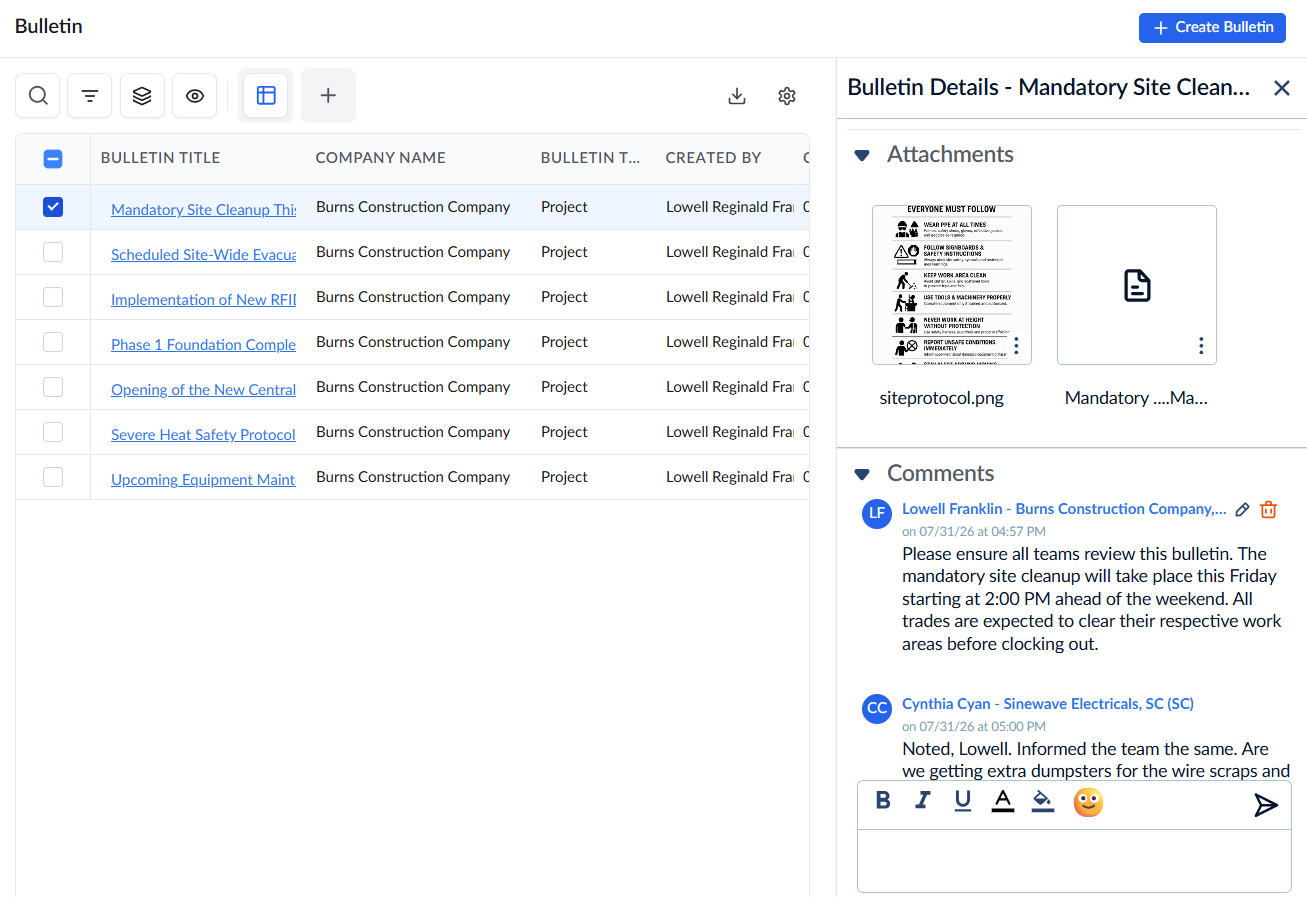
Access images or documents uploaded to the bulletin. You can view thumbnails, enlarge images for a preview, or download files to your device
- View the list of comments added by various stakeholders in chronological order
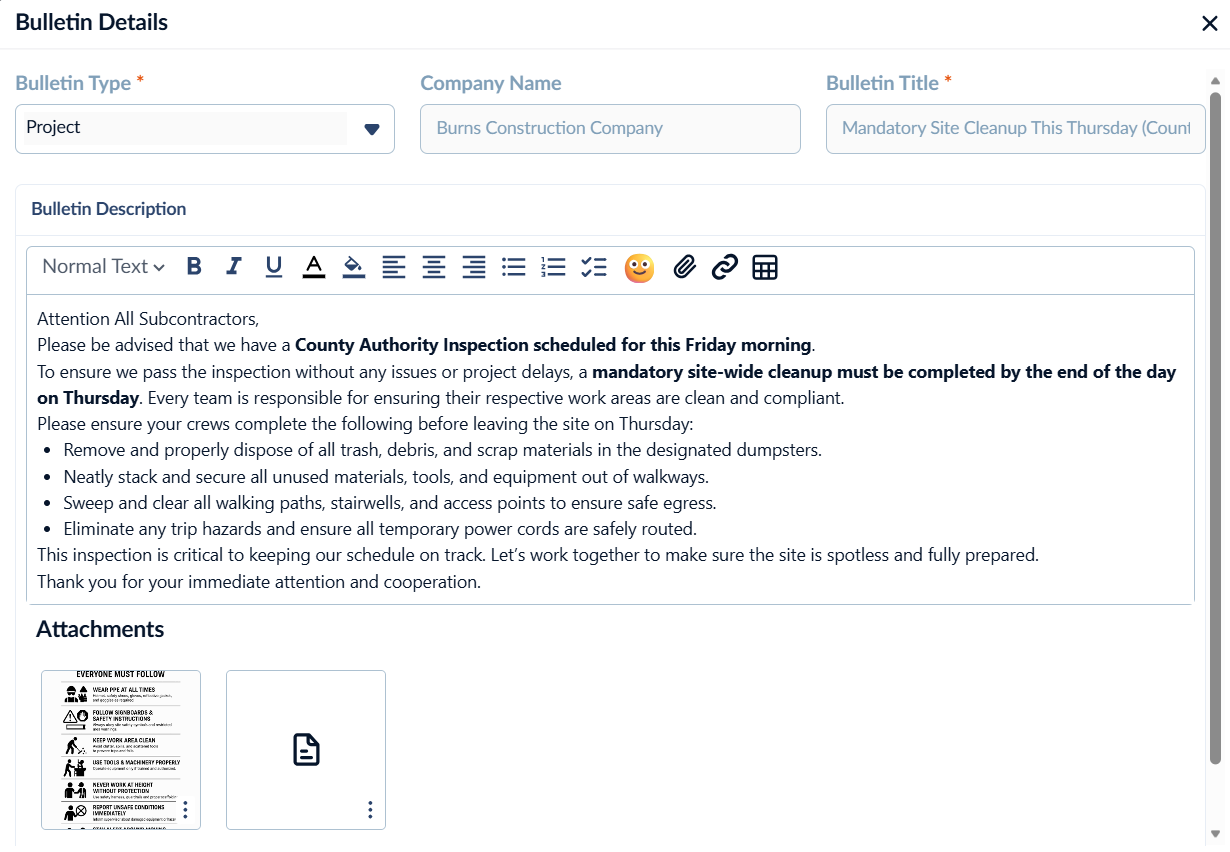
Select the name of the bulletin to view the information:
See the following links for more details:
Was this article helpful?
That’s Great!
Thank you for your feedback
Sorry! We couldn't be helpful
Thank you for your feedback
Feedback sent
We appreciate your effort and will try to fix the article