Recipients are instantly notified whenever a relevant bulletin is published. They can view the full message via their web console, formally acknowledge receipt, and post comments visible to all participants. The comment section serves as a collaborative space for logging feedback, asking questions, and seeking clarifications.
To view a bulletin
- Ensure that you are in the 'Bulletin' screen of the project. If not,
- Click the main menu at the top-left
- Click 'Information' under 'Project' in the menu drop-down.
- The 'Project Information' screen opens by default.
- Click 'Bulletin' from the options on the left
- Click the serial number to view attachments added to the bulletin and comments in the right pane.
- Click the main menu at the top-left
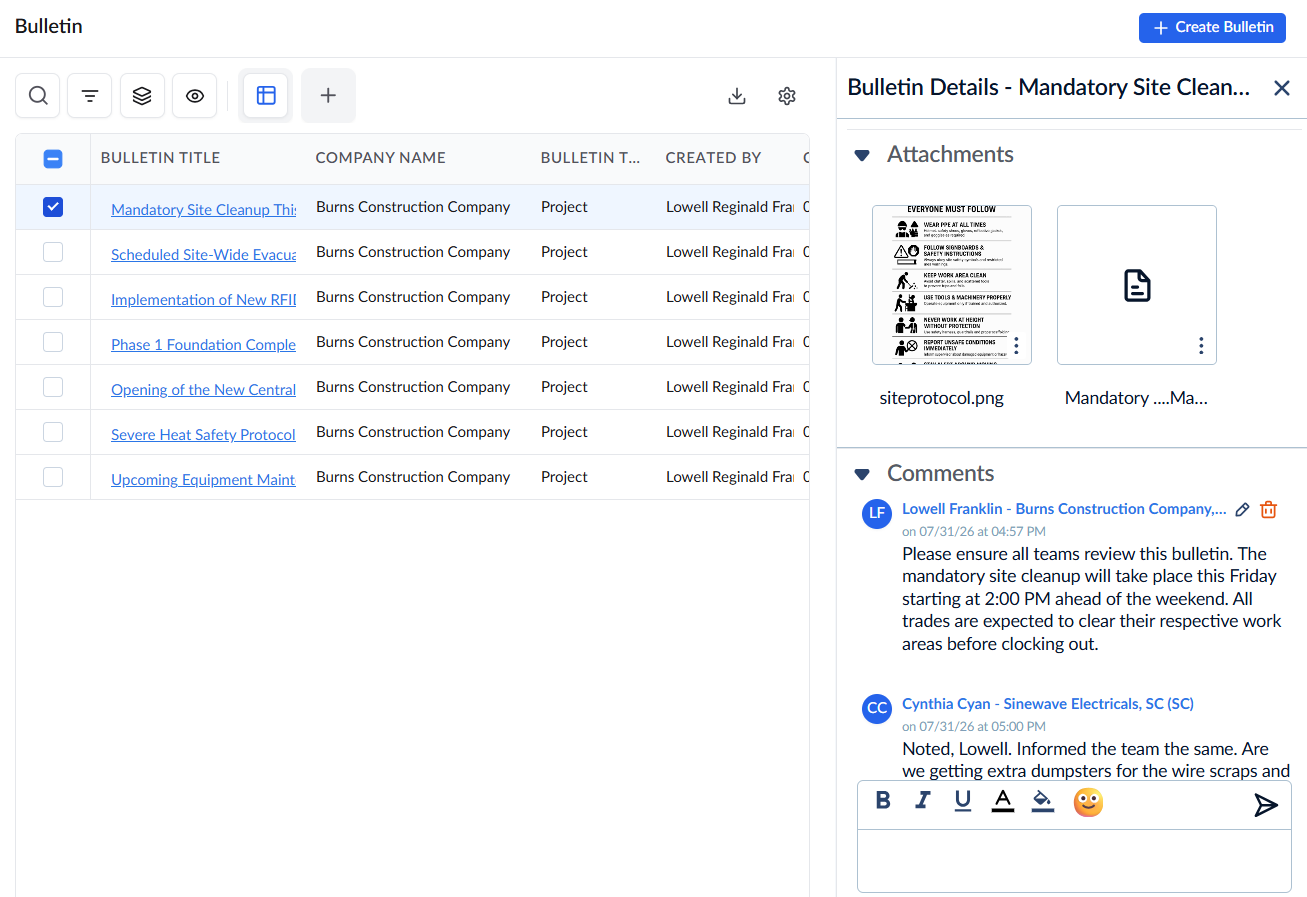
- Click the bulletin title from the table to view the information
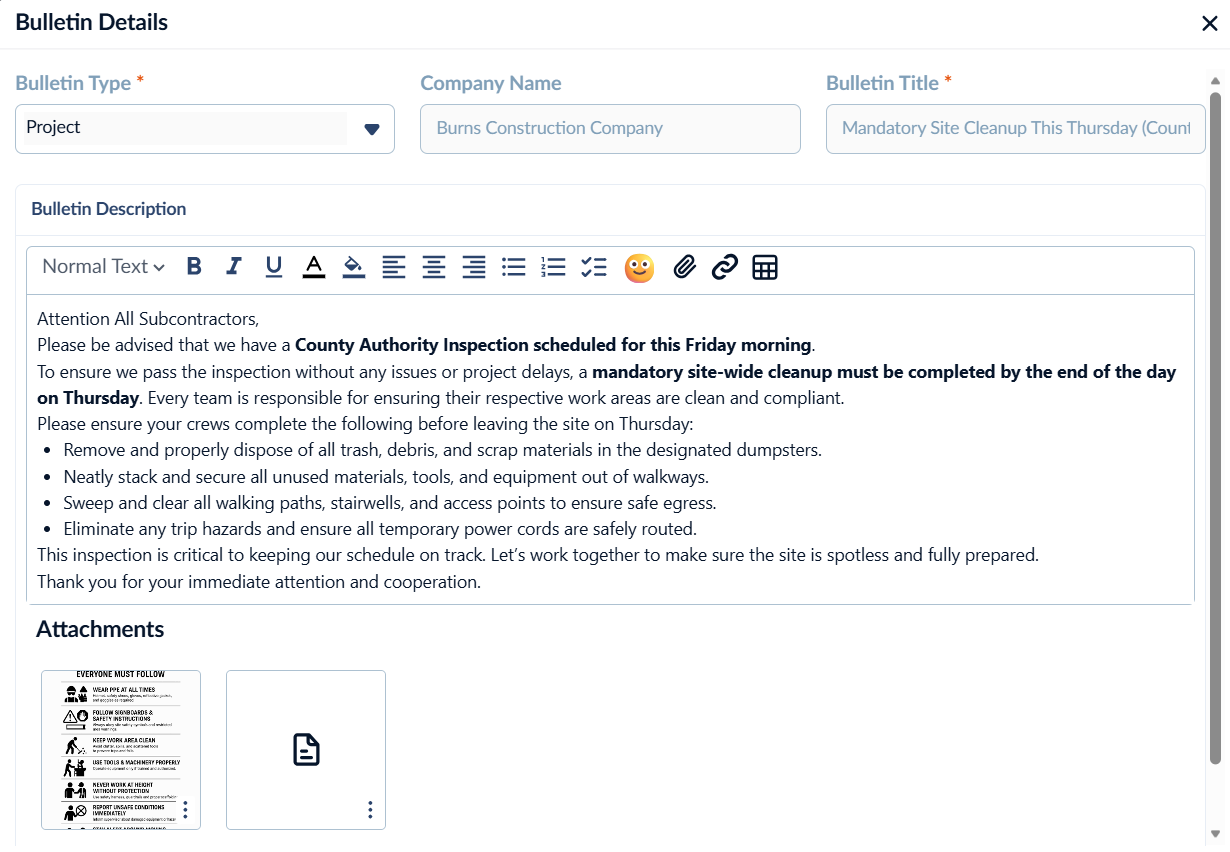
- Review the details of the bulletin
- Click
 to close the bulletin
To add comments to a bulletin
- Open the bulletin screen as mentioned above
- Click the serial number of the bulletin to view the comments of various stakeholders in the right pane
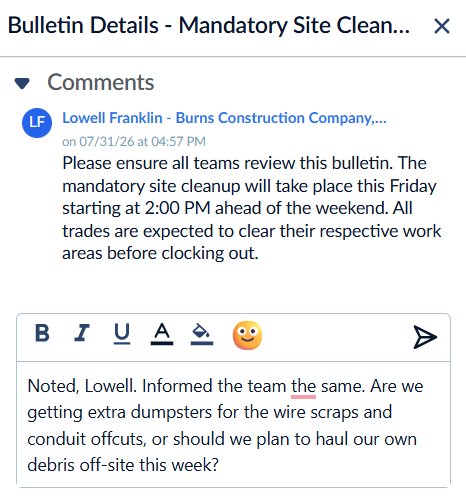
- Start typing your comment in the text box and click
 to post your comment.
 - Use the
 icon to edit the comment
 - Click the
 icon to delete the comment
Was this article helpful?
That’s Great!
Thank you for your feedback
Sorry! We couldn't be helpful
Thank you for your feedback
Feedback sent
We appreciate your effort and will try to fix the article