Linarc allows you to modify existing bulletins to include new details or corrected information as project requirements evolve. If a bulletin is no longer relevant or was created in error, it can be removed from the active project view to maintain organized records. You can also manage who has access to the bulletin and the system provides a timestamp on all updates to ensure the team is referencing the most current version of the project information.
Use the links below to jump to the respective sections:
Update a Bulletin
Ensure you are on the 'Bulletin' screen within the 'Project Information' module of the project. If not:
- Click the main menu at the top-left
- Click 'Information' under 'Project' in the menu drop-down. The 'Project Information' screen opens by default.
- Click 'Bulletin' on the left
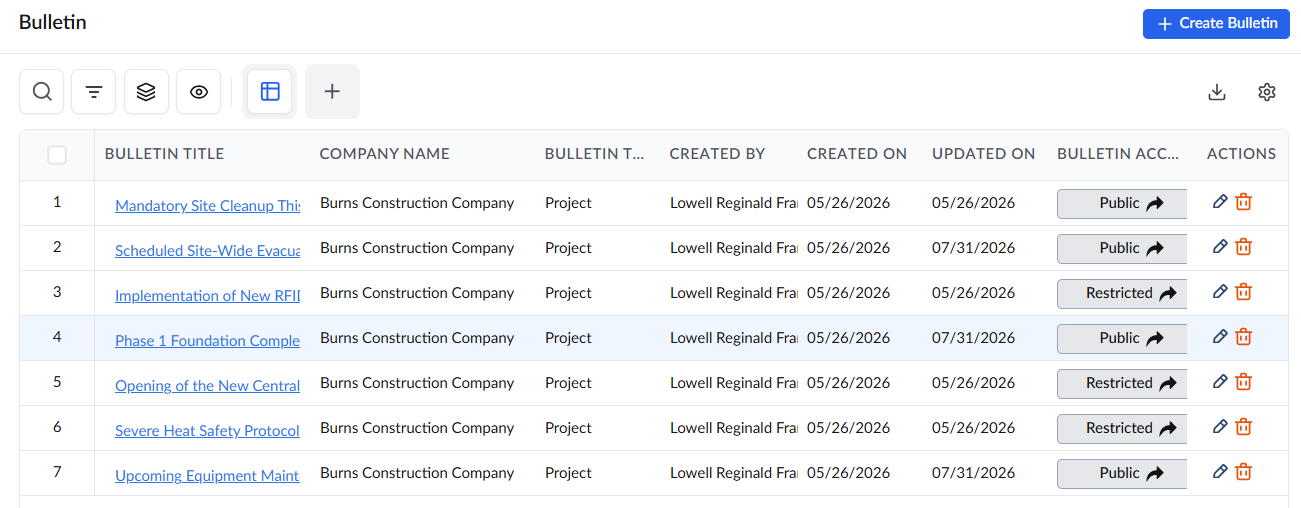
- Locate the bulletin you want to modify
- Click the
 icon from the 'Actions' column to start editing the bulletin information
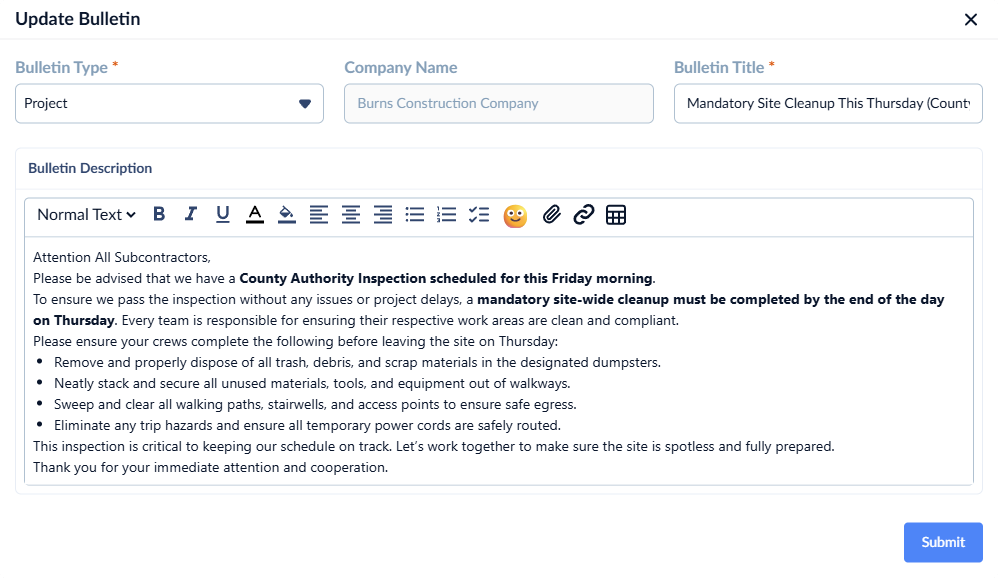
- Use the tools at the top to format your text and add emojis, insert hyperlinks, tables, etc.
Click
 on the top right to add attachments like photos, images, and/or other document files to your.
- Click the
 button to save the bulletin.
Update Access to a Bulletin
- Open the Bulletin screen as mentioned above
- Locate the desired bulletin you want to delete from the table
- Click the button from the 'Bulletin Access' column of the table
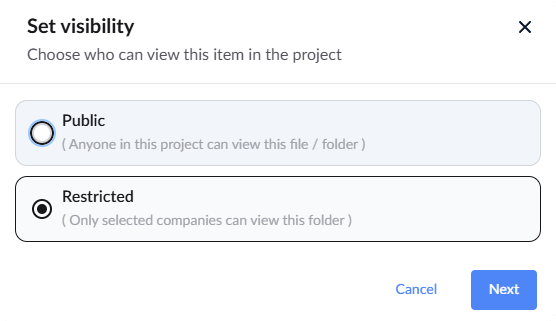
- Choose 'Public' to share the bulletin with all the contractors participating in the project
- Choose 'Restricted' to share the bulletin with selected contractors
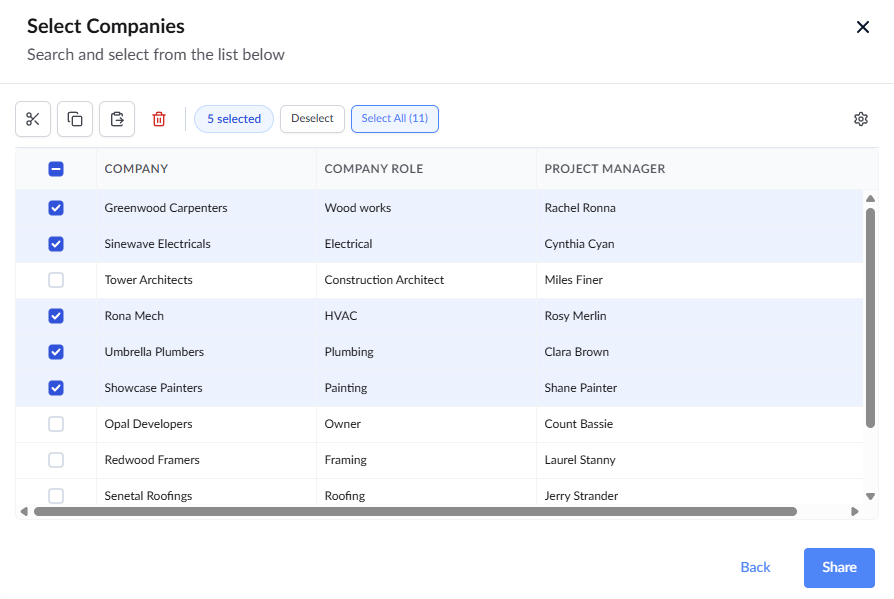
- Click the
 button to continue.
Delete a Bulletin
- Open the Bulletin screen as mentioned above
- Locate the desired bulletin
- Click the
 icon from the actions column

- Click
 to confirm your action
Was this article helpful?
That’s Great!
Thank you for your feedback
Sorry! We couldn't be helpful
Thank you for your feedback
Feedback sent
We appreciate your effort and will try to fix the article