When a document is opened in the annotation screen, the system automatically displays the most recently applied annotation set, providing immediate visibility into the latest feedback. Annotations added to a PDF document are viewable by the project participants, depending on the permissions assigned to the file/folder containing them. See Set Access Permissions for more details. The displayed annotation set may be:
The most recent annotation set created by the user on the document
An annotation set created by other project team members on the same document
To view annotations in a PDF file
- Ensure that you are on the drive in which the file you want to view the annotation is located. If not,
- Open the project management console
- Click the app launcher
 and select 'Project.'
 - Select 'Drive' from the options on the left
- Select your company name, or 'Project', or 'System' on the left to open the required drive
- Navigate to the folder or subfolder and locate the PDF file you want to annotate
- Right-click on the file and select 'Annotate' from the options
The PDF file opens with the latest annotation set made on the file:
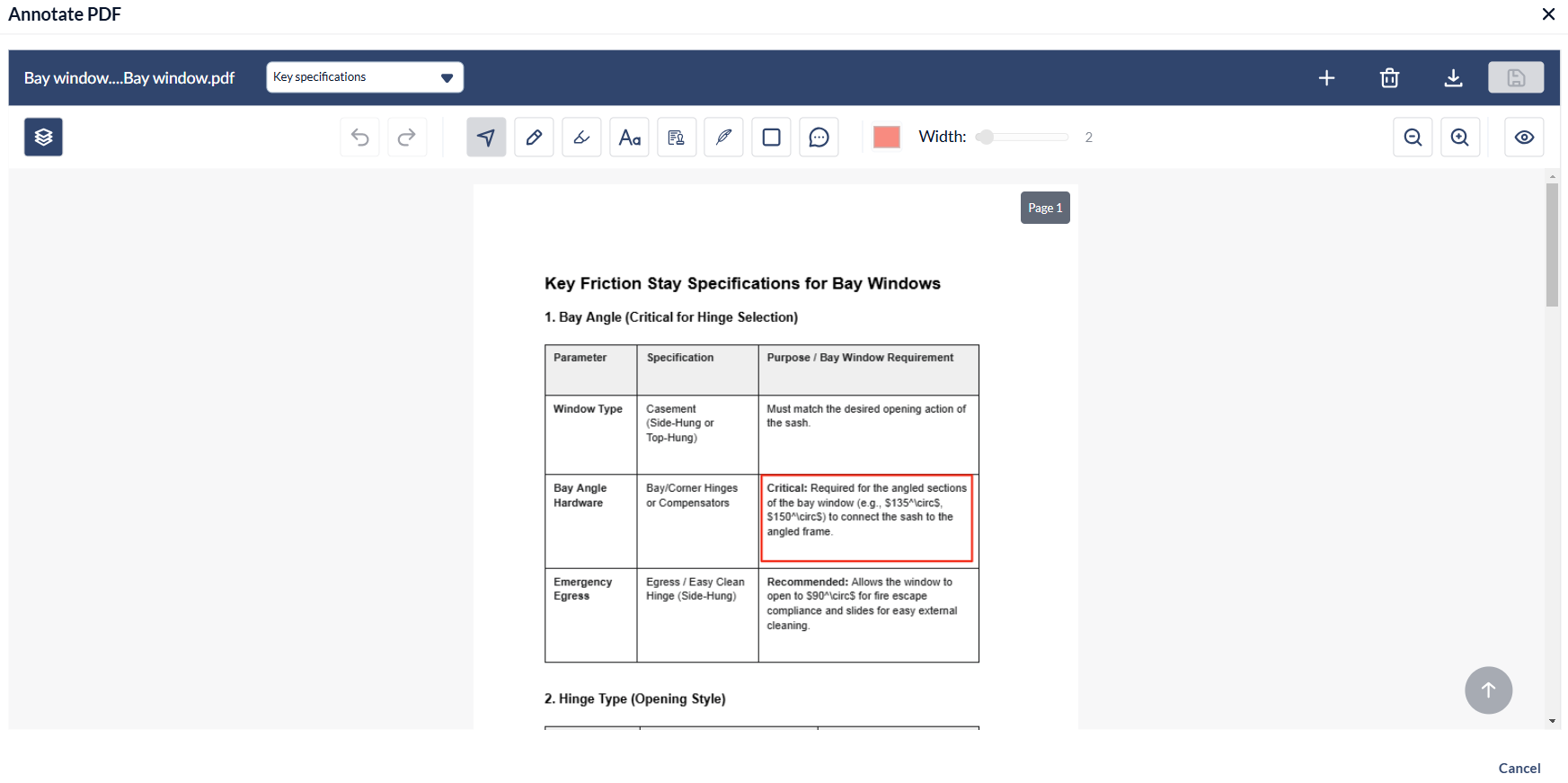
From this screen, you can:
- View annotation set
- Add new annotations to the current set
- Create New annotation set
- Delete an Annotation set
View annotation set
- Open the annotation screen of the desired file as mentioned above.
- Use the top drop-down menu to view different annotation sets on the PDF
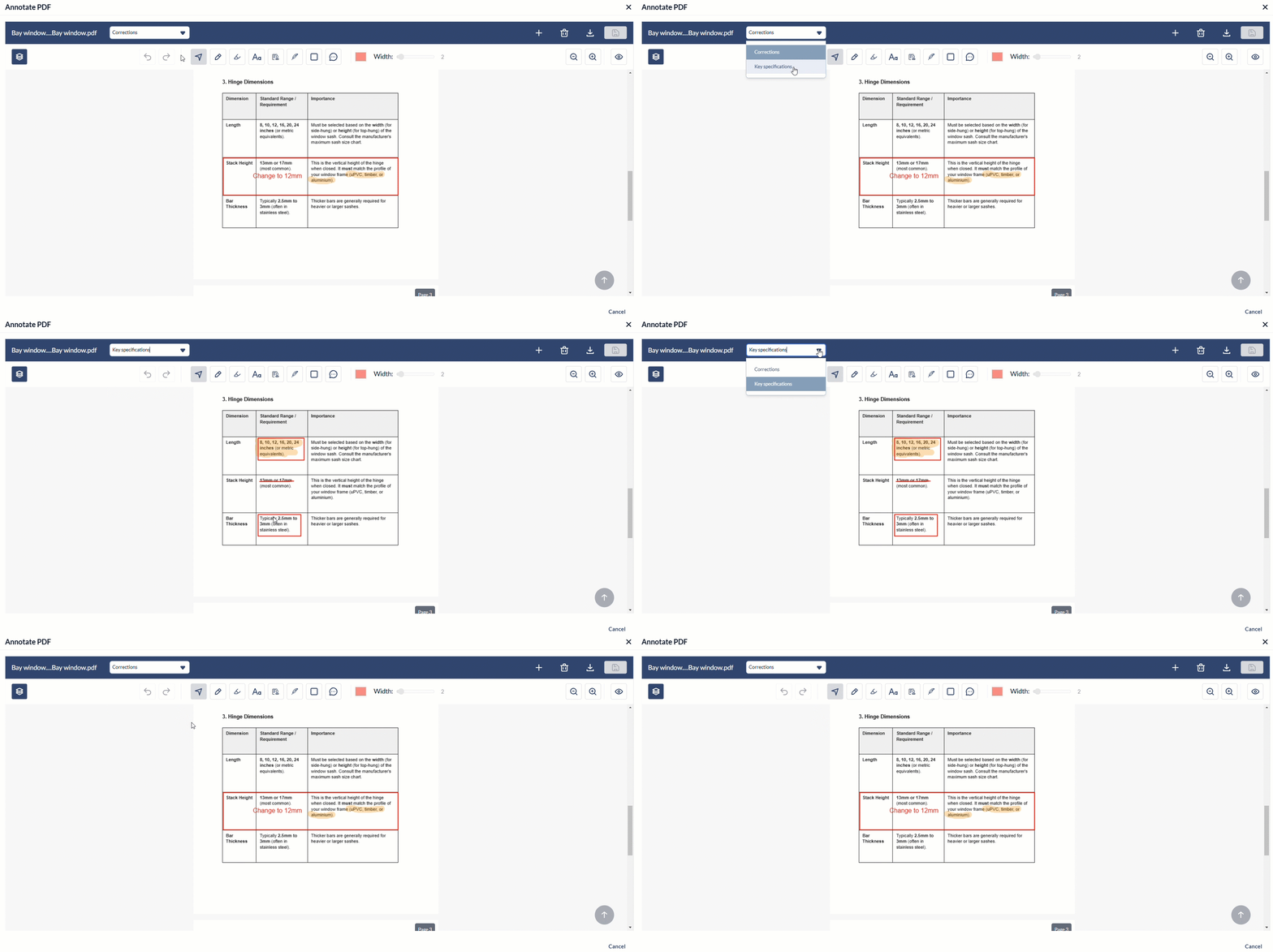
Add new annotations to the current set
- Open the annotation screen as mentioned above. The most recently applied annotation set opens.
- Use the drop-down menu at the top to view different annotation sets on the PDF
- Use the toolbar at the top to make your annotations. See Add Annotations to a PDF file for more details
- Click the
 button on the top right to save the new markup elements you added.
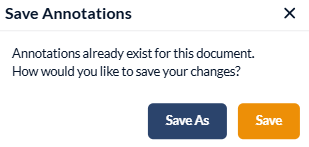
- Click the 'Save' button to save the new markup elements in the existing set
Alternatively,
- Select 'Save As' to preserve the existing markup elements and any newly added elements as a separate annotation set.
Create New annotation set
- Open the annotation screen as mentioned above.
- Click the
 button on the top right. A new draft copy of the original file will be created. Start making your annotations. See Add Annotations to a PDF file for more details
 - Click the button on the top right to save the new markup elements you added.

- Enter the name for your new annotation set and click the 'Save' button.
Delete Annotations
- Open the annotation screen as mentioned above. The latest annotations made by you or other team members that you have permission to view
- Use the drop-down at the top to select the desired annotation set you want to delete.
- Click on the element you want to delete or use the
 icon to select the element
 - Click the 'Delete' key on the keyboard
- Click on the element you want to delete or use the
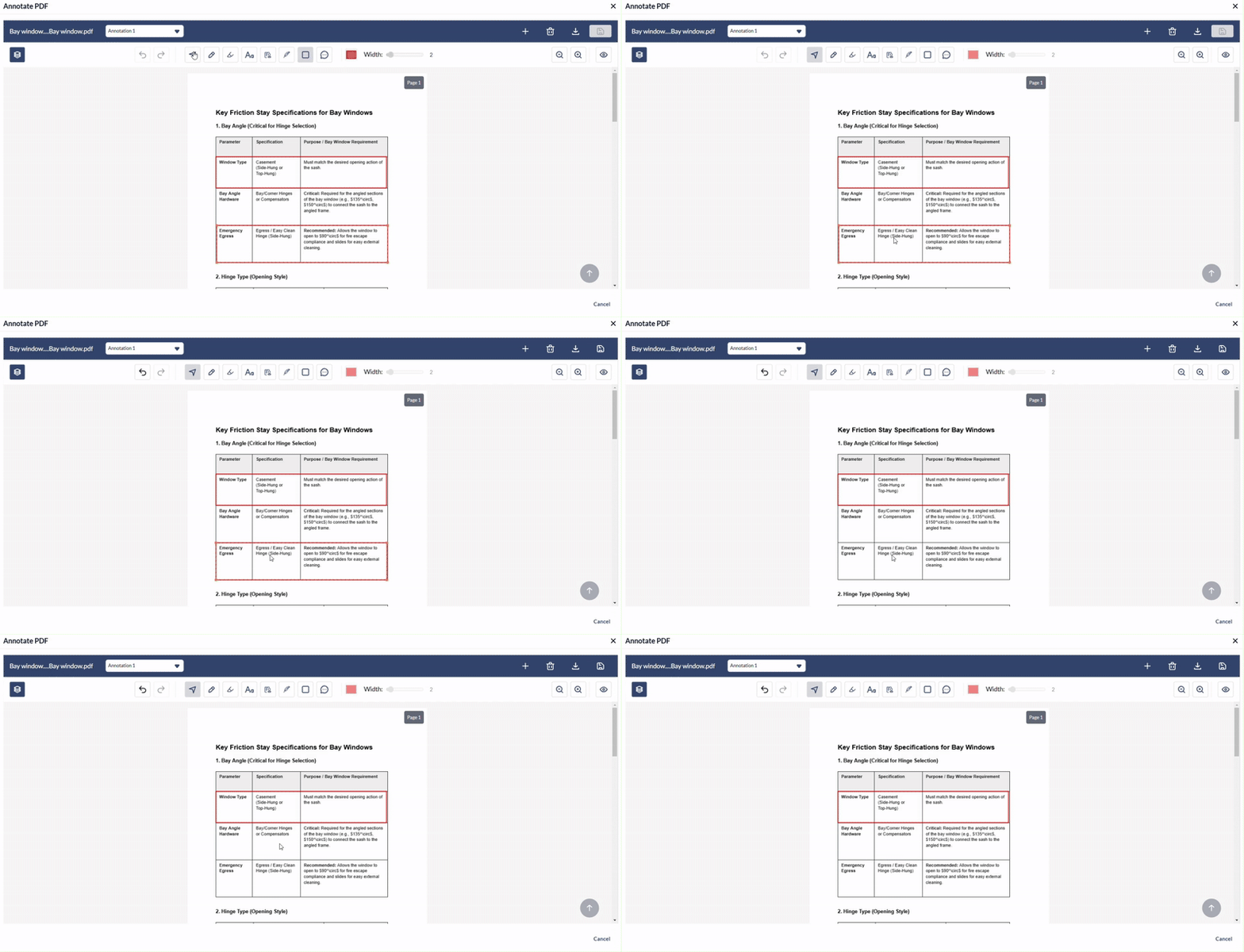
- To delete all the elements in the annotation set at once, click the
 button on the top right
 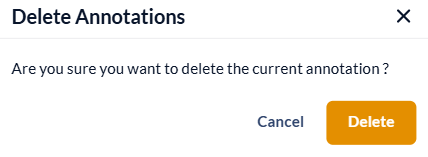 Click 'Delete' to confirm your action
Was this article helpful?
That’s Great!
Thank you for your feedback
Sorry! We couldn't be helpful
Thank you for your feedback
Feedback sent
We appreciate your effort and will try to fix the article