Linarc enables you to download PDF documents with selected annotation set including markups, comments, and signatures directly to your local device. This ensures that your exported files retain full context, allowing you to utilize your project data outside the platform in whichever way suits your workflow best.
- Distribute documents with full clarity via email or other communication channels, ensuring external stakeholders understand the intent behind every markup.
- Save files to your personal device for offline access or upload them to third-party cloud storage providers to align with your organization’s file management standards.
- Maintain a permanent, independent history of project updates and decisions for documentation, compliance, and version comparison.
To download annotated PDF files
- Ensure the document you want to download is open in the annotation screen. If the document is not already open:
- Open the project management console.
- Click the App Launcher
 and select 'Project'.
 - Select 'Drive' from the menu on the left.
- Select the required drive (Company, Project, or System) from the sidebar.
- Navigate to the folder to locate the PDF file you want to annotate.
- Right-click on the file and select 'Annotate'.
The PDF filel opens, displaying the latest annotations.
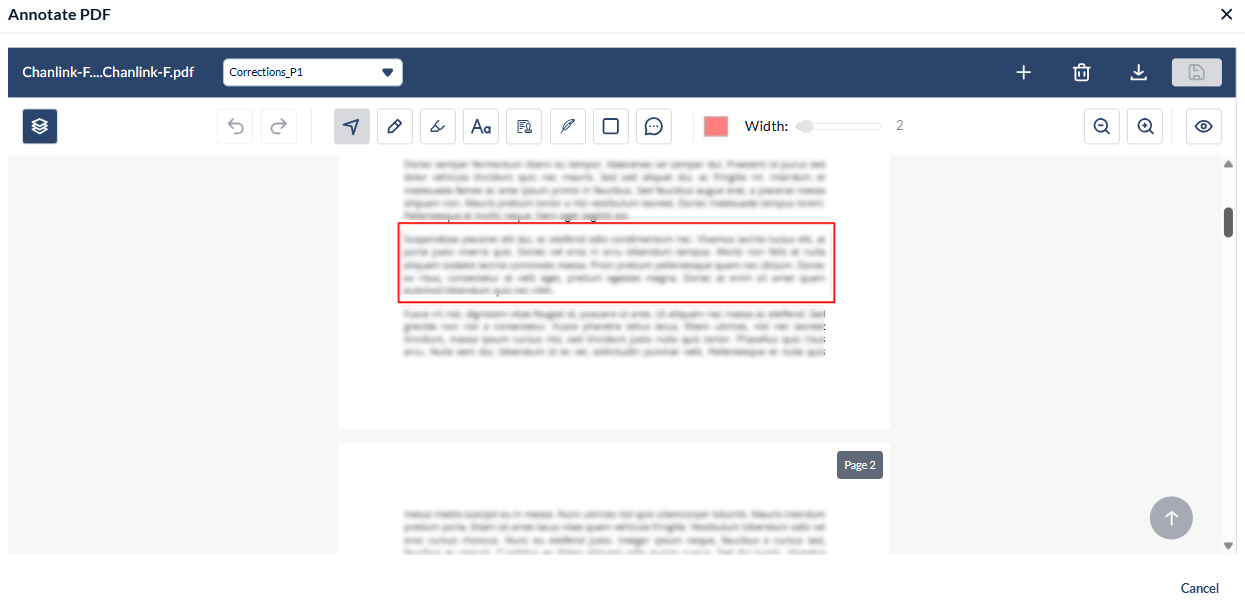
- Use the drop-down at the top to select the desired annotation set
- Click the
 button
The selected annotation set is downloaded directly to your device. You can also download the original PDF file without any annotations. See View and Download Files for more details.
Was this article helpful?
That’s Great!
Thank you for your feedback
Sorry! We couldn't be helpful
Thank you for your feedback
Feedback sent
We appreciate your effort and will try to fix the article