The Linarc app lets you report the progress state of the tasks they oversee, for example, at the end of each day. The progress updates data are used in various modules, like the contractor schedule updates, daily reports, financial calculations, and more. Also, the task progress reports help the project managers to keep track of the field tasks and plan for upcoming tasks. The foreman or the site superintendent can also attach photos to the task entries in the schedule. Examples include images depicting task execution and progress, providing guidance, reporting status, materials, hurdles, clashes, etc. These photos serve multiple purposes, mainly the daily field reports. You can directly upload photos from the device camera or choose photos from your device library.
Note: If the planned quatity is available for the task, the assumptious progress update using the slider will be disabled. In that case, update the completed quantity of the work to update the task progress.
Update the progress of a task
- Tap a task under execution to open its task management screen
The 'Task Completion' slider shows the current percentage of work completed so far.
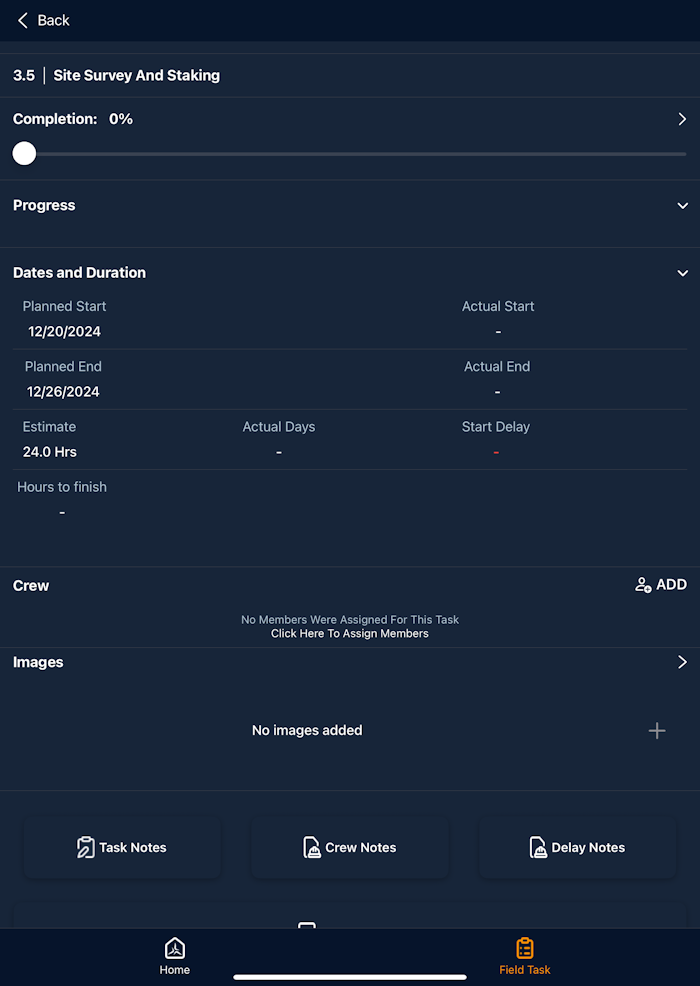
- Tap '>' in the task Completion pane to open the progress update screen
- Use the slider to update the current progress percentage if the work quantity is not specified.
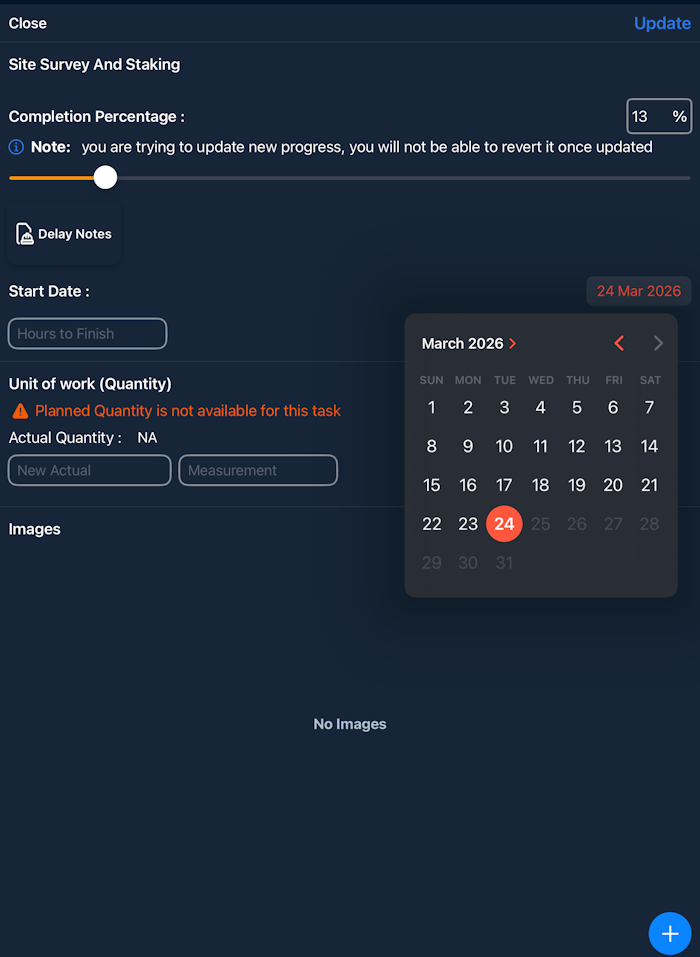
- Select the 'Actual start date' of the task if the progress is updated for the first time
- Tap update
Alternatively, if the work quantity is available,
- Enter the Actual Quantity of work performed and the Unit of measure under 'Unit of Work'
- Select the 'Actual start date' of the task if the progress is updated for the first time
- Tap update
The progress is recorded:
- Repeat the process to update the progress at successive stages till completion
Add task progress photos
- Tap the '+' button at the bottom right
- Choose the source to import the photo from:
- Camera - Take a new photo using your device's camera.
- Library - Select the picture you want to use from your device's gallery.
- Plan Sheets - Attach a plan sheet with markup annotations. See Attach plan sheet markups for more details.
- Once shot the photo or selected an image from your device gallery, tap 'Done'
The photo adds to the task, the images module and the dashboard automatically. Thus, the photo added can be made available for the daily site journal for the foreman.
- Repeat the process to add more photos to the task.
Was this article helpful?
That’s Great!
Thank you for your feedback
Sorry! We couldn't be helpful
Thank you for your feedback
Feedback sent
We appreciate your effort and will try to fix the article