An active lookahead schedule bridges the gap between master planning and day-to-day site operations. As a General Contractor (GC), you can track real-time task completion reported by trade partners, manage your internal crews, and identify schedule adjustments before they impact critical milestones
Use the links below jump to the section you need help with:
TABLE OF CONTENTS
- Track and Update Task Progress
- Assign Crew Members to a Task
- Manage Real-Time Constraints
- View Schedule Deltas
Track and Update Task Progress
As fieldwork advances, the completion percentage of each task in the active lookahead is updated:
Items Assigned to Subcontractors
Subcontractors periodically report completion percentages for their assigned tasks from their main schedule or lookahead view.
A 'Sync' icon appears in the progress column for any item where a subcontractor has reported new progress.
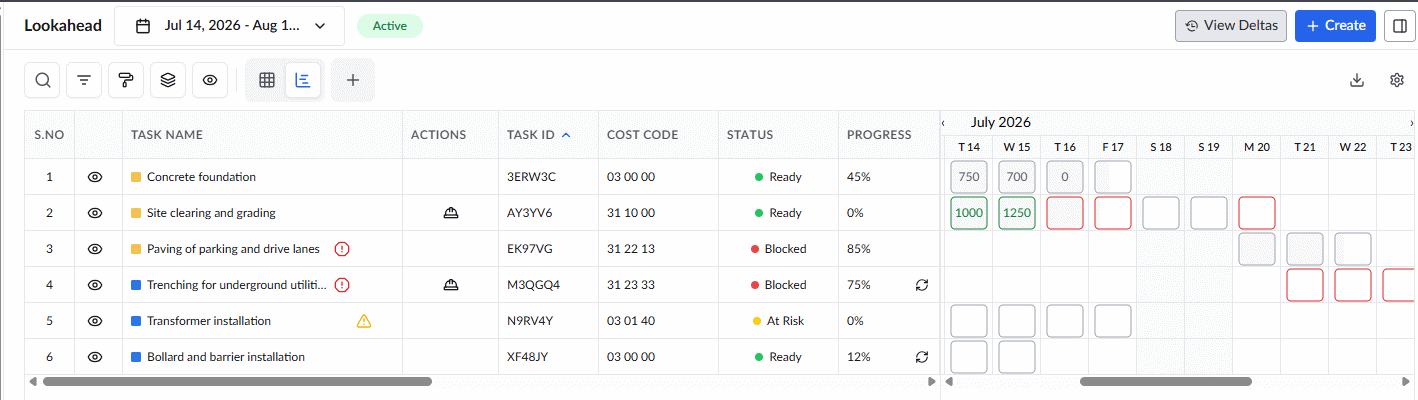
- Click the
 icon.
icon.
A confirmation dialog opens, showing the newly reported progress:
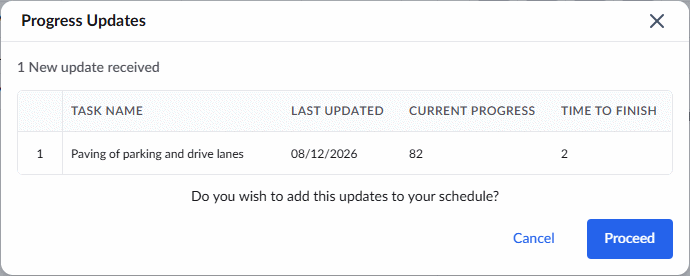
- Click 'Proceed' to accept the progress updates.
Accepting an update records the progress percentage in both the lookahead and the master schedule. If the item is a child task, parent-level progress percentages across the WBS hierarchy will automatically adjust accordingly.
Self-Performed Tasks
Field progress reported by your staff via mobile devices syncs directly to your master and lookahead schedules. Parent-level task progress automatically updates as child tasks are completed.
You can also reconcile and manually update progress directly within the lookahead for both field- and office-executed tasks. Progress is updated using one of two methods:
- Tasks Without Planned Quantities: Manually enter a completion percentage by clicking directly into the Progress column. (See Update Task Progress Manually)
- Tasks With Planned Quantities: Progress is calculated automatically based on daily actual quantities logged in the system. (See Update Task Progress Based on Actual Quantities)
Update Task Progress Manually
- Locate the assigned task within the Lookahead schedule grid.
- Click the 'Progress' column to open the 'Set Progress' pop-up.
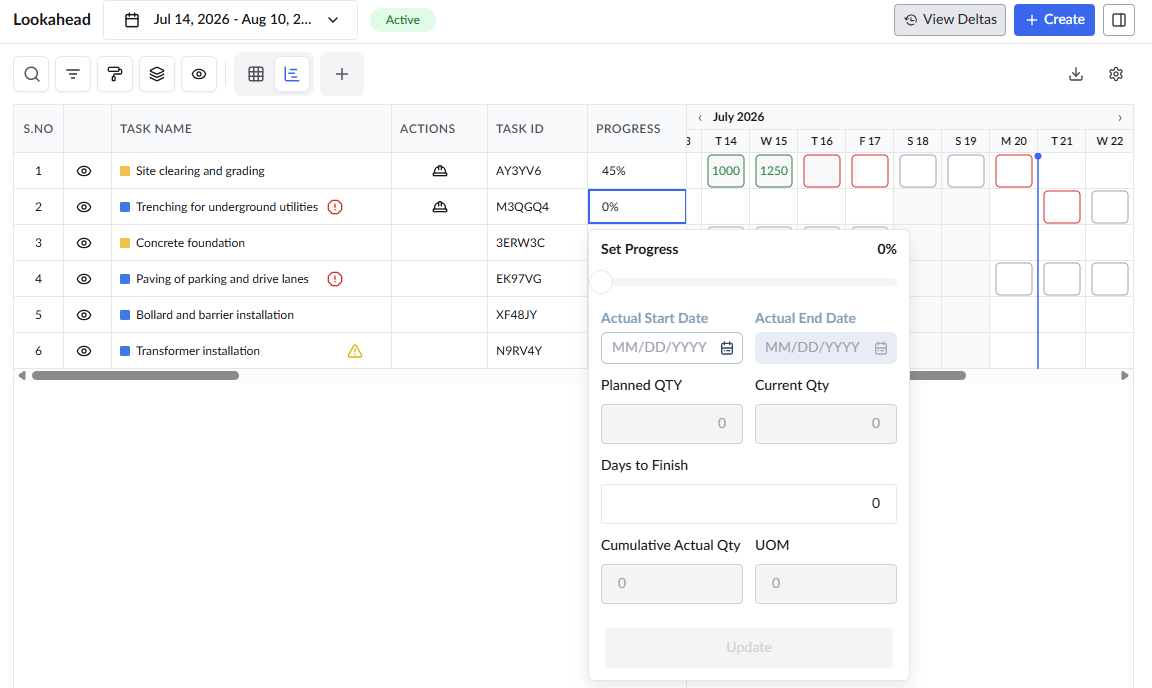
- Click and drag the progress slider at the top of the window to reflect the current completion percentage.
- If this is the initial progress update, click the calendar icon to set the Actual Start Date.
Update Task Progress Based on Actual Quantities
Recording daily achieved quantities provides a direct comparison against the planned quantities established during the review phase. You can log actual quantities in two ways:
- Option 1: Enter Actual Quantities via the Gantt View
- Option 2: Enter Actual Quantities via the Details Pane
Option 1: Enter Actual Quantities via the Gantt View
- Locate the task within the Active Lookahead schedule grid.
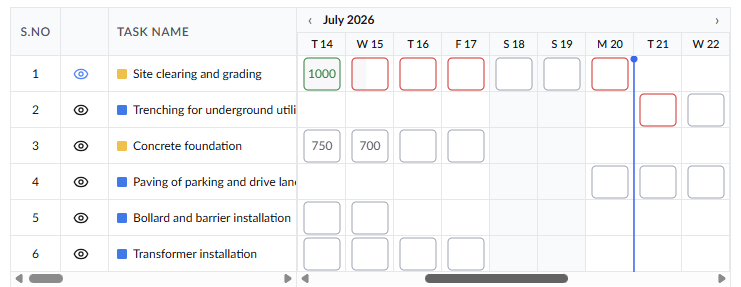
- In the Gantt view on the right, locate the column corresponding to the date work was performed.
- Enter the quantity of work completed for that single day into the date box.
- Repeat this step for additional dates and tasks as needed.
The system automatically aggregates daily entries and updates the overall task progress percentage.
Option 2: Enter Actual Quantities via the Details Pane
- Click the Eye icon next to the task name to open the task details panel on the right.
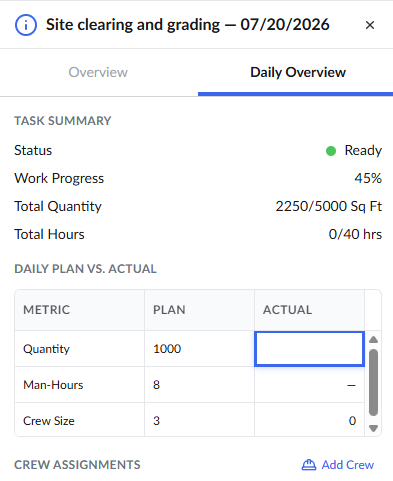
- Select your preferred tab at the top of the panel:
| The 'Overview' Tab | The 'Daily Overview' Tab |
|  |
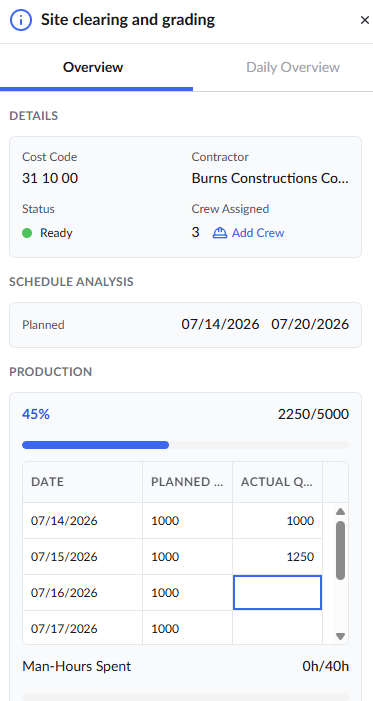
- Locate the production tracking table, which displays dates alongside planned and actual quantities.
- Click into the corresponding cell under the Actual Quantity column and enter the value.
The system automatically aggregates daily entries to update the total progress bar and completion fraction.
Assign Crew Members to a Task
For self-performed tasks, General Contractor Project Managers can assign field crews directly from the office. This ensures the right personnel and specialized skills are allocated to the appropriate work.
You can assign crew members using two methods:
Method 1: Add Crew from the Lookahead Grid
- Click the 'Add Crew' icon
 in the 'Action' column of the lookahead grid.
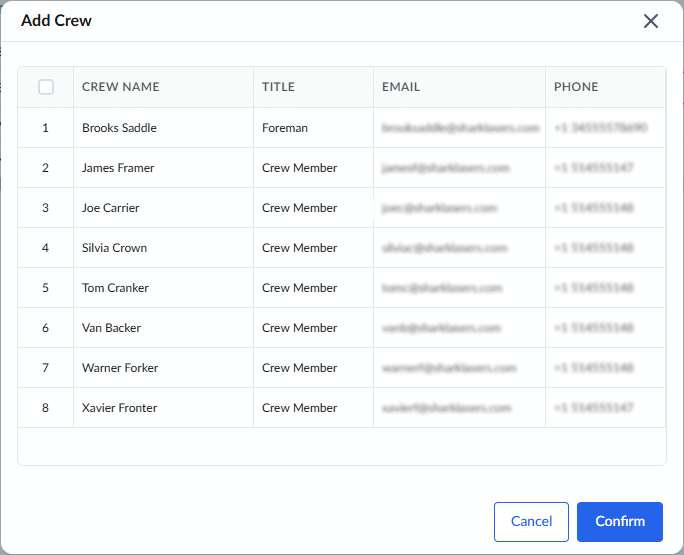
- Select crew members by clicking their serial numbers in the 'Add Crew' dialog.
- Click 'Confirm' to save the crew assignment.
Method 2: Add Crew from the Task Details Pane
- Click the Eye icon next to the task name to open the task details panel.
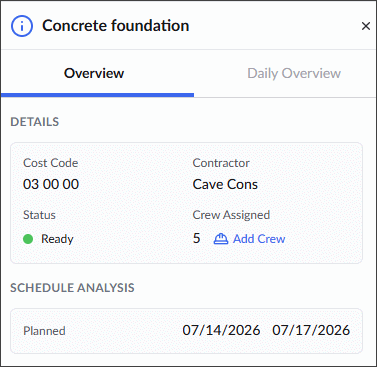
You can assign crew to the task from both the tabs in the screen:
| The 'Overview' Tab | The 'Daily Overview' Tab |
|
|
 link
link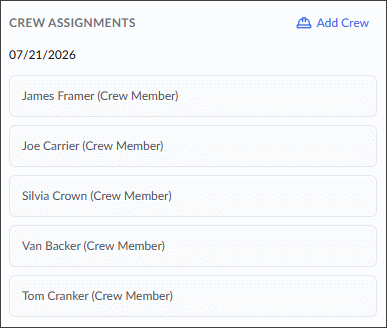 Scroll to the 'Crew Assignments' section, and click the
  link
link- Select the desired crew members by clicking their serial numbers in the 'Add Crew' dialog.
- Click 'Confirm' to assign them to the task.
Manage Real-Time Constraints
Unexpected site conditions can arise during execution. Active tasks must be monitored for sudden roadblocks such as material shortages or permit delays. See Manage Task Constraints in Lookahead Schedule for detailed guidance.
Note: Once a task reaches 100% completion, constraint management (adding, editing, or resolving) is automatically disabled for that task.
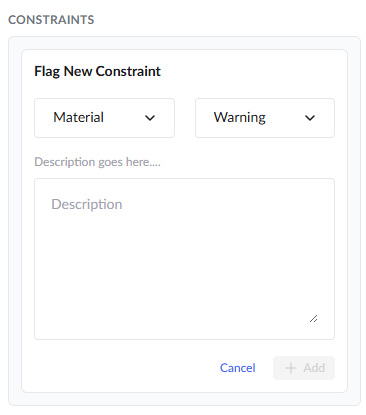
To flag a new constraint
- Click the Eye icon next to the task name to open the task details panel.
- Click '+ Flag a Constraint'.
- Select a category from the first drop-down menu (e.g., Material, RFI, Permit).
- Select the severity from the second drop-down menu:
- Warning: Flags a potential issue without halting work (updates task status to At Risk).
- Blocking: Halts task execution entirely (updates task status to Blocked).
- Enter a clear explanation of the issue in the description box.
- Click '+ Add' to attach the constraint to the task.
To editing or resolving constraints
- Click the Three-Dot menu next to an existing constraint to edit details, update status as conditions evolve, or select 'Resolved' once a roadblock is cleared.
View Schedule Deltas
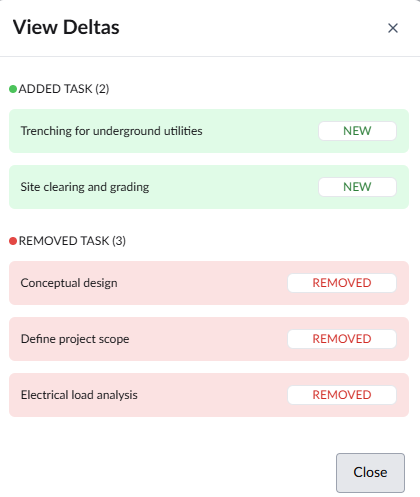
Gain immediate visibility into adjustments between your current and previous Lookahead schedules. Reviewing deltas allows you to proactively adjust site logistics, equipment, and laydown areas for incoming changes.
- Click the View Deltas button at the top of the schedule page.
Review the color-coded adjustments:
- Added Task (Green): Displays brand-new tasks introduced in the current active schedule that were absent in the previous period.
- Removed Task (Red): Displays tasks from the previous schedule that have been removed or pushed outside the current active period.
Was this article helpful?
That’s Great!
Thank you for your feedback
Sorry! We couldn't be helpful
Thank you for your feedback
Feedback sent
We appreciate your effort and will try to fix the article