The task management screen allows you to assign crew members to work on a task at any stage, before its completion. Assigned crew members can also be removed at any time.
To add or remove crew members:
- Open the 'Field Task' module of the desired project. Ensure that you are in the 'All Task' screen.
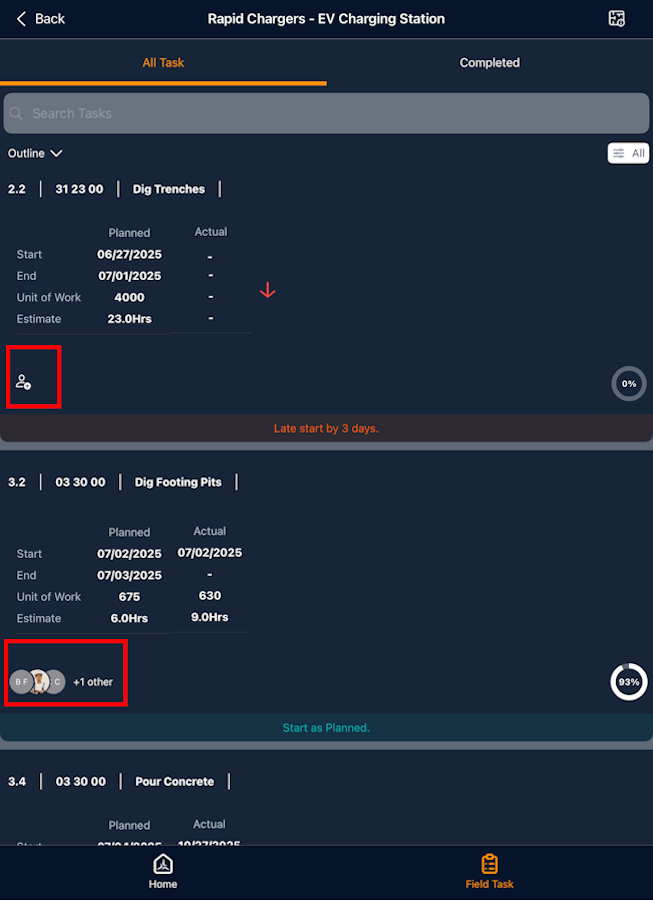
- Tap the 'Crew' icon in the task card for which you need to add or remove crew
Alternatively,
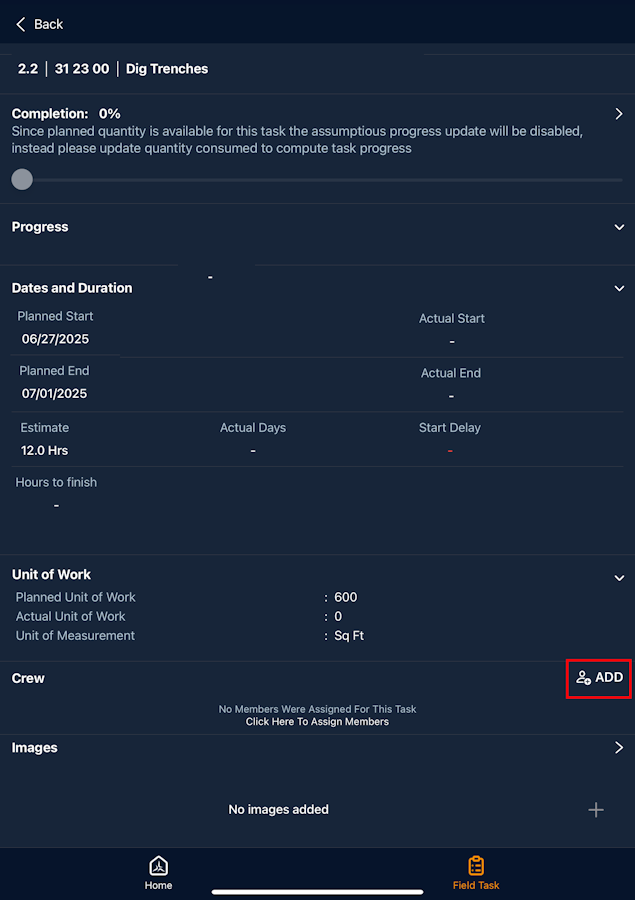
- Tap on the desired task card to open the task details screen
- Tap the 'Add crew' icon
Tip:
You can use the 'Search ' box at the top to search for the task you want to manage.
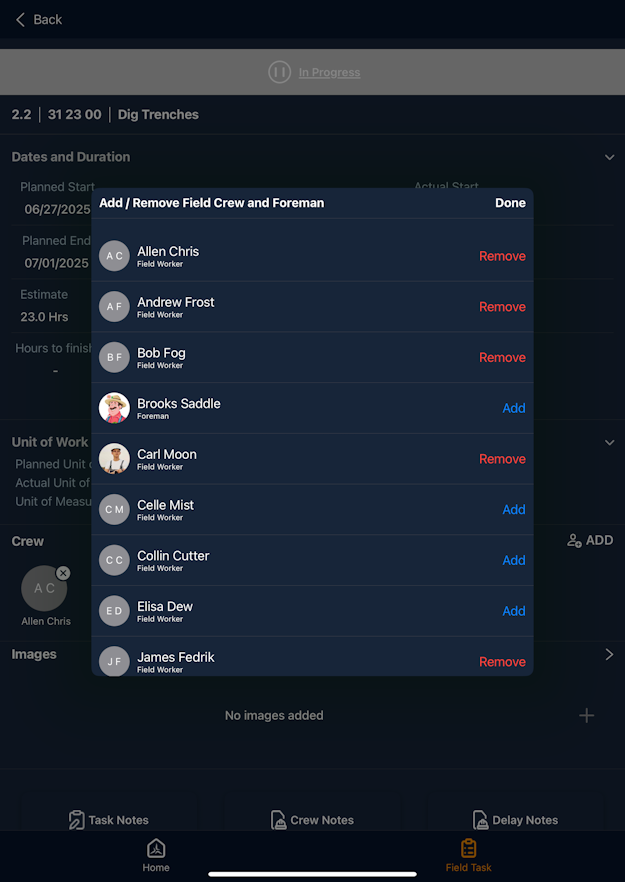
The 'Add/Remove Crew' screen shows the list of crew members already associated with the task and the available members:
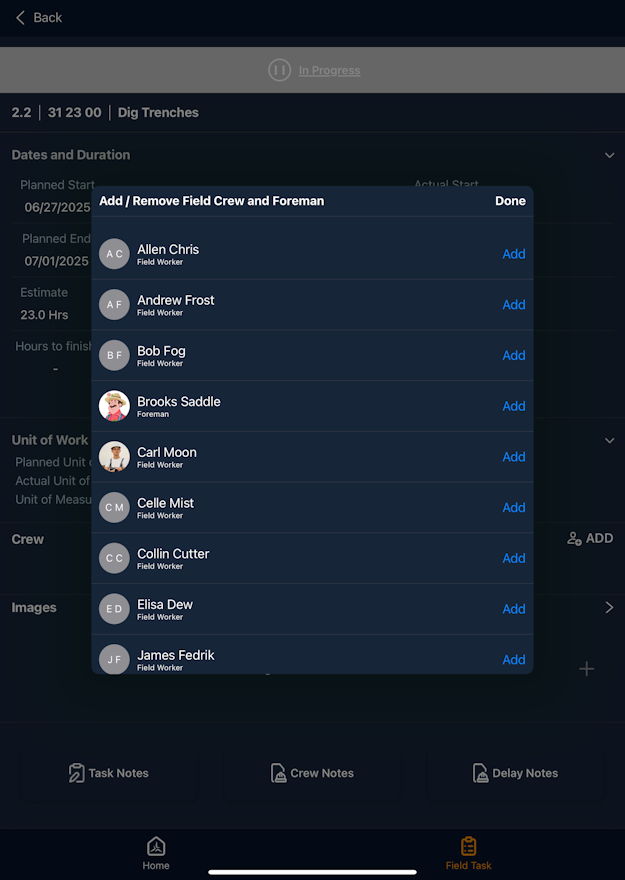
- Tap 'Add' beside the name of a new member to add to the task
- Tap 'Remove' beside the name of an existing member to remove them from the task
- Tap 'Done'
Was this article helpful?
That’s Great!
Thank you for your feedback
Sorry! We couldn't be helpful
Thank you for your feedback
Feedback sent
We appreciate your effort and will try to fix the article