The EVA report summarizes your project’s financial health and schedule performance, helping you quickly determine if your project is on track.
Performance Insights: Compares planned progress, actual progress, and costs to highlight cost variance, schedule variance, and performance indexes.
Decision Support: Identifies risks early, helps control overruns, and supports informed decisions to keep the project aligned with its baseline plan.
To view the EVA report
- Ensure that you are in the 'EVA' report screen. If not
- Click the App Launcher button
 in the top-right corner.
 - Select 'Finance' from the dropdown menu.
- Select 'Analytics' on the top and 'EVA' on the left
- Click the App Launcher button
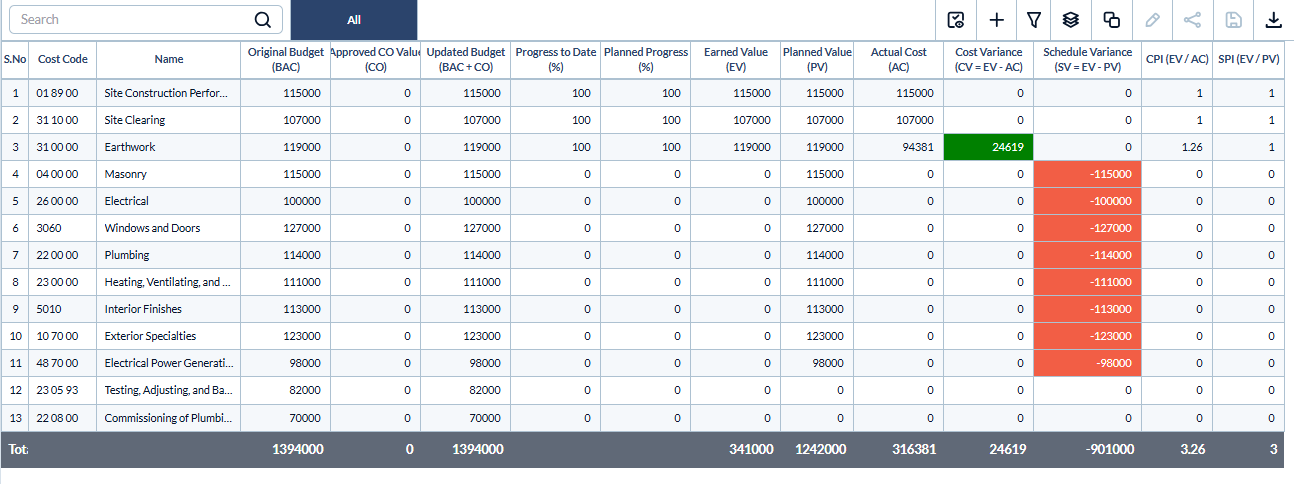
Cost Code – A unique identifier assigned to a specific cost item or activity, used to track expenses and performance at a granular level.
Name – The descriptive label of the task, activity, or cost item.
Division Code – The standardized numerical code of the discipline of work as per the CSI MasterFormat. Applicable only if your company's cost codes are inherited from the CSI MasterFormat.
Division Name – The descriptive name of the discipline of work.
- Original Budget (BAC) – The total budgeted cost assigned to the cost item in the baseline project budget.
- Approved CO Value (CO) – The budget amendments effected by approved change orders falling under the same cost code.
- Updated Budget (BAC+CO) – The revised budget calculated as the sum of the change order values and the original baseline budget amount.
- Progress to Date – The consolidated completion percentage of the tasks falling under the cost code up to the reporting date.
- Planned Progress – The percentage of work that was scheduled to be completed by the reporting date according to the project plan.
- Earned Value (EV = Updated Budget x Progress to Date) – The budgeted value of the work actually performed up to the reporting date, showing the worth of completed progress, calculated as the product of revised budget and progress to date.
- Planned Value (PV = Planned Progress x Updated Budget) – The budgeted cost of the work that should have been completed by the reporting date, according to the schedule.
- Actual Cost (AC) – The total actual expenditure incurred for the work performed to date falling under the cost code.
- Cost Variance (CV = EV - AC) – The difference between earned value and actual cost, indicating whether the project is under or over budget.
- Schedule Variance (SV = EV – PV) – The monetary difference between the actual work completed and the planned work, indicating whether the activities linked to the cost code are financially ahead of or behind the planned schedule.
- Cost Performance Index (CPI = EV ÷ AC)– A ratio of earned value to actual cost, measuring cost efficiency of the project.
- CPI is less than 1 - The tasks run over budget
- CPI is greater than 1 - The tasks run under budget
- CPI is equal to 1 - The tasks are on budget
- Schedule Performance Index (SPI = EV ÷ PV)– Indicates how the tasks progress concerning the planned schedule.
- SPI is less than 1 - The tasks run behind the schedule
- SPI is greater than 1 - The tasks run ahead of the schedule
- SPI is equal to 1 - The tasks are on schedule
Search and Filter Options
- Use the 'Search' box located at the top left to find an item using any value from the table as search criteria
- The options at the top right allow you to filter the entries, and manage personalized and customized views of the table. Use the links below to learn more about these:
Sorting Options
Hover over a column header and click the icon next to it to access sorting options.
- Select 'Ascending' to sort the rows based on the values in that column, arranged alphanumerically from lowest to highest
- Select 'Descending' to sort the rows based on the values in that column, arranged alphanumerically from highest to lowest
- Click 'Clear' to return to the default view
View Groups and Subtotals
- You can get totals and subtotals of numerical data for any selected set of records by grouping and applying nested grouping. Use the
 icon at the top right to organize the data by column headers
 - The system automatically aggregates relevant numerical values, giving a structured breakdown and a clear view of the grand total distribution. See Group and Organize Items in a List View for more details
Download as Excel Sheet
- Click the
 button at the top right to save a local copy of the list in Excel format for sharing and record-keeping. See Download List Views and Logs in Excel Format for more details
Was this article helpful?
That’s Great!
Thank you for your feedback
Sorry! We couldn't be helpful
Thank you for your feedback
Feedback sent
We appreciate your effort and will try to fix the article