The Profit and Loss report highlights your project’s overall financial outcome, showing how revenue compares with costs to determine profitability.
- Profitability Insights: Reveals margins and profitability at any stage of the project by comparing earned revenue against incurred costs.
- Performance Evaluation: Helps assess financial performance, maintain accountability, and ensure alignment with business objectives.
To view the profit and loss report
- Ensure that you are in the 'Profit & Loss Report' screen. If not
- Click the App Launcher button
 in the top-right corner.
 - Select 'Finance' from the dropdown menu.
- Select 'Analytics' on the top and 'Profit & Loss' on the left
- Click the App Launcher button
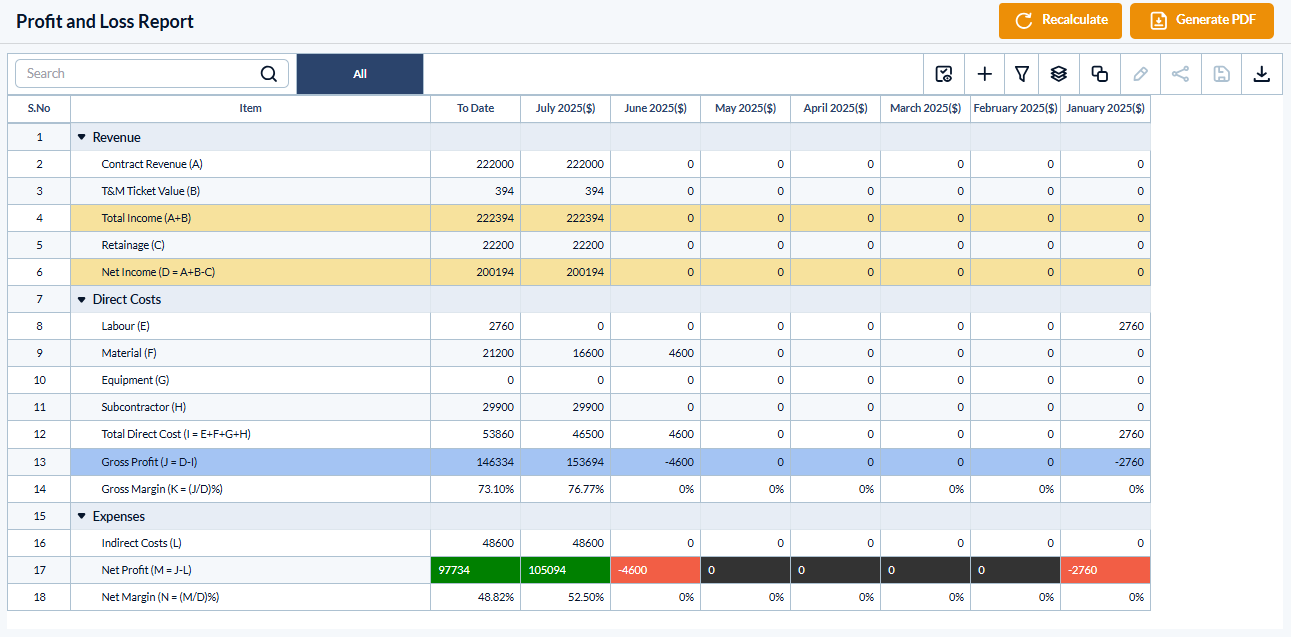
Expand each category to get a detailed report:
Revenue – The total income earned from the project, including payments received and receivables.
Direct Costs – The expenses directly associated with executing the project, such as labor, material, equipment, and other job-specific costs.
Expenses – Overhead and indirect costs incurred in managing the project, such as administrative, office, or general business expenses.
The table contains the following column headers:
Item – The specific subcategory under Revenue, Direct Costs, or Expenses (e.g., Labor, Materials, Equipment).
To Date – The cumulative amount recorded for the item from the start of the project up to the reporting date.
Month – The cost or revenue recorded for the selected month, allowing monthly tracking and comparison
Search, filter and sort options:
- Use the 'Search' box located at the top left to find any project using any value from the table as search criteria
- Hover over a column header and use the sort icon to sort the table in ascending or descending order of the entries in that column
- Right-click the column header and customize the display and order of the columns as you wish
- The options at the top right allow you to filter the entries, and manage personalized and customized views of the table. Use the links below to learn more about these:
View Groups and Subtotals
- You can get totals and subtotals of numerical data for any selected set of records by grouping and applying nested grouping. Use the
 icon at the top right to organize the data by column headers.
 - The system automatically aggregates relevant numerical values, giving a structured breakdown and a clear view of the grand total distribution. See Group and Organize Items in a List View for more details
Download as Excel Sheet
- Click the
 button at the top right to save a local copy of the list in Excel format for sharing and record-keeping. See Download List Views and Logs in Excel Format for more details.
Was this article helpful?
That’s Great!
Thank you for your feedback
Sorry! We couldn't be helpful
Thank you for your feedback
Feedback sent
We appreciate your effort and will try to fix the article