The Estimate vs Actual Cost screen gives you a monthly breakdown of estimated cost and actual cost of T&M tasks accross the project with various contractors. This view helps you track the actual expenses align with the planned Time and Material (T&M) estimates, categorized by labor, material, equipment, and subcontractors.
To view estimate vs actual cost
- Ensure that you are in the T & M 'Estimate Vs Actual' screen of the project. If not,
- Click the main menu at the top-left
- Click 'T & M' under 'Financials & Controls' in the menu drop-down
- The Boards screen opens by default.
- Click 'Estimated Vs Actual' on the left
The table shows the following headers:
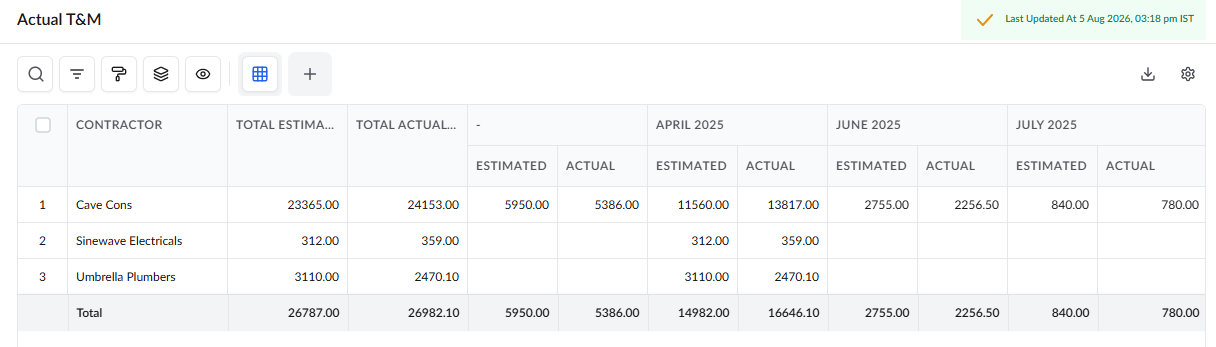
- Contractor - The name of the subcontractor associated with the Time and Material (T&M) work package.
- Total estimated cost - The total cost estimated for the contractor's T&M work for the project
- Total actual cost - The cost incurred so far for the contractor’s work, based on submitted and approved material, equipment, or subcontractor entries.
Monthly T&M cost
- Estimated - The planned cost for the contractor’s work during that specific month, based on the original T&M estimate.
- Actual - The actual cost recorded for that month, calculated from time card entries, material, equipment, or subcontractor entries.
Search, Filter, and Sorting Options
- Click the magnifier icon and use the 'Search' box located at the top left to find an entry using any value from the table as search criteria
- Click any column header to sort the rows in ascending or descending order based on that column's data.
- Click the cog wheel icon at the top right to adjust the display density and customize the display and order of the columns. See Customize Columns in List Views.
- The options at the top left allow you to filter the entries, create nested groups of entries, highlight cells and manage personalized and customized views of the table. Use the links below to learn more:
- Get totals and subtotals of numerical data for any selected set of records by grouping and applying nested grouping.
- Use the
 icon at the top right to organize the data by column headers. The system automatically aggregates relevant numerical values, giving a structured breakdown and a clear view of the grand total distribution. See Group and Organize Items in a List View
for more details
icon at the top right to organize the data by column headers. The system automatically aggregates relevant numerical values, giving a structured breakdown and a clear view of the grand total distribution. See Group and Organize Items in a List View
for more details
- Click the 'Download' icon at the top right to save a local copy of the list in Excel format for sharing and record-keeping. See Download List Views and Logs in Excel Format for more details
Was this article helpful?
That’s Great!
Thank you for your feedback
Sorry! We couldn't be helpful
Thank you for your feedback
Feedback sent
We appreciate your effort and will try to fix the article