The Timeline view of the project feeds organizes photos, images, and videos by their upload date, ensuring clear and structured visual documentation for your projects. This makes it easier for teams to quickly locate relevant media linked to specific project dates or phases. With this feature, you can:
- Track visual progress aligned with weekly or monthly timelines.
- Simplify reporting by accessing images and videos tied to specific timeframes.
- Save time by filtering media based on upload dates.
To view feeds by timeline
- Ensure that you are in the 'Feeds' module. If not:
- Click the main menu at the top-left
- Click 'Feeds' under 'Field' menu
- Click 'Timeline' on the left
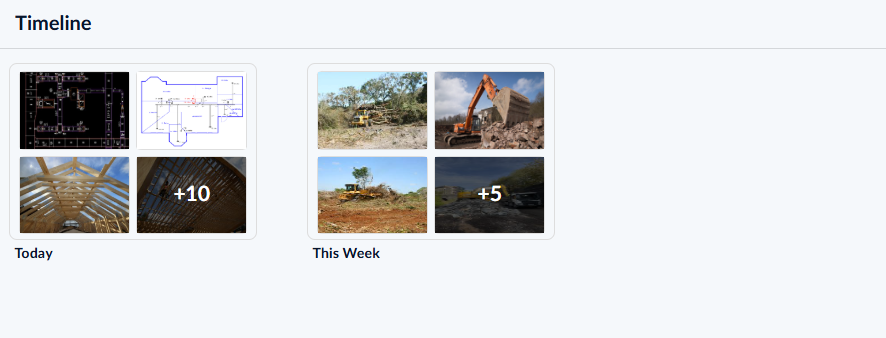
Photos and videos are grouped by the month they were added to the project. Items contributed within the last seven days appear under the 'This Week' tile. Each group is displayed as a tile, featuring thumbnail previews of the media.
- Select a tile to view the collection of items added in that period.
- Double-click on a thumbnail to open it.
Apply Filters
Use the Filter option to quickly locate the media you are looking for. You can automatically retrieve images and videos based on creator, company, module, or date filters. For more accurate results, combine multiple filters to refine your search with precision.
To apply filters
- Click the 'Filter' button at the top right
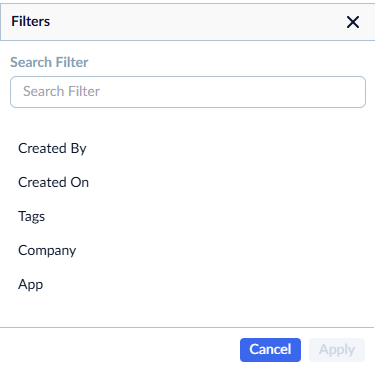
- Choose a criteria you want to filter by
- Use the search box at the top to find the desired filter criteria
- Select a condition for the value
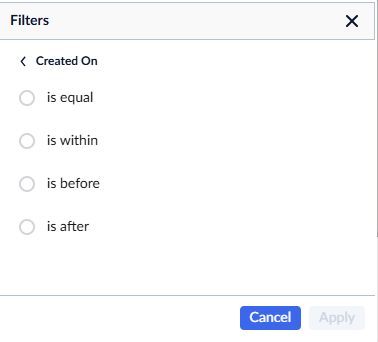
- Enter the filter value
- Click ‘Apply’ to filter the feeds based on your selection
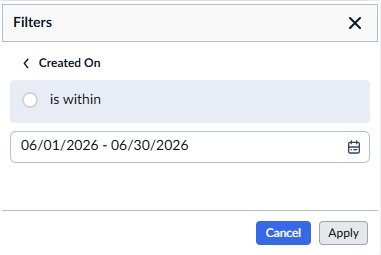
- Click 'Add Filter' and repeat the process to combine multiple filters
- Click the 'Delete' icon to remove filters
Was this article helpful?
That’s Great!
Thank you for your feedback
Sorry! We couldn't be helpful
Thank you for your feedback
Feedback sent
We appreciate your effort and will try to fix the article