The 'Closed RFI List' interface of the project management portal shows the list of completed RFIs in which you were a participant. You can download the RFI document as a PDF version, containing the complete details and questions, and answers. From this screen, you can:
Note:
- When an RFI is approved and closed, Linarc automatically generates and saves a PDF for archival.
- This PDF is accessible from the Closed screen and the Project’s file repository, and is created using the active template of the stakeholder who closed the RFI.
- The RFI PDF is also stored in the project's cloud storage within the 'RFI' folder in the system drive. See View Folders and Files for more details.
View and Download RFI Documents
- Ensure that you are in the RFI module of the project. If not,
- Click the main menu at the top-left
- Click 'RFI' under 'Documents'
- Select 'Completed' from the options on the left
The screen shows a list of all completed RFIs with their details:
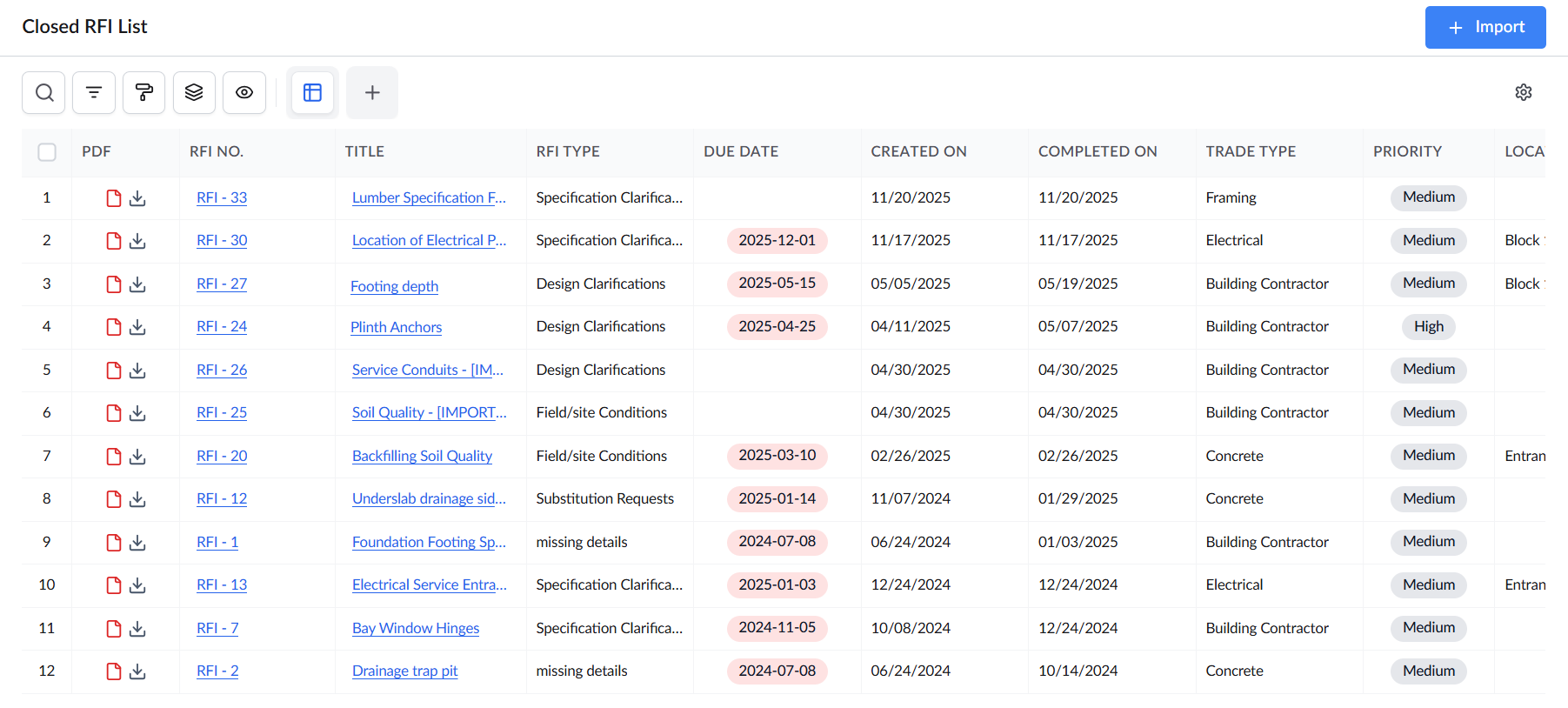
Standard columns:
- PDF - Click the
 icon to download the PDF version of the RFI
 - RFI No. - The serial number assigned to the RFI
- Title - The subject of the RFI. Click the title to open an RFI.
- RFI Type - The classification of the RFI based on its purpose. Whether the RFI is for clarification, confirmation, missing details in the specs/plans, etc.
- Due Date- The overall deadline date of the RFI. Due dates of RFIs that are imminent and overdue are indicated with colored backgrounds.
- Yellow - Due within this week
- Red - Overdue. The due date has passed.
- Created On - The date and time at which the RFI was generated.
- Completed On - The due date of the RFI per its workflow setup.
- Trade Type - The discipline of the work to which the RFI is related
- Priority - The criticality of the RFI
- Location - The location in the constructed structure to which the RFI is related
- Schedule Impact and Cost Impact - Whether the RFI and its context affect the cost and timelines of the associated tasks
View Details of an RFI
- Click the serial number of an RFI row to select it.
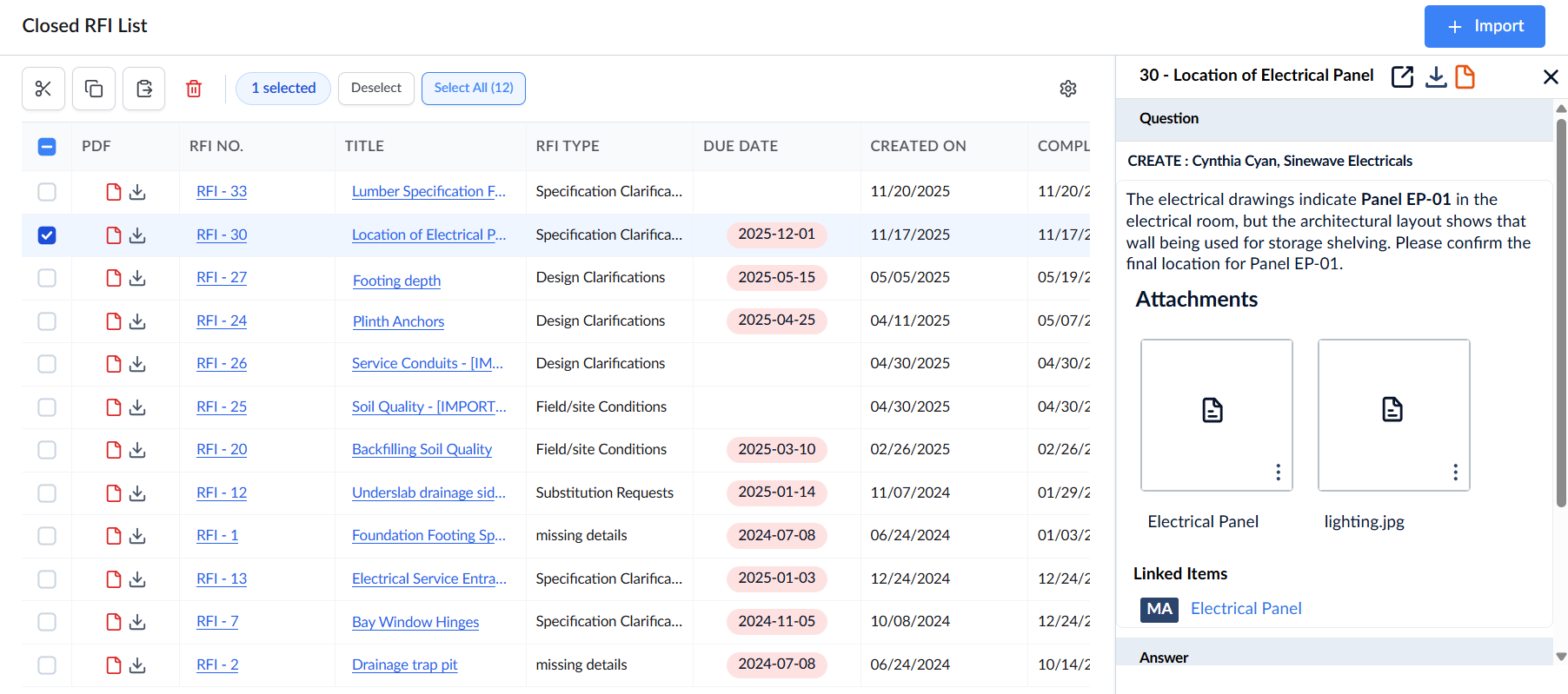
- A slider opens on the right with the summary of details of the RFI.
- Scroll down to view the question and responses, along with their attachments
- Click the
 icon to open the RFI in a new browser tab
 - Click the
 icon to download the PDF version of the RFI
 - Click the
 icon to preview the PDF version of the RFI
Search, Filter, and Sorting Options
- Click the magnifier icon and use the 'Search' box located at the top left to find an entry using any value from the table as search criteria
- Click any column header to sort the rows in ascending or descending order based on that column's data.
- Click the cog wheel icon at the top right to adjust the display density and customize the display and order of the columns
- The options at the top left allow you to filter the entries, create nested groups of entries, highlight cells and manage personalized and customized views of the table. Use the links below to learn more:
Was this article helpful?
That’s Great!
Thank you for your feedback
Sorry! We couldn't be helpful
Thank you for your feedback
Feedback sent
We appreciate your effort and will try to fix the article