You can view and edit the contact details, the role assigned, and other details of a guest user at any time from the guest user details pane.
To view the list of guest users
Ensure you are on the 'Guests' screen within the 'Project Information' module of the project. If not:
- Click the main menu at the top-left
- Click 'Information' under 'Project' in the menu drop-down.
The 'Project Information' screen opens by default.
- Click 'My Team' at the top, then select 'Guests' on the left.
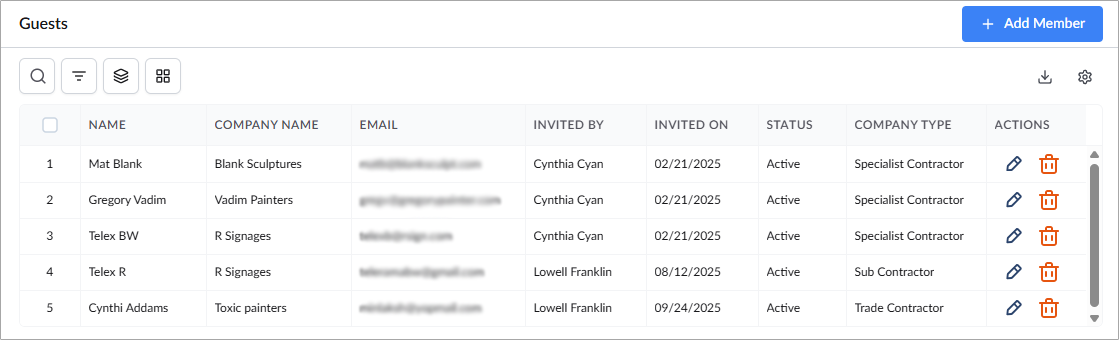
- Name - The full name of the individual to be added.
- Company Name - The name of the guest user's affiliated company.
- Email ID - The email address of the guest user.
- Invited By - The employee who added the guest user to your company guest list
- Invited On - The date on which the guest user has been added
- Status - The status of the guest user, whether active or inactive.
- Company Type - The nature of the guest user company's work.
- Actions - Action buttons to edit information and delete the user
Search, Filter, and Sorting Options
- Click the magnifier icon and use the 'Search' box located at the top left to find an entry using any value from the table as search criteria
- Click any column header to sort the rows in ascending or descending order based on that column's data.
- Click the cog wheel icon at the top right to adjust the display density and customize the display and order of the columns. See Customize Columns in List Views.
- The options at the top left allow you to filter the entries, create nested groups of entries, highlight cells and manage personalized and customized views of the table. Use the links below to learn more:
To edit the details of a guest user
- Click the
 icon under the 'Actions' column
 - Edit the user information as required in the pop-up.
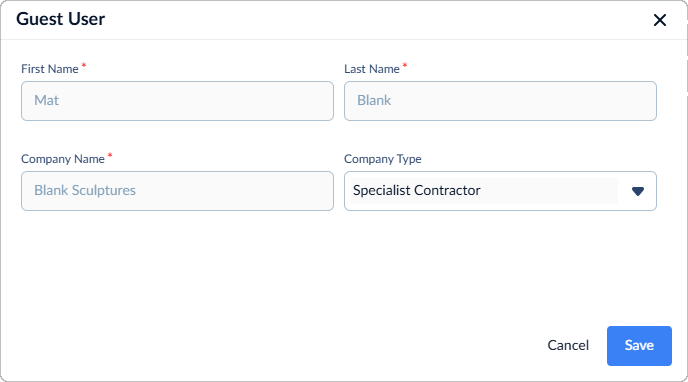 Click the 'Save' button for your changes to take effect.
Was this article helpful?
That’s Great!
Thank you for your feedback
Sorry! We couldn't be helpful
Thank you for your feedback
Feedback sent
We appreciate your effort and will try to fix the article