The look-ahead schedule provides clear insights into what lies ahead, ensuring better planning and smoother project execution. Linarc's intuitive scheduler allows project managers to create and manage look-ahead schedules for any defined duration, typically spanning two or three weeks or customized to fit project needs.
- Schedule Generation- The scheduler automatically pulls tasks planned and currently in progress for the selected time frame based on the defined planned start and end dates.
- Quantity Tracking- The look-ahead view also provides planned quantity of each task on a daily basis, enabling proactive planning.
- Flag Constraints- Contractors can flag new constraints (such as RFIs, Submittals, or Material delays) and set warning levels to highlight potential roadblocks before fieldwork begins.
- Crew Assignment: Allocate field crews to individual tasks within the Look Ahead to balance daily workloads and ensure clear accountability on site.
Pre-Requisites:
- Ensure required tasks, subtasks and activities are added to the schedule and assigned to the respective contractors.
- Ensure all required tasks and subtasks have assigned cost codes, planned quantities, and planned hours.
Note: The Look Ahead feature is designed to facilitate collaboration across different project teams:
• General Contractors: Create and prepare the short-term schedule by pulling tasks directly from the master schedule. Once prepared, the GC sends the Look Ahead to the respective contractors for review.
• Subcontractors: Review task schedules specific to their company within the chosen period. Upon review, they can either commit to the scheduled tasks or propose new dates for the work.
• Standalone Contractors: Review pulled tasks, assign crews, define planned quantities, and publish the Look Ahead schedule directly to their field teams.
Use the following links to jump to the sections you need help with:
- Create a Look Ahead from the Master Schedule
- Create from Previous Look Ahead Schedule
- Add Missing Cost Codes
Note:
- You do not need to manually create new look-ahead view to reflect the newly finalized timeline.
- Any approved date changes made through the 'Reschedule' are automatically synchronized with your active Look-ahead schedules.
- If the look ahead schedule is in draft state you can add new tasks with the updated timeline.
Create a Look Ahead from the Master Schedule
- Ensure that you are on the 'Schedule' module of the project. If not:
- Click the main menu at the top left
- Click 'Schedule' under the 'Scheduler' menu and click 'Look ahead' on the left
- Click the '+Create' button on the top right
- Select 'Create from Master Schedule' option in the pop up that appears
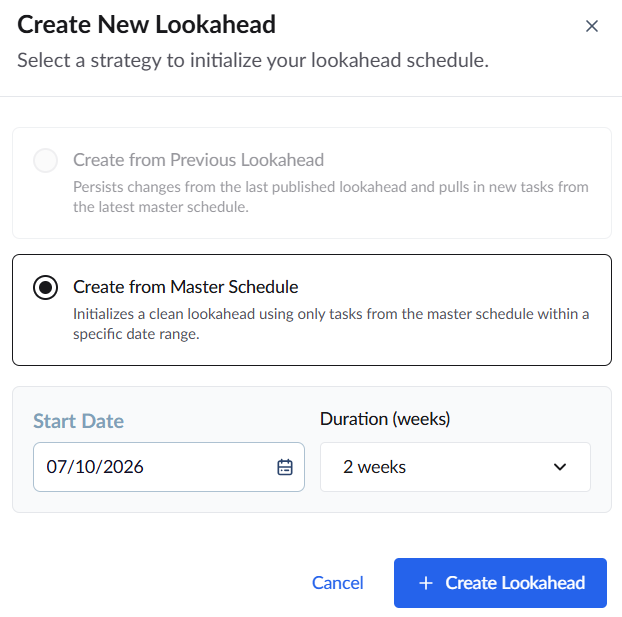
- Set up the 'Start Date' of the look ahead schedule using the date picker
- Select the duration for which you want to view the lookahead schedule
Note: You can select upto 12 weeks period to view the look-ahead schedule.
- Click the
 button
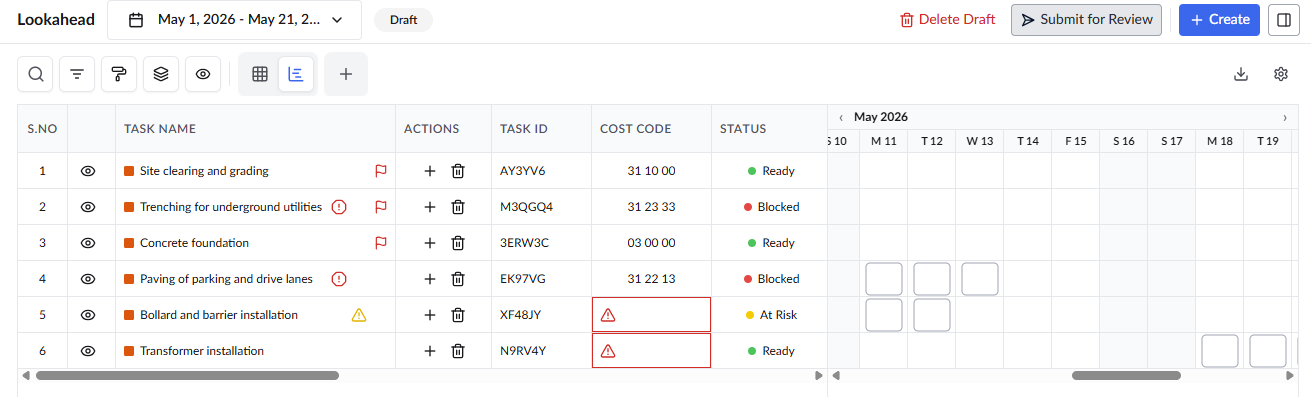
The table displays a list of leaf-level tasks from the master schedule that fall within the defined time period.
Create from Previous Look Ahead Schedule
- Ensure that you are on the 'Schedule' module of the project. If not:
- Click the main menu at the top left
- Click 'Schedule' under the 'Scheduler' menu and click 'Look ahead' on the left
- Click the '+Create' button on the top right
- Select 'Create from Previous Lookahead'
The system takes the start and end date of the previously active lookahead schedule
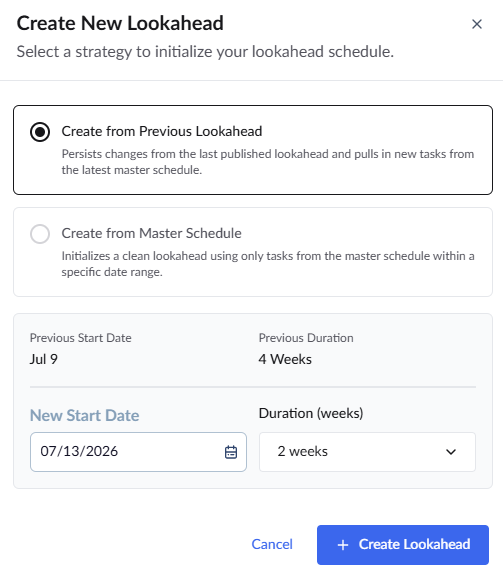
- Set up the 'Start Date' of the look ahead schedule using the date picker
- Select the duration for which you want to view the lookahead schedule
Note: You can select upto 12 weeks period to view the look-ahead schedule.
- Click the button
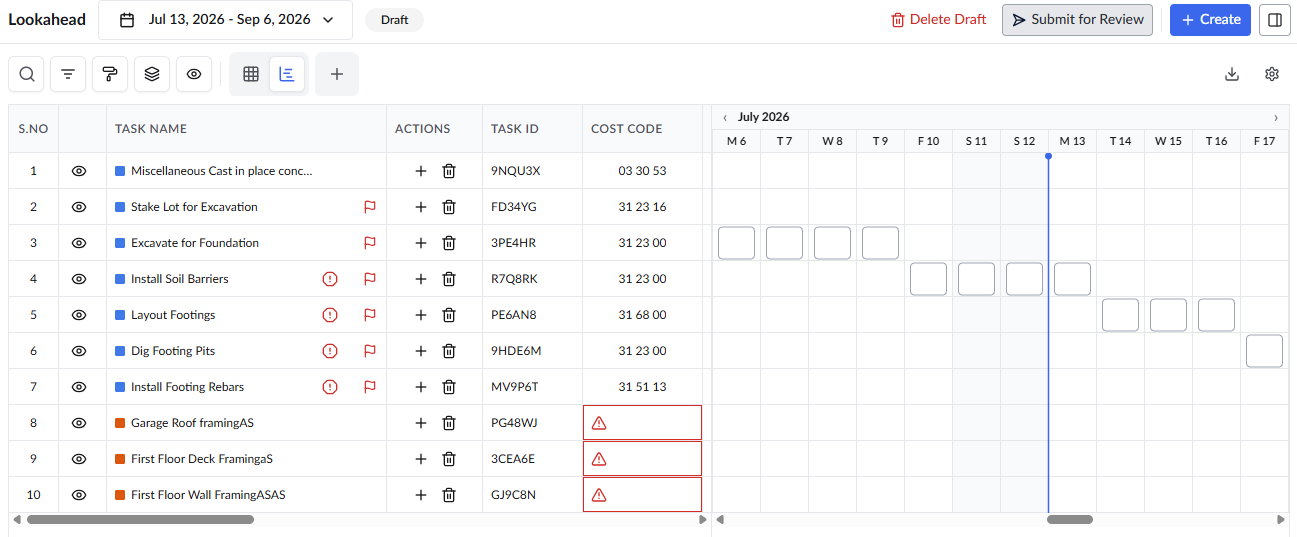
The table populates with all leaf-level tasks from the master schedule that fall within the timeframe spanning from the start date of the previous active lookahead and the currently defined end duration.
Add Cost Codes
Cost codes are essential for tracking tasks across various Linarc modules. Ensure all tasks in your Look Ahead is assigned with a cost code. If a task is not assigned with a cost code in the master schedule, you can assign it from the lookahead screen.
- Click inside the 'Cost Code' cell and select the appropriate cost code for the task
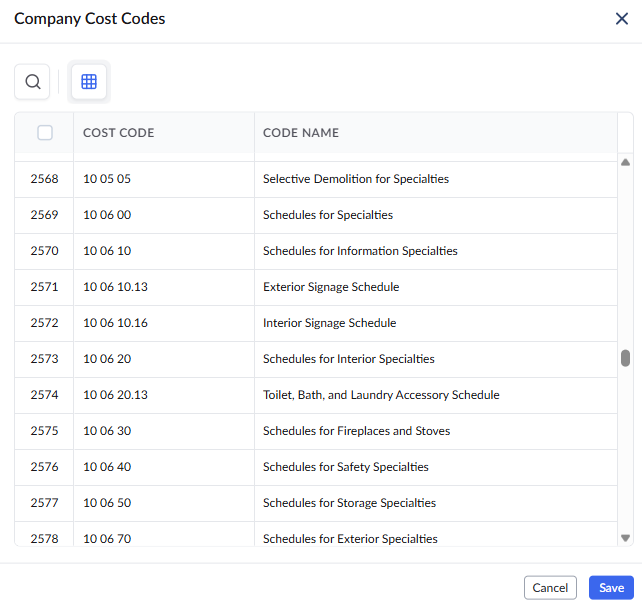
- Click 'Save'
Add Contractors to a Task
Ensure every task in your lookahead is assigned to a responsible subcontractor. If you are including an unpublished task that lacks a contractor in the master schedule, you can assign one on the fly while building your lookahead. The 'Contractor' column will highlight in red to mark it as a mandatory field.
- Click inside the cell and select the appropriate contractor from the list.
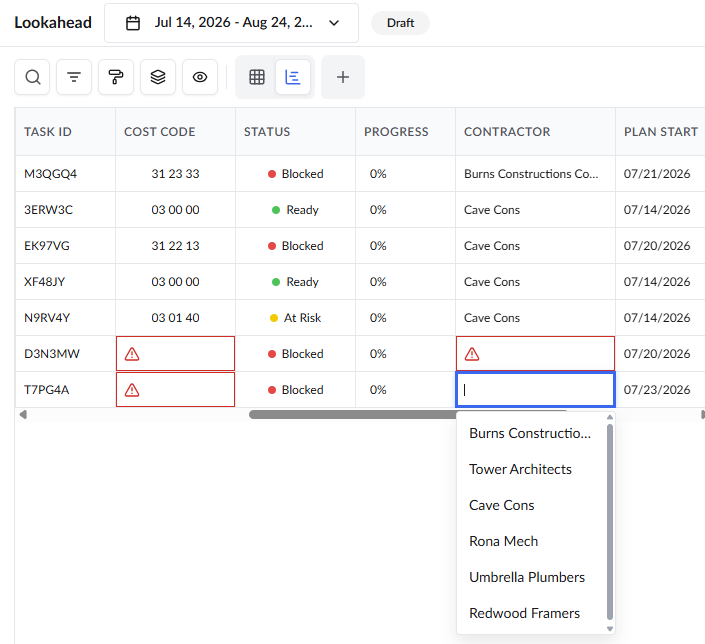
Your settings are auto-saved.
See the following links for more details:
Was this article helpful?
That’s Great!
Thank you for your feedback
Sorry! We couldn't be helpful
Thank you for your feedback
Feedback sent
We appreciate your effort and will try to fix the article