Linarc Scheduler allows you to export your project schedule at any stage of the project life cycle. This feature enables you to generate a schedule file in a format compatible with external scheduling software, ensuring you can share data or maintain backups outside the Linarc platform.
Exported files are automatically organized and saved within a dedicated folder in your project's file repository.
The system allows you to download these files to your local device for external use, reporting, or sharing with stakeholders who do not have access to the Linarc console.
The currently supported applications are:
- Oracle Primavera
- MS Project
- MS Excel
The exported file contains all required columns, depending on the format selected. The task details, start and end dates, etc., are included as per the baseline status at the time of export.
To export a schedule
- Open the project schedule in grid view. If you are not already in the schedule > grid screen:
- Click the app launcher icon
 in the top-right and select 'Schedule'
 - Click 'Planner' at the top, then select 'Grid' on the left
- Click the app launcher icon
- Click the 'Export' icon
 at the top right
 - Choose the format in which you want to download the schedule file

The available options are:
- Primavera - The schedule downloads as an .XER file, compatible with the Oracle Primavera application
- Microsoft - The schedule downloads as an .MPP file, compatible with the MS Project application
- Custom - The schedule downloads as an MS Excel file in XLSX format
- Click 'Download'
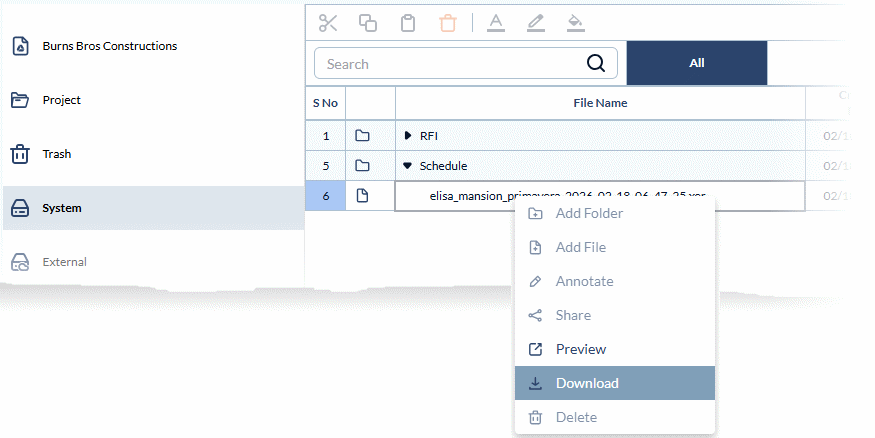
The export process will start, and a confirmation will be shown. This may take a few seconds. Once complete, the file is saved in the 'Schedule' folder within the 'System Drive' of your project's file repository. You can download the file from the system drive for external use and sharing at any time.
To download the exported file
- Open the 'System Drive' of your project's file repository. To do so:
- Click the app launcher
 and select 'Project.'
 - Select 'Drive' from the options on the left
- Select 'System' on the left.
- Click the app launcher
- Expand the 'Schedule' folder on the right pane.
- Right-click on the required schedule file and select 'Download.'
 See System Drive and View and Download Files for more details.
Was this article helpful?
That’s Great!
Thank you for your feedback
Sorry! We couldn't be helpful
Thank you for your feedback
Feedback sent
We appreciate your effort and will try to fix the article