Linarc AI assistant analyzes and compares two revisions of a plan sheet to identify visual, textual, and dimensional differences. Project managers, estimators, and field teams can use it to detect uncalled-out modifications, review revision notes, and track scope updates without manually scanning both drawings.
The comparison generates a plain language summary, lists categorized changes, and places color-coded, numbered bounding boxes directly on the drawing canvas.
Run an AI Comparison
Ensure you already have the two versions in the comparison view. If not,
- Click the main menu at the top-left.
- Under 'Documentation', select 'Plan Sheets'.
- Click the thumbnail of the plan sheet you want to inspect.
- The plan sheet opens in the sheet view.
- Click the
 icon in the top-right toolbar.
The comparison screen opens, automatically loading the two most recent revisions of the sheet in side-by-side panes.
- Use the drop-downs at the top to select the version of teh sheet to appear in that pane.
The 'View AI Results' pane opens on the right with the 'Analyze with Lia' greeting.
- Click 'Start Analyze'.
A progress indicator appears while AI processes both drawing revisions. When processing completes, the results load into the 'View AI Results' pane, and numbered bounding boxes appear on the canvas.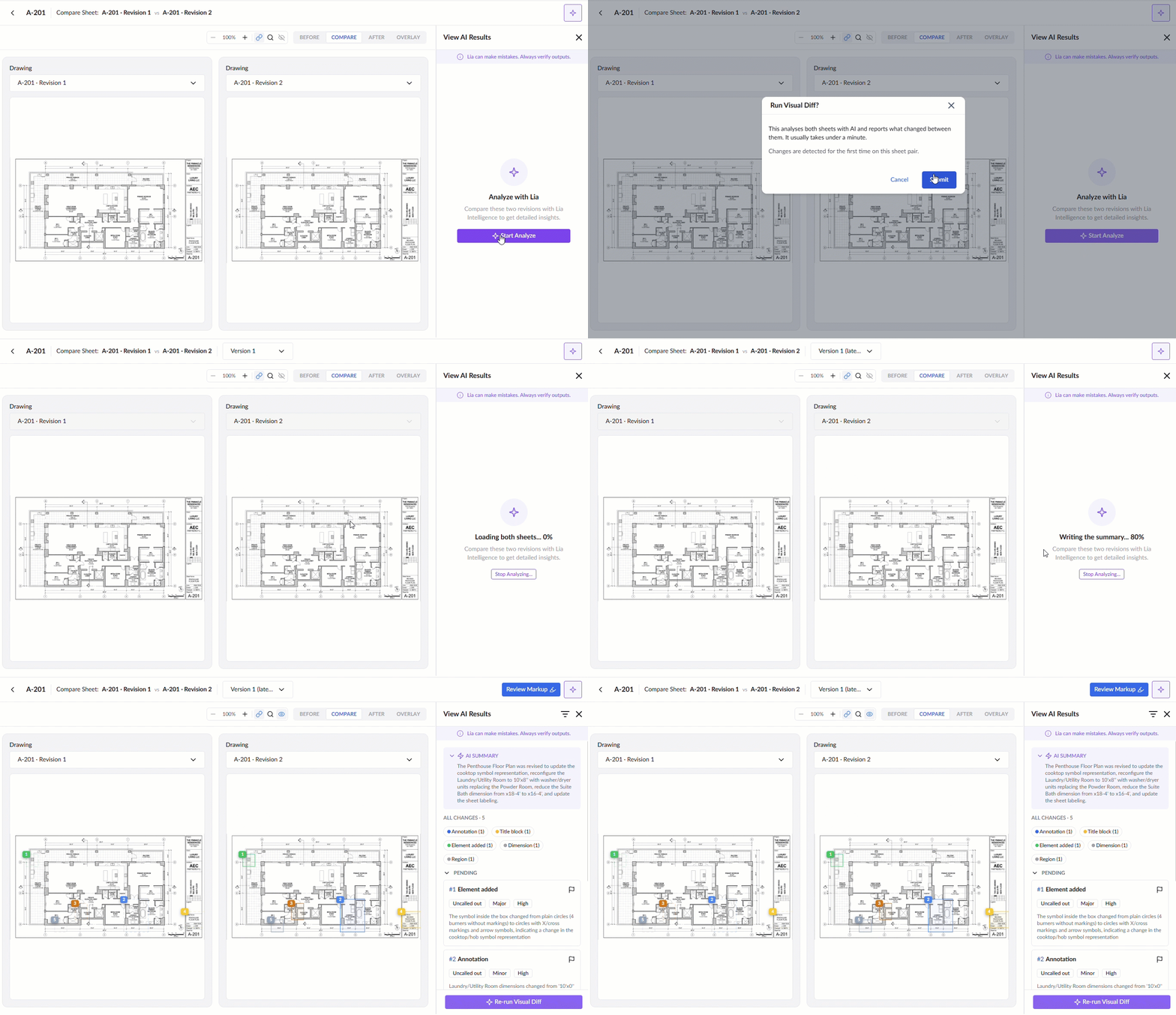
Tip: Click the eye icon in the top toolbar to toggle the visibility of the numbered bounding boxes on the canvas.
The 'View AI Results' pane organizes extracted differences into three areas:
- AI Summary - A plain-language overview describing major scope modifications, structural updates, and room layout adjustments between the two revisions.
- All Changes - Displays the total count of identified differences alongside clickable filter pills for each change category.
- Change Cards - Individual cards for every detected change. Each card displays a change reference number, change category, flag control, classification tags, and a detailed description.
Use the links below to jump to the section you need help with:
- Categories and Color Codes
- Change Tags
- Inspect Changes on the Canvas
- Filter and Manage Changes
- Flag a Change for Review
- Add Markups from AI Results
- Re-run an AI Comparison
Categories and Color Codes
Each category of change between two sheets are color coded to match the change card and the identifying numbers displayed on the sheet canvas:
| Category | Color | Description |
|---|---|---|
| Annotation | Blue | Textual revisions, notes, schedule references, and callout modifications. |
| Element added | Green | New structural elements, equipment, walls, doors, or symbols added in the latest revision. |
| Element removed | Red | Deleted architectural components, abandoned utilities, or canceled scope. |
| Title block | Yellow | Changes to sheet numbers, revision dates, drafter initials, or title block metadata. |
| Dimension | Gray | Altered, added, or relocated dimension strings and measurements. |
| Region | Gray | Broad spatial adjustments, room boundary reconfigurations, or zone modifications. |
Change Tags
Each change card contains three evaluation tags assigned by Lia:
- Callout Tag (
Uncalled out/Called out): Indicates whether the architect marked the modification with a revision cloud on the drawing. - Significance Tag (
Major/Minor): Evaluates the operational, structural, or cost impact of the change. - Confidence Rating (
High/Med): Reflects the AI model's certainty score for the detected differences.
Tip: Review Uncalled out changes first. Because they lack revision clouds, uncalled-out modifications carry the highest risk of unexpected scope gaps and rework in the field.
Inspect Changes on the Canvas
To locate a change on the drawing
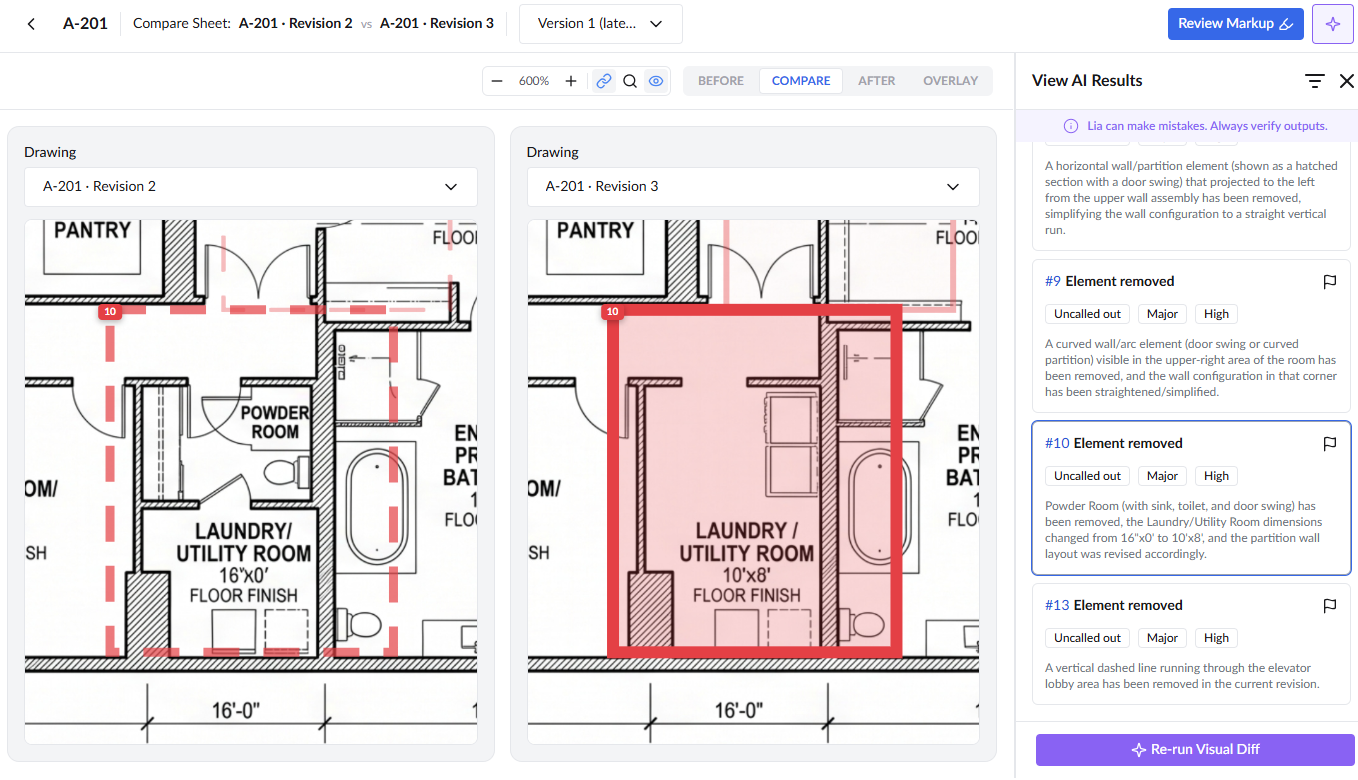
- Click any change card in the 'View AI Results' pane.
The card highlights, and the drawing canvas automatically pans and centers on the corresponding numbered box. In COMPARE (side-by-side) view, both drawings zoom and align to the selected change simultaneously.
Filter and Manage Changes
Filter by Category
- Click one or more category pills under 'ALL CHANGES' (for example, 'Annotation' or 'Element added').
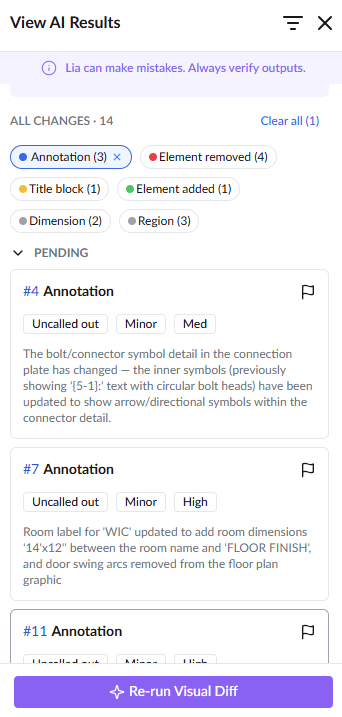
The pane filters to display only changes matching the selected categories. Click 'Clear all' to reset the list.
Filter by Review Status
- Click the filter icon at the top of the 'View AI Results' pane.
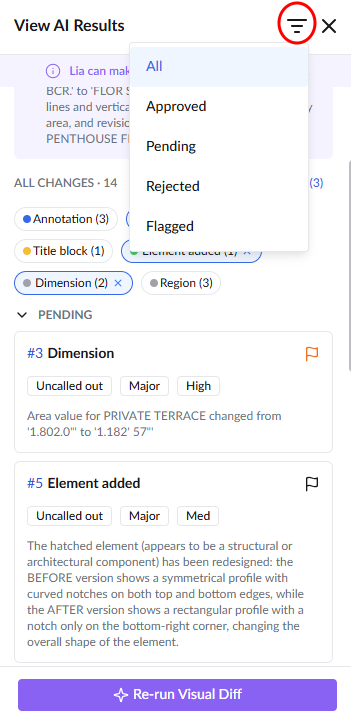
- Select a review status:
- All - Displays all identified changes.
- Pending - Changes awaiting user review.
- Approved - Changes verified and accepted.
- Rejected - Dismissed changes.
- Flagged - Changes marked for secondary verification.
Flag a Change for Review
Flag a change when you need to consult the project architect, superintendent, or subcontractor before accepting it.
- Click the flag icon on the change card.
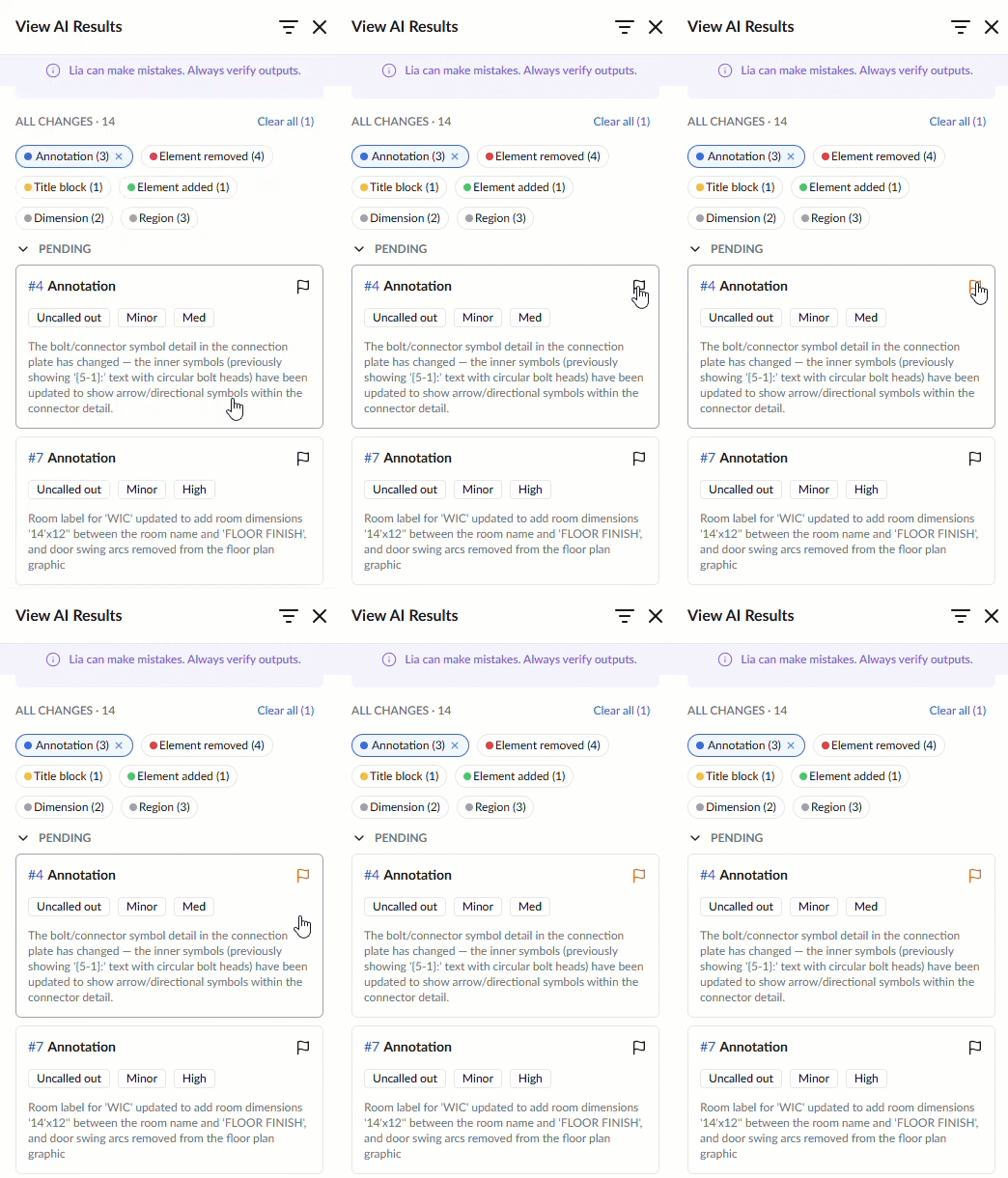
The flag turns orange. Select 'Flagged' in the status filter dropdown at any time to view all marked items.
Add Markups from AI Results
You can convert AI bounding boxes into permanent plan sheet markups for collaboration with field teams.
- Click 'Review Markup' at the top of the comparison screen.
The markup editor opens, converting the selected AI bounding boxes into editable markup annotations.
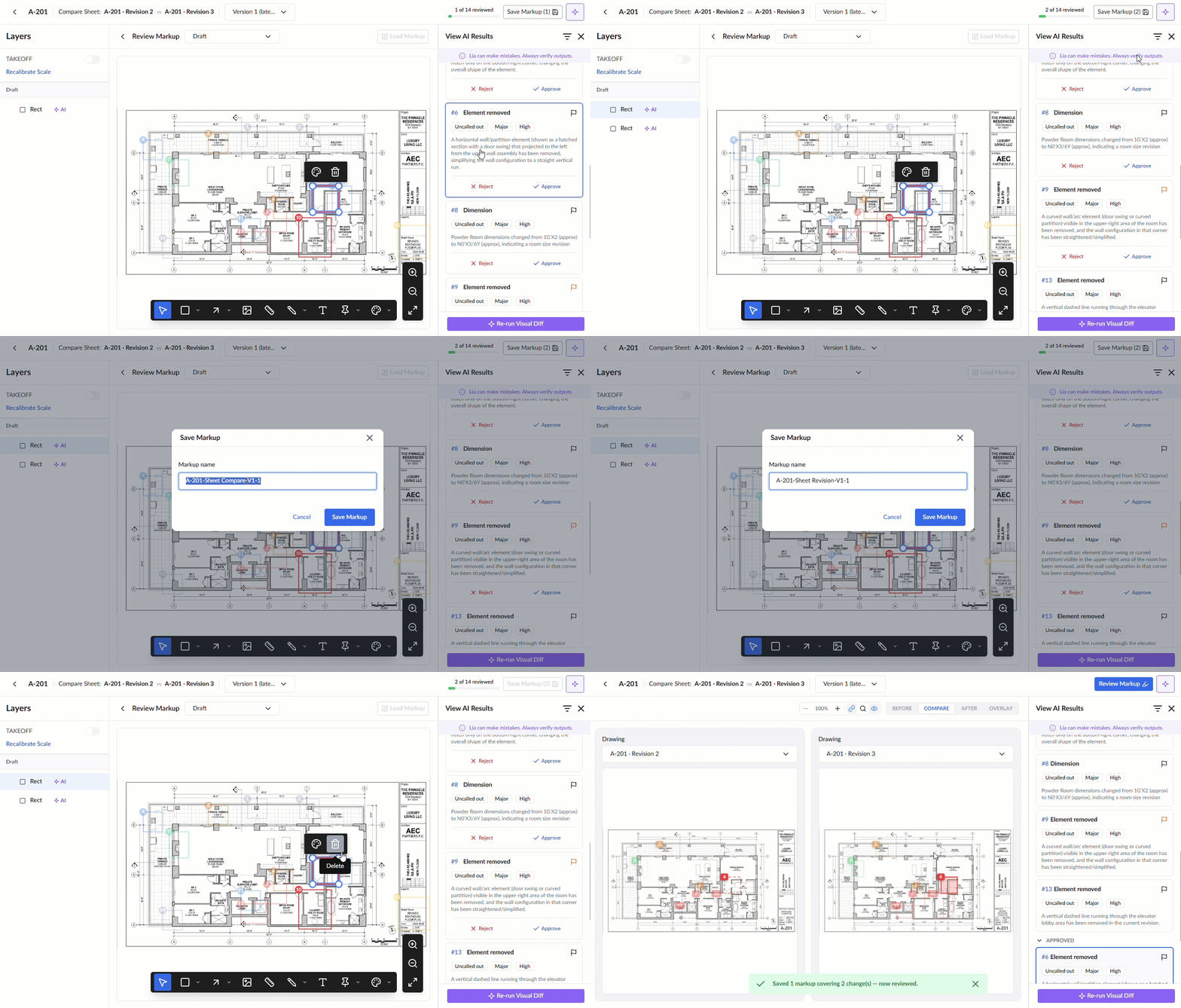
- Click a change card in the AI pane to highlight the corresponding markup element. By default, the markup highlights the changed area with a rectangle in the color associated with that change type (refer to the AI assigned color codes for details).
- Use the handles to adjust the markup shape, and use the color palette to change the markup to your desired color.
- Once you are satisfied, click Approve.
- Repeat this process for any other changed elements.
- Click Reject if you are not satisfied with a markup. Alternatively, you can leave the markup unreviewed to address it later and proceed with your approved markups.
- Click the
 button in the top right corner to save all markup elements at once.
 - Enter an appropriate name for the markup and click 'Save Markup' to proceed.
Re-run an AI Comparison
If new drawing revisions are uploaded or if you need to refresh the analysis:
- Click 'Re-run Visual Diff' at the bottom of the 'View AI Results' pane.
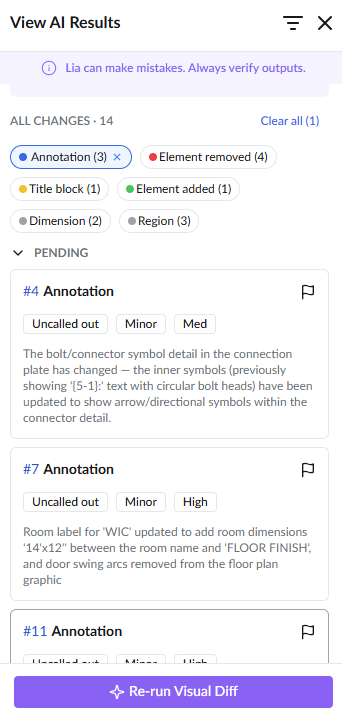
Lia re-analyzes both revisions and updates the results. Saved comparison runs remain stored with the sheet and can be reopened at any time without reprocessing.
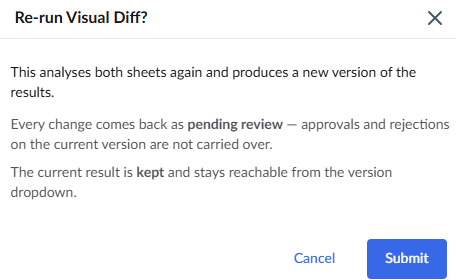
- Click 'Submit' to confirm.
Was this article helpful?
That’s Great!
Thank you for your feedback
Sorry! We couldn't be helpful
Thank you for your feedback
Feedback sent
We appreciate your effort and will try to fix the article