The Compare feature in the Plans module highlights visual and architectural differences between two revisions of the same plan sheet. Project managers, superintendents, and field teams use it to verify scope revisions, review dimension changes, and confirm drawing updates before issuing work on site.
Note: The plan sheet must have at least two published versions. You can compare only two versions of the same plan sheet at a time.
To open the revision comparison screen
Ensure you have the required version of the plan sheet open. Else,
- Click the main menu on the top-left.
- Click 'Plan Sheets' under the 'Documentation' menu.
- Click the thumbnail of the sheet you want to compare. The latest version of the plan sheet opens.
- Click the compare icon
 in the top-right toolbar.
The comparison screen opens, automatically loading the two most recent revisions. The header displays the sheet number and the compared versions.
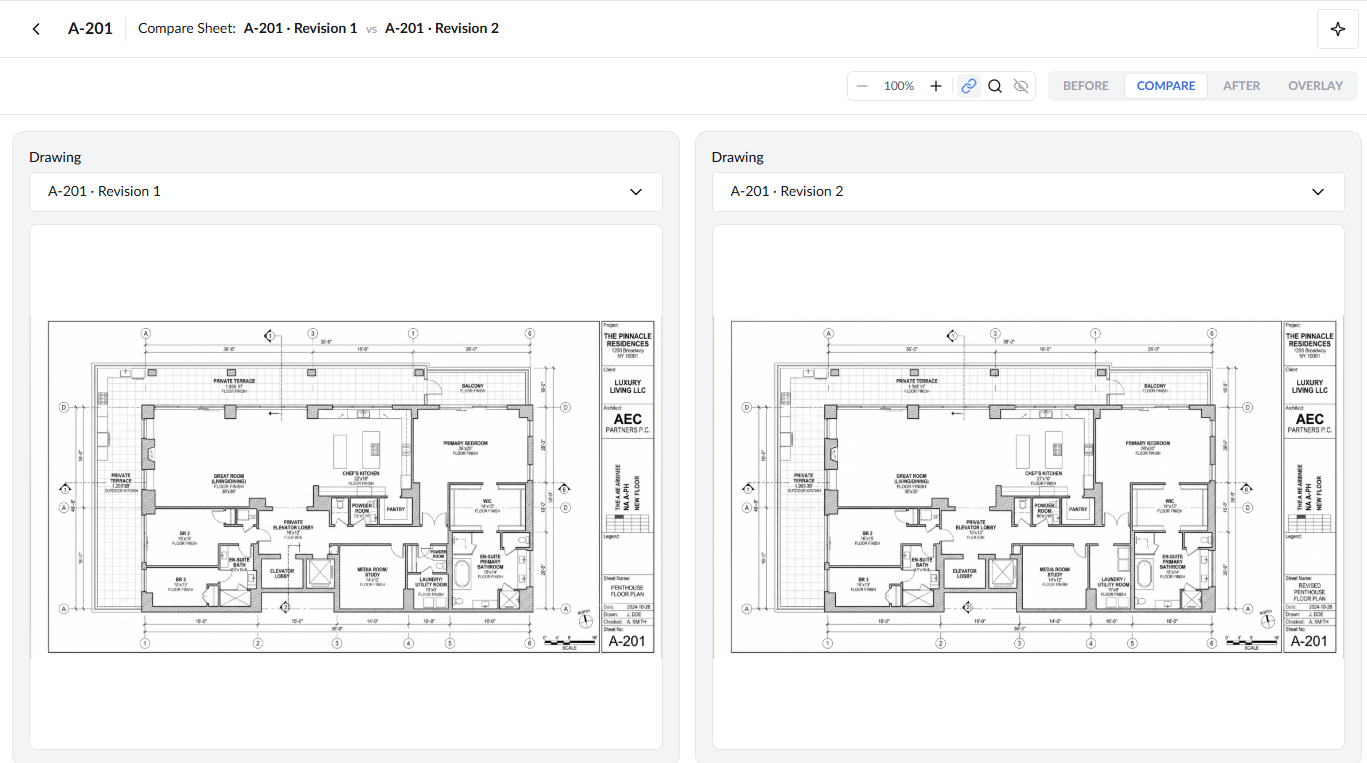
- Use the 'Drawing' drop-down at the top to select the version to show in that pane
From this screen you can:
- Identify the Earlier and Later Versions
- Compare Two Versions Side by Side
- Overlay Two Versions
- Compare Versions with AI
In the compariosn view, you have the following options:
- Zoom - Click '-' or '+' next to the zoom percentage to zoom out or in. You can simultaneously zoom-in or zoom-out both the compared sheets at the same rate using the 'Link' option explained below.
- Link - When the link is on,
 both versions zoom together at the same percentage. When it is off,
  you can zoom each version separately.
 - Magnifier - Click
 to magnify any specific spot of the sheet.
 - View - Click
 to show or hide the AI comparison and the markups on the sheet, if any.
 - Print View- Click the print
 icon in the top header to print or export the active comparison view.
Identify the Earlier and Later Versions
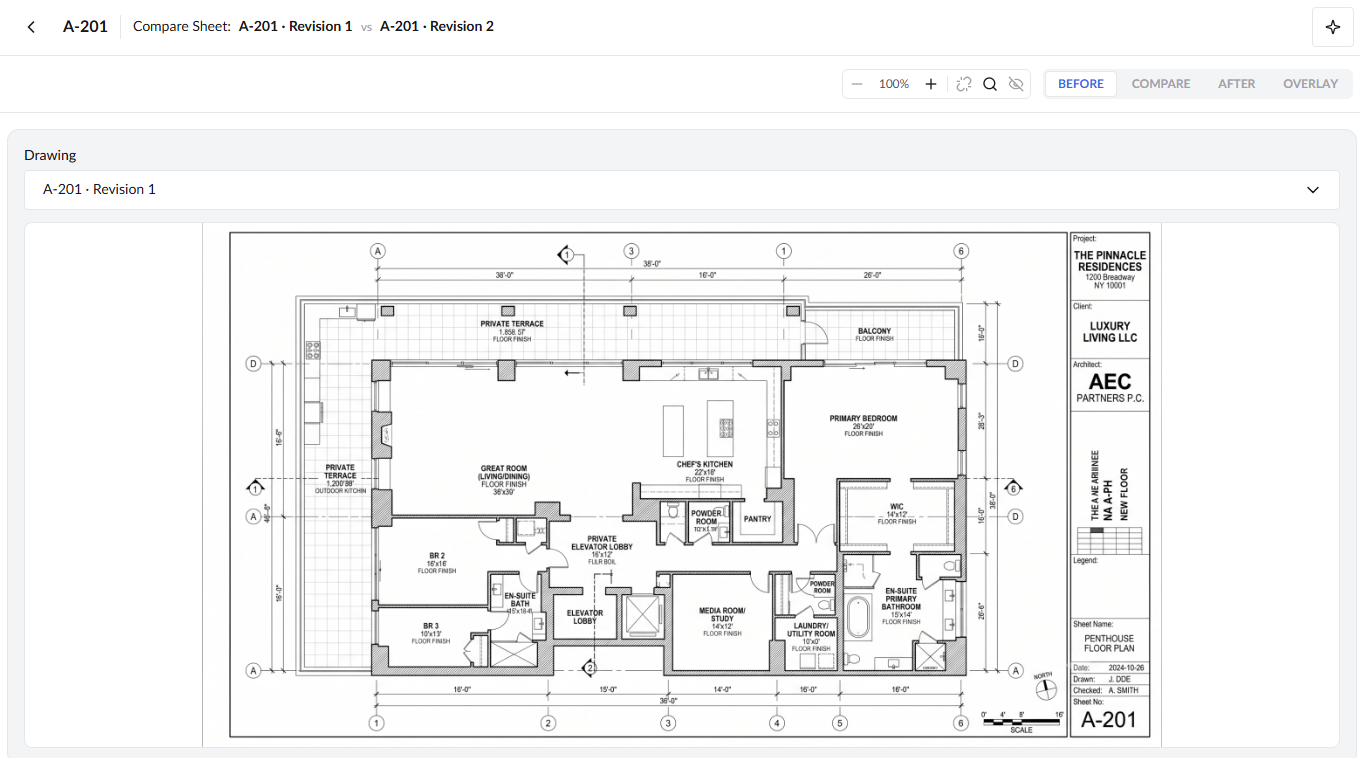
- Use the 'BEFORE' and 'AFTER' buttons to view the earlier and later versions of the sheets under comparison.
The respective version of the sheet opens in the full view hiding the other version. The 'Drawing' drop-down above the sheet shows which version you are viewing.
Compare Two Versions Side by Side
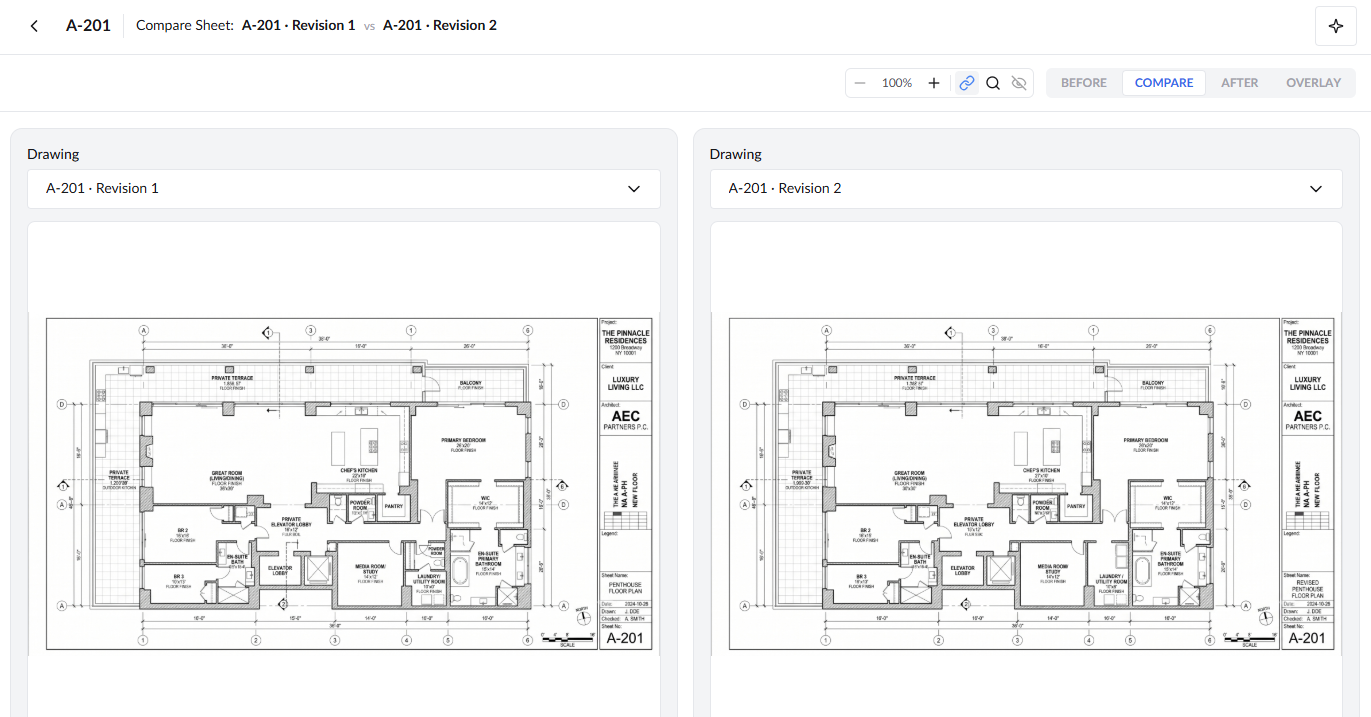
- Click 'COMPARE'.
The earlier version appears on the left and the later version on the right. The 'Drawing' drop-down above each sheet shows its version.
Overlay Two Versions
- Click 'OVERLAY'.
The two sheets appear one over other with the earlier version at the bottom and the later version at the top
- Click the overlay mode that you want:
- Onion
- Difference
- Swipe
- Legacy Compare
Each mode places the two versions on top of each other in a different way.
Onion
Blends the two revisions as semi-transparent layers:
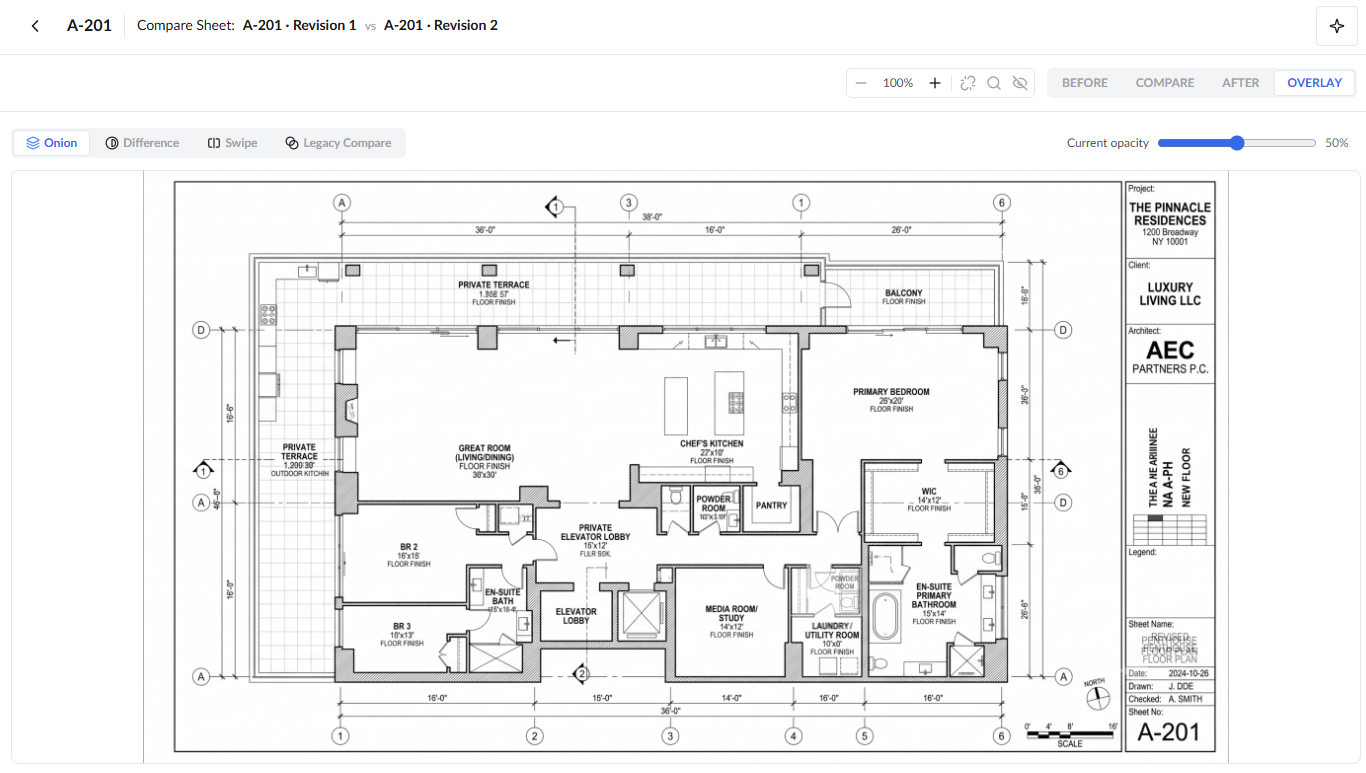
- Use the 'Current opacity' slider at the top right to adjust the transparency of the upper layer, exposing the lower layer to identify the differences between them: For example:
- 0% (far left) - Displays only the previous revision.
- 50% (center) - Blends both revisions equally to spot shifted walls or structural misalignments.
- 100% (far right) - Displays only the latest revision.
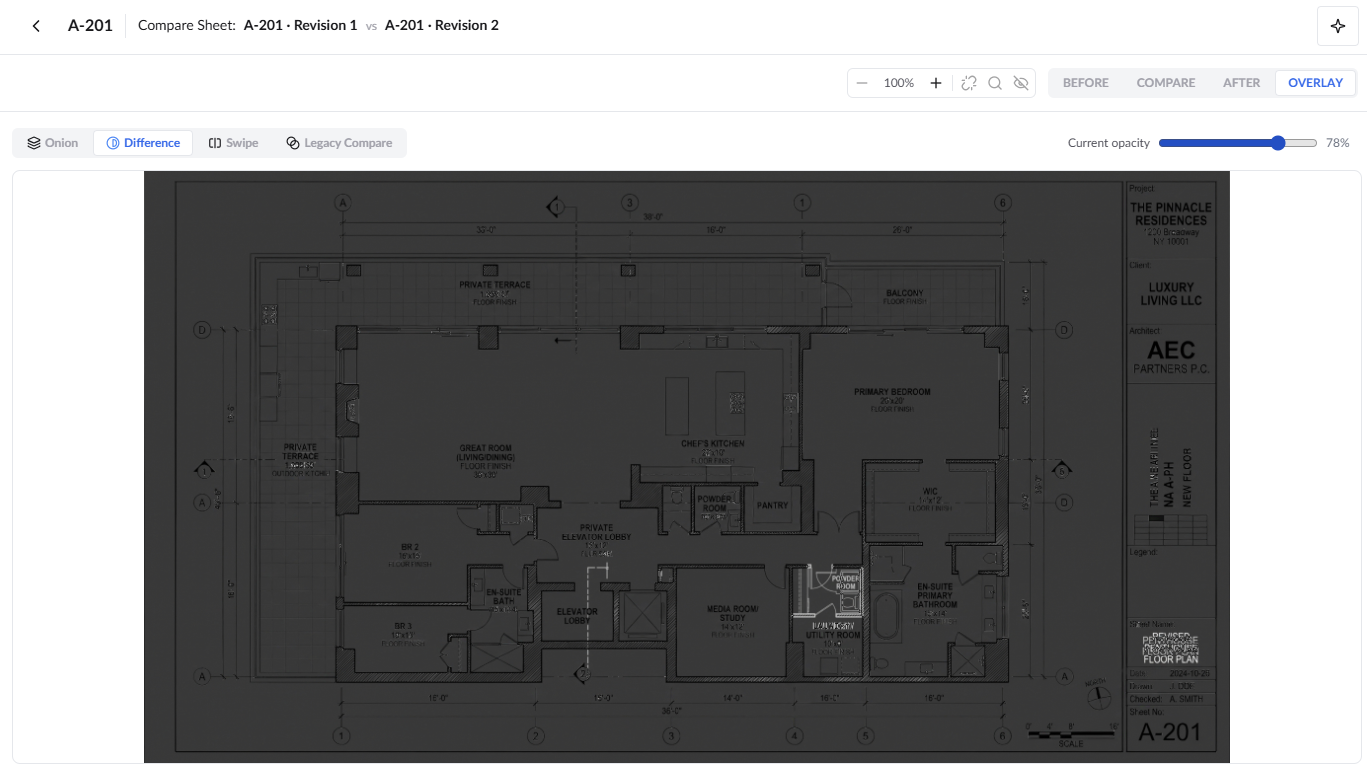
Difference
Highlights changes in high-contrast white against a dark background. Unchanged geometry blends into dark gray, while new, deleted, or relocated lines appear in bright white. An example is shown below:
- Drag the 'Current opacity' slider to adjust the sensitivity
Swipe
Splits the sheet with a movable vertical divider line:
- Drag the 'Reveal' slider (or click and drag the vertical divider line across the canvas) to reveal the lower sheet as you require:
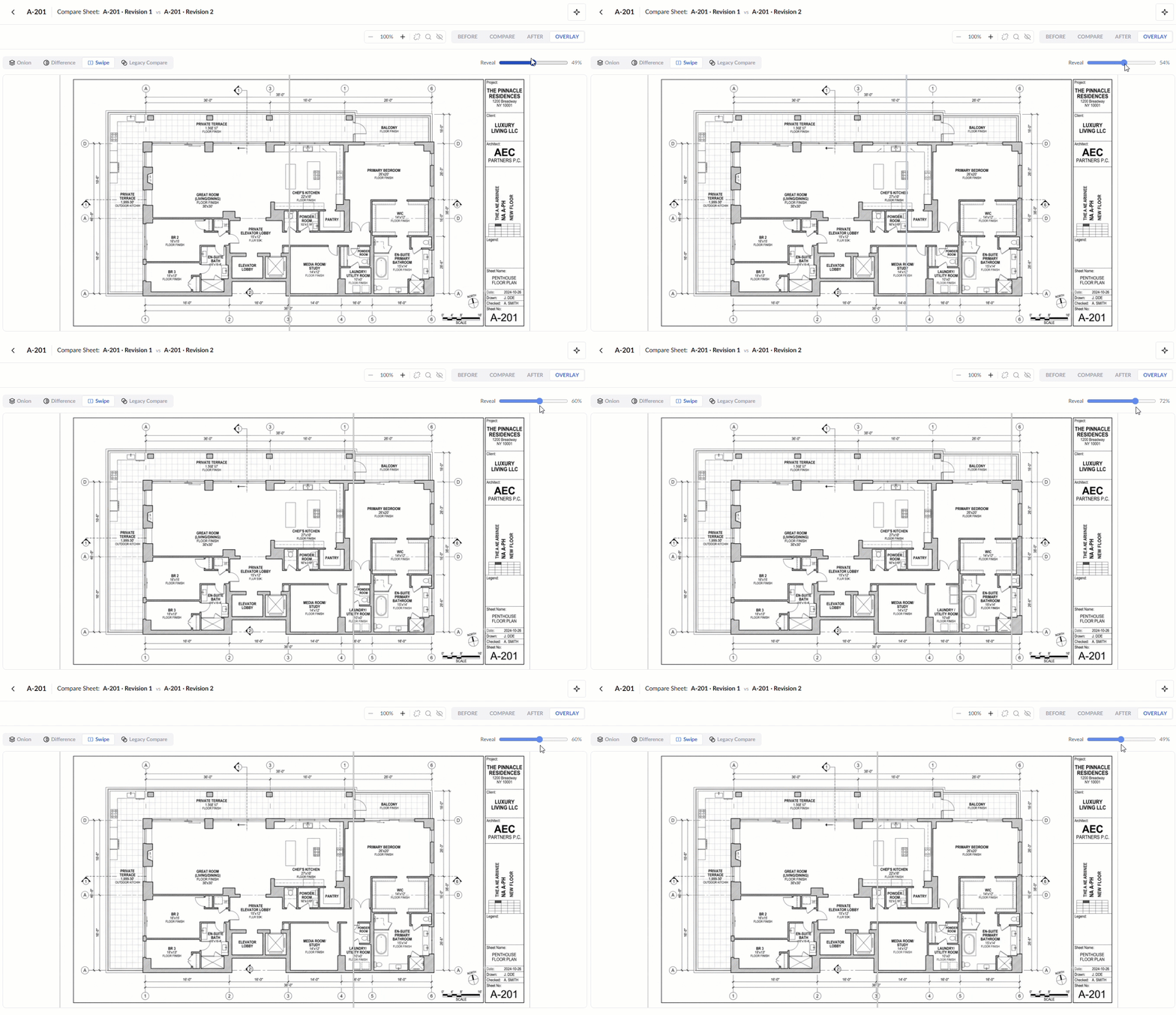
- Move the divider left to reveal more of the previous revision.
- Move the divider right to reveal more of the later revision.
Legacy Compare
Highlights modifications using color-coded line overlays.
The canvas shows the earlier version in red and the newer version in blue. Unchanged lines overlap and appear dark. Lines that appear only in red were removed in the newer version, and lines that appear only in blue were added.
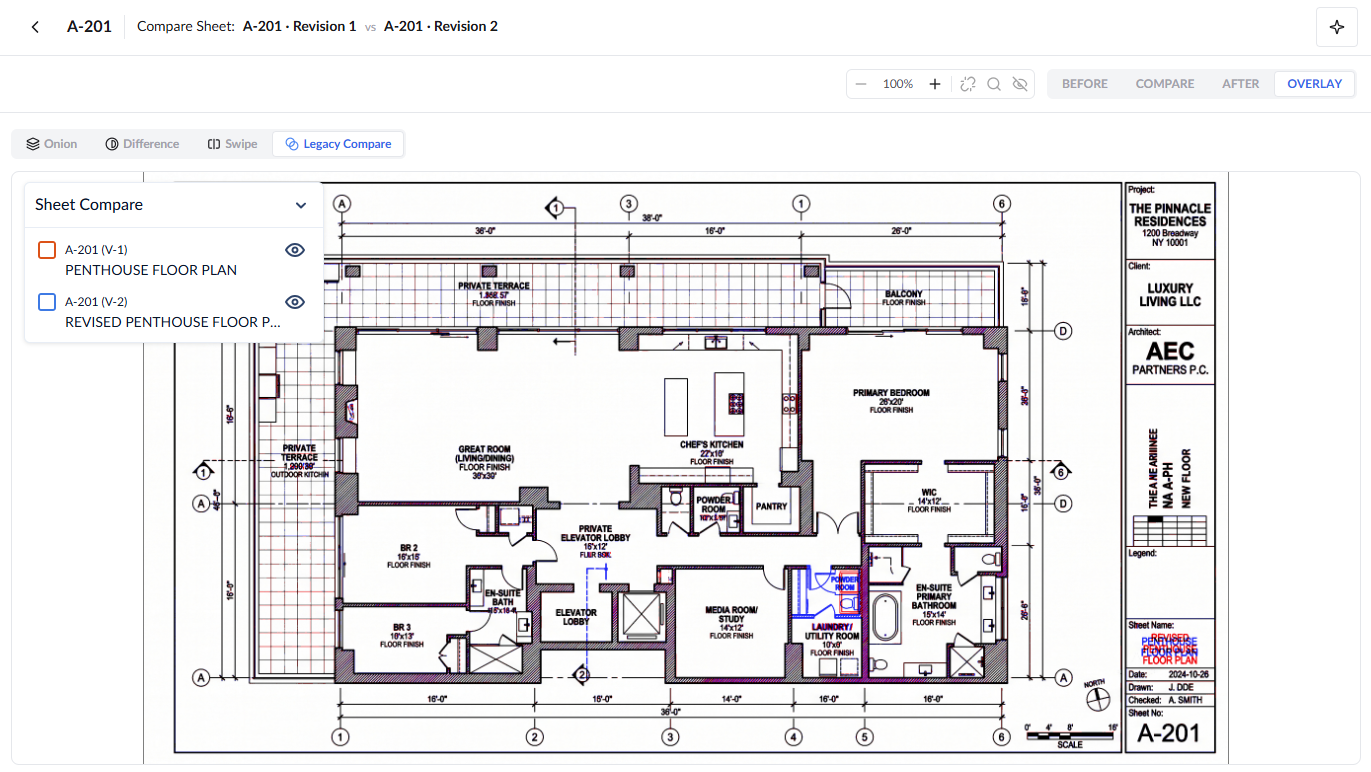
The 'Sheet Compare' panel opens on the left side of the screen:
- Click the eye icon next to either revision in the panel to toggle that version's layer on or off.
- Click the collapse arrow at the top of the panel to minimize the panel and expand the canvas.
Compare Versions with AI
Linarc's AI assistant can compare the two versions and list the changes for you. See Compare Plan Revisions with AI.
Was this article helpful?
That’s Great!
Thank you for your feedback
Sorry! We couldn't be helpful
Thank you for your feedback
Feedback sent
We appreciate your effort and will try to fix the article