Architectural, structural, and MEP drawing sheets contain dense networks of dimensions, general notes, schedule tables, and trade abbreviations. Reviewing each sheet manually during pre-construction, estimating, or daily site planning can be tedious and prone to overlooked specifications.
The Linarc's AI provides a rapid overview of a plan sheet by listing its technical details. This allows project managers, estimators, and site teams to grasp key information like dimensions, scales, and schedules, etc.
- Automated Blueprint Extraction: Linarc AI automatically scans drawing sheets and extracts key technical data into a structured side pane, saving you from manually reading every callout and note.
- Instant Breakdown: Identifies drawing scale, critical dimensions, general notes, trade legends, abbreviations, and equipment schedules.
- Scale: The primary drawing scale and sheet orientation detected from the title block and plan details.
- Dimensions: Spatial measurements, gridline spacings, ceiling heights, and room clearances detected across the sheet.
- Notes, legends, and abbreviations: General notes, code compliance callouts, symbol legends, and trade acronyms.
- Schedules: Door, window, finish, and structural schedules identified on the drawing.
Analyze a Plan Sheet with AI
Ensure that the plan sheet is already open. Else,
- Click the main menu at the top-left.
- Under 'Documentation', select 'Plan Sheets'.
- Click the thumbnail of the plan sheet you want to analyze.
- The plan sheet opens in the sheet view.
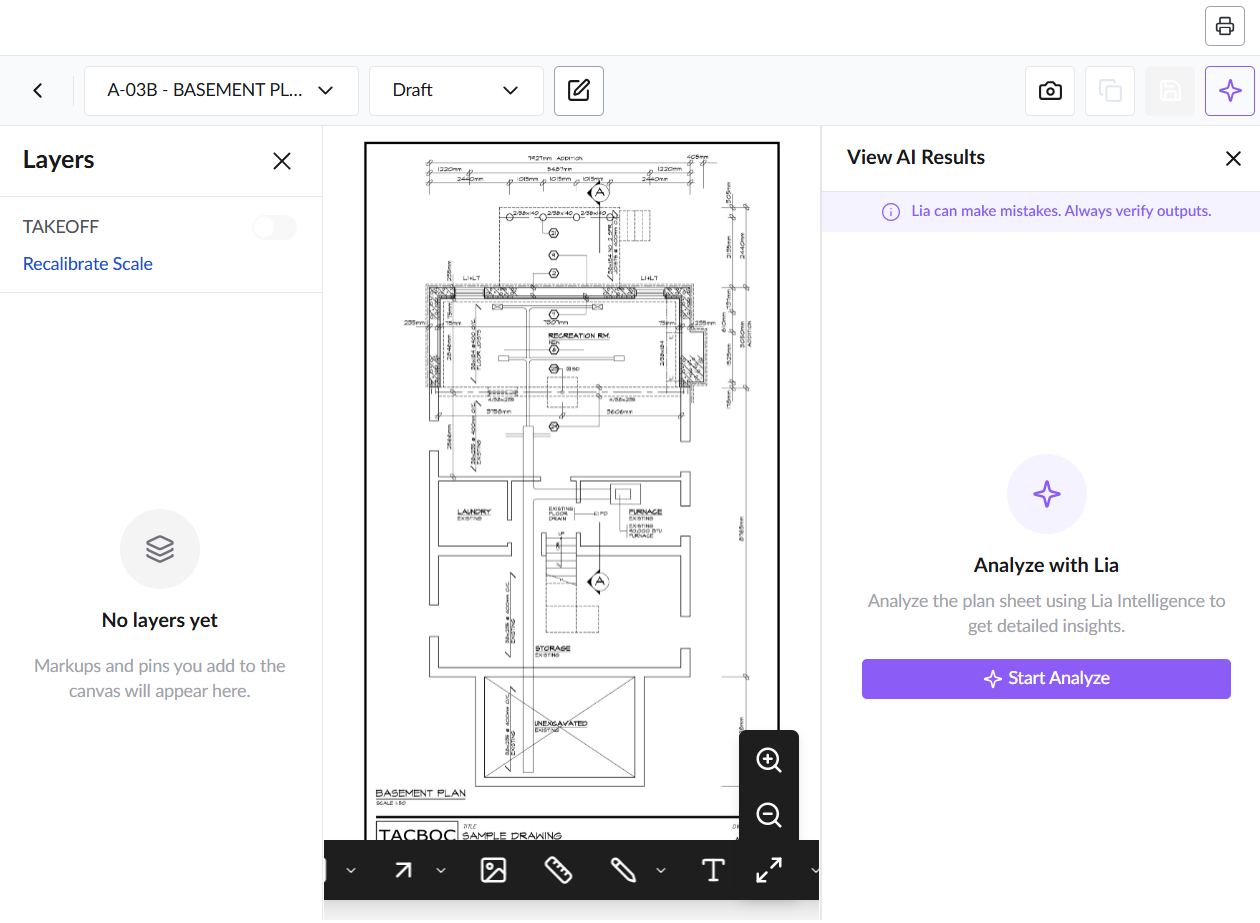
- Click the
 button if the AI pane is not visible on the right of your plan sheet
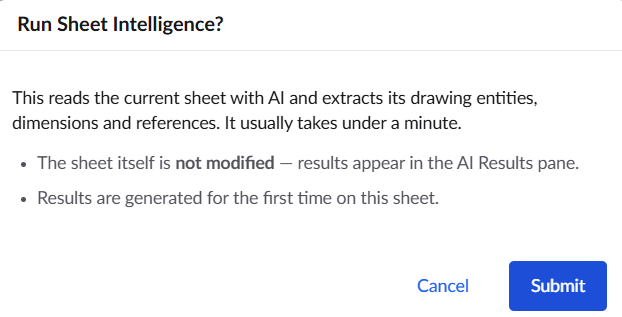
 - Click 'Start Analyze' at the bottom of the AI Results pane and click 'Submit' to confirm your action.
A progress indicator shows that the analysis is in progress. The results appear when the analysis is complete.
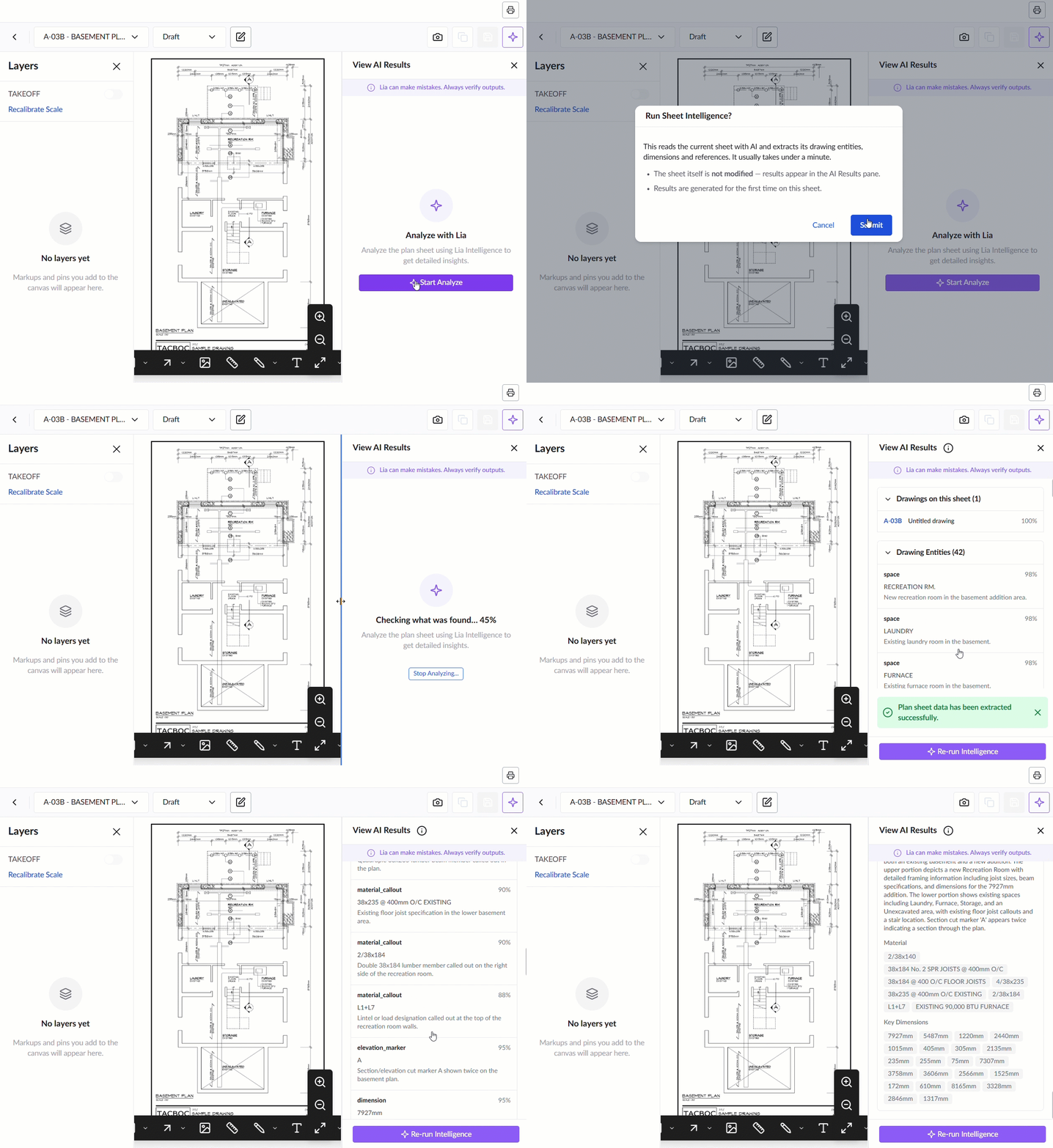
Review the Results
The AI Results pane organizes findings into collapsible groups. Each record shows a name and a description:
- Click a group header to expand or collapse its records.
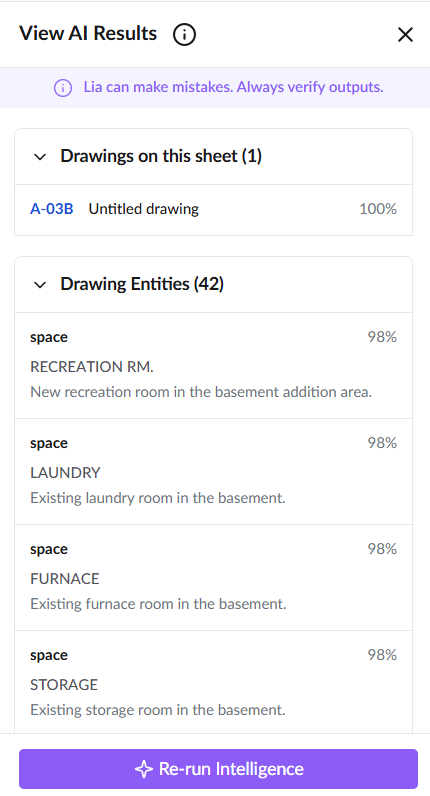
The 'View AI Results' pane displays the extracted drawing data into collapsible groups with the confidence percentage of each result:
Drawings on this sheet
Lists all distinct drawings or details recognized on the sheet, displaying the drawing number, drawing title, and a match confidence percentage.
Drawing Entities
Lists all individual architectural and structural objects extracted from the drawing. Each record card includes an entity type tag, title, plain-language description, and an AI confidence score:
- Space - Identifies functional areas, rooms, and exterior zones or locations, along with a description of their location on the plan.
- Dimension - Identifies linear measurements, lot frontage widths, wall thicknesses, and room offsets, specifying their exact position on the drawing.
- Note anchor - Highlights drawing callouts, scope labels, and general contractor instructions
- Material callout - Details structural lumber sizes, floor joist spacing, beam callouts, and equipment specifications
- Elevation marker - Identifies section cut markers and elevation view references
- Cross-references - Lists the callouts on the sheet, such as detail bubbles and section markers, that point to another sheet.
- Schedules - Lists each titled table found on the sheet.
Description
Click the 'Description' header to expand a plain-language architectural summary of the sheet:
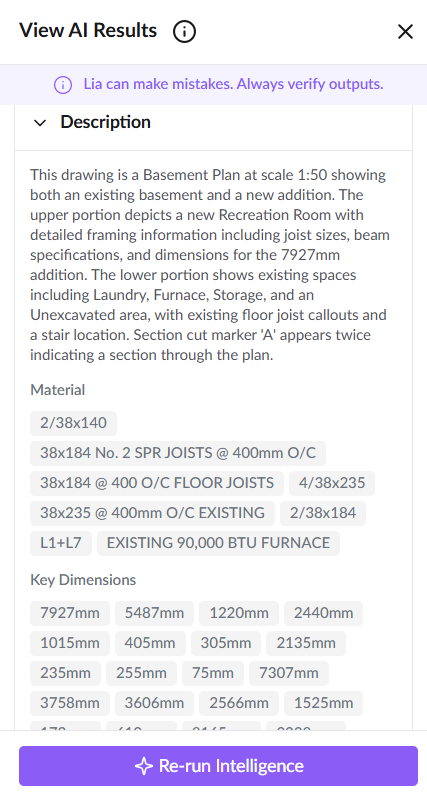
- Summary Narrative - Describes the drawing type , drawing scale, scope breakdown, room configurations, framing specifications, and section cut locations.
- Material - Displays clickable pill tags for all structural and finishing materials detected on the sheet.
- Key Dimensions - Displays clickable pill tags for all primary dimensions identified across the drawing
Tip: Use the results as a starting point and verify critical dimensions and load-bearing notes directly against the drawing.
Re-run an Analysis (Optional)
If network issues cause partial output, or if you simply need to run the scan again, you can easily retry the analysis to get the full results.
- Click Re-run Intelligence at the bottom of the AI Results pane.
- The AI will rescan the sheet, and the new results will replace the previous ones.
Was this article helpful?
That’s Great!
Thank you for your feedback
Sorry! We couldn't be helpful
Thank you for your feedback
Feedback sent
We appreciate your effort and will try to fix the article