Linarc streamlines the creation of your Schedule of Values (SOV) by tying it directly to your commitment financials. As you build your commitment budget—whether by manually adding line items or importing an Excel spreadsheet—the system automatically generates a draft SOV, mapped one-to-one with your budget.
To align your billing with your Work Breakdown Structure (WBS), you can easily reorganize this draft SOV:
- Group Budget Lines: Sort items by custom categories, such as location, floor, or project phase.
- Consolidate for Billing: Set each group as a single SOV line with a custom label to simplify your payment applications (Pay Apps) to the General Contractor.
Once organized, you must submit your completed SOV to the general contractor for approval.
The GC Approval Workflow
Before you can generate your first Pay App, your finalized SOV must be approved by the General Contractor. This ensures your planned billing schedule perfectly aligns with the overarching project requirements.
- Submit for Review: Once your SOV is locked, you will submit it to the GC.
- GC Review: The GC will evaluate your grouped line items and custom labels.
- Approval/Revision: If approved, your SOV gets locked and becomes the official billing baseline for your Pay Apps. If the GC requests changes, you will need to adjust your groupings and resubmit.
Impact of Budget Adjustments and Change Orders
Because your Schedule of Values (SOV) is built directly from your project budget, budget adjustments—such as shifting surplus or reserve funds—automatically update the SOV in the following ways:
- Real-Time Total Adjustments: Reallocating funds between budget items linked to different SOV lines immediately updates their respective SOV totals.
- Pay App Synchronization: These updated SOV totals automatically flow into and reflect on your next generated Pay Application.
- New Line Unlocking: Introducing a completely new budget item automatically unlocks your SOV, enabling you to map the new line to an existing SOV item or create a new one.
- Approved Change Orders: Once a change order is approved and the work is assigned to you, it automatically appends to your SOV as a new line item, using its estimate line items as the constituent budget line items.
Whenever new budget items are created, update your SOV accordingly and resubmit it to the General Contractor (GC) for approval. Every adjustment to the SOV creates a new version, allowing you to maintain a complete historical record while working in the active view.
Background: What is a Budget Adjustment?
As your project evolves, you may need to rebalance your finances to cover unexpected costs. The Budget Adjustment feature allows you to seamlessly shift surplus funds, draw from unallocated reserves, or even create new budget lines—all without altering your overall contract amount.
See Modify Locked Budget to learn more.
Select a link below to jump directly to the relevant section:
- Set Up Your Project SOV
- Submit the SOV Layout
- Track SOV Allocations Across Scheduled Tasks
- Update the SOV with New Budget Items
Set Up Your Project SOV
The SOV screen displays an initial draft automatically generated from your current budget (whether in progress or locked) to give you a solid foundation. By default, each auto-created SOV line corresponds directly to a single budget line item. From here, you can select multiple budget items, merge them into logical groups under a new SOV line with a custom label, and create as many groups as your project requires.
To access your auto-created SOV
- Click the main menu icon at the top-left of your screen.
- Select 'Contract' under the 'Finance & Controls' section in the drop-down menu.
Tip: Press and hold the 'Cmd' (Mac) or 'Ctrl' (Windows) key on your keyboard while clicking to open the module in a new browser tab.
- Select 'SOV' on the left
The following example shows an SOV from a locked budget. You can also construct your SOV from a draft budget.
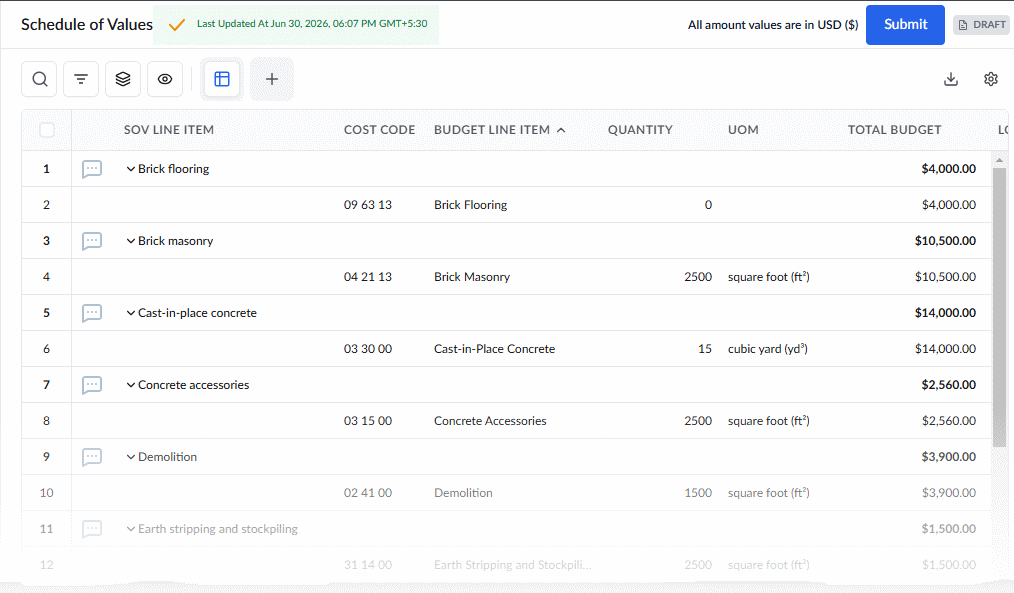
Column Descriptions:
- SOV Line Item: The label that appears on your payment applications and invoices. This is initially auto-populated with the budget item name until you create a custom group.
- Cost Code - The unique identifier of the cost/work item
- Budget Line Item: The specific cost item derived from your project budget that is mapped to this SOV line.
- Quantity: The total amount of work planned for that specific budget line item. Applies only for budget line items assigned to you.
- UOM (Unit of Measure): The unit by which the work is quantified. Applies only for budget line items assigned to you.
- Total Budget: The total monetary value assigned to the line item, representing the sum of labor, materials, and equipment.
- Location - The area or spot in the project site related to the budgeted work item
Search, Filter, and Sorting Options
- Click the magnifier icon and use the 'Search' box located at the top left to find an entry using any value from the table as search criteria
- Click any column header to sort the rows in ascending or descending order based on that column's data.
- Click the cog wheel icon at the top right to adjust the display density and customize the display and order of the columns
- The options at the top left allow you to filter the entries, create nested groups of entries, highlight cells and manage personalized and customized views of the table. Use the links below to learn more:
To create custom SOV lines with budget groups:
- Select the budget line items you want to group together, by selecting teh checkboxes in the Serial Number column.
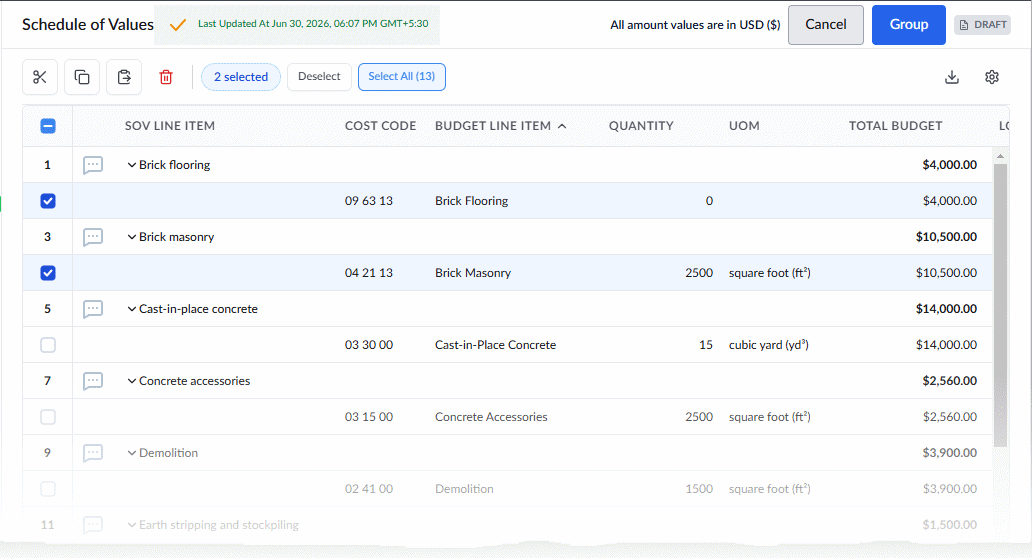
- Click the 'Group' button at the top-right to bundle them under a custom SOV label.
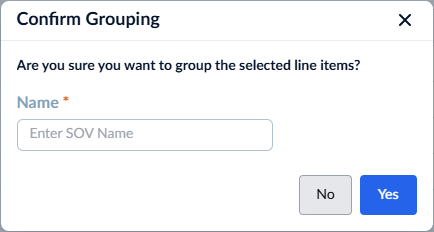
- Enter your new SOV label in the text box and click 'Yes' to continue.
- Repeat this process to sort your remaining budget lines into custom SOV line items.
You can configure your SOV with line items as you wish on include them in the pay apps untill the budget is finalized.
Submit the SOV Layout
While your draft Schedule of Values (SOV) is unlocked, you have full flexibility to rearrange line items and create custom groups as often as you need. However, once you are satisfied with the structure, you must submit the SOV to teh GC for approval.
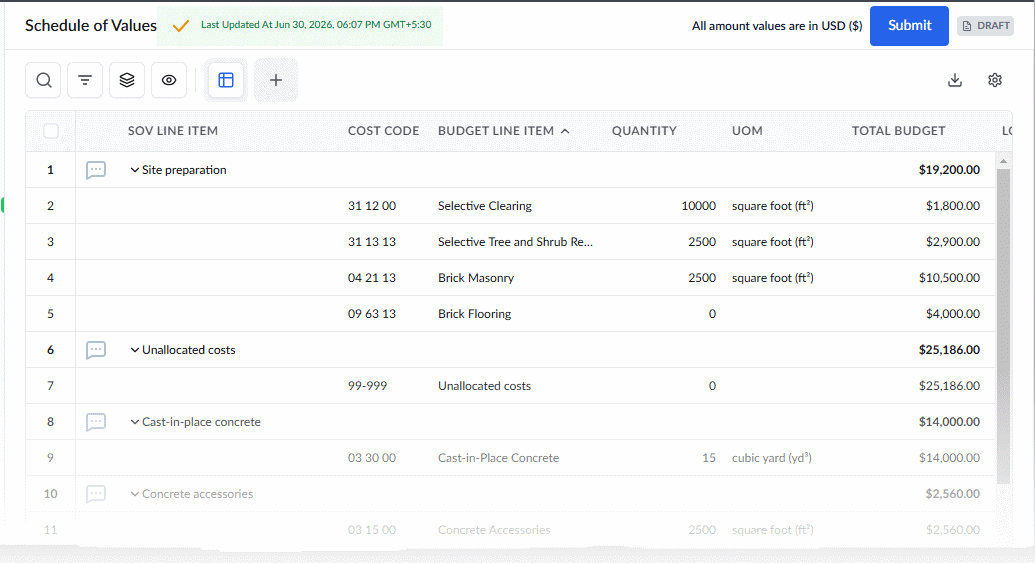
- When you are ready to finalize your layout and generate the planned billing schedule, click the 'Lock' button at the top right of the screen.
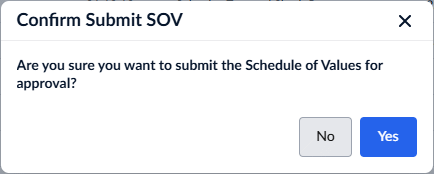
- Click 'Yes' to confirm your action and continue
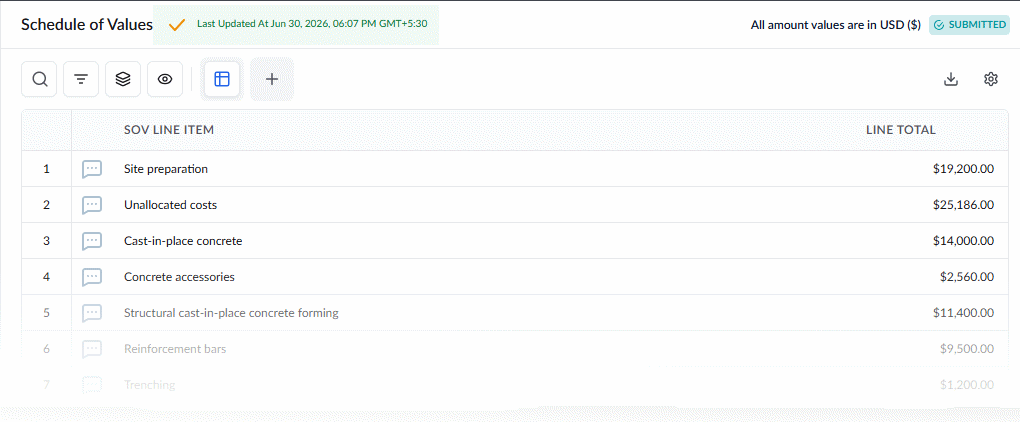
The GC reviews the SOV and approves or requests for revsion. If requested, you can reconstruct the SOV following the same procedure and resubmit to the GC.
Once approved by the GC, the screen serves as a dynamic tracker to monitor exactly how funds from your SOV line items are distributed across specific task items in the project schedule.
Track SOV Allocations Across Scheduled Tasks
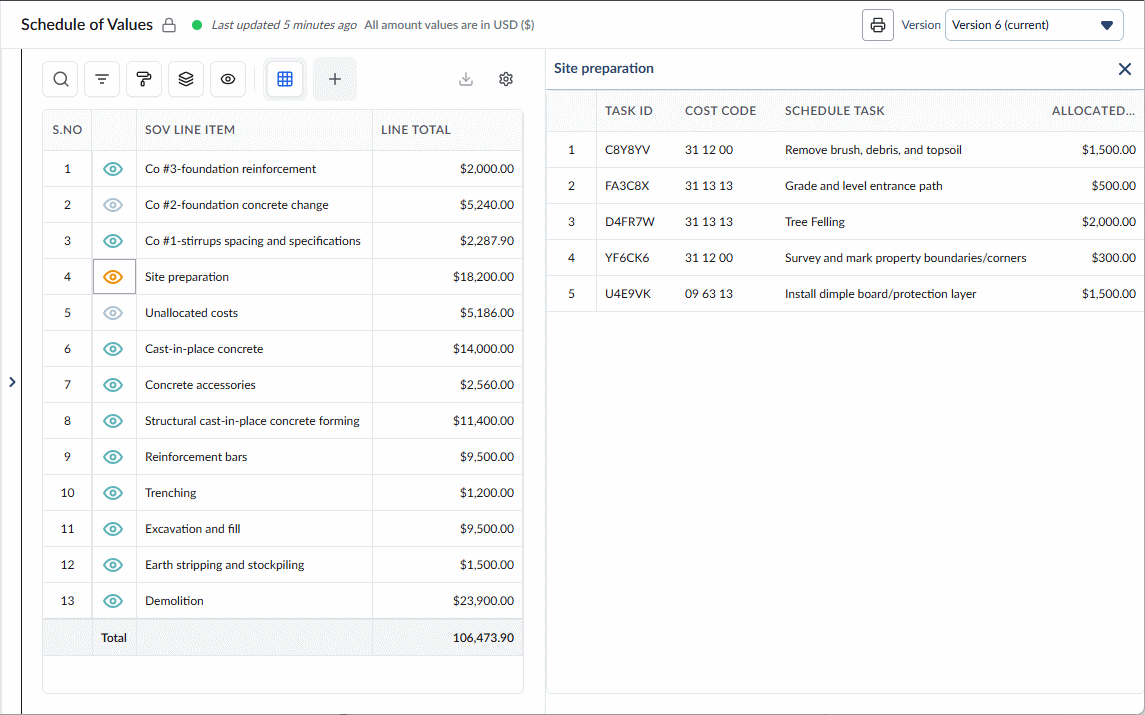
Once locked, submitted and approved, your screen is divided into two helpful dynamic panes. These panes provide realtime metrics on progress and billing of the selected SOV items:
The Left Pane: Displays your custom SOV line items with real-time financial tracking:
- SOV Line Item: The custom label assigned to your grouped items (this appears on all planned billing and pay apps).
- Line Total: The combined monetary value of all budget line items within this group.
The Right Pane: When you click the 'eye' icon in any SOV line item on the left, the right pane instantly updates to display all the scheduled tasks and deliverables funded by the budget line items in that specific group.
Update the SOV with New Budget Items
Whenever budget adjustments introduce new cost line items, your Schedule of Values (SOV) must be updated so these items can be billed in future pay applications and invoices. To allow for these changes without disrupting historical records, the system automatically unlocks your finalized SOV, creates a new version, and allows you to map or organize the new budget items.
- Automatic Unlocking & Versioning: Adding new budget items automatically unlocks the finalized SOV and generates a new SOV version. The current version displays by default, but you can view previous versions as 'Read-Only' at any time using the dropdown at the top-right.
- Flexible Item Mapping: You can map new budget lines to an existing SOV item (which automatically updates that item's total value) or establish them as standalone SOV line items.
- Custom Grouping: New items can be grouped into custom SOV categories to ensure clear structure on upcoming billing applications.
- Change Orders: Approved change orders are automatically added as new SOV line items, complete with a detailed breakdown of their underlying estimate items.
To Group New Budget Items:
- Open the project SOV
- Navigate to 'Finance' > 'Contract' > 'SOV'.
- Scroll to the bottom of the screen to locate your newly added budget items.
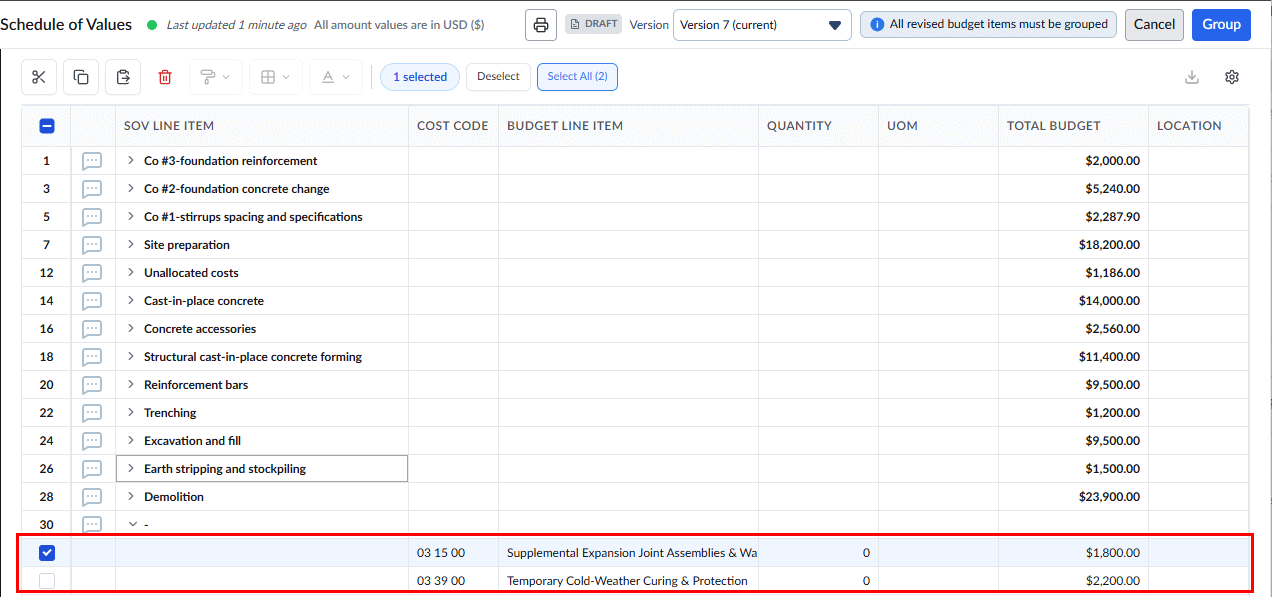
- Select the new budget line(s) you wish to assign, then click 'Group'.
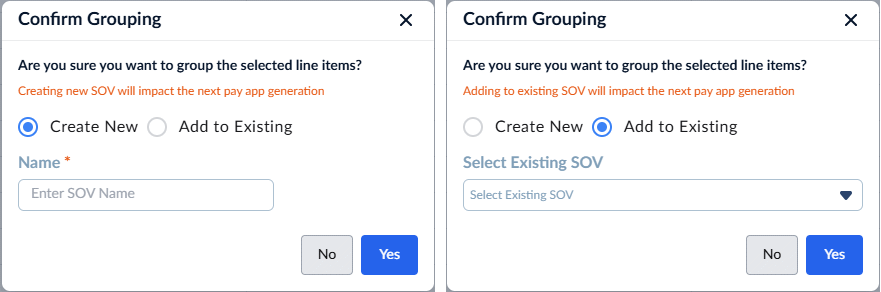
- Choose one of the following routing options:
- Create New: Select this to create a brand-new SOV line. Enter a custom label for the new item and click 'Yes'.
- Add to Existing: Select this to move the new budget line into a group you already created. Choose the appropriate SOV item from the dropdown menu and click 'Yes'.
- Repeat this process until all new budget lines are successfully mapped to an SOV item.
As you map items, monetary values update in real time and a new draft version of the SOV is created.
- Review the updated line totals and click 'Submit' to send the new SOV version to the General Contractor (GC) for approval.
GC Review & Revisions:
- If Approved, the new version becomes active for upcoming billing periods.
- If a Revision is Requested, make the necessary adjustments following the same procedure and resubmit the updated version to the GC.
Was this article helpful?
That’s Great!
Thank you for your feedback
Sorry! We couldn't be helpful
Thank you for your feedback
Feedback sent
We appreciate your effort and will try to fix the article