You can generate a PDF version of a checklist, capturing all current details in a professional, shareable format.
Comprehensive content: Automatically include all questions, responses, and attachments to date.
This is useful for record-keeping and sharing the checklist
PDF Template: Linarc ensures every checklist PDF is generated as a professional, standardized document.
- Active template: PDF output is based on the active template defined at the project portfolio level
- Customizable output: Linarc ships with a predefined library of default templates, with one set as active for the starting point. You can design a branded template that match company policies and set it as active for checklist PDFs, to override the system default.
- Flexible setup: Generate customized template from scratch or adapted by cloning and modifying a Linarc-provided template.
To create and download the PDF version
- Open the checklist if not already done. To do so:
- Click the main menu at the top-left
- Click 'Checklist' under 'Quality' from the drop-down menu
- Click on the checklist
- Click the
 'Download PDF' button at the top-right
The 'Downloads' pane displays a list of any previously generated PDF files for the checklist, if any, providing quick access to past versions for reference or review.
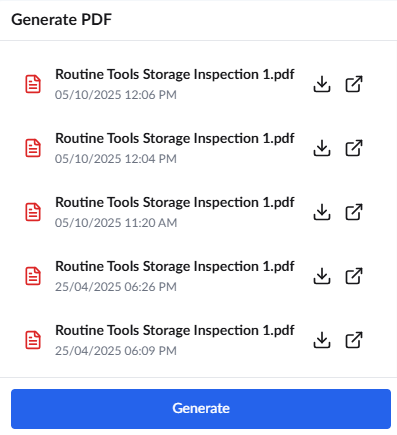
The process involves two steps:
Generate the PDF file
- Click the 'Download PDF' button at the top-right
- Click 'Generate'. The process takes around 30 seconds. You can view/download the PDF from the same pane.
The system compiles the PDF version of the checklist, as per the PDF template selected as Active. If no template is selected, the default system template is set to active. See View and Manage Project Document PDF Templates to know more about your active template.
Download the PDF file
To view/download the PDF
- Reopen the 'Downloads' pane by clicking the 'PDF' button.
The recently created PDF file is shown at the top of the list if there are multiple items.
- Click
 to open the file in a new browser tab.
 - Click
 to download it.
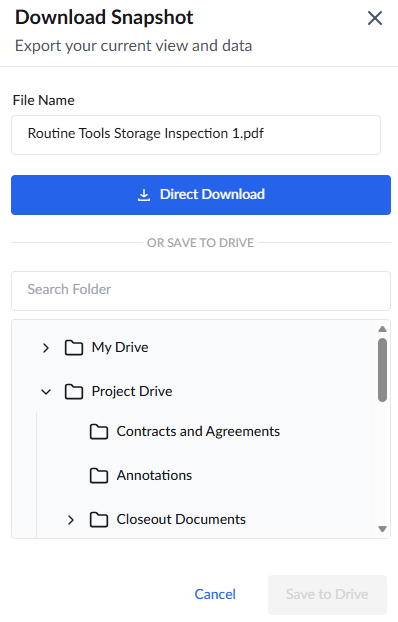
- File Name - The filename is automatically set to the name of the checklist. Enter your preferred name in the text box to override the default.
- Click the 'Direct Download' button to save the file directly to your device.
You can also save the file on Linarc's cloud-based project file repository. This allows you to share it with other team members. The folder's access permissions determine which team members can view or edit the file.
- Company Drive - Share with the project team members from your organization:
- Select the folder that corresponds to your company name
- Navigate to the desired folder and click 'Save to Drive'
- Project Drive - Share with the construction team members from any stakeholder organization:
- Select 'Project Drive'.
- Navigate to the appropriate folder and click 'Save to Drive'
Was this article helpful?
That’s Great!
Thank you for your feedback
Sorry! We couldn't be helpful
Thank you for your feedback
Feedback sent
We appreciate your effort and will try to fix the article