Linarc’s built-in Egnyte integration lets you connect your company’s Egnyte account to your Linarc account—enabling real-time synchronization between your project file repositories and your Egnyte folder.
- Automatically push all project files—including manually uploaded documents and system-generated items like RFIs, Submittals, and T&M tickets—to your designated Egnyte folders.
- Choose between real-time auto-sync or manual sync options for full control over file updates, renames, and deletions.
- Ensure secure, organized, and always-accessible file storage that supports compliance and reduces the need for manual file transfers.
Any user outside the Linarc platform can access shared project files directly through Egnyte, streamlining collaboration across internal and external teams.
Pre-requsites:
- Before you begin, ensure you have a folder in egnyte available for storing files from your Linarc projects.
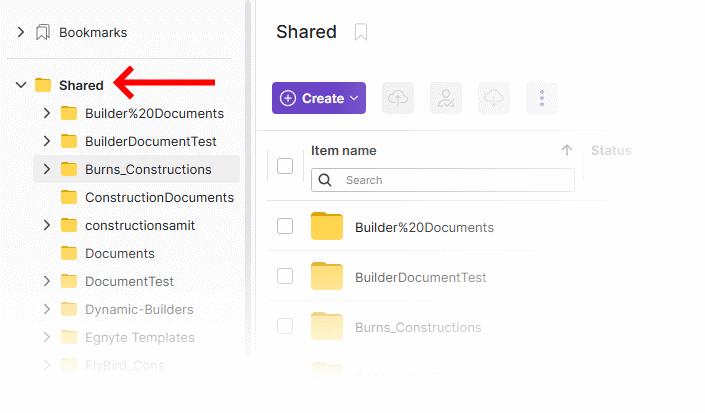
- If the folder is not already available, a new one will be created automatically under the 'Shared' directory in your Egnyte space when you enter its name in the linarc setup.
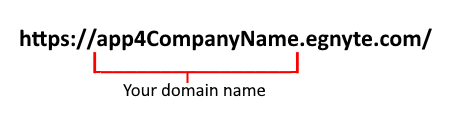
- Make a note your Egnyte Domain name and keep it ready.
Tip:
You can get your domain name from the URL of the site's home page (shown in the address bar of your browser).
- Open your Egnyte home page.
- Note down the egnyte domain from the URL:
- Folder: Choose an already existing folder from your egnynte shared folder. If the folder is not already available, a new one will be created automatically under the 'Shared' directory in your Egnyte space when you enter its name in the linarc setup.
To link your Egyte account with your Linarc account
- Log in to your company admin console
- Click 'Integrations' at the top
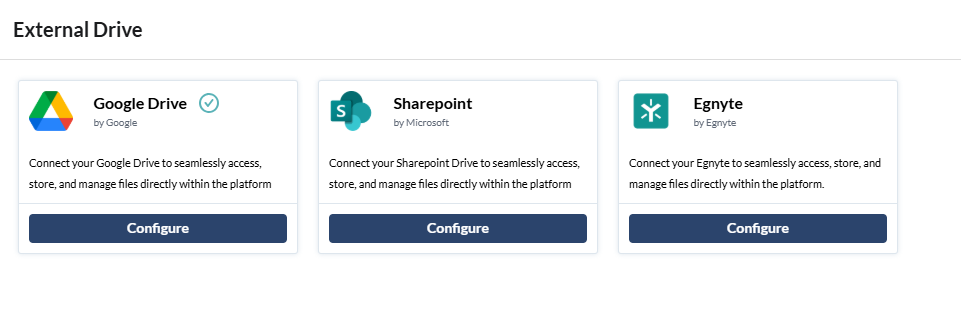
- Click the 'Configure' button under Egnyte to start

Enter the following details:
- Egnyte Domain: This is your organization’s unique Egnyte subdomain, without https:// and 'egnyte.com'
- Root Folder: The Egnyte folder where you want your project files to be stored.
- Existing folder: Enter the name of the folder which is a subfolder directly under the 'Shared Folder' in your Egnyte account
- New folder: Enter the name of the folder. A new folder will be created automatically under the 'Shared' directory on your Egnyte space when you enter its name here.
- Click the
 button to validate your details.
You will be redirected to the Egnyte login page to authorize the Linarc platform to access the site.
- Enter the username and password of your Egnyte account which you want Linarc to store your project files
The next step is to grant permissions to the platform to perform the required operations for the project file backup and synchronization.
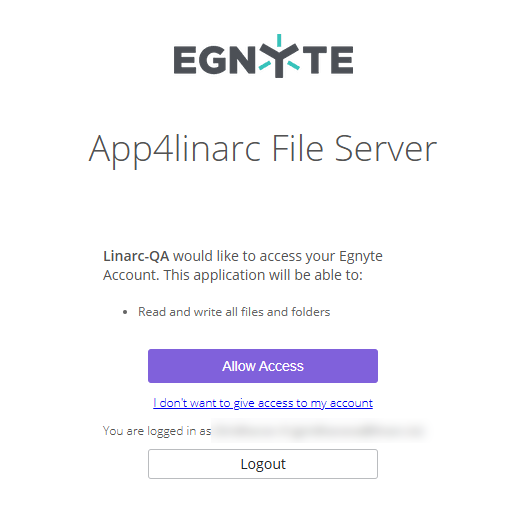
- Click 'Allow Access' to grant the required permissions
After the verification and authorization are successfully completed, the root folder is linked with your company. Once your root folder in Egnyte is linked to your company, it appears as an available external drive across all your projects.
Was this article helpful?
That’s Great!
Thank you for your feedback
Sorry! We couldn't be helpful
Thank you for your feedback
Feedback sent
We appreciate your effort and will try to fix the article