Upload folders and files on the cloud-based Linarc project file repository to a your Egnyte folder and keep them in sync, ensuring centralized, secure access to all critical project documents. This integration allows you to maintain a structured and organized file repository in Egnyte without duplicating effort. All files, whether manually uploaded or auto-generated by modules like RFIs, Submittals, or T&M tickets, are automatically pushed from your Linarc project drive to the connected Egnyte Root folder.
- Ensure all project-related documents are securely backed up in real time or on demand, based on your sync preferences.
- Allow company stakeholders and team members without Linarc access to view project files directly from Egnyte.
- The bidirectional sync automatically pushes project files from Linarc to Egnyte. It ensures that updates made to your Egnyte folders are seamlessly and instantly reflected in the Linarc project file repository.
Pre-requisite: Your Egnyte account must be configured through the Company Admin Console before you can sync project files from Linarc. If the configuration has not been completed, please contact your company administrator for assistance.
To sync your project files in Egnyte
- Ensure that you are in the 'External Drive' screen of the project management console. If not,
- Click the main menu at the top-left
- Click 'Cloud Drive' under 'Documents' menu
- Select 'External Drive'.
You can see the external drives to which you can sync your project files. Each pane will show the configuration status of the drive. From this screen, you can either set up a manual sync or enable the auto sync option to automatically sync the files as they are uploaded.
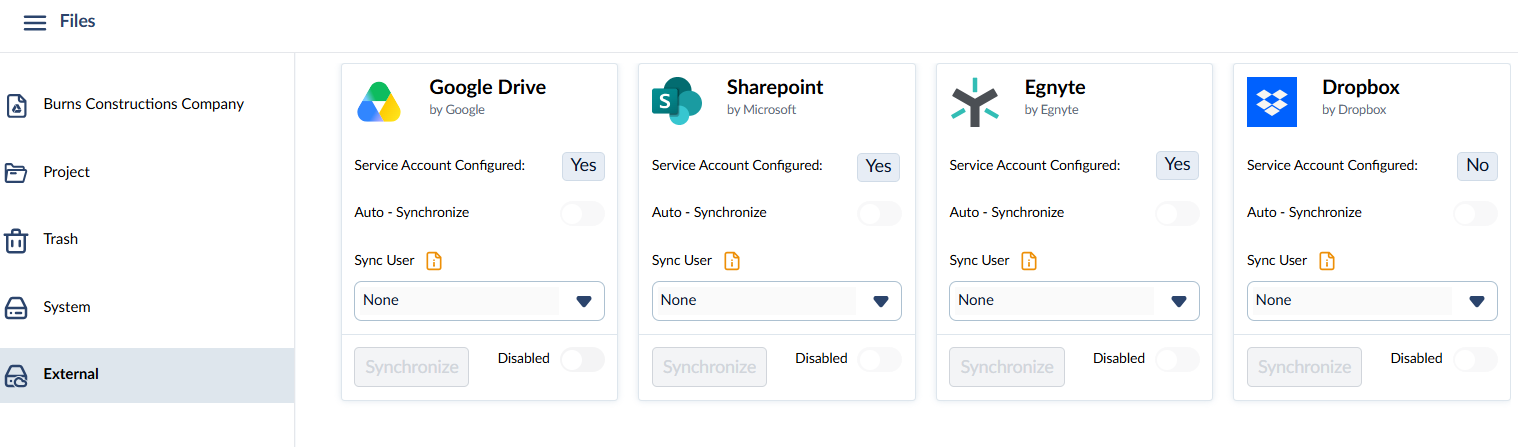
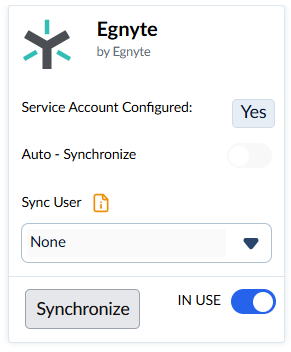
- Click the toggle switch at the bottom to set the integration to 'In Use', then click the 'Synchronize' button to initiate the export of your project files to Egnyte
Upon syncing, a new folder named after your project is created in your Egnyte folder. Within this folder, the system automatically generates subfolders corresponding to each drive (such as Company Drive, Project Drive, and System Drive) and transfers the relevant files accordingly.
- Click the 'Synchronize' button whenever you want to export the files to your Egnyte folder.
- Enable 'Auto Synchronize' for auto-synching. Any new folders/files added, deletions, and renaming of items from the Linarc console reflect on your Egnyte folder in real-time.
Enable Bi-directional Synchronization
Bidirectional synchronization ensures that any modifications made within your Egnyte account are automatically mirrored in Linarc’s project file repository, and vice versa.
To execute these automated file transfers, the integration requires a designated authentication account. You must select a specific team member to impersonate as the integration user. Linarc will use this user's authorized credentials to securely perform all read, write, and delete operations on your company's behalf.
For example, to successfully synchronize a deleted file across both platforms, this designated integration account must possess the necessary file management permissions in both Linarc and the connected Egnyte workspace.
To select an impersonating user:
- Use the drop-down to select the user.
Any new files added directly to your Egnyte folder will automatically import into the corresponding project folder within Linarc.
Was this article helpful?
That’s Great!
Thank you for your feedback
Sorry! We couldn't be helpful
Thank you for your feedback
Feedback sent
We appreciate your effort and will try to fix the article