The 'Finance Configuration' screen serves as the starting point for automating your billing cycle in Linarc. It enables the system to automatically generate submit-ready Payment Applications (Pay Apps) based on actual work completed, which can then be seamlessly converted into trackable invoices upon approval.
Use the Billing Setup screen to:
- Configure your automation preferences for generating both Pay Apps and invoices.
- Set key project financial parameters, such as your standard retainage and overhead percentages.
- Enter the paying party's contact information and your designated bank details for receiving payments.
- Ensure all your billing documents are accurately formatted, correctly numbered, and ready for immediate submission.
To protect your financial data from unintended changes, your configuration must be securely locked once the initial setup is complete. After locking, the system restricts modifications to your core settings, with the specific exception of the retainage percentage.
Leaving the retainage percentage unlocked provides crucial flexibility:
- You can reduce the retainage percentage at any time to claim a portion of the funds currently held by the paying party.
- Lowering this percentage prompts the system to automatically calculate the exact financial difference.
- Linarc then allows you to generate a targeted Pay App specifically for that newly released retainage amount.
To configure the billing details
- Ensure that you are in the Billing Setup screen. If not:
- Click the app launcher
 and select 'Finance'
 - Click 'Config' at the top
- Select 'Finance Config' on the left
- Click the app launcher
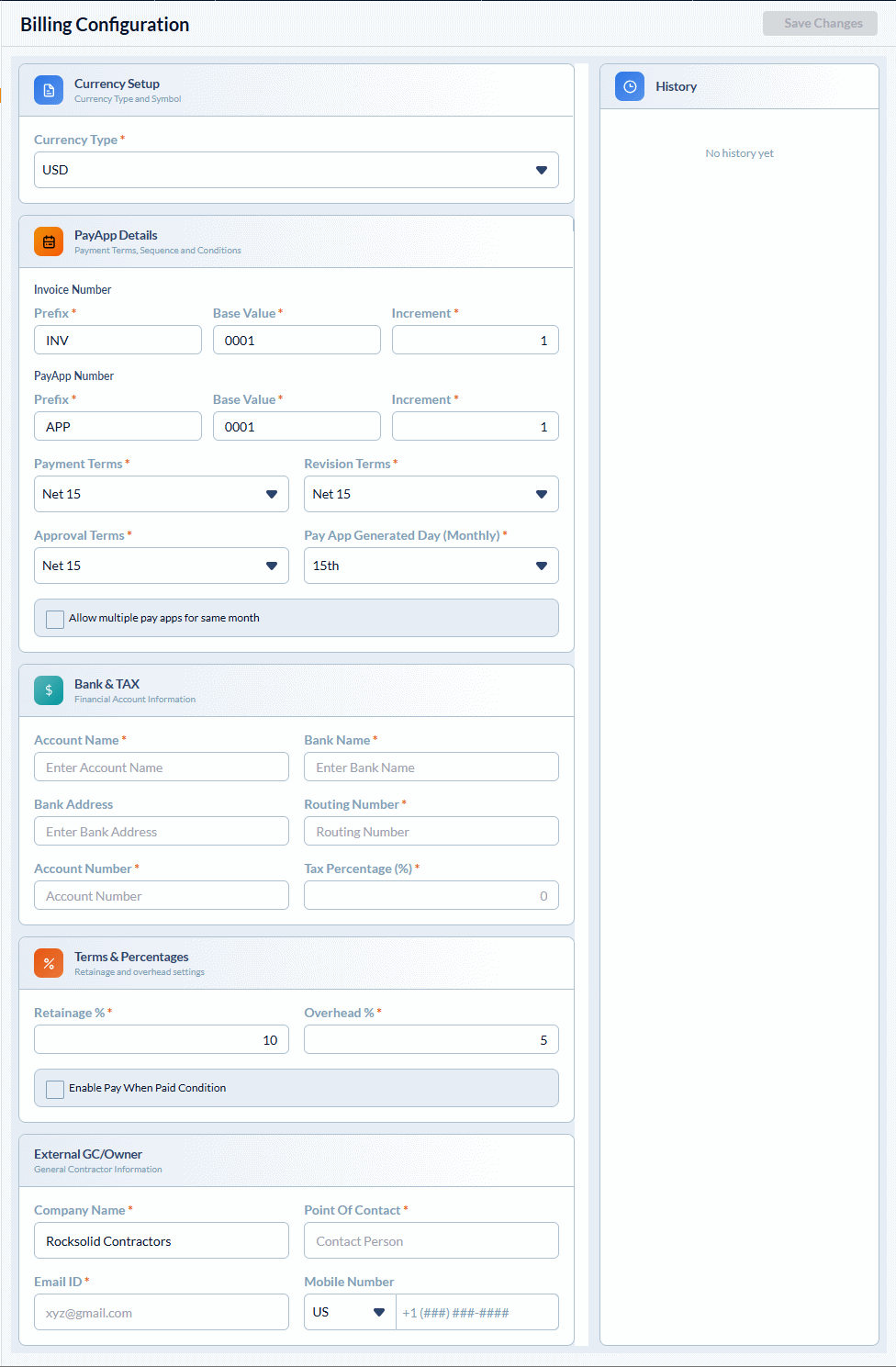
- Enter the details under the following sections:
Currency Setup The financial standard used for calculating costs and receiving payments.
Currency Type: Select the appropriate currency from the drop-down menu.
Pay App Details Define the sequential numbering structure for the Pay Apps and Invoices and payment conditions.
Prefix, Base Value & Increment: Set an alphanumeric identifier (Prefix), the starting serial number (Base Value), and the step value (Increment) for each successive document.
Payment Terms: The agreed-upon payment schedule (e.g., "Net 30" means payment is due 30 days from the invoice date).
Revision Terms: The allowed timeframe and conditions for modifying a submitted Pay App.
Approval Terms: The agreed-upon time for approving pay applications (for example, “Net 15 – Approval required within 15 days”).
Pay App Generated Day (Monthly): The specific day of the month when a Pay App becomes eligible for submission to the payor. While you can generate a draft Pay App(s) at any point during the month, the system restricts official submission until on or after this designated date.
- Allow multiple pay apps for same month - When enabled, you can progressively create multiple Pay Apps throughout the month as work is completed. The system accumulates these drafts so you can submit them all together on or after your designated submission day. This feature also allows you to include Pay Apps generated specifically for claiming a portion of your retainage.
Bank & Tax The beneficiary bank account details and tax configuration.
Account Name & Bank Name: The account nickname and the holding bank.
Bank Address & Routing Number: The bank branch's physical address and its 9-digit routing code.
Account Number: The receiving beneficiary account number.
Tax Percentage: Enter the percentage of the payment to be deducted or applied for taxes.
Terms & Percentages Set the automated calculations for withheld amounts and indirect costs.
Retainage Percentage: The portion of each payment withheld by the paying entity (usually the General Contractor or Owner) until the project is satisfactorily completed.
Overhead Percentage: The rate applied to cover indirect project expenses, such as administration and supervision. This is auto-calculated for each cost item in the budget, but you can manually reconcile them as required.
- Enable 'Pay When Paid' Condition - When enabled, your payment is contingent upon the General Contractor receiving their funds from the project owner. (Note: This setting is only applicable when the paying party is a General Contractor).
External GC/Owner The paying party's information, which will appear on all submitted Pay Apps and invoices.
Company Name: The entity responsible for paying your invoices.
Point of Contact: The individual accountable for managing payments.
Email ID & Contact Number: The email address and phone number for the point of contact.
You can modify the configuration at any time prior to locking.
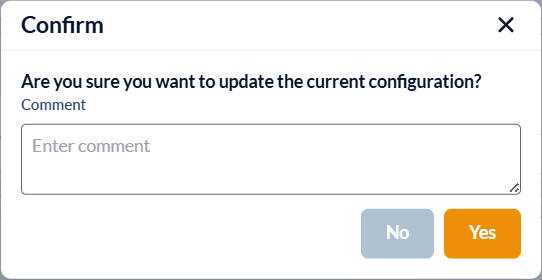
- To save your progress, click 'Save Changes', at the top-right, enter a revision note, and click 'Yes'.
Lock the Configuration
After entering all your parameters, you must lock the configuration for the settings to take effect.
Warning: Once locked, the billing configuration cannot be modified except the retainage percentage. Please review your entries carefully before proceeding.
To lock your settings
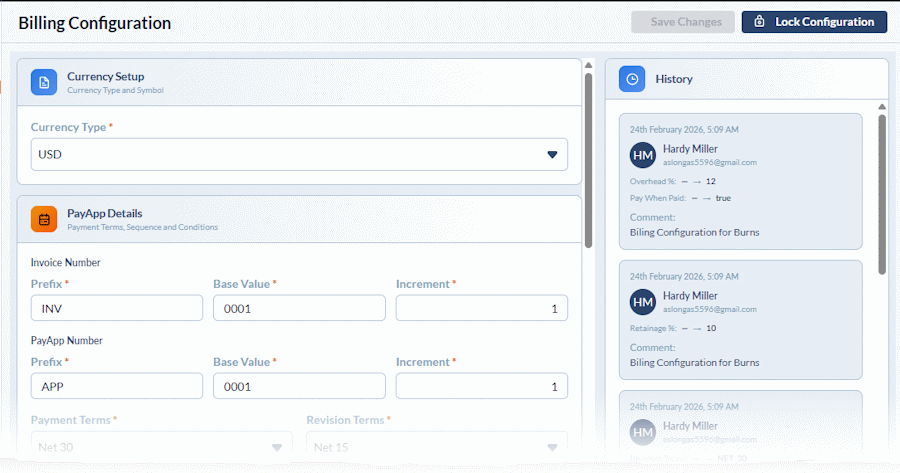
- Click 'Lock Configuration' on the top-right,
- Review the confirmation dialog, which displays a summary of the sections you just configured.
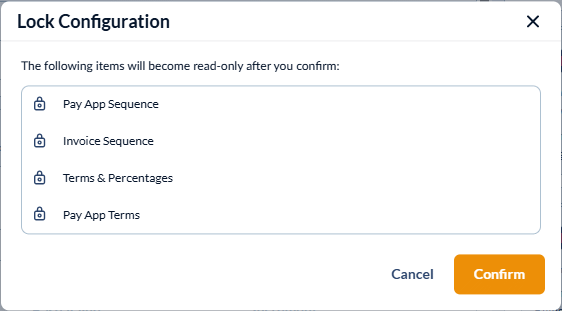
- Click Confirm to finalize your setup.
These configurations will automatically apply to all Pay Apps and invoices generated starting with your next billing cycle.
View the Change Log
The 'History' panel on the right displays a chronological record of all edits made to your billing configuration over time. 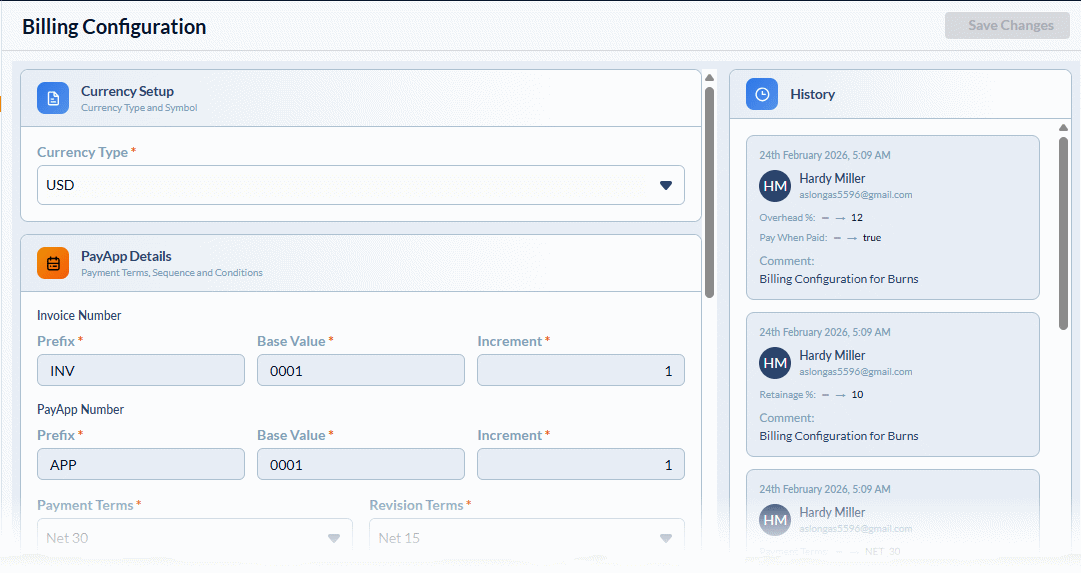
Was this article helpful?
That’s Great!
Thank you for your feedback
Sorry! We couldn't be helpful
Thank you for your feedback
Feedback sent
We appreciate your effort and will try to fix the article