The 'Requests' screen enables senior project managers and project directors to review team join requests submitted by employees for various projects within their organization. Based on project requirements, they can approve or reject each request.
Note: Access to the Requests screen is restricted to users with project admit approval permissions.
To view the project team join requests
Ensure that you are in the 'Requests' screen of the project portfolio console.
- Click 'Projects' at the top
- Click 'Requests' on the left
The screen displays a list of all join requests submitted by team members across multiple projects. Each request includes relevant details, helping you evaluate and take appropriate action.
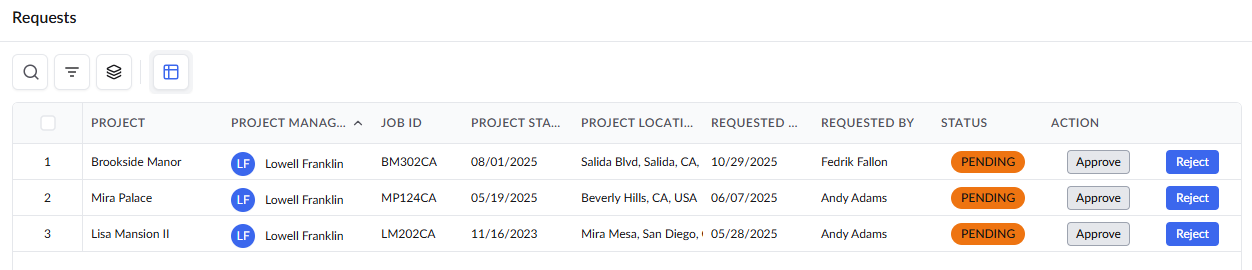
The 'Default View' shows all the standard columns. However, you can customize the table by removing the columns you don't want to see, by right-clicking on the column header and deselecting the columns, and rearranging the columns in the order you want to view. See Customize Columns in List Views for more details.
- Review the project and request details
- Click the 'Approve' button in the action column to allow the requester to join the project. Once approved, the employee becomes part of the project team and can manage the project based on the permissions assigned to their role.
- Click the 'Reject' button in the action column to decline the request.
Standard Columns
- Project - The name of the project.
- Project Manager - The principal project manager of the project from the organization that manages the project on Linarc. In the usual case, this is the PM from the general contractor. In cases where the project was created by other stakeholders and they have invited a general contractor, then the PM of the company that created the project is the principal PM.
- Job ID - The unique alphanumeric identifier for the project. The Job ID is useful in specifying the project when you are doing bulk actions, like uploading job cost data combined for several projects at once.
- Project Start - The commencement date of the project.
- Project Location - The address of the construction site.
- Requested on - The date on which the request was made.
- Requested By - The staff member who placed the request
- Status - Whether the request was accepted, rejected or pending
- Action - Allows you to approve or decline the request
Search, Filter, and Sorting Options
- Click the magnifier icon and use the 'Search' box located at the top left to find an entry using any value from the table as search criteria
- Click any column header to sort the rows in ascending or descending order based on that column's data.
- The options at the top left allow you to filter the entries, create nested groups of entries of the table. Use the links below to learn more:
Was this article helpful?
That’s Great!
Thank you for your feedback
Sorry! We couldn't be helpful
Thank you for your feedback
Feedback sent
We appreciate your effort and will try to fix the article