The scheduler grid allows allow you to efficiently organize and navigate items using nested grouping. This feature helps you quickly locate entries of interest by grouping items based on shared column values.
Nested Groups
You can create multiple levels of grouping by selecting one or more columns. For example:
- Start by grouping items by the assigned contractor.
- Then, add a second grouping by Task Code to further organize the items within each contractor group.
The result is an accordion-style view, where each parent group can be expanded to reveal its nested child groups, making the data more structured and easier to scan.
- Grouping is flexible—you can apply multiple levels in sequence to tailor the view exactly to your needs.
Automatic Subtotals
The system automatically calculates subtotals for all applicable numerical fields, for example, the effort hours in each last-level (leaf) group. These subtotals appear as the final row within each group, giving you a quick summary without manual calculations.
Custom Views
You can save any grouped view as a custom view, making it easy to return to a specific layout whenever needed. These views can also be shared with team members to ensure consistency across your organization.
To learn more, see Manage Custom List Views.
To add grouping rules
- Click the group icon


- Click '+Add Group'
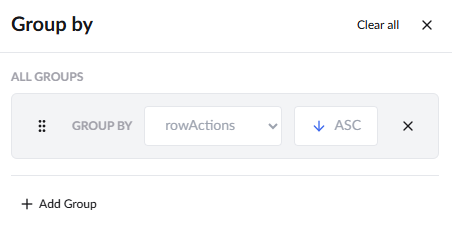
- Select the column as your first grouping criterion. The gird is grouped with respect to the selected column in ascending order by default.
- Click the
 button to toggle the order to descending
- Click '+Add Group' and repeat the process to add nested groups
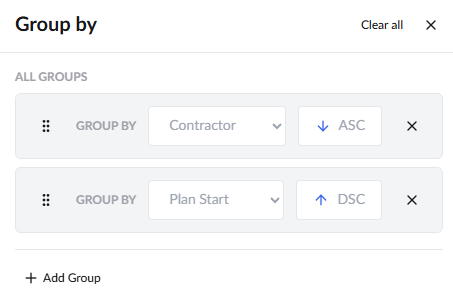
- You can easily adjust the order of nested groups by dragging and dropping the grouping criteria, allowing you to rearrange the hierarchy to suit your needs.
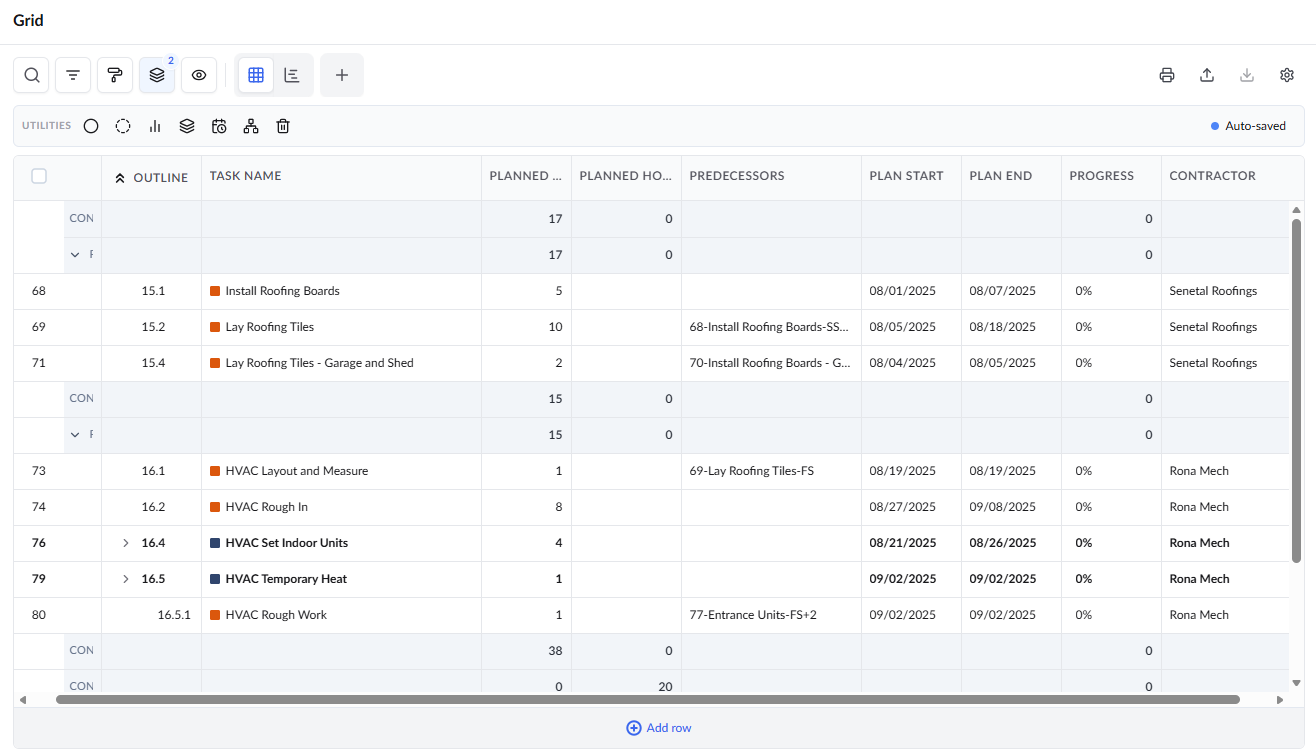
In the example above, the schedule is initially grouped by contractor assigned, followed by grouping the tasks based on the planned start in descending order. You can continue adding as many grouping criteria as needed to further drill down and organize the items. By default, all numerical data is aggregated to display a summary at the bottom of each group.
- Click X near the grouping category to remove that individual group.
- Click 'Clear all' to remove the grouping settings.
Was this article helpful?
That’s Great!
Thank you for your feedback
Sorry! We couldn't be helpful
Thank you for your feedback
Feedback sent
We appreciate your effort and will try to fix the article