The 'Site Location' screen shows the construction site on a map. Project managers can set up a geofence around the site and define the site access.
- The geofence defines the boundary within which your crew members should be present during their working hours.
- The digital timecard records accept in-time entries and the other time card entries made by the crew members only if they are within the geofence.
- Set up the site threshold to allow temporary movement outside the geofence. If a worker is away from the geofence for more than a specified threshold period, he/she will be clocked out.
- If no site threshold time is configured and the worker is away from the geofence for more than 5 minutes, he/she will be clocked out. The worker should clock in again to start his time card entries.
- The site access defines the entry/egress points of the site for crew/equipment entry, material deliveries, etc.
- The plus code and the site coordinates are created for the site based on the site's access location.
Use the following links to get guidance on the respective sections
To set up the geofence and the site access
- Open the management console of the project
- Click the app launcher icon
 in the top-right, then select 'Field.'
 - Click 'Site' on the top, then choose 'Geofence' on the left
The site is shown on the map with a default geofence and site access:

Note: You cannot change the site location once the project starts.
Set up a Geo-fence
- Click
 at the top right.
There are two options:
- Click the 'Circle' or 'Rectangle' to create the geofence with standard shapes. The geofence is added with a standard size.
- Use the handles at the edges of the geofence to resize it to the exact dimension needed.
- Click the 'Shape' and draw a geofence of a custom shape around the site.

- Click the 'Save Site' button for your settings to take effect.
Set up site access
- Click the 'Access' button
- Click on the location where you want to set the site access
- Drag the blue pin to the exact spot
- Click the 'Save Site' button for your settings to take effect.
Set up site threshold
- Open the management console of the project
- Click the app launcher icon in the top-right, then select 'Field.'
- Click 'Site' on the top
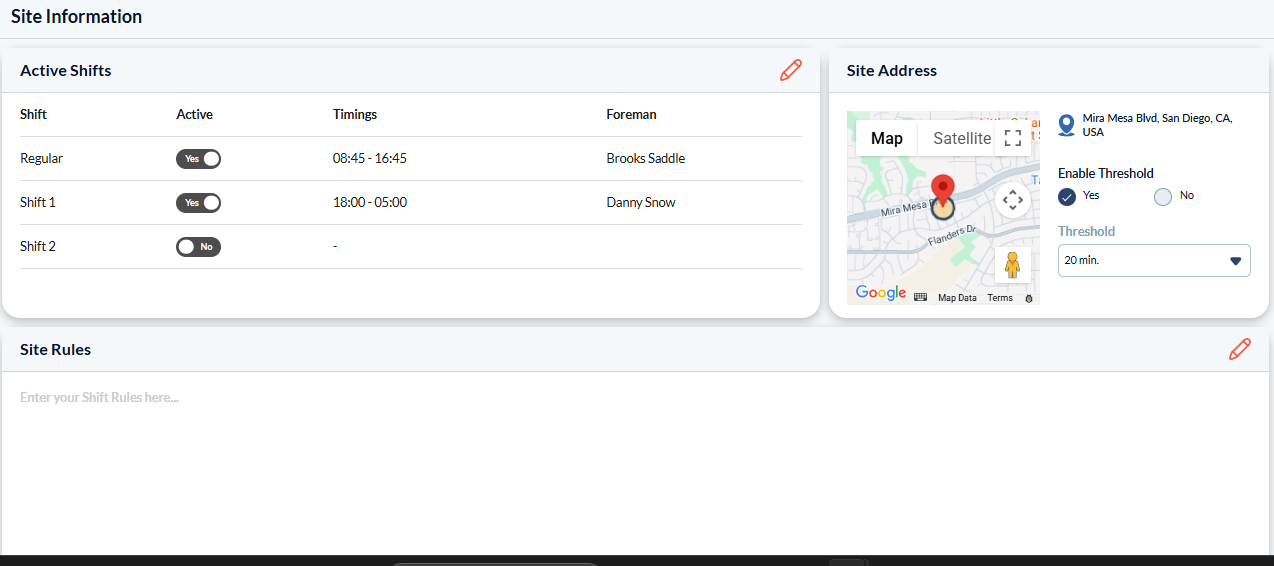
On the site address pane on the right, enable the site threshold.
- Click 'Yes' and select the threshold time limit from the drop down.
Was this article helpful?
That’s Great!
Thank you for your feedback
Sorry! We couldn't be helpful
Thank you for your feedback
Feedback sent
We appreciate your effort and will try to fix the article