The Look Ahead screen allows the Project Managers in the office to review project tasks out on the field, monitor progress, and track upcoming work without needing to be on site. It provides a clear overview of active schedules and their associated tasks for effective planning and coordination. You can:
View all published and in-progress tasks within the selected Look Ahead period for effective short-term planning.
Monitor progress updates submitted from the field, including task status, issues, and crew assignments.
Access and review draft, active, and closed Look Ahead schedules to compare previous tasks and progress
Identify schedule dependencies and manage manual roadblocks, or location constraints to ensure tasks are fully unblocked before field execution.
To view the look-ahead schedule
- Click the main menu on the top-left and select 'Schedule' under 'Scheduler' from the menu drop-down pane.
- Click 'Look Ahead' on the left.
The current active look ahead schedule (if any) or draft look ahead opens by default. If no look-ahead schedule is active, in draft or in review, you can create one. See Create a Look Ahead Schedule for more details.
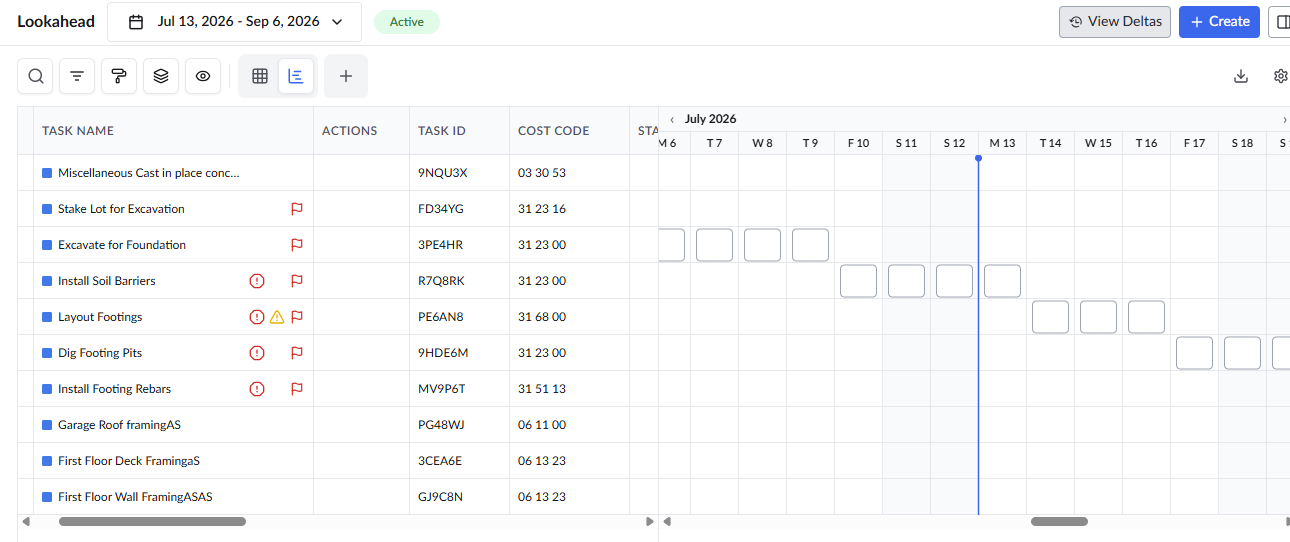
The tag at the top center displays the current status of the Look Ahead.
Draft - The planning stage of the Look Ahead. Multiple drafts can exist for pulling, adding, or removing tasks before sending it to the field.
In Review - Sent to contractors so they can review tasks, commit to dates, or propose changes.
Active - The live Look Ahead schedule guiding daily field execution and real-time progress tracking
Closed - A past schedule that is locked from edits but preserved for reference, reporting, and audit history.
The lookahead section allows you to:
Select and View a Saved Lookahead
To view other Look Aheads that are in draft, closed or in review status, open the date range drop-down at the top left and select the desired period.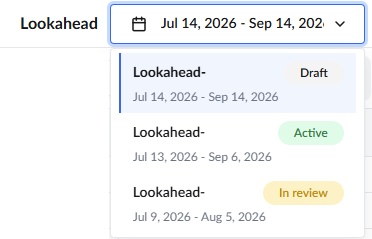
The lookahead open in 'Grid + Gantt' view by default. Use the  icon at the top to switch to 'Grid' view. The available columns in the grid are based on the status of the look ahead schedule.
Standard Columns:
- Task Name- The label of the task, deliverable, or activity. Icons appearing next to the task name provide quick visual indicators of its status and priority:
 | - | Indicates the task is a critical task. |
 | - | Indicates the task is currently halted by an active blocking constraint. |
 | - | Indicates the task has a warning constraint, placing it 'At Risk' for potential issues or delays. |
- Actions - Contains tools to manage the task
 | - | Remove the task from the current draft look ahead schedule |
 | - | Add a task to the current draft look ahead schedule |
 | - | Add crew members to the task.(This icon is available in active look ahead schedule for self managed tasks to add crew members of your company) |
- Task Id - The system-generated alphanumeric code for the task used internally by various modules in the platform
- Cost Code - The unique code to identify the task in various modules in the platform
- Status - The current operational state of the task.
- Ready - The task is cleared for field execution with no pending dependencies or active constraints.
- Blocked - The task cannot start due to an unresolved schedule dependency or a manually added blocking constraint.
- At Risk - The task is flagged for a potential delay due to a manually added warning constraint, or a location conflict (e.g., multiple contractors scheduled to work in the exact same location on the same date).
- Progress - The current completion percentage of the task.
- Planned Start - The scheduled commencement date of the task. The planned start date auto-populates for dependent tasks based on the relationship with the predecessor task.
- Planned End - The completion date of the task. Auto-calculated from the Plan Start date and the Planned Days. You can also manually enter the planned end date so that the planned days gets auto-populated.
- Planned Duration - The total number of working days scheduled to complete the task.
- Planned Quantity - The total amount of work done/deliverables planned for the task.
- Actual quantity - The amount of work done/deliverables realized with the current progress state.
- Unit of Work - The unit by which the work quantity/deliverable is measured.
- Location - The spot on the site where the task is executed.
- Contractor - The contractor to whom the task item is assigned. Subcontractors and standalone contractors can view only the tasks assigned to them.
- Crew Assigned - The total number of crew members or specific workforce teams allocated to execute the task.
- Columns available for Lookahead schedule 'In Review'
- Commitment - Shows the status of the contractor agreement to the scheduled dates
- Committed: The contractor has reviewed the task and officially agreed to execute the work within the scheduled dates. For self performed work the status automatically changes to committed
- Pending: Awaiting the contractor's review and response
- Proposed: The contractor is unable to meet the originally scheduled timeline and has suggested alternative start or end dates. The general contractor will need to review and accept these new dates and can change it in the master schedule or proceed to publish the schedule
- Review - Action to review the task, accept the schedule, or suggest new dates.
View Task details and Daily Overview
Monitor the daily production metrics, crew assignments, and any active constraints affecting the work with a detailed view of any task at any time.
- Click the
 icon on the left of the task to open its details slider pane on the right.
The 'Overview' tab
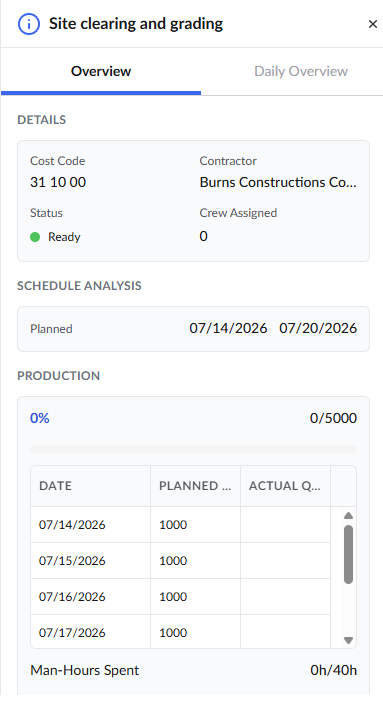
Details - Displays general information including the Cost Code, the assigned Contractor, the current Status, and the number of Crew Assigned.
Schedule Analysis - Shows the overall planned duration for the task
Production - Highlights the overall task progress, a breakdown table showing daily planned quantities against actual quantities for each number of planned days for the task.
Man Hours Spent - Tracks the planned vs actual man hours spent on the task from the field
Constraints - This section displays prerequisites or roadblocks affecting a task, including schedule dependencies,
The 'Daily Overview' tab
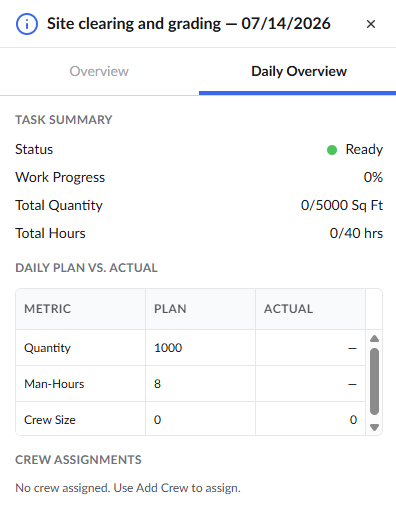
Task Summary - Displays the task Status, Work Progress , Total Quantity and Total Hours.
- Daily Plan vs. Actual - Shows a comparison of planned metrics and actual outcomes on the current date.
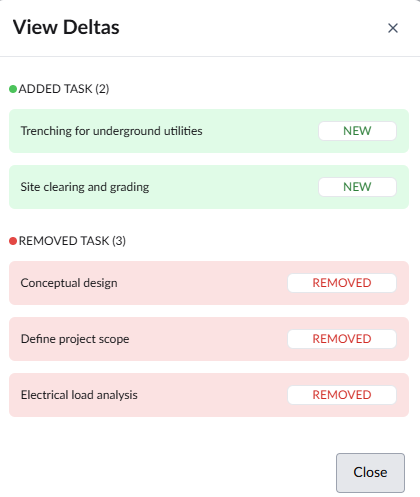
View Schedule Deltas
Gain a clear overview of variances between your previous and current Look Ahead schedules to quickly identify newly added tasks. This ensures you can proactively adjust site logistics, equipment, and laydown areas for the new work.
- Click the 'View Deltas' button at the top
- Added Task (Green): Displays brand-new tasks introduced in the current active schedule that were not in the previous period lookahead.
- Removed Task (Red): Displays tasks from the previous schedule that have been removed or pushed out of the current active lookahead.
Was this article helpful?
That’s Great!
Thank you for your feedback
Sorry! We couldn't be helpful
Thank you for your feedback
Feedback sent
We appreciate your effort and will try to fix the article